
مرحبًا بك عزيزي القارئ في العدد 100 من حديث الأربعاء. أستعرض فيه القليل من الأخبار والنوادر، والجديد من هنا وهناك. لذلك هيا معي لنطالع فحوى هذا الحدث الجديد!
Category: Docky (Page 1 of 2)
I blogged about Docky a few years ago when I moved to Ubuntu from Windows as I needed something to replace Nexus dock, and later RocketDock, and I added it to a post about the best docks for Linux and Windows.

Introduction
Docky is the dock to go to when using Ubuntu, it’s fast and it’s light, not to mention it’s free, it has two branches for development which I find to be a bit confusing!
One of the branches is stable but lacks features, and the other crashes often but is full with features.
What if there was a dock that had the best of both branches? Stable and fully featured? Meet Plank everyone!

Plank
Plank is a fork of Docky that is shipped by default with the popular operating system Linux Elementary. It is based on Docky 3.0.0 according to the Plank wiki, and it’s aimed to be the simplest dock available, to preform what a dock is supposed to do, and I couldn’t agree more!
How to install Plank?
In a terminal window enter these commands one by one to install Plank, and after it’s done you can find it by searching the name in any interface you use.
sudo add-apt-repository ppa:ricotz/docky # <- is not a typo
sudo apt-get update
sudo apt-get install plank
Configuring Plank
By right clicking an empty place in the dock you can summon the preferences of Plank, but that proves to be a little difficult, so by typing the command: plank –preferences
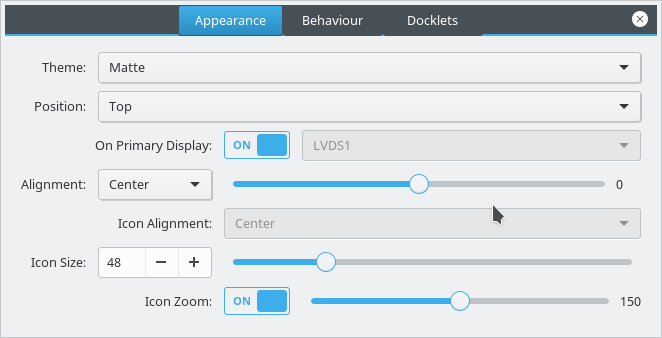
to adjust and fine tune the settings of Plank.
How to add executables as shortcuts to plank?
If you are using plank on Ubuntu you know that you can’t add executable files right to the doc, you need to add the icon to the program directory and then add the icon to the dock, here is a really simple way to do it from here.
My verdict
It’s the best dock I used so far, so light and does exactly what it should, without having to choose between two branches and having to roll back packages.
What do you use on your system? Are you considering Plank? Share your thoughts in the comments section below, and don’t forget to share the post on social media 🙂
To end this series on my blog, I choose Gnome as interface, and went through some steps and issues to make it work properly. Now these are some notes and changes I made.
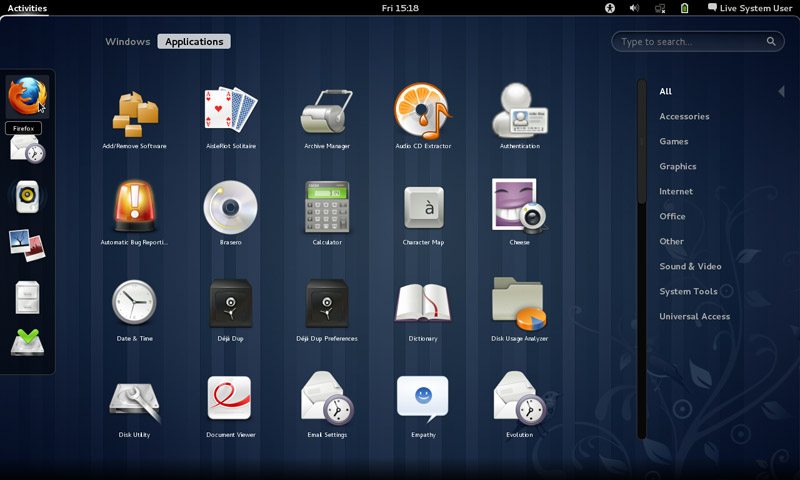
Gnome interface
I tried to use native apps as much as I could, with some exceptions of course!
That meant dropping Docky and Kupfer for the sake of the native launchers in Gnome.
I also merged the use of some apps and discarded some others to save space and for the sake of minimalism:
I added a clipboard extension manager and dropped Diodin.
Added a weather widget because it seemed convenient!
Merged the note keeping with the journal, that means rednotebook took the boot (Which really is really sad to me, but I need to move on!).
Had to replace RSSowl which I used for over 4 years on daily basis for QuiteRss to save space.
Uget replaced XDM downloader, that’s until FDM lands on Ubuntu!
I replaced Ubuntu tweak with Bleachbit.
Gnome Clocks , and pompodro timer does what Instant boss does exactly! Totally proved it’s worth as a timer app with great functionality!
uGet is better than XDM in terms of interface and development, as for video download the feature is missing some features like grabbing the name, so having Clipgrab is a good idea.
Gedit is by far the best editor I’ve seen in a very long time!! Better than atom and sublime (let’s not forget it’s native with Gnome).
I’m using Evolution for e-mail and calendar (task management), in place of the great (and huge) Thunderbird, and Tasque.
There were some native apps that I had to replace
Nothing is better than VLC to display media and stream, period!
Tomboy isn’t the best personal wiki, and it still can’t import and export notes properly, so my verdict with Zim desktop wiki stands! I found some bigtemp files in the /Root/Desktop folder (had to access as root to clean them), which won me back 4GB of free space! Here is a fair warning: If you are using Ubuntu 14.04, then the latest supported version of Gnome is 3.12.2 and don’t ever EVER try to update it, you will windup with a system that won’t boot. Also, don’t try it on Unity, it won’t work no matter what you try.
If you like the Gnome interface and would like to have the latest version, consider downloading distros that use it like Fedora or OpenSuse, if you want Ubuntu, there is a flavor called UbuntuGnome which supports the interface natively.
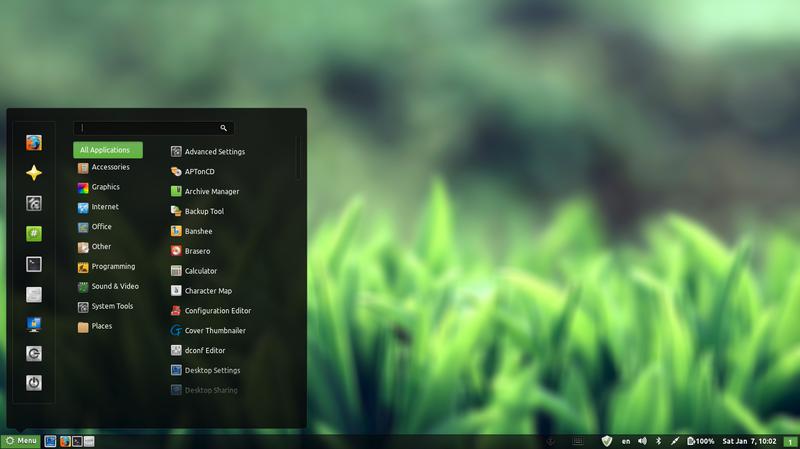
Last week I posted about wanting some change by changing the interface, and took a look at several interfaces, this post is the second part, where I actually chose an interface and got down to business.
I decided to go with Cinnamon, it’s visually appealing and the download size is relatively small (51.4 MB). My only concern was reading online that it’s buggy and has many problems. But I was willing to take a chance!
At first I installed Cinnamon using these commands
This command is to add the repository to my system.
sudo add-apt-repository ppa:lestcape/cinnamon
This command is to update and install.
sudo apt-get update && sudo apt-get install cinnamon.After the first reboot I had Cinnamon as an option on the login screen, which still looked like it was in XFCE and I had to enter my password twice! (it’s a common bug actually!)
I figured that deleting Xubuntu will fix my problem, so I began deleting Xubuntu, once and for all!
I used several commands to make sure the interface went away, like:
sudo apt-get -f install
sudo apt-get clean
sudo apt-get autoclean
sudo apt-get update
sudo apt-get purge xfce4
The second command is probably the longest I ever used, thank god for copy and paste!!
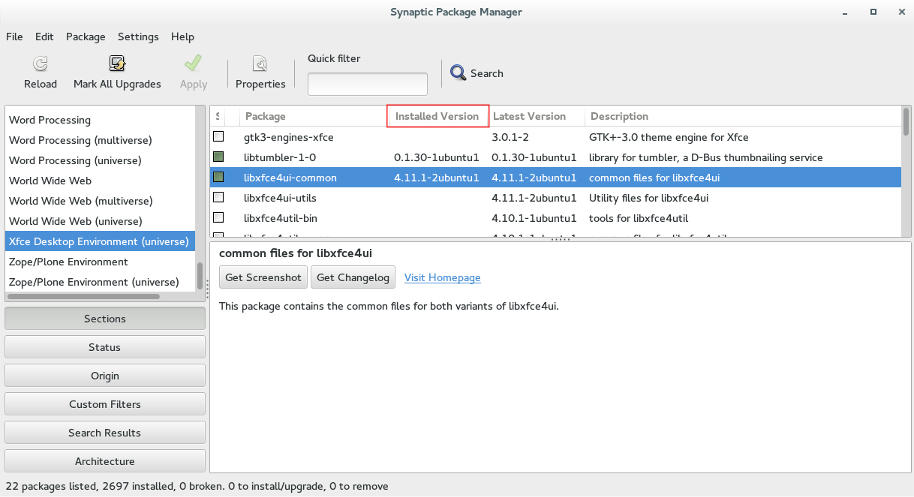
sudo apt-get remove abiword abiword-common abiword-plugin-grammar abiword-plugin-mathview bison blueman brltty-x11 catfish elementary-icon-theme exo-utils flex gigolo gimp gimp-data gmusicbrowser gnome-icon-theme-full gnome-system-tools gnome-time-admin gnumeric gnumeric-common gnumeric-doc gstreamer0.10-gnomevfs gthumb gthumb-data gtk2-engines-pixbuf gtk2-engines-xfce indicator-application-gtk2 indicator-messages-gtk2 indicator-sound-gtk2 indicator-status-provider-pidgin leafpad libabiword-2.8 libaiksaurus-1.2-0c2a libaiksaurus-1.2-data libaiksaurusgtk-1.2-0c2a libao-common libao4 libaudio-scrobbler-perl libbabl-0.0-0 libclutter-1.0-0 libclutter-1.0-common libclutter-gtk-1.0-0 libcogl-common libcogl5 libconfig-inifiles-perl libencode-locale-perl libept1 libexo-1-0 libexo-common libfile-listing-perl libfont-afm-perl libgarcon-1-0 libgarcon-common libgdome2-0 libgdome2-cpp-smart0c2a libgegl-0.0-0 libgimp2.0 libglade2-0 libgnomevfs2-extra libgoffice-0.8-8 libgoffice-0.8-8-common libgsf-1-114 libgsf-1-common libgstreamer-perl libgtk2-notify-perl libgtk2-trayicon-perl libgtkmathview0c2a libhtml-form-perl libhtml-format-perl libhtml-parser-perl libhtml-tagset-perl libhtml-tree-perl libhttp-cookies-perl libhttp-daemon-perl libhttp-date-perl libhttp-message-perl libhttp-negotiate-perl libid3tag0 libido-0.1-0 libilmbase6 libio-socket-ssl-perl libjpeg-progs libkeybinder0 liblink-grammar4 libloudmouth1-0 liblwp-mediatypes-perl liblwp-protocol-https-perl libmad0 libmailtools-perl libnet-dbus-perl libnet-http-perl libnet-ssleay-perl liboobs-1-5 libopenexr6 libotr2 libots0 libpolkit-gtk-1-0 libsexy2 libtagc0 libthunarx-2-0 libtie-ixhash-perl libtimedate-perl libtumbler-1-0 liburi-perl libwv-1.2-3 libwww-perl libwww-robotrules-perl libxfce4ui-1-0 libxfce4util-bin libxfce4util-common libxfce4util4 libxfcegui4-4 libxfconf-0-2 libxml-parser-perl libxml-twig-perl libxml-xpath-perl libxss1 lightdm-gtk-greeter link-grammar-dictionaries-en m4 mpg321 murrine-themes orage parole pastebinit pidgin pidgin-data pidgin-libnotify pidgin-microblog pidgin-otr plymouth-theme-xubuntu-logo plymouth-theme-xubuntu-text python-configobj python-glade2 quadrapassel ristretto screensaver-default-images synaptic system-tools-backends tango-icon-theme tango-icon-theme-common tcl8.5 thunar thunar-archive-plugin thunar-data thunar-media-tags-plugin thunar-volman ttf-droid ttf-lyx tumbler tumbler-common xchat xchat-common xfburn xfce-keyboard-shortcuts xfce4-appfinder xfce4-cpugraph-plugin xfce4-dict xfce4-fsguard-plugin xfce4-indicator-plugin xfce4-mailwatch-plugin xfce4-mixer xfce4-mount-plugin xfce4-netload-plugin xfce4-notes xfce4-notes-plugin xfce4-notifyd xfce4-panel xfce4-places-plugin xfce4-power-manager xfce4-power-manager-data xfce4-quicklauncher-plugin xfce4-screenshooter xfce4-session xfce4-settings xfce4-smartbookmark-plugin xfce4-systemload-plugin xfce4-taskmanager xfce4-terminal xfce4-utils xfce4-verve-plugin xfce4-volumed xfce4-weather-plugin xfconf xfdesktop4 xfdesktop4-data xfwm4 xfwm4-themes xscreensaver xscreensaver-data xscreensaver-gl xubuntu-artwork xubuntu-default-settings xubuntu-desktop xubuntu-docs xubuntu-icon-theme xubuntu-wallpapersFinally I used Synaptic to make sure nothing titled XFCE was there, I used the custom filters Sections XFCE desktop environment universe to wipe anything that was left.
Now I was running Cinnamon alone on my computer, and immediately I notice why it was dubbed as “Buggy”..
It was true, Cinnamon was buggy! I noticed several issues right off the bat!
A minor video issue was resolved in one of the reboots (no fix for that sadly).
The power manager is acting up, either this fixed my battery somehow or it’s just not reading it right!
I had to fix Docky like I did after the partial upgrade. This time locked all parts of it.
I rearranged the Grub menu items, now Ubuntu is top, I Also renamed it from Xubutnu to Ubuntu on the boot menut using Grub Customizer.
I was left with a buggy but pretty interface, and the login was messed up! Next week I’ll post what I did next, stay tuned!
أنا الفائز بجائزة المدون المنتظم لعام 2025 من موقع مرجع التدوين
