Category: English Post (Page 48 of 97)

Zim-Wiki: Where have you been all my life?

I’ve come across Zim-Wiki while searching for the best note pad application , in this review I shall talk about why it has become my go to application for almost everything!

A true al l in one solution!

Before installing Zim-w iki I used several software to do a part of the functionality it has!
Zim-Wiki logo
Zim-Wiki logo

I used Rednote book as a daily journal and Tasque to make to do lists while using basket notes as a personal knowledge database! Talk about a cluttered data life!

Now after migrating to Zim- wiki I replaced all o f that software for more versatility, more functionality and more focus!  Which in turn made me a lot more productive! Less resources an d more work done!

Zim -wiki is light weight and cross platform (Windows and Linux). It operates like a wiki so it makes it easy to store and retrieve data and link pages together.

It’s simple and easy to use. And the interface is pretty straight forward. And gets the job done.

  • I also look into the import / export feature as I need to backup and restore data quite often, and without it , it would be useless like Tomboy (now Gnotes).
  • It is amazing! Just look at t h e plugins like the  box backup. It seems perfect so far.
  • It has a journal feature, it can log events against days on the calendar, if you like to keep your program count down, it’s a good idea to use the embedded journal and abandon other applications. You can access the journal feature by clicking the calendar icon on the right.
Zim-Wiki interface
Zim-Wiki interface

Plugins

Zim Desktop wiki is expendable with the use of plugins, you can download and install many plugins from this site,  and access them from the menu :
 

Edit Preferences Plugins

It also supports word count and many other editor features to make the experience complete like the distraction free mode, just hit F11 and enjoy! It can be used to write a book as well, you can make your book the main folder and then distribute it on the pages and link it all together easily!

I did mention that LibreOffice is the best book writing software out there, looking closer at Zim-wiki, LibreOffice won by a nose!


Tags

You can use the tag feature by typing @ before any word, that will be a tag, and it will be displayed in the tag pane , it’s used to c ollect and sort da ta and make finding things easier inside notebooks.


Restoring after delete

If you delete a page by mistake you can easily recover it from the recycle bin (or trash, depending on your system).

Check the help embedded for more cool tips on how to use Zim desktop wiki.

Download and install


You can download Zim wiki by visiting the website and downloading a .deb archive to install, or you can add the repository so it grabs updates automatically as a part of the system update.

sudo apt-get add-repository ppa:jaap.karssenberg/

zim
sudo apt-get update 

sudo apt-get install zim

Z i m -wiki as a to do list app

I used to use Tasque to handle my daily tasks but not anymore! Now I enable d the Task list plugin and I was set! It’s that good! Enable the plugin by going to:  


E dit Preferences   Plugings Task list


After that you will see the checkbox icon, add the word todo to any line to make it a task, strike it through to mark it done!

If you want to see a checkbox then go to Insert Checkbox list.
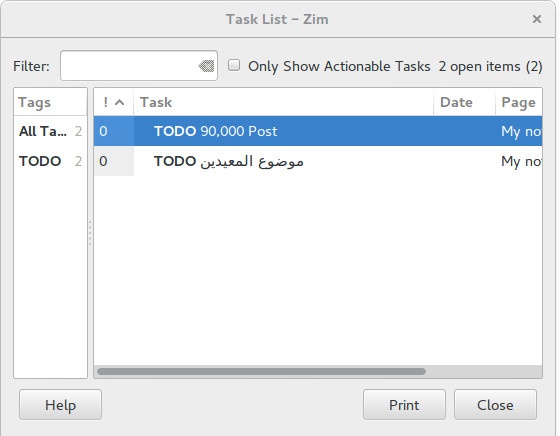
 

Zim-wiki task list plugin

Zim-wiki as GTD software

Although Zim-Wiki wasn’t developed to be a GTD (Getting Things Done) application, it can be edited easily to support the productivity plan, you can find this tut orial on Zi m -wiki’s site that tells you ho w to make it.


Markdown e d itor

If you like to use Markdown to style your documents and work then you don’t need to look for other tools! Zim-Wiki has you covered with Markdown support!

< ” Rati ng

Zim -wiki is awarded 4.95 on the Ubuntu software center receiving tons of positive feedback, so it has to be good! It’s also well received on Alternativeto.net

Honorable mentions

In this bit I’ll mention some other apps and why I stopped using each of them.
  • I started with Treepadlite and I didn’t like the interface.
  • I also tried CodeLib which was really good except the random crashes and the heavy memory foot print.
  • After that I used Tomboy which I really loved excepts the fact it doesn’t export notes which made me lose lots of notes. Also it’s tricky to figure which GTK library to use with on Window s.
  • I then adopted BasketNotes. Which was really really good. Except for one thing. It is a K D E application and for that I needed lots of libraries that Xubuntu didn’t have, and that made it heavy and prone to crashing.

So I decided to export the notes and find a suitable software for my needs. Here comes Zim-wiki!


What note keeping software so you use? What feature do you prefer the most?
Sharing is caring, share this post with your friends.
Installing VirtualBox on your computer

We talked about installing VirtualBox on our computer, to do that we will go to VirtualBox.org and download the latest version for our system. And as soon it finishes downloading we start the install.
This post is using version 5
Before beginning you need to go to your BIOS and enable the “Enable Visualization option” so your computer can handle them better!
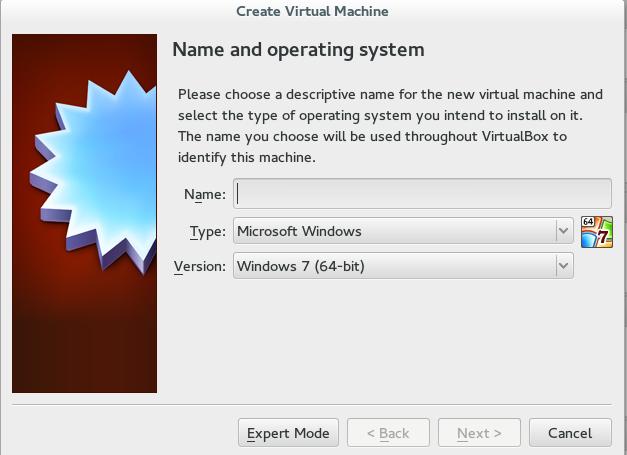
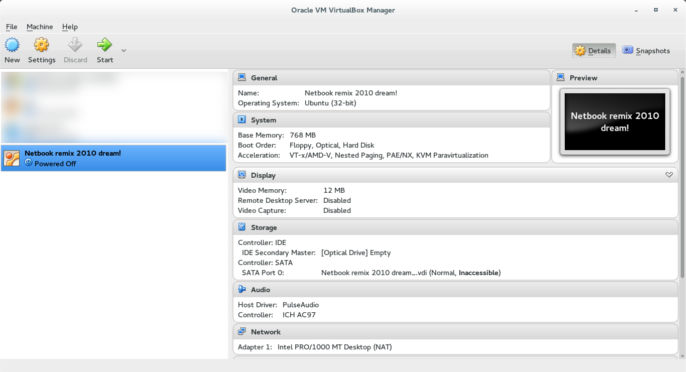
Installing VirtualBox is pretty straight forward, and as soon as you finish you will have the main interface of the program, it uses wizards and it’s very easy to use.

As soon as it runs it will ask you to determine an Operating system to run, define the name and system type, the hardware specifications, size and type and location of the virtual machine and the machine is created!

You need to have licenses for the systems you are installing. Installing Windows in a virtual environment doesn’t mean it you can use a pirated version of it!

It’s recommended never to surpass the actual hardware capacity of your system, and it’s best to leave the specifications as recommended.

Also don’t overload your system, if you crash the OS system then all of the machines will crash too.

VirtualBox interface

Once you set the virtual machine you need to install the actual system inside of it, it’s totally safe and it won’t harm your host system. You need to own license to the systems you need to install, but if you are installing Linux you are free to install it without legal restrictions as the GPL license allows you to.

Installation varies depending on the system and you can find many installations detailed here in this blog, having a virtual machine is a good place to learn how to install new systems safely.

Creating a new Virtual machine

Once the system install is finished, you are ready to use your guest system.

You can’t access your host drives from a guest, for that you need to download the Extension pack to be able to access folders on your system.

Go to VirtualBox.org and download the extension pack suitable for the version you downloaded,I linked the extension pack suitable for version 5.

After installing it you are able to add the folders you wish to share from host to guest as network folders, or you can use a cloud or a USB to transfer data!

To make sure that the USB works you need to add your user to the VMBOX user group, and the eaiset way to do so is by opening a terminal windows in Ubuntu and writing this command:

sudo usermod -a -G vboxusers $USER


Did you like this post and find it useful? Share it with your friends too! Sharing is caring!

Gdevelop, free game design software

If you are interested in making games, to learn how to program or simply for having fun. Then this is for you!

Gdevelop Logo

Gdevelop is cross platform, free and open source. And best of all: You don’t need to learn how to code!
Just go to the website. Download the version for you and get to go, you can make native games or HTML5 games.

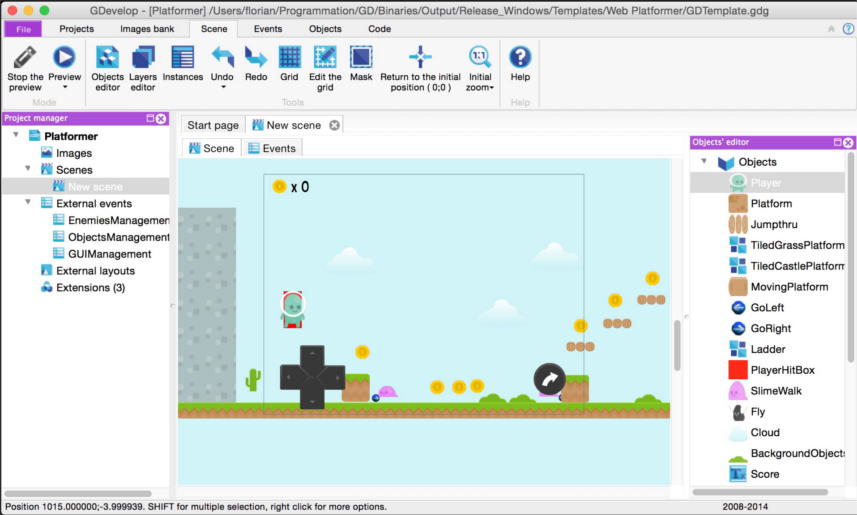
The main interface has the scenes, events, sprites. In short everything you would expect of a game design software.

There are many example games to play with and learn from. You can download games from the community as well!

The only draw back is it’s resource extensive especially when compiling games. But the rest should be really smooth!

I worked with game maker and jump craft and this is my absolute favorite, due to the active and friendly community and continued support.

Gdevelop's main interface

There is also a rich wiki with tutorials and videos for you to learn!

It’s less than 70 MB so go download it now! Make your own fun!

Did you ever make a game? What did you use? Tell us your experience!
Share this with your friends, sharing is caring 🙂

« Older posts Newer posts »