Category: Error (Page 2 of 2)

Top 3 common issues faced when dualbooting

Dual booting can bring many perks if done properly. It’s like having two computers working together. And a really good idea in case one of the systems fails, you will have a configured running system and your work flow won’t be affected by the fail. As I had to fresh install Windows 10 from scratch (because the rollback failed).

There are some minor disturbances to take care of first. And those are mostly caused by Windows.

1. Ruins the dual boot.

I have a complete post about this topic! No matter what you do. Installing Windows will erase any grub boot data and you won’t be able to access your other system (in my case it was Xubuntu) I made a whole post dedicated to this as a part of the dual boot saga. So please checkout the post for the fix.

2. Time is always wrong

As you use Windows you will notice your time settings are forgotten every time you shutdown.

  • This is quite easy to fix as you just need to edit a registry key to set the time once and for all. From run open regedit.exe and navigate to :
    HKEY_LOCAL_MACHINE>SYSTEM>CurrentControlSet>Control>TimeZoneInformation
  • Create a dword32 key and name it “RealTimeIsUniversal” And set the value to 1 by double clicking on it.
  • Lastly reboot to Ubuntu and then to Windows and your issue will be fixed.

3. Error mounting drives

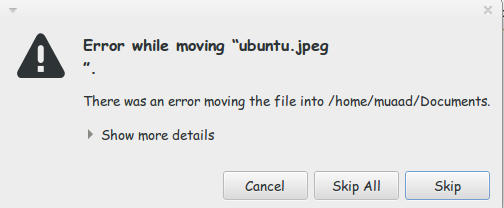
3. I couldn’t mount the data drive because Windows is still not totally shutdown, the drives are being used to “fast boot” in order to be able to use the drive without error, we need to disable fast boot. The screenshot shows an error caused by fast boot on Windows.
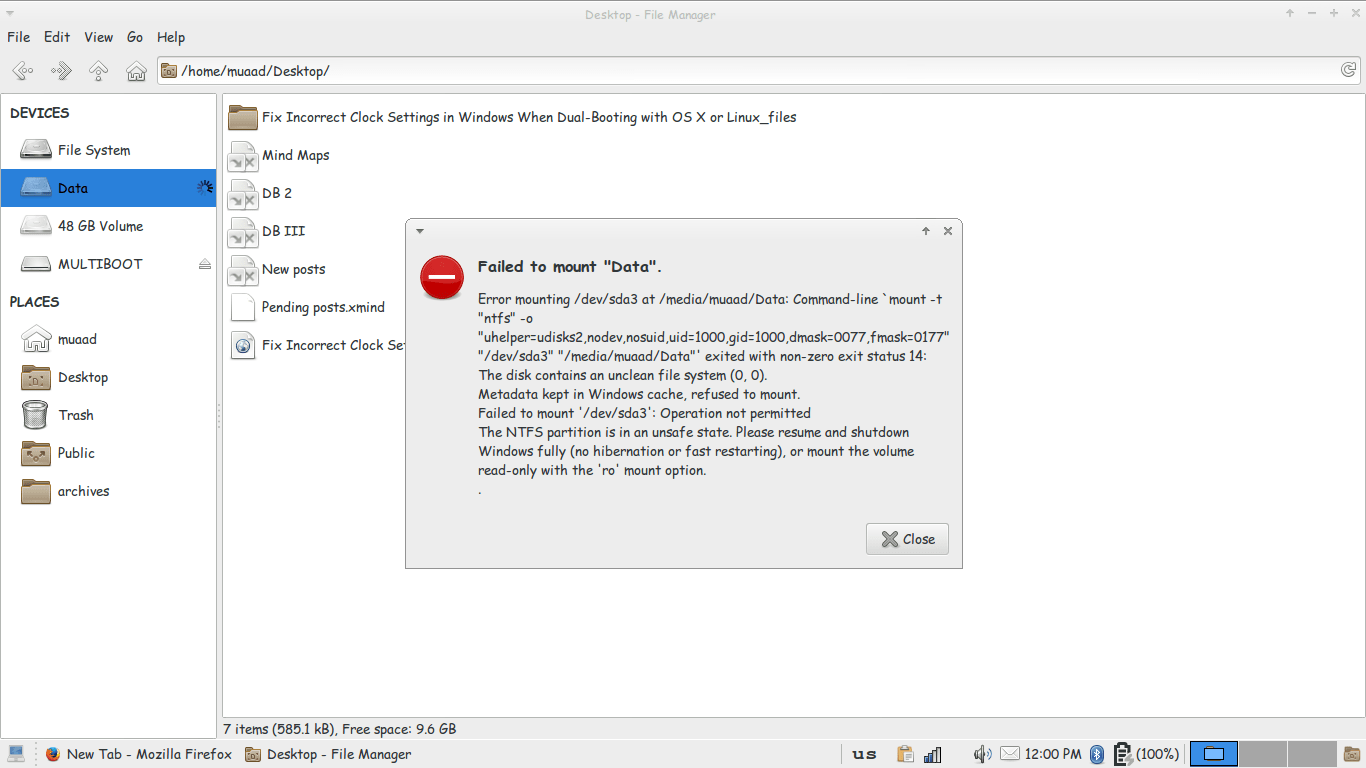
Error mounting drive in Ubuntu
Since it’s caused by Windows, we go and disable it from Windows.
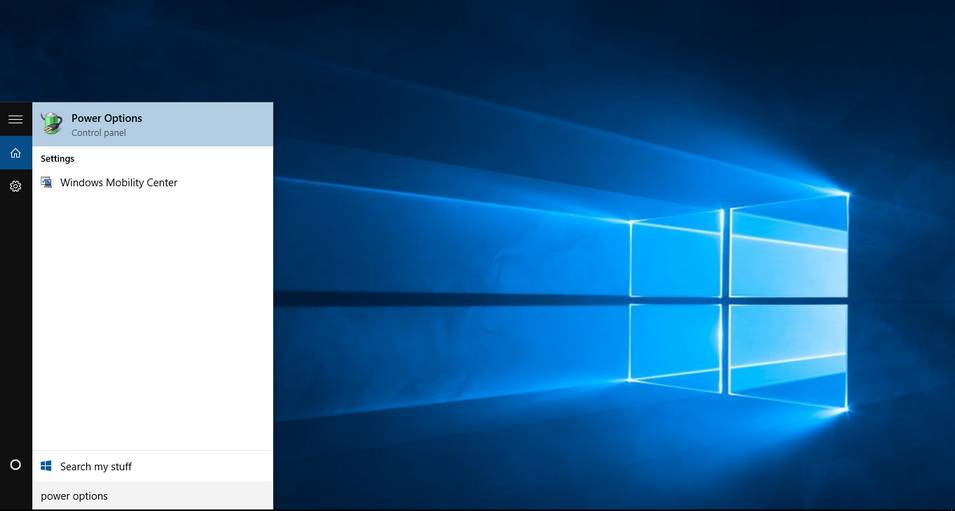
Go to Start menu and type: Power Options and click on the choice.
Type in power options in the search bar
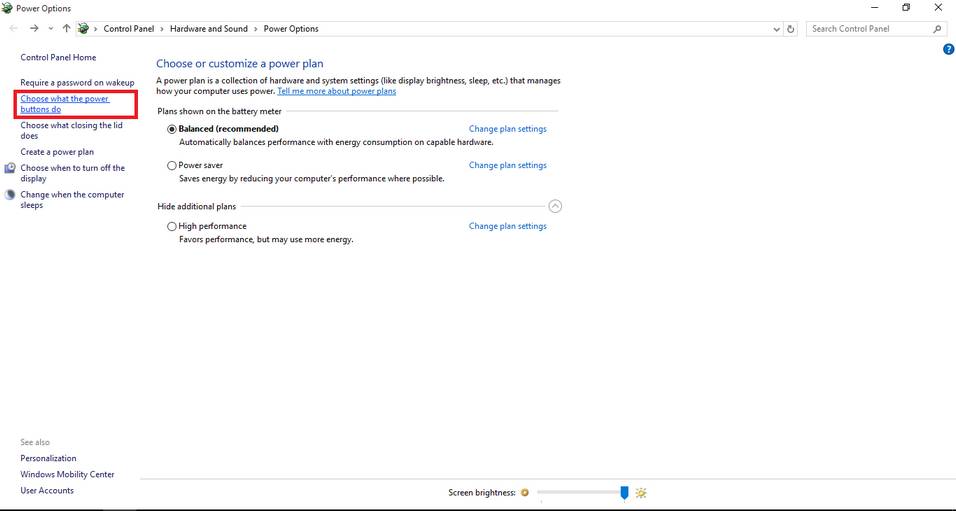
From there click on choose what the power buttons do.
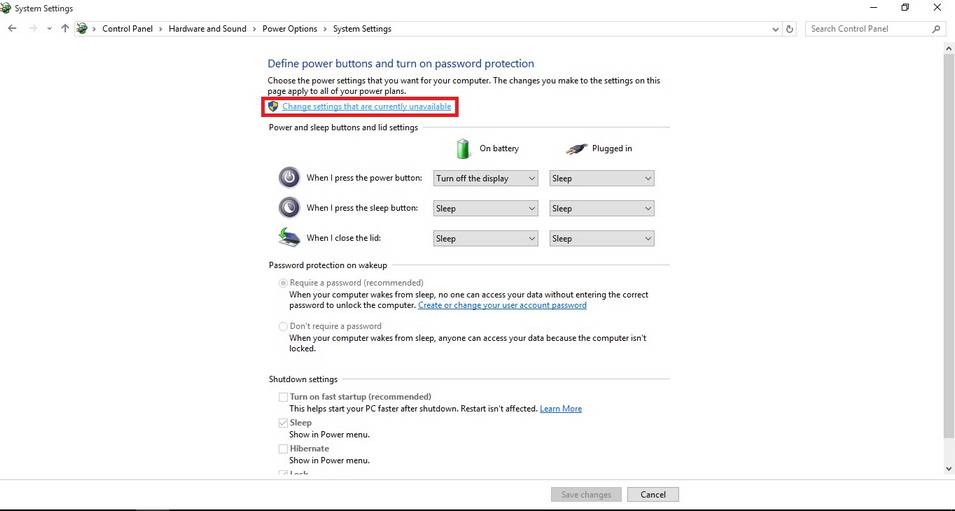
Click change settings that are currently unavailable to unlock the greyed options.
change settings that are currently unavailable
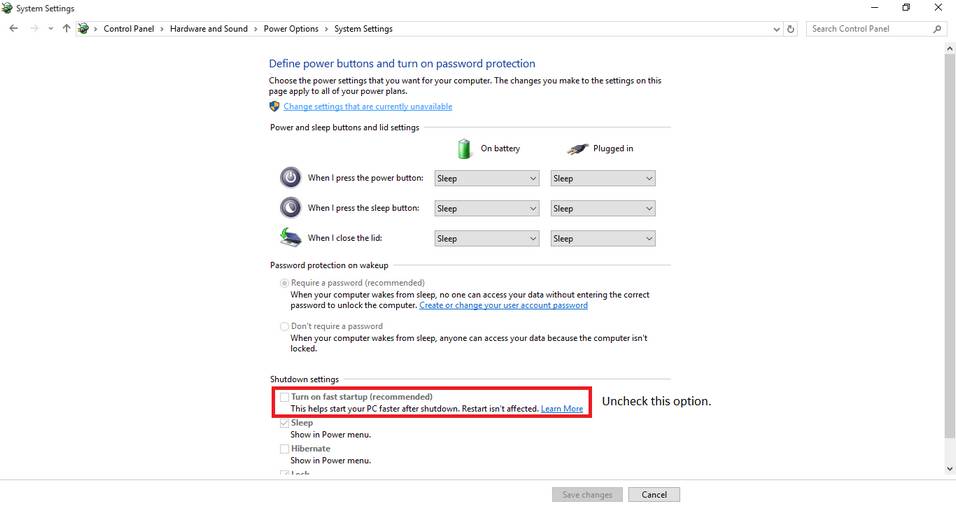
Then uncheck turn on fast startup. And close the window.
Uncheck turn on fast startup
Once the fast boot is disabled you will be able to access all the drives from Ubuntu without a problem.
Here I tried to list my experience on dual booting to help with these three bugs I faced twice. I hope you find it useful 🙂

Error moving “file” on Uubuntu 14.04 fixed!!

Hey there fans! How are you keeping?
This bug has been one of my Pet Peevs on Ubuntu. Luckily I was able to fix it easily!! 

I noticed this bug when I switched from the default Thunar to Natilus on Xubuntu (While the title says Ubuntu, they are both the same, technically)

I used the desktop often while copying and handling files. What was strange that every time I tried to cut/copy from the desktop to another directory I get this error message

Error while moving "file"

“error while moving “ubuntu.jpg”.
There was an error moving the file into /home/user/documents/
show more details
error moving file: No such file or directory

That was weird! The file does exist! It’s right there!
I kept working around it by opening desktop in the file manager and moving the files. But that wasn’t handy!

Here is what I did to fix it:

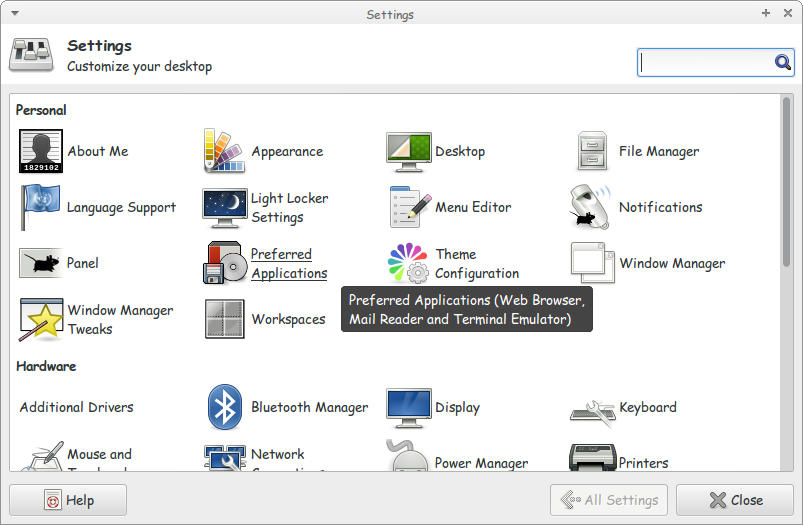
1. I went to settings and clicked Preferred applications.

Settings menu

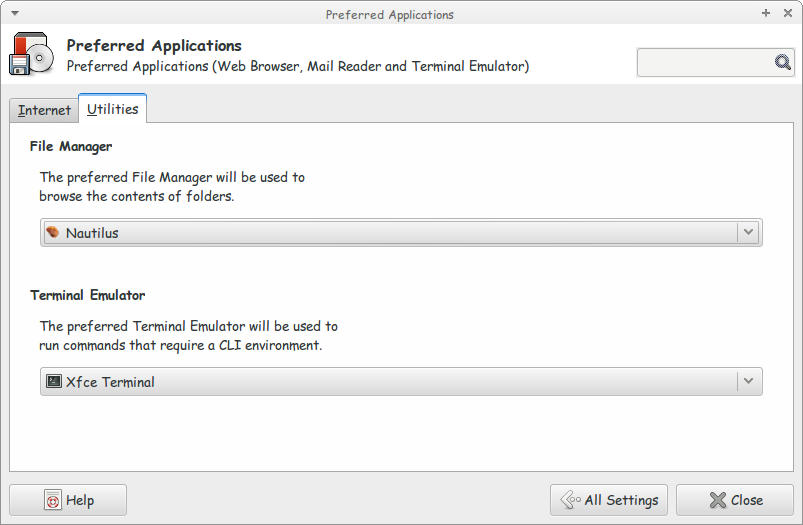
2. On the Preferred applications choose Default File Manager.

Default File Manager

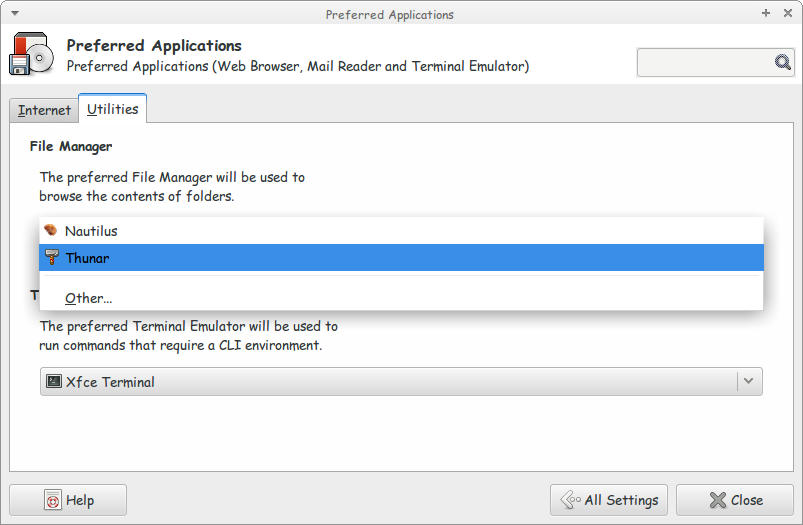
3. Choose Thunar as the Default File Manager.

Choose Thunar as the Default File Manager

Close the settings to save the changes. And you are good to go!
I don’t know why is Natilus is having this bug! So the fix is just replacing it with Thunar!!
I hope you found this useful. Please comment below!

A quick fix to many Windows 8 – 8.1 bluescreen issues

Hey you guys 🙂

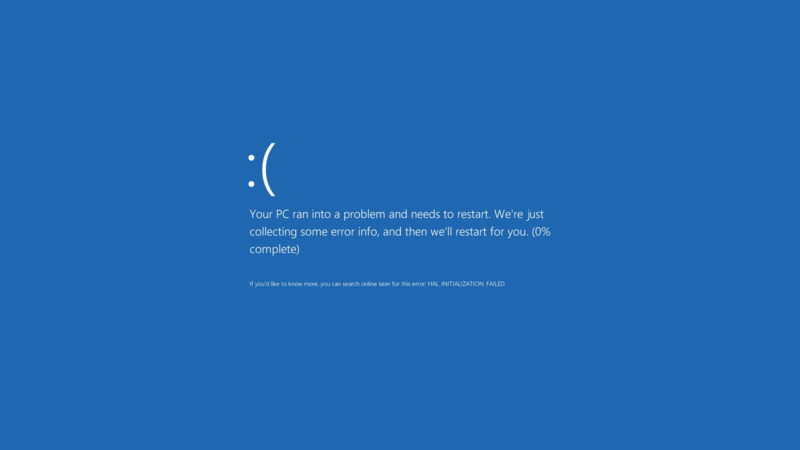
If you are using Windows 8 / 8.1 You would notice an awful lot blue screen of death screens BSOD. Now windows advices you to search online for the error .. (Da! Thanks for the tip captain obvious!)


What’s the cause of these errors?

Some of them are driver related. Others occur when you standby or lock the screen. Some after you install certain software..
The fix to all these causes and more is a simple command!
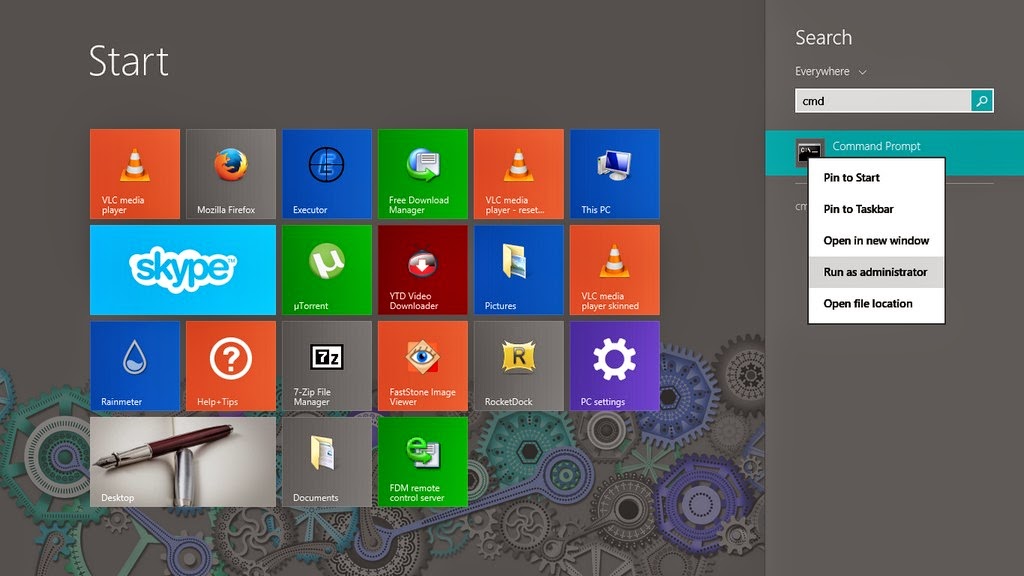
1. Go to the start menu and type CMD

2. When you see command prompt. Right click on it and choose: Run as administrator (Very important!)

3. The command prompt windows will show up. There right this command: “sfc /scannow”

This command checks the system files and attempts to fix the errors.
The process will take some time ( in my case it took an hour to complete)
After it’s done you will be prompted to restart once or twice. After that you are all good!

How easy was that? 🙂

Try it and let me know what you think. Did it fix your problem?
I hope I managed to turn the “frown” upside down 😀
Make sure to follow my blog and join my mail-list NEW

Newer posts »