Category: Error (Page 1 of 2)

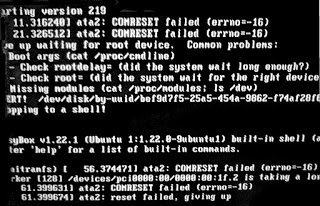
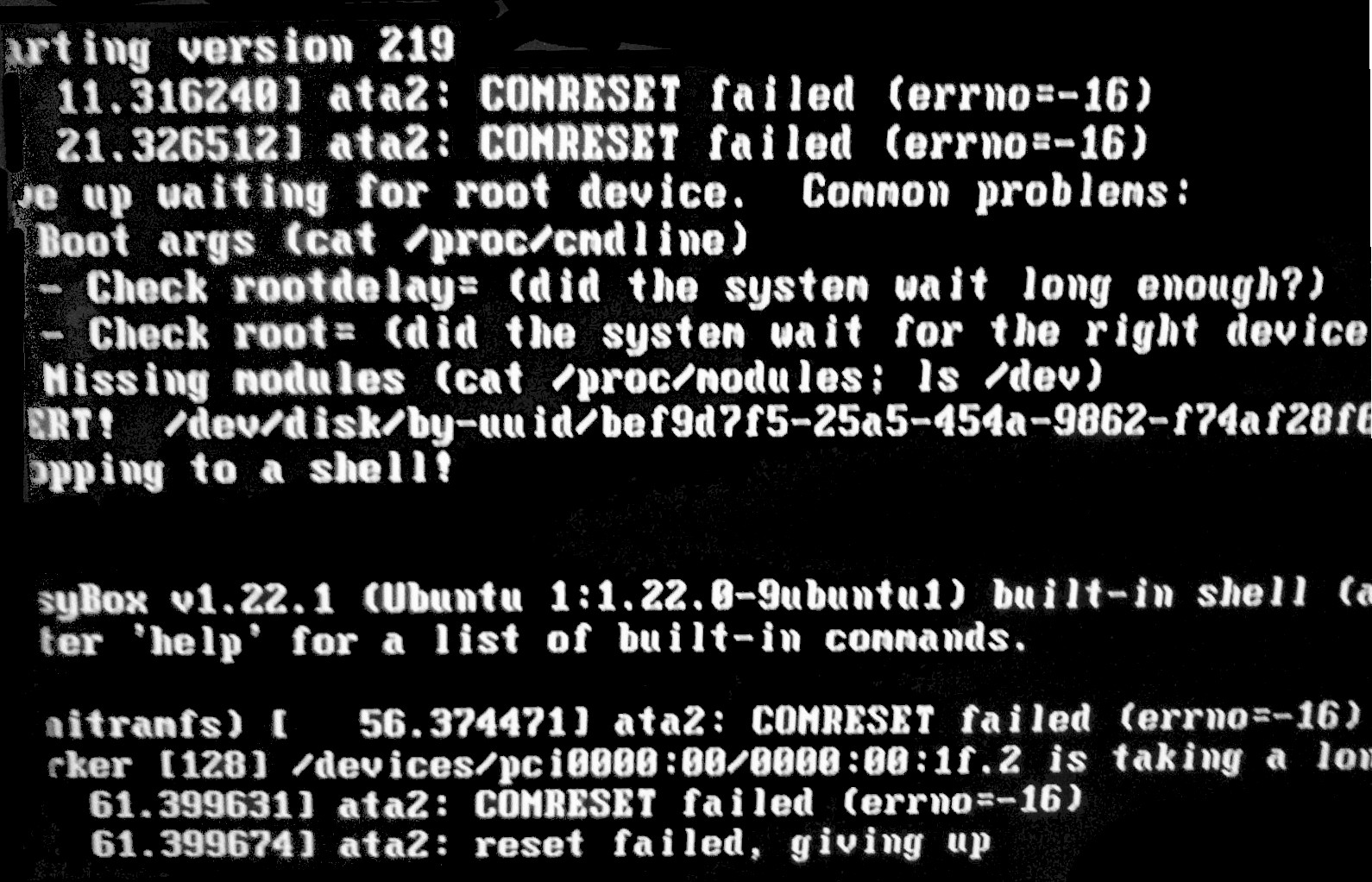
Should you replace your SSD after the COMRESET failed (errno=-16) error?

It is a scary boot screen to wake up to, but things aren’t that simple really, should you throw the SSD in the trash and buy a new one? Or simply ignore the message like it didn’t happen? Well today we will look into it with more detail.

 COMRESET failed (errno=-16)

I’ve been having this error now (on and off) for over a year, the disk works fine but tends to throw an error every now and then, I am running Ubuntu Gnome 16.04 and the bug seems to be affecting Linux alone.

When contacting the manufacturer of the drive (silicon power) they suggested to update the firmware via a utility on the website, since it’s Windows only I had to remove Linux, install Windows to update, and then come back to Linux.

Since it started I’m backing up my data daily and creating images with parted magic every week, so far the disk hasn’t died on me (reached around 6400 hours, and the bug appeared in 4000 for the first time).

Do you have to replace the SSD right away?

From my experience, it’s not necessary to replace the drive right away, but backing up is a must!

I’ve installed Gsmartcontrol and set the system to check for errors on startup (was recommended to do so on Askubuntu) and it’s reporting no errors on all tests (short, long and contingency).

I do recommend that you get the drive checked, and if possible send it back if it’s still under RMA.

Update

I swapped out the SDD with the old HDD due to an increase in the COMRESET failed (errno=-16) error, I guess my laptop is showing it’s age, and I am due to replacing it soon anyway.

Are you suffering from this issue too? What did you do to fix it? Please comment below.  

Update #2

Even after getting a new HDD, I still get the same error message! While the same SSD on another device doesn’t!!

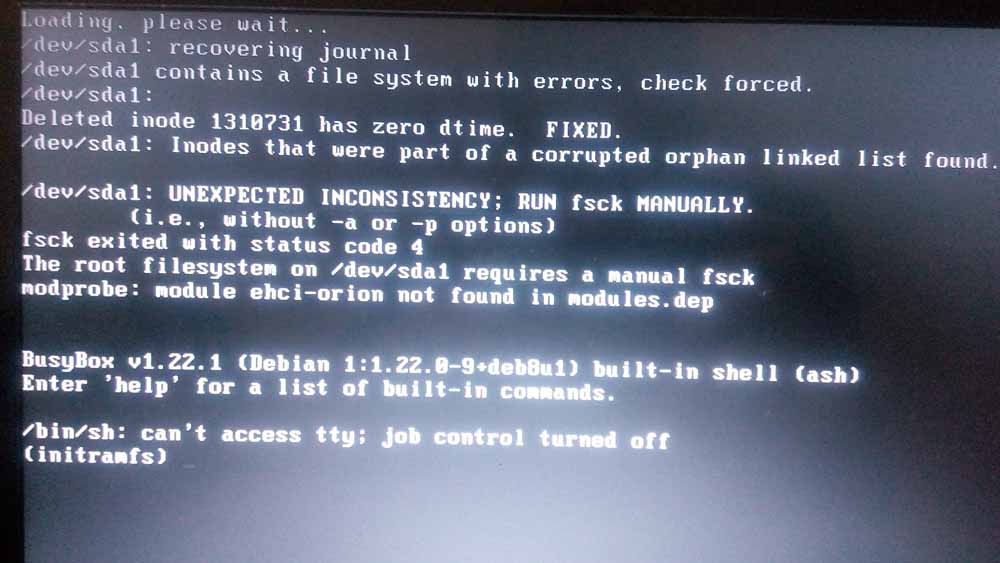
How to fix and prevent the /dev/sda1: recovering journal On Ubuntu 16.04 Gnome

As I was booting my computer up one morning I saw this awful error message rather than the Ubuntu Gnome boot logo, it turned out to be a common error and can be fixed easily, let’s get to the details!

/dev/sda1: recovering journal

Cause of the issue

The problem occurs when the computer isn’t shut off properly or when electrical failure happens, some data on the SSD

isn’t stored properly and the boot process is halted.

In my case it’s the power issues that ruined my laptop battery and is making it’s way to my data stored on the SSD. 

How to fix it

The screen itself suggests a terminal command to fix the drive which was useless in my case, my easy fix was using a live Linux installation from a USB -I used Linux mint- and used Gparted to fix the damaged drive (please note that using Gparted can be very risky and cause data loss). 

Using Gparted from a live distro

We are using Gparted to fix the partition, it depends on how you did your disk but it’s the same way.
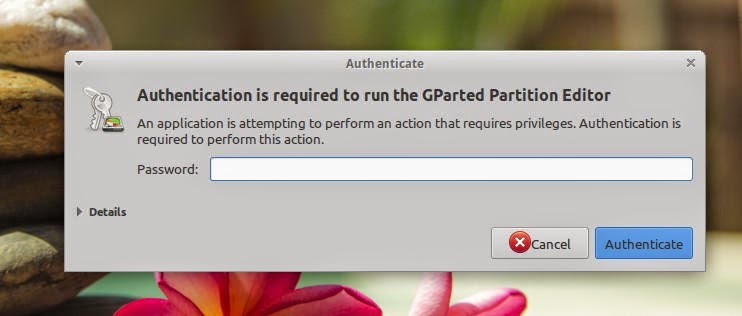
Entering the password to run Gparted.
Opening Gparted


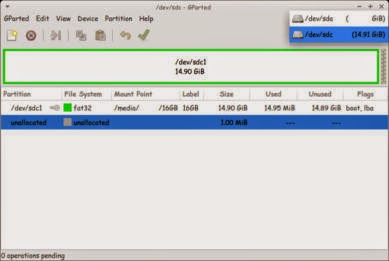
  Viewing a list of disks on your computer.

View disks with Gparted


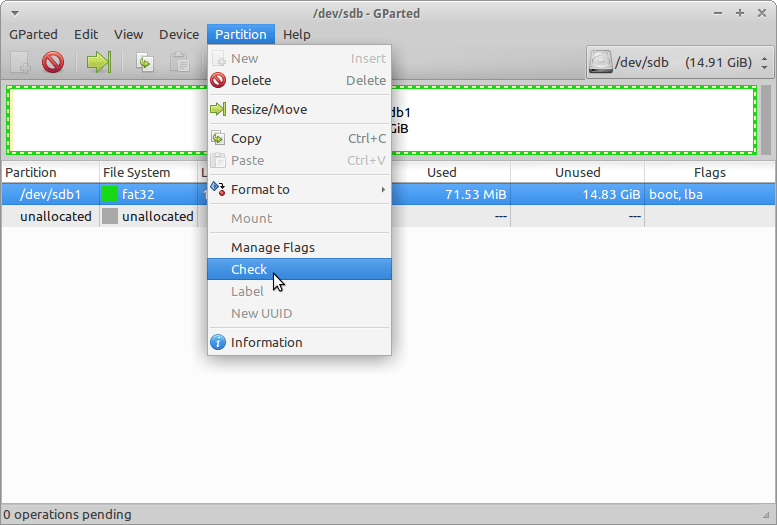
 Checking the drive for errors with the right click menu.

Checking the disk for errors using Gparted

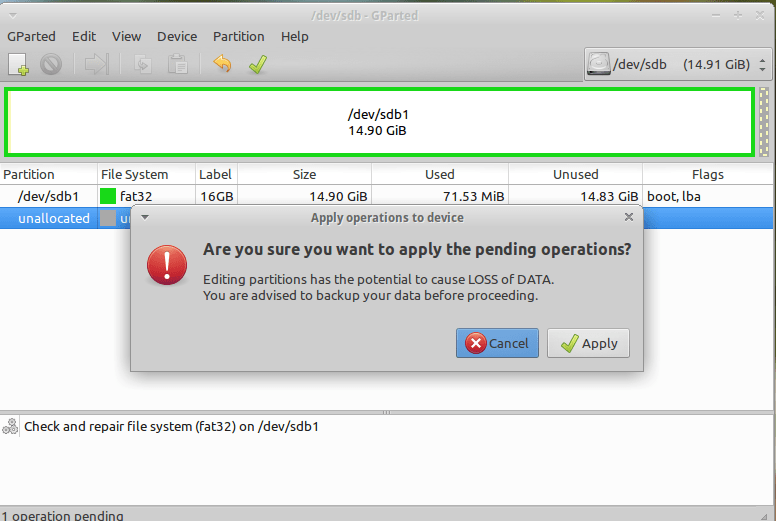
We now click Apply changes.

Applying changes using Gparted
After applying changes we can safely reboot, the fix is done!

Making sure damage didn’t happen

ِAfter rebooting the computer will open as usual, but we want to make sure that the drive wasn’t damaged, to do that we will install a small command line tool called Smartmontools 6.5 and it can be downloaded from this link.

Installing Smartmintools-6.5

Samrtmontools is a terminal utility
to check and monitor disk performance. 

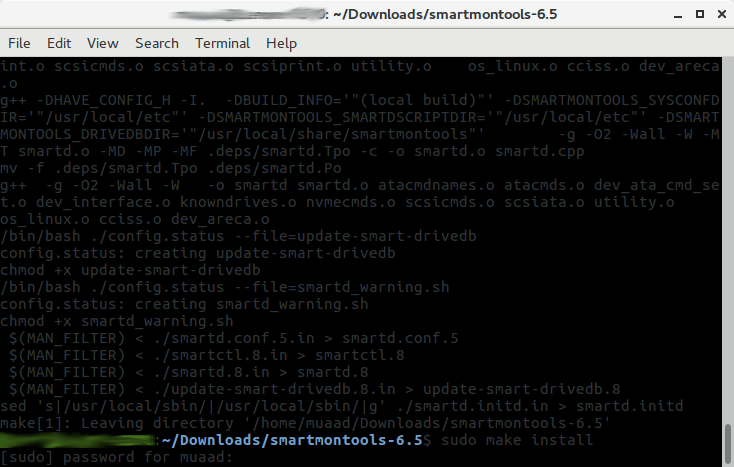
To install Smartmontools we need to un-compress the tarball and we do this from the terminal

  tar zxvf smartmontools-6.5.tar.gz

The previous step created a directory called smartmontools-6.5 containing the code. Then we go to that directory, build, and install:

 cd smartmontools-6.5

  ./configure
  make
  sudo make install

After running these steps we managed to install Smartmintools-6.5 tarball from the terminal.

Running Smartmintools-6.5

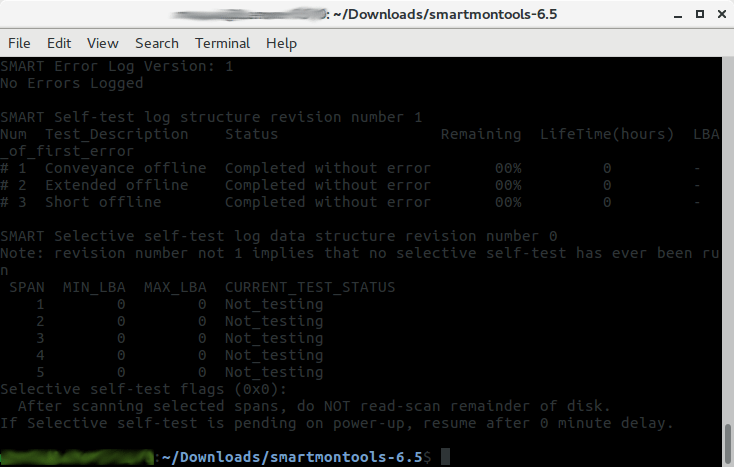
Run the command:  sudo smartctl -a /dev/sda. And if the results are like the the screenshot your drive is safe, as it says clearly: No errors logged.


How to make the fix automatic on every boot

Instead of performing the fix every time the issue happens, it’s easier to set the config autofsck to run at every boot. 


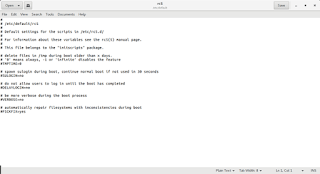
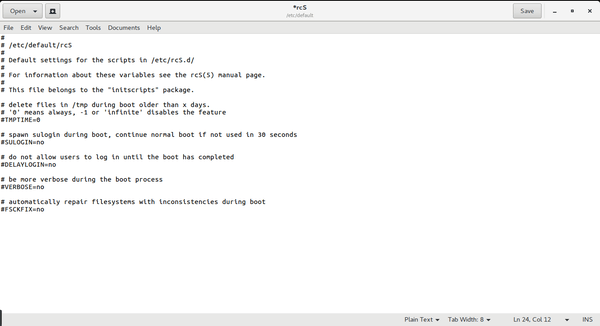
Edit the file etc/default/rcS and change the FSCKFIX from no to yes by using this terminal command:


gksu gedit /etc/default/rcS
Here it opens a gedit windows, navigate to the last line.

Editing /etc/default/rcS

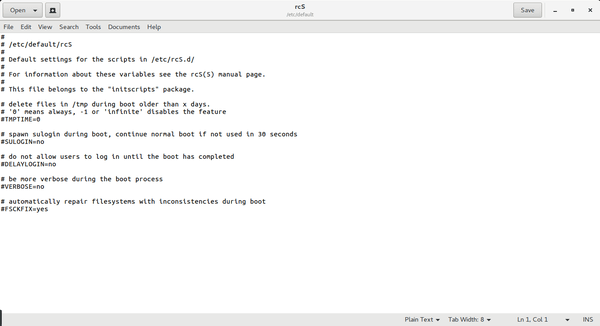
Change the FSCKFIX from no to Yes and save to finish.

Editing /etc/default/rcS

This way every time the issue occurs the system will automatically fix it and continue booting normally. 

This is how to fix and prevent the /dev/sda1: recovering journal on Linux Ubuntu Gnome 16.04 and similar distros, it’s really easy to fix but it can be scary and ruin a day for you if you don’t know what to do.
And I highly advise you to backup whenever possible

Fix some Ubuntu startup issues with this easy trick!

I fresh installed Ubuntu 14.04.4 lately and things has been smooth, most of the issues I encountered were because of the interface change, looking back maybe the interface was buggy, and I should have read the bug list before installing it!

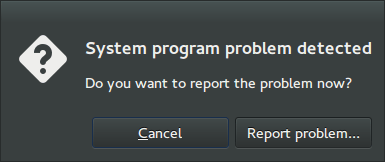
After installing I noticed that every time I reboot the system shows prompt to send error messages, I sent the error to the developers thinking that was it, I send the error report and I’m done, but another one came, and another one.. And it just keeps happening every time I reboot (to install updates for example) so it became a minor nuisance!

I remember facing this issue back in April 2014 when I first installed Ubuntu, and the fix was so easy!

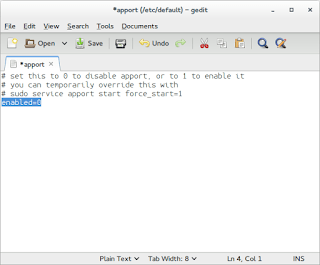
Apparently Ubuntu tends to look for records of errors and send them, even the old ones that have been reported, so the easy way to stop it is to disable Apport.

Disabling Apport

It’s actually very easy to do, just go to the terminal by pressing Ctrl + Alt + T

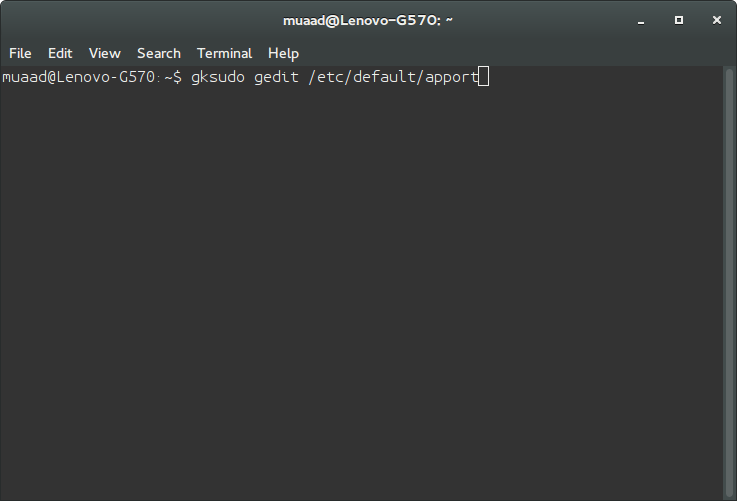
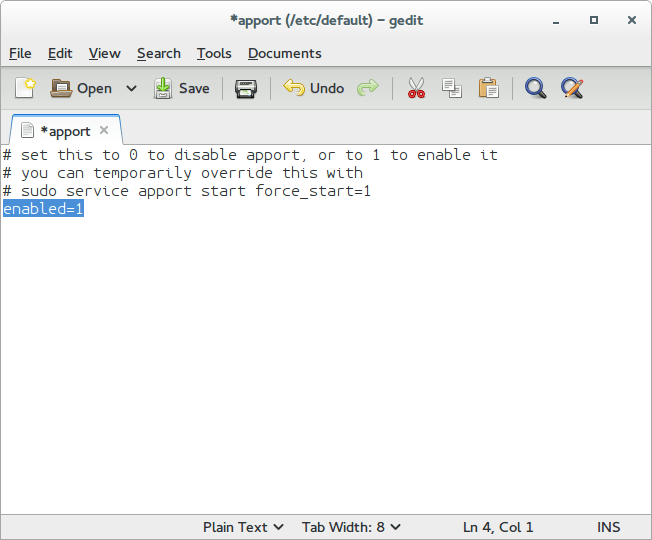
Then type in gksudo gedit /etc/default/apport and press Enter. You will be prompted to enter your password, please do that.

Be careful because this command is running Gedit in root privileges and we will use it to change a vital part of the system, so follow the steps carefully!

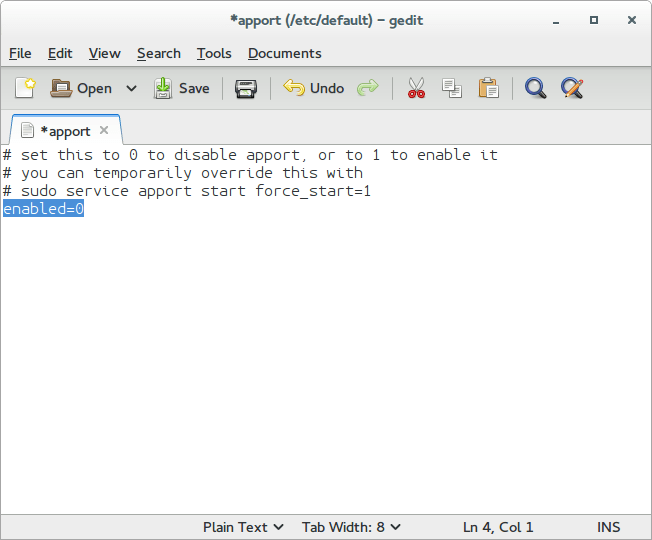
Change Enabled=1 to Enabled=0 and save.

Close Gedit and the terminal.

The next time you reboot, you won’t see such error messages!

It’s as easy as that!

You can research the issue further by visiting this link.

VirtualBox NS_ERROR_FAILURE (0x80004005) [FIXED]

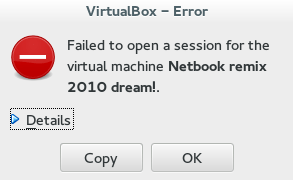
It’s a common problem of VirtualBox and I looked through tons of pages and didn’t find a fix, maybe because there isn’t? Good think I found a fix!!

That’s the error message:

Could not open the medium ‘/drive/username/partition/virtual_machine_name.vdi’.
VD: error VERR_FILE_NOT_FOUND opening image file ‘/
drive/username/Data/virtual_machine_name.vdi.vdi’ (VERR_FILE_NOT_FOUND).


NS_ERROR_FAILURE (0x80004005)

More details on the error:

Result Code:
NS_ERROR_FAILURE (0x80004005)
Component:
MediumWrap
Interface:
IMedium {4afe423b-43e0-e9d0-82e8-ceb307940dda}

It happened with me because I have the virtual machine on a different partition, and I started it without mounting it, that ruined the installation.

How to fix it?

I had to uninstall VirtualBox and install from scratch..

That’s the only fix, uninstall VirtualBox.

When you reinstall it, it should work fine, No need to delete the virtual machine.
Did you have this problem before? How did you fix it?

I know this didn’t “fix” the problem, and maybe you aren’t running Ubuntu and it happened with you.

I’ll post more if I found anything.
Did you find this post useful? If you have share it with your friends. Sharing is caring you know 🙂

« Older posts