Category: Gnu Linux (Page 5 of 7)

I’ve been using the same laptop for 5 years

I’ve been using this laptop now for five years, which doesn’t seem like much for some; but for me – the chronic device hopper is kind of a milestone-. I still remember the day I bought it and how I did that exactly.

My hardware 5 years ago

At the time I owned a desktop computer and I bought a netbook (out on an impulse) and neither of them had good performance! The perk of the netbook was the size and the decent battery life -compared to my desktop of course -. But as I started to work on my graduation thesis (which was a video game by the way) I realized that non of these devices would do the trick, and that it was time to upgrade.
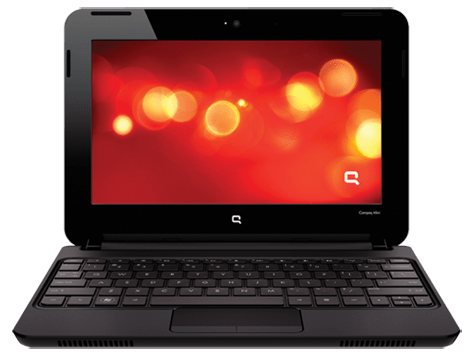
A word about my old netbook

My netbook was really good! I could fit it in my book bag easily, and typing on it was so much fun. Until now I still regret selling it -and might wind up buying another one eventually-. It was the device I used to write my first post on this blog and one of the highest read posts at the time was about the netbook, by the netbook!

Due to the recurring power issues my netbook battery was dead -Thanks GECOL-, and to me that was the last straw, and in a week I managed to sell both on Opensooq for pennies on the dollar! Then I took the rest of the money from dad and went shopping for a laptop.

Buying a new laptop

Using the money I got from selling both devices and a lot of money from dad (thanks dad) I managed to buy a decent laptop.
It looked this way once!
My laptop was with me the day I graduated, and at my first interview for a job. And many of the good things I did was typed on this very keyboard, so I have deep appreciation for it and I have trouble selling it or getting another laptop and throwing it away (as long as it works fine).
And the modifications I made to it would make selling it a bit difficult to be honest!

If I’m to replace my laptop it has to be something with equal specifications or better, that’s a luxury in this economy (six months salary or something), so it’s better to keep it.

I stand corrected!

I’ve blogged before about the death of the laptop and that smartphones are taking over, in my case that’s far from the truth. And only when my laptop was broken that I learned how much I relied on it or how much I need a laptop in my life!
To me (at least) the laptop is far from dead! It’s okay to learn things in life.

Modifications I made to my laptop in order to keep it going

G570s are known for the hinge issue, it took me a while before figuring out how to fix it completely (I have serious trust issues with repair shops and my personal data), so it has a screw acting as the right hand hinge.

  • Having this modification meant I needed to adjust the AC input a little to accommodate this change.
  • And the keyboard support is broken so it’s glued to the base of the laptop.
  • The power connector has a piece of plastic holding it in place.
  • The touch pad had the same before giving up completely.#Update I fixed it, thanks Hani my good friend!
  • Since the hinge repair the webcam didn’t work, and all my attempts went in vain, but after upgrading to kernel 4.14 it works again, it’s been years since I saw the small light on! 
  • The fan was broken as I cleaned it, so I got a replacement (full story in this post).
  • The battery gave up a long time ago and I had to buy an after market battery with half life time (again thank you Hani!).
  • I doubled the RAM from 4GB to 8GB and replaced the HDD with an SSD to boost the speed.
  • And converting to Linux was the biggest upgrade in my opinion

Yea, my laptop is a zombie!!

Moving forward

I’m thinking of getting a light weight device with low end specs (netbook or chrome book) and dedicating it for writing, installing Linux on that device. While keep this laptop for work and install windows on it, since the college I’m working for are heavily investing in .NET applications, and VM is proving to be a hassle at times


And dual booting Linux and Windows is as the same of having two laptops (a terrible idea in general).

Tips on keeping the laptop going

Like anything in life, the laptop needs proper cleaning and care to keep it running. Some of these tips are advanced and as I always say on this blog: Try on your own risk.

  • Baby wipes for a stiff keyboard

    wipe the keyboard with baby wipes to clean it, and it works like magic! It’s almost as getting a new keyboard.

  • Dusting and cleaning

    It may seem like common sense, but keeping the laptop clean helps keep it run longer (and improves your feeling towards it) so always remember to clean your laptop.

Pro tip: Distilled water works wonders, just remember to unplug your device and dry it properly before running it.

  • Applying Thermal Grease

    This is a bit of an advanced tip, it requires taking apart the laptop and reaching down the heat sink to apply new paste for the processor, it’s recommended to be done annually.
     

  • Software wise I found that installing Linux on my laptop improved the overall performance and reduced the issues and virus infections, so if you can move to Linux!

I’m interested to see if this laptop with endure the test of time? Lenovo is known of making laptops with over 10 years of life time (with proper maintenance of course), will this laptop survive that long?

Final words

It’s good to keep your devices running and not to be tempted with the heavy consuming lifestyle companies enforce on customers. I can’t afford changing my laptop every two years (and won’t even if I could). 

What do you think of this post? How long did you own your current laptop? Do you recommend any light weight device for writing?

4 years with Ubuntu!

Anyone who follows my blog knows that I’ve been using Ubuntu as a main operating system for quite some time now, 4 years to be specific. To celebrate this anniversary I decided to look back on my journey with Ubuntu so far and share some updates with my readers.

Looking back 

Tux, Linux's logo
Tux, Linux’s logo

When I took the decision to install Ubuntu on my laptop, my aim was to convert to a free and clean system where I can do what I do best without restrictions (such as proprietary licenses and common malware), while staying productive and without drastic changes in my lifestyle.
The transition was smooth because I did my home work before and most of the tools I use daily are cross platform, so I felt right at home with Ubuntu.


This year’s change

I migrated from Gnome to KDE due to long lasting bug with Lenovo laptops (very specific bug sadly) that prevented me from being productive and threatened to harm my hardware in the long term, Kubuntu has been great so far (despite some issues in the beginning) and I couldn’t be happier.

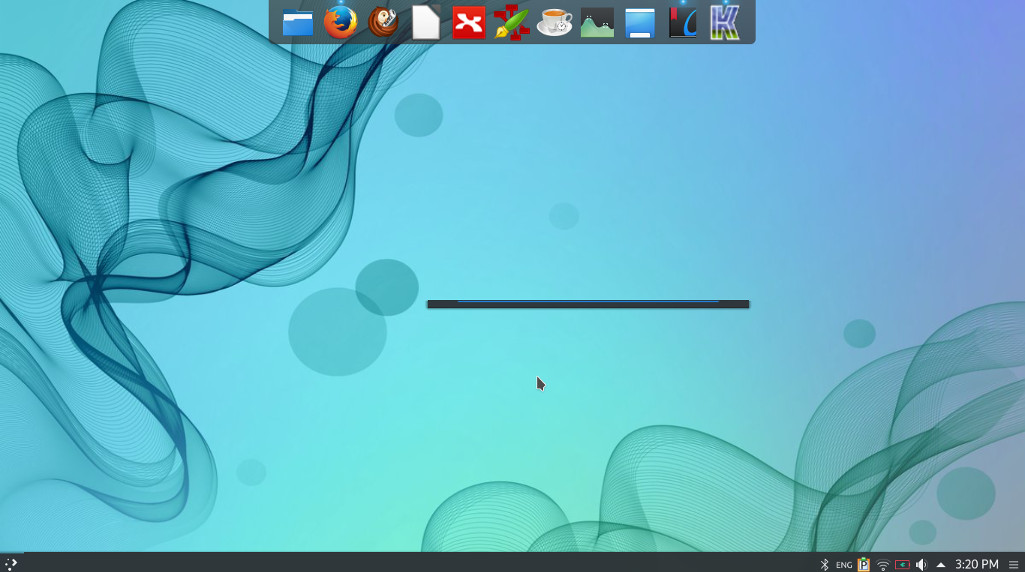
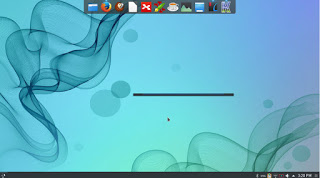
Kubuntu 16.04 with plank, the lancher is Krunner (KDE tool).


Going forward

After settling down with an interface and getting the system to look like exactly like I want it, it’s time to get deeper into the Linux ecosystem, I decided to read more about the origins of the system and learn about the terminal.

An inspirational read

Reading The cathedral and the bazaar by Eric S. Raymond was an enlightening read, I now understand the greatness of this operating system better and appreciate it much more, understanding that it’s the collective work of thousands of volunteer programmers from around the world who are making a high quality system, something that seems to be impossible, but it’s happening!

Learning about the shell

My decision to learn about the terminal comes from my feeling that using the GUI (graphic user interface) alone isn’t good enough, I was asked in an interview once if I understood the command line system, and I felt so under qualified! Luckily I got the job and it has nothing to do with Linux anyway!

 It’s satisfying to know how to use the command line to achieve some tasks, like driving a car with manual transition or drinking black coffee! And down this line of thought you can say that sticking to the GUI alone is a bit “vanilla”.

Maturity comes with age!

There is no fun in just installing / uninstalling different distos and going through the transitions over and over, (known as distro hopping in the Linux world)I want to grow and learn about the system in general and can’t stand staying in one place for a long time.

Final words

I feel very blessed being able work on Linux and get to learn about it, and sharing this knowledge with my readers makes me happier!

Have you considered trying Linux? What are you waiting for? It’s been around for a long time now!


Plank. The BEST dock you will ever use on Ubuntu!

I blogged about Docky a few years ago when I moved to Ubuntu from Windows as I needed something to replace Nexus dock, and later RocketDock, and I added it to a post about the best docks for Linux and Windows.

Introduction

Docky is the dock to go to when using Ubuntu, it’s fast and it’s light, not to mention it’s free, it has two branches for development which I find to be a bit confusing!
One of the branches is stable but lacks features, and the other crashes often but is full with features.

What if there was a dock that had the best of both branches? Stable and fully featured? Meet Plank everyone!

Plank

Plank is a fork of Docky that is shipped by default with the popular operating system Linux Elementary. It is based on Docky 3.0.0 according to the Plank wiki, and it’s aimed to be the simplest dock available, to preform what a dock is supposed to do, and I couldn’t agree more!

How to install Plank?

In a terminal window enter these commands one by one to install Plank, and after it’s done you can find it by searching the name in any interface you use.

  sudo add-apt-repository ppa:ricotz/docky # <- is not a typo
  sudo apt-get update
  sudo apt-get install plank

Configuring Plank

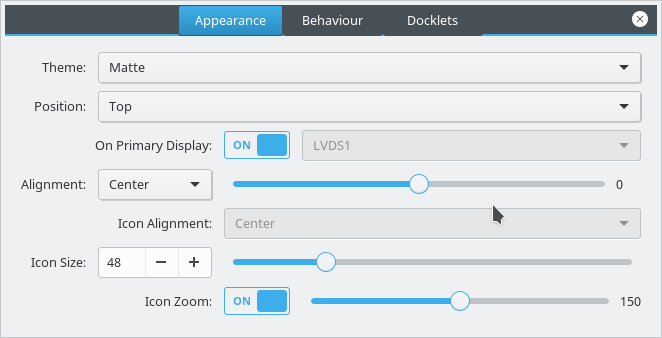
By right clicking an empty place in the dock you can summon the preferences of Plank, but that proves to be a little difficult, so by typing the command: plank –preferences

 
to adjust and fine tune the settings of Plank.

How to add executables as shortcuts to plank?

If you are using plank on Ubuntu you know that you can’t add executable files right to the doc, you need to add the icon to the program directory and then add the icon to the dock, here is a really simple way to do it from here.

My verdict

It’s the best dock I used so far, so light and does exactly what it should, without having to choose between two branches and having to roll back packages.

What do you use on your system? Are you considering Plank? Share your thoughts in the comments section below, and don’t forget to share the post on social media 🙂

LibreOffice 5.3 is out, Enable the Notebook bar in 3 easy steps!

The much anticipated LibreOffice 5.3 is out, the tech world and open source community welcomes the latest milestone release of LibreOffice, which brings many improvements and bug fixes, this release is on of the most feature rich in the history of LibreOffice.


LibreOffice 5.3 Logo


Whats new in LibreOffice 5.3?

LibreOffice 5.3 is packed with new features that make it easier to use and familiar to new users.

  • Improved text layout engine for a consistent look cross platforms using HarfBuzz.
  • Preserving table looks when applying edits in Writer.


  • Improvements to default cell styles in Calc.


  • A template selector when opening in impress to choose templates from, and a new slides properties deck in the sidebar when in master slide mode.


  • Many “under the hood improvements for easier development.


  • Experimental UI features, a notebook bar can be added that is similar to MS office ribbon, this feature is completely optional while the sidebar can be docked to the side with a single click.


  • LibreOffice online, the collaborative document editing service provides the
    the first source code as a docker image.

For more details please visit this page.


How to enable the notebook bar in LibreOffice 5.3?

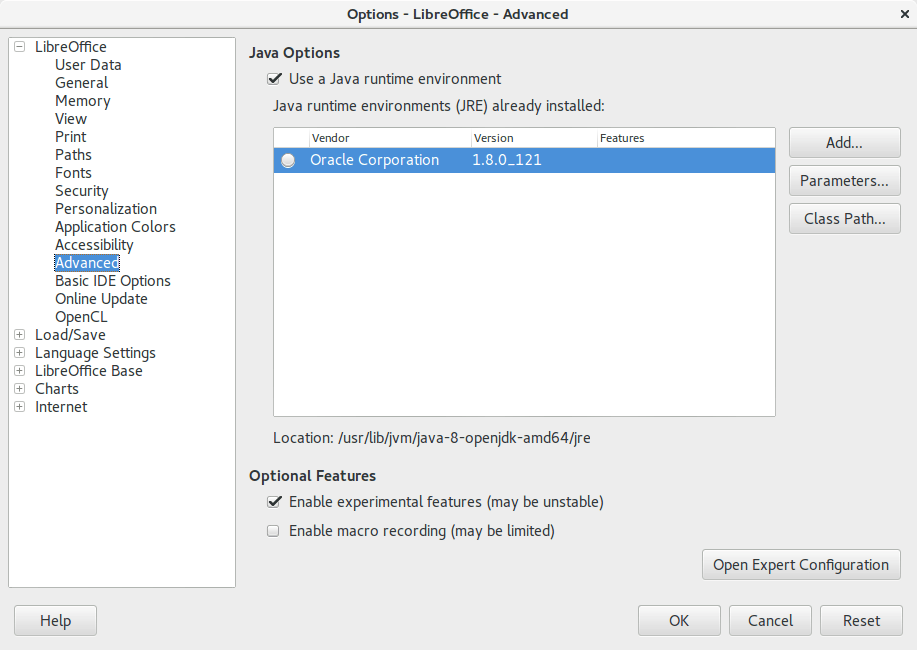
1. It’s actually very easy to enable this “experimental feature” of LibreOffice, you need to go to the options and choose advanced, from there check the experimental features, and restart the program.


Enable experimental features in LibreOffice 5.3
Enabling experimental features in LibreOffice 5.3

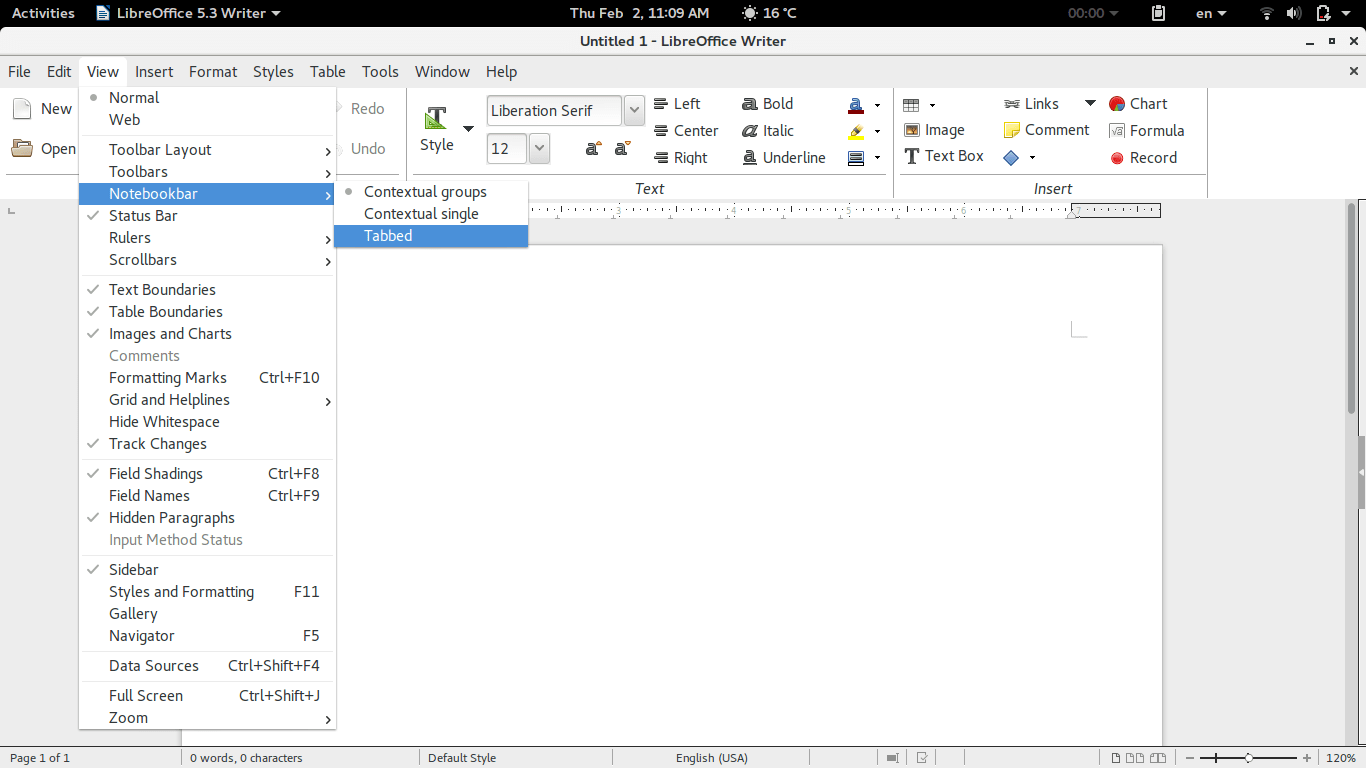
2. Then open Writer, navigate the menu to the Menu View> Notebook bar > Tabbed


Enabling the notebook bar in LibreOffice 5.3

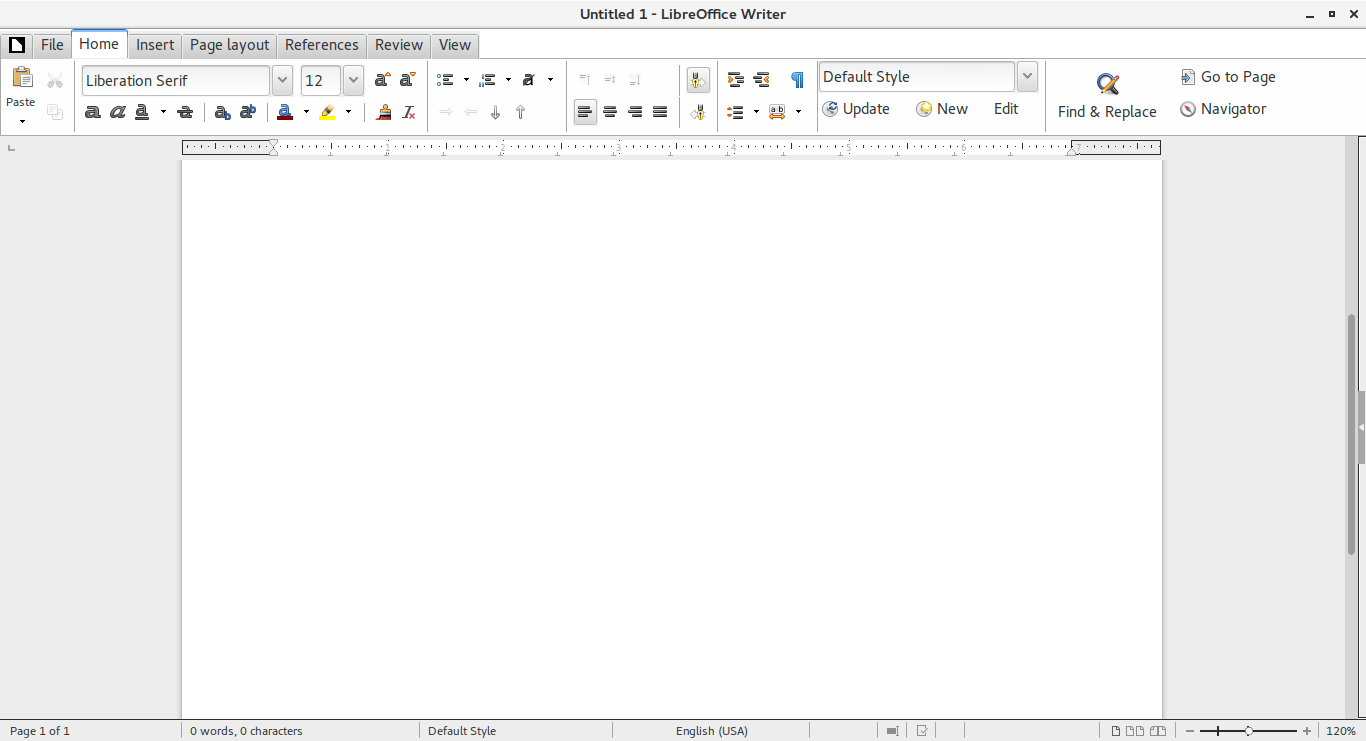
3. And it will change into a tabbed style!


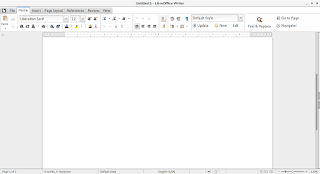
The notebook bar in LibreOffice 5.3
The final look of the Notebook bar in LibreOffice 5.3

Doesn’t it look great? Let’s not forget it’s experimental so it needs a little polishing!

Download LibreOffice 5.3

To download LibreOffice 5.3 go to the download page and choose your operating system and begin downloading, you might even consider using a torrent and seeding as well to help people download faster!

And consider placing a donation as well, it’s what keeps the foundation going!


Last words

Will you download LibreOffice 5.3? Do you like the Notebook bar? Please let me know what you think in the comments section below!

Thank you for reading this post, please share it on your social media and help my blog grow.

In more recent versions, follow this help guide.

« Older posts Newer posts »