Category: Linux (Page 23 of 33)

لماذا نستعمل الليونكس؟

لماذا نستعمل اللينكس؟

سؤالي اليوم هو لماذا نستعمل اللينكس؟ لماذا لانكتفي بما هو لدينا فقط؟ وفي أغلب اﻷحوال هذا يعني الويندوز.

الويندوز نظام تشغيل مستقر يستحق كل الإحترام، والإحترام هنا هو أن تدفع ثمن المنتج، لا أن تسرقه!

 

في بلادي الكثير من الناس يجهل أو يتجاهل حقيقة أن للتراخيص ثمن، مثل ثمن اﻷكل والشرب والملبس، بل ويسخر من من يدفع ثمنا للتراخيص، ويتفنن في شراء النسخ المقرصنة أو تحميلها من الإنترنت بطريقة غير مشروعة.

أنا شخصيا مقتنع بإن هذا سيتغير قريبا جدا..

من كان يتابع نسخ البرامج سيلاحظ أن أغلب الشركات بدأت تتجه للحوسبة السحابية، وهي موضوع يطول شرحه، لكن هذه التقنية فيما أظن ستصعب عملية سرقة البرامج لأن الدفع بنظام شهري وليس بنظام الترخيص التقليدي..

البرامج التي لا غنى للمستخدمين والشركات الصغيرة عنها لن يتمكنوا من الحصول عليها لا بطرق مشروعة ولا غير مشروعة!

الكثير منا لا يستطيع دفع 60 دولارا في السنة ترخيص لنسخة أوفيس 365 أو 50 دولارا ثمنا لسحابة أدوبي الإبداعية شهريا، ولن يستطيع عمل باتش أو كراك شهريا! إذن ما العمل؟

هنالك العديد من البرامج الرائعة التي تنتظر تجربتك لها، وبمنحنى تعلم بسيط يمكنك إتقان ليبر أوفيس الحزمة المكتبية المجانية، وجيمب حزمة تعديل الصور المجانية كذلك. أيضا نظام تشغيل متكامل يتنظرك أن تجربه. 

أشجعك على إحترام التراخيص، وعلى تجربة كل جديد أيضا، حمل لينكس على جهازك ولا تلقي بويندوز اﻷصلية التي لديك في سلة المهملات!

أما إن كانت مكركة .. فذلك حديث أخر 🙂

شكرا لقراءتك تدوينتي، رجاء تفاعل معي بالتعليقات.
Restoring Linux boot (Dual Boot Saga)

After I installed Windows. I have lost Linux in the boot menu, in fact there wasn’t a boot menu at all!
As soon I boot the computer Windows would come up and take the boot from there?!

I wanted to have Windows, not for Windows to be all I have!!
I had to restore booting to Linux, not only I liked it so much, my data and programs were there (Windows can’t “see” the Linux partition).
At first I tried installing BCD Boot to create a boot menu, it failed on a daily biases for me!
I had to try a better solution, and what better solution that the Linux terminal? <3
I booted to Linux from a live disk (you can create one by following the steps in here).
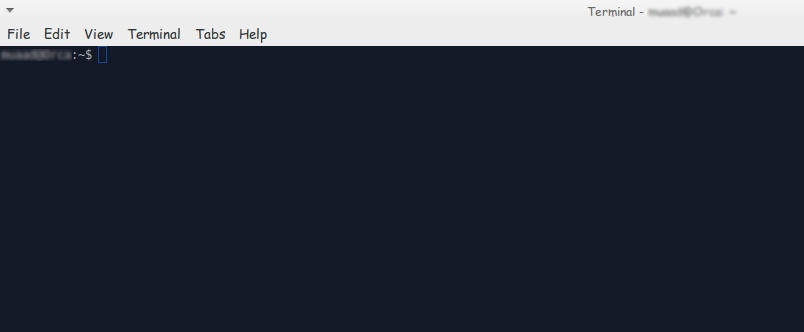
After it boots go into the terminal and enter the following command:


sudo fdisk -l

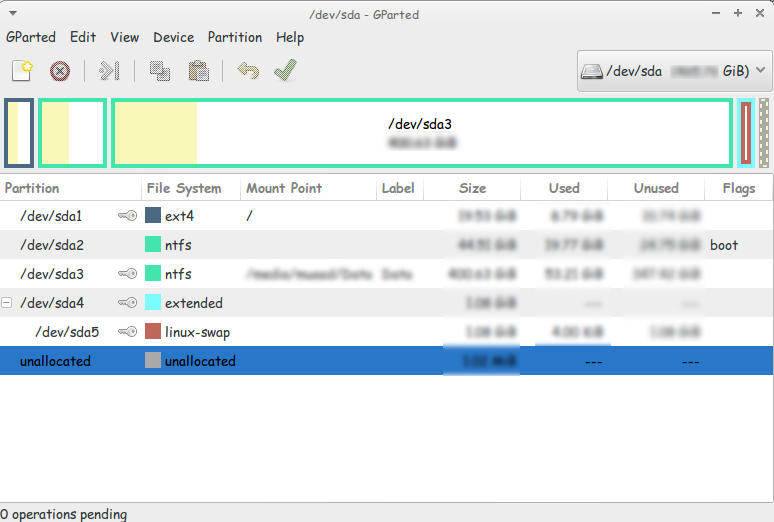
This command will show you all the partitions on your HDD, you have to know which partition your Linux distro is installed on (Gparted can be a great help in that).

Use gparted to see where is Linux installed

and enter this command:


sudo mount /dev/sda1 /mnt

then this command:


sudo mount --bind /dev /mnt/dev

then this command


sudo chroot /mnt

then this command


 grub-install /dev/sda 


then this command

update-grub 

If the computer boots directly into Ubuntu (or whatever Linux distro you have)
go to the terminal and enter:


sudo update-grub

Finally reboot and you will have the grub menu with Both Linux and Windows!

If you have an issue mounting you should use this command

Sudo touch /cow

The purpose of these commands is to install Grub (The boot manager) so you can dual boot easily from the menu.
If you want to customize grub for example the names of the systems and the list order you need to download Grub Customizer. I think I’ll post about it sometime later 🙂

LibreOffice 5.0 is out!

Finally after what seemed like forever! LibreOffice 5.0 is out!
“LibreOffice 5.0 is the tenth major release since the launch of the project and and the first of the third development cycle. LibreOffice is a full feature open source office suite which compares head to head with every product in the same category, while it stands out for superior interoperability features.”


I’ve downloaded it for both Windows and Linux. And I immediately noticed the different GUI elements implemented into LibreOffice 5 in comparison with 4.x which are differently cleaner and takes less screen space!


Thanks to improved filters the compatibility between LibreOffice and other office suits like Microsoft Office has improved. And a lot of under the hood work has been done to improve the stability and reduce the crashes overall.
Version 5 with be the foundation of the Android version, Ubuntu touch, and the upcoming cloud version.

Note: if you are downloading the 64x version for Windows you are going to need a 64x Java machine.

It looks really good and I can’t wait to sink my teeth into it and make full use of it’s amazing features!

Customize LibreOffice with these awesome native themes

With LibreOffice 5.0 just around the corner, I thought I should share this awesome tutorial with you to make LibreOffice look better and enhance your productivity!
LibreOffice’s killer looks is just one of the many features it sports. Today I’ll be showing you how to change the default look to enjoy the awesome themes it has!

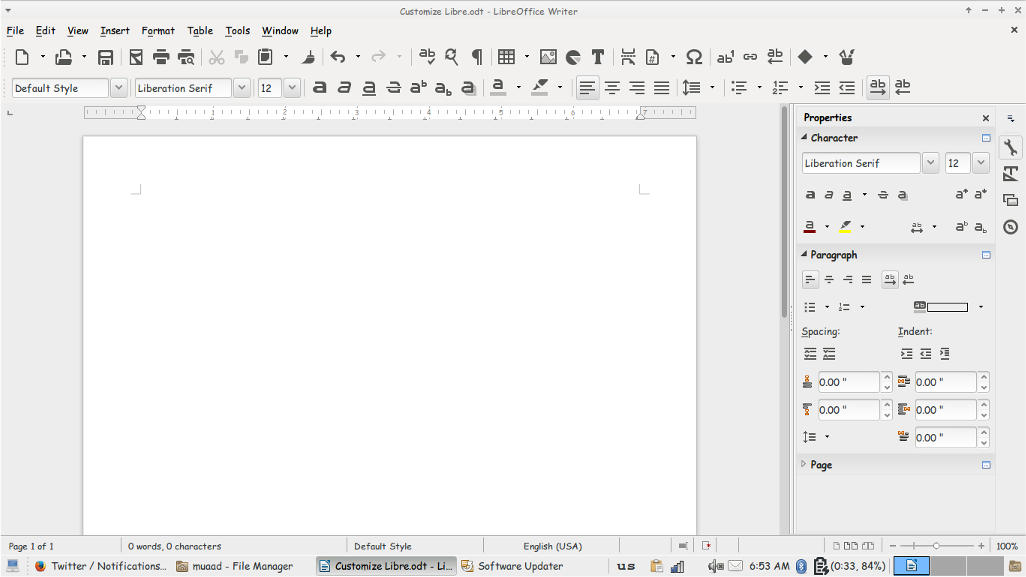
At first, let’s take a look at the default theme:

Not bad! It looks fresh and modern, especially if you are coming from “another” productivity suit, this one is called Tango and it’s the default theme. Now the question is: How to change the theme?
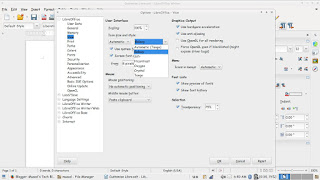
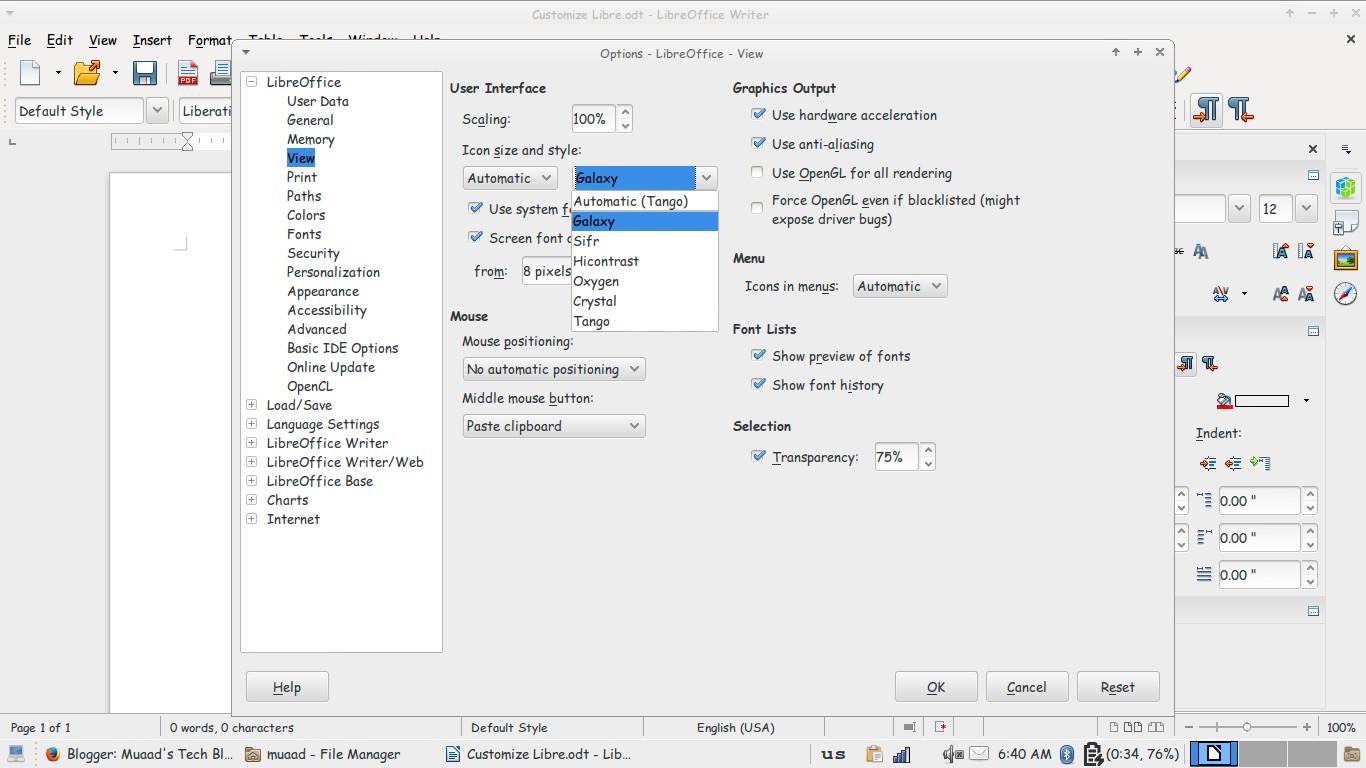
Navigate to: Tools Options View and choose the theme you like from: User interface Icon size and style.

Options menu

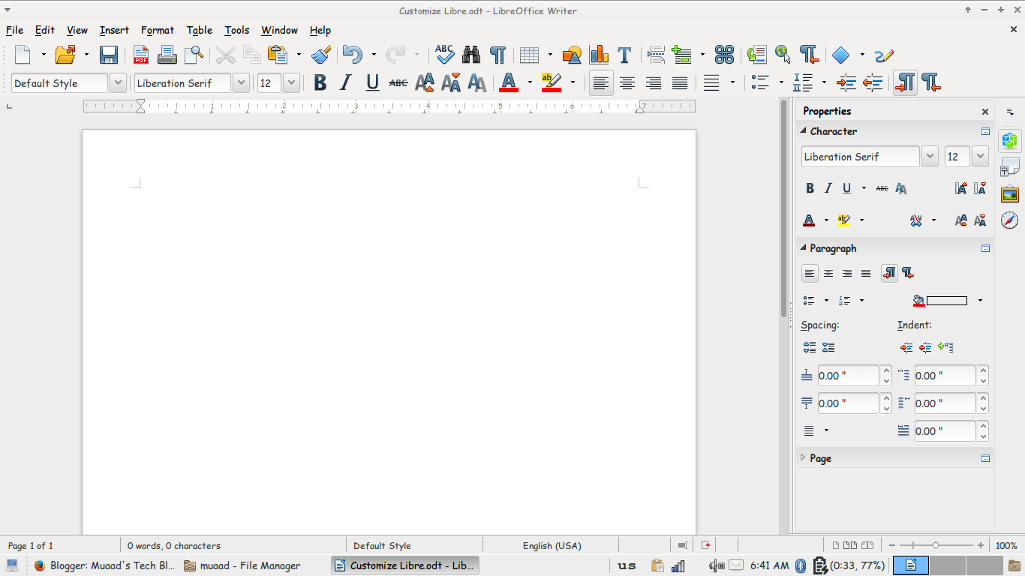
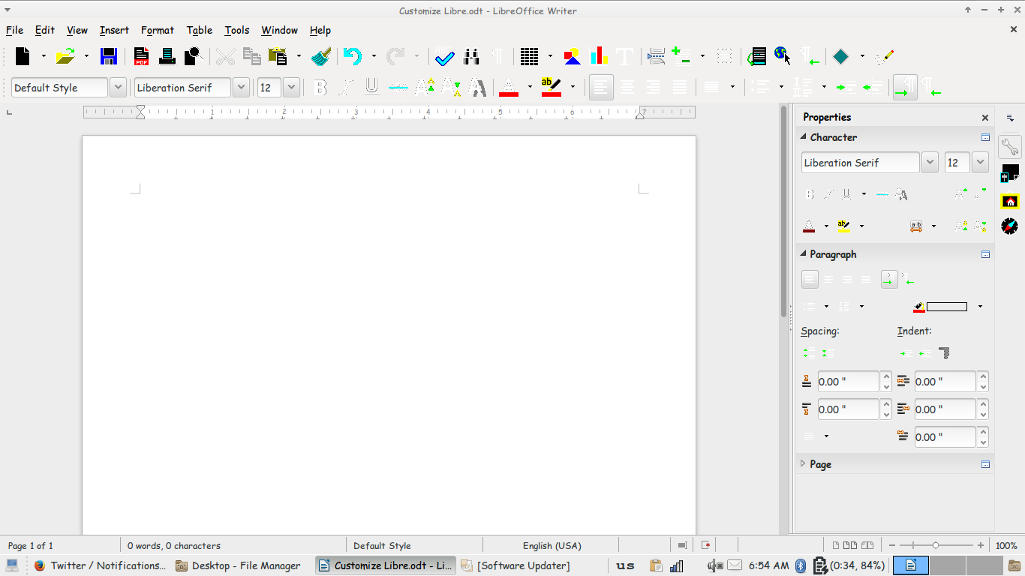
There is a total of six themes available (Tango included) and we are going to take a look at all of them! Then I’m going to say which is the best one!

Tango
Tango (Default theme)
Crystal
Crystal


High Contrast
 High contrast


Oxygen
Oxygen  


Sifr
Sifr
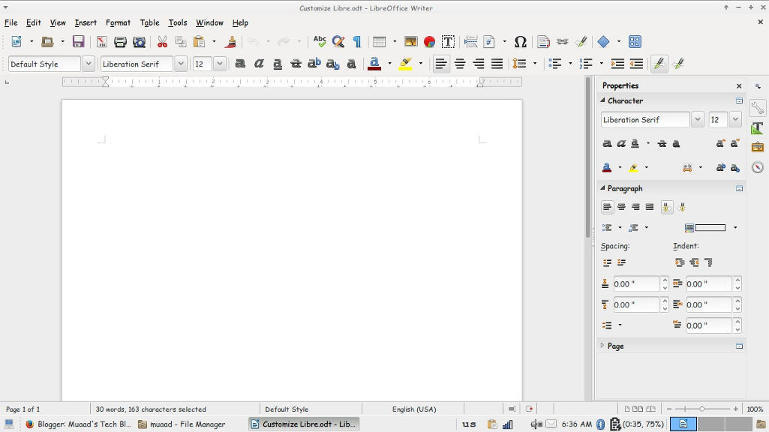
Galaxy
weight: normal;”>Galaxy
Pretty sweet, don’t you think? 

And I’m willing to tell you the best one!

The best theme is the one you like the most and allows you to be most productive!
Which one is the one for you? Let me know in the comments section below! 
I like Sifr btw 😉
« Older posts Newer posts »