
Category: Linux (Page 22 of 33)

Telegram instant messaging application review, channel update

We have looked into several chat apps in this blog such as Whatsapp and Viber. Telegram focuses more on privacy and security more than these apps.

Telegram’s popularity exploded when Facebook announced it’s acquisition of Whatsapp in early 2014 raising security concerns among users, peaking 50 million downloads that day alone. Telegram is free and open source and has no advertisement what so ever!

Let’s take a look at the reasons to abandon whatever you become addicted to and switch to Telegram.

Who can you chat with in Telegram?

Much like Whatsapp and Viber, your contacts are your phone book contacts, and you can look users by user name as well.

You can talk to a single person or be a part of a group, and you can chat people using the secret chat feature.

Telegram features

Free and open source

When Whatsapp has been recently changed to become free, Telegram is free for life and has no ads what so ever (almost too good to be true!), while Viber has the sticker market which always wants you to buy the stickers.

Private

Telegram messages are heavily encrypted and can self-destruct, which is great for privacy (unless you are the parent of a teenager!) the most secure form of chatting you can have is provided by Telegram.

If the other person tries to take a screenshot of the secret chat, you will be notified! That’s amazing 🙂

Fast

Telegram delivers messages faster than any other application ( I still need to put this feature to the test), it tends to delay on SIM data but in general it’s fast!

Secure

Telegram keeps your messages safe from hacker attacks.

Powerful

Telegram has no limits on the size of your media and chats, while Viber and Whatsapp limit you to media files, you can send anything with Telegram! (Zip .MP3 .Doc) as big as you like!!

Cross platform / Cloud based

All of the popular platforms are supported, Windows, Linux, iOS, Android, and in case that wasn’t enough, there is a web version. And you can access your chats from an unlimited number of devices you have, and the web version is independent, you don’t have to prove to be online to chat on your PC!

Download

Click on the platform you have and it will take you to the official app in the store (you don’t want to download an unofficial app).

Download for Android

Download for iOS

Download for Windows Phone

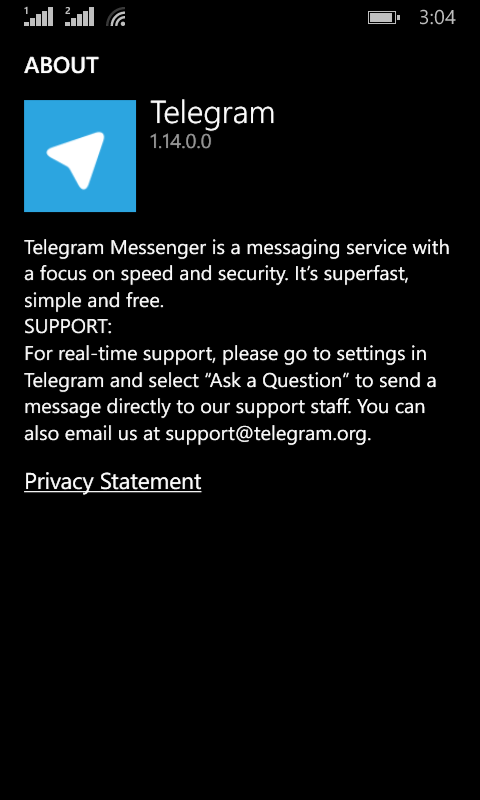
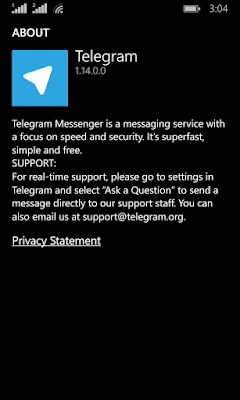
Telegram Screenshot

After we looked at the awesome features, lets take a look at some things Telegram has:

As of August 2014 Telegram delivers 10 BILLION telegrams each day!

You can create a bot to do whatever you want (if you have the skills to do so) and this bot will fetch your email, check the weather or even play chess! Read more about it here.
You can enjoy strong and private chats with your friends and co-workers, create groups to chat more efficiently or even subscribe to channels.


Channels

This is the latest features added on September the 22th 2015

Channels are the latest way to deliver messages to an unlimited number of subscribers, where they can catch up to the latest messages and read all the message history, each channel has a view count and a members count. and for a better understanding of it subscribe to Telegram’s channel, and you can create your own channels right away as the new Android / iOS version will have this feature with the latest update, others are coming soon.
And before you ask, no it doesn’t support voice/video calls!

It’s not a VOIP application, it’s not a video chat application. It’s a chat application that does! They might add the VOIP option later, I don’t think it’s going to be free. So enjoy the incredible feature set.

Conclusion

I am happy to find a chat app that Facebook hasn’t got it’s claws on yet! Those guys are all over the place! Telegram is safe, secure. Totally free and completely awesome!

The possibilities are endless, and the development is ongoing!

Do you use Telegram to chat with friends and family? Please tell me your experience with it in the comments section below.
CCleaner for Ubuntu?

Until the time of this writing Piriform hasn’t made it’s software available for Ubuntu. But there are other tools you can use to clean and optimize your computer.


One of these tools is Ubuntu Tweak. A suit of tools that is used to tweak and optimize Ubuntu and control some aspects that aren’t usually easily available.

About Ubuntu Tweak

To install Ubuntu Tweak click this link and download it to your computer then install it as you would do normally.

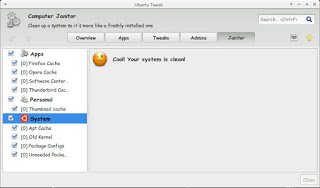
From the main menu navigate to janitor and click the stuff that need cleaning.

Ubuntu tweak Janitor

There are several categorizes: Apps, Personal and system.

You have to be careful when cleaning. If you don’t know what to do I suggest you avoid the system category.

Once checked press clean and enter your password to clean up the system as you see in the image!

It’s a good way of tracking disk space and keeping an eye on your system.

Please note that cleaning up the APT cache will delete the software installations you downloaded from the software center, and you should copy them first for backup and re installation if anything happens!

Top 3 common issues faced when dualbooting

Dual booting can bring many perks if done properly. It’s like having two computers working together. And a really good idea in case one of the systems fails, you will have a configured running system and your work flow won’t be affected by the fail. As I had to fresh install Windows 10 from scratch (because the rollback failed).

There are some minor disturbances to take care of first. And those are mostly caused by Windows.

1. Ruins the dual boot.

I have a complete post about this topic! No matter what you do. Installing Windows will erase any grub boot data and you won’t be able to access your other system (in my case it was Xubuntu) I made a whole post dedicated to this as a part of the dual boot saga. So please checkout the post for the fix.

2. Time is always wrong

As you use Windows you will notice your time settings are forgotten every time you shutdown.

  • This is quite easy to fix as you just need to edit a registry key to set the time once and for all. From run open regedit.exe and navigate to :
    HKEY_LOCAL_MACHINE>SYSTEM>CurrentControlSet>Control>TimeZoneInformation
  • Create a dword32 key and name it “RealTimeIsUniversal” And set the value to 1 by double clicking on it.
  • Lastly reboot to Ubuntu and then to Windows and your issue will be fixed.

3. Error mounting drives

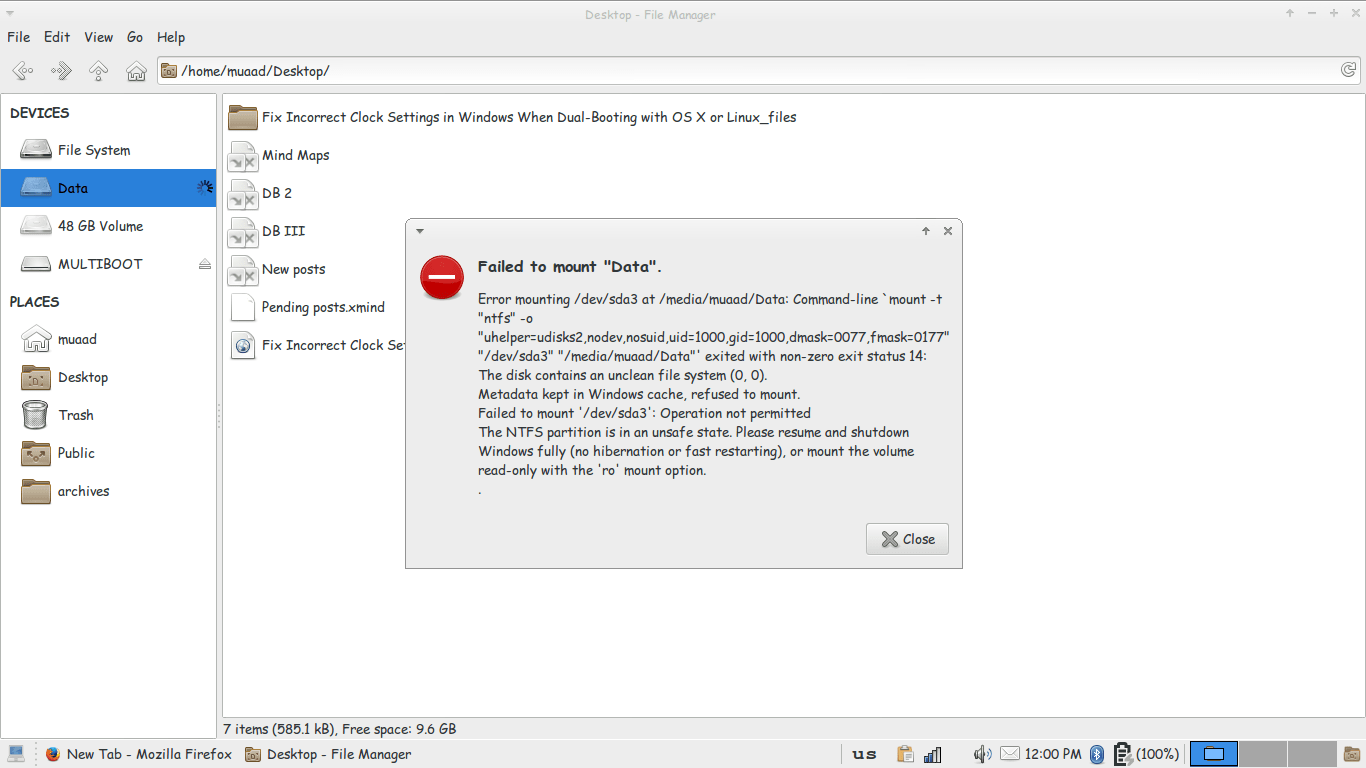
3. I couldn’t mount the data drive because Windows is still not totally shutdown, the drives are being used to “fast boot” in order to be able to use the drive without error, we need to disable fast boot. The screenshot shows an error caused by fast boot on Windows.

Error mounting drive in Ubuntu
Since it’s caused by Windows, we go and disable it from Windows.
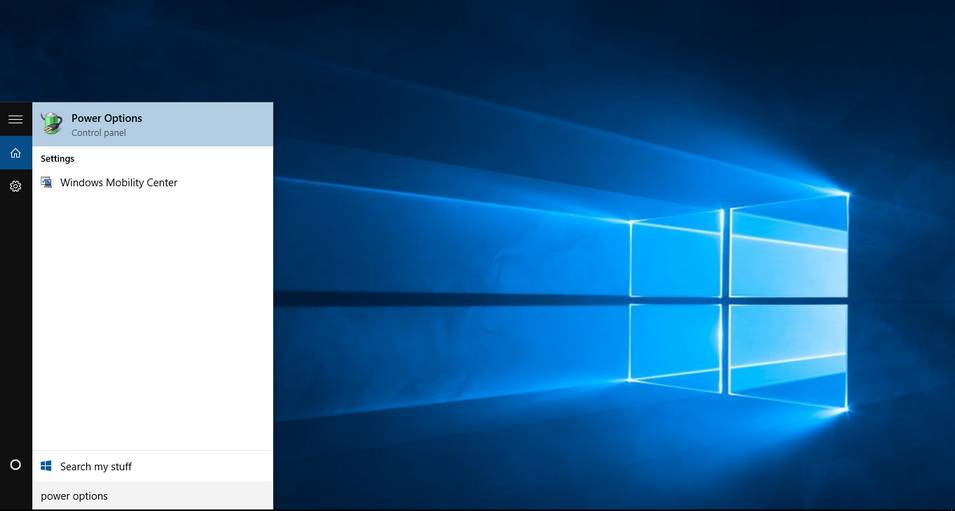
Go to Start menu and type: Power Options and click on the choice.
Type in power options in the search bar
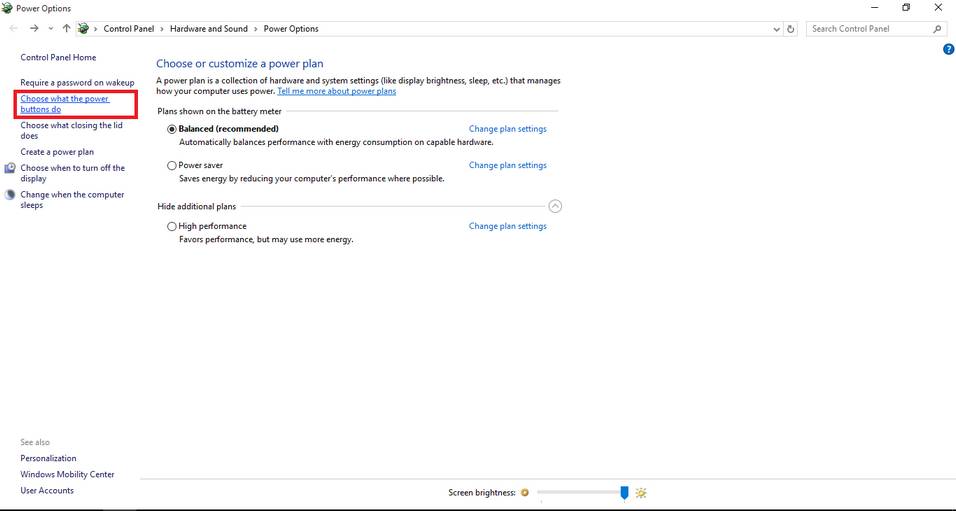
From there click on choose what the power buttons do.
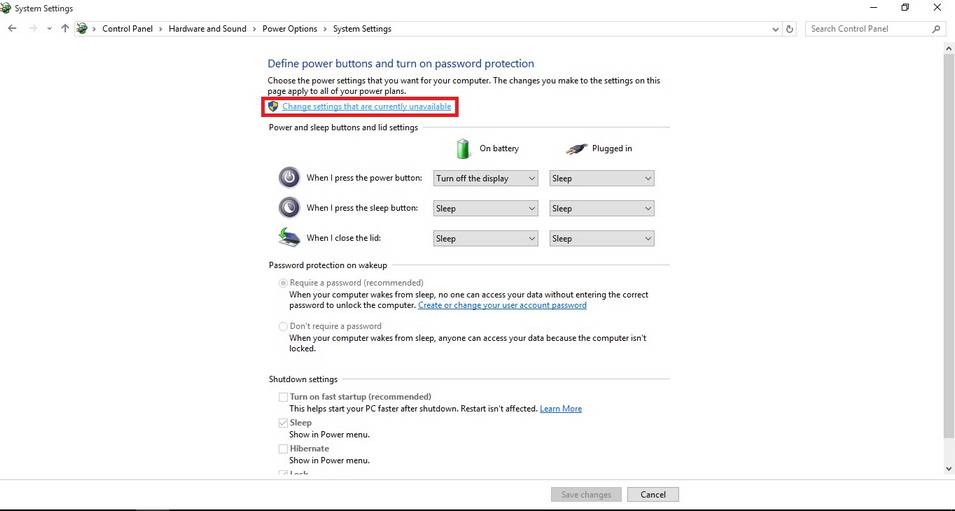
Click change settings that are currently unavailable to unlock the greyed options.
change settings that are currently unavailable
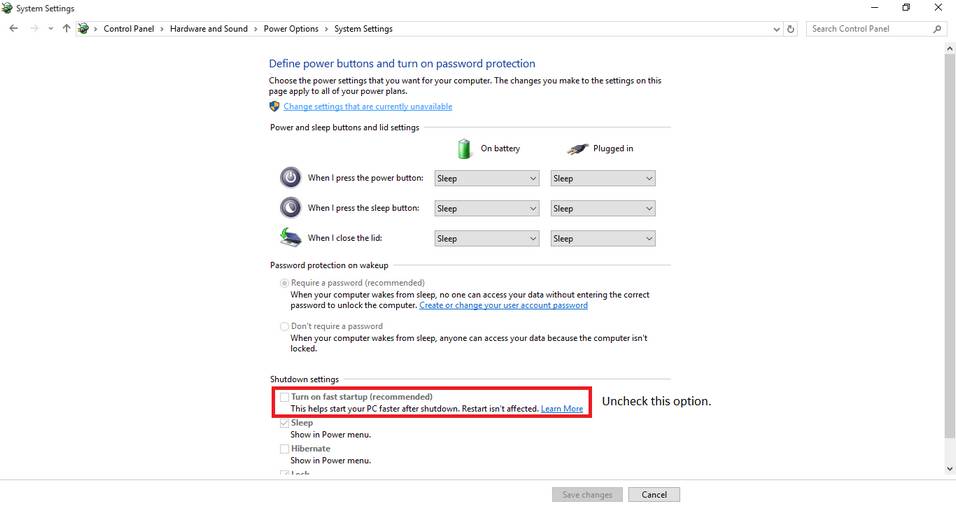
Then uncheck turn on fast startup. And close the window.
Uncheck turn on fast startup
Once the fast boot is disabled you will be able to access all the drives from Ubuntu without a problem.
Here I tried to list my experience on dual booting to help with these three bugs I faced twice. I hope you find it useful 🙂

Updating to Windows 8.1 from the store (Dual Boot Saga)

Those were really busy days. But this step comes as the final step. Finally I can upgrade to Windows 8.1 from the store to get this over with. I’ll have the latest update in both Linux and Windows. If you followed the saga you would know that none of this came easily!!

 For those who just joined us. I decided to install Windows 8 pro on my computer side by side with Xubuntu 14.04.

I installed Windows 8 and activated it. Then repaired the boot issue where Xubuntu was overlooked in favor of Windows 8 pro, then it was a true odyssey trying to transfer the license to my computer.
Now we come to the finally step, installing 8.1


Downloading Windows 8.1

Microsoft provided the 8.1 upgrade for 8.0 users via the Windows store. You can upgrade your system for free (not sure if there is a time constrain).

I decided to make use of that offer that our ISP provided (free download from 2 AM till 10 AM for a few months) to download Windows 8.1 and install it.

t took me two days to download 3GB from the Windows store! (The download was resume-able). And after the download was complete the installation began!

Important note:  You need to update Windows 8 before installing Windows 8.1 The update size is over 1.2 GB, and that includes optional updates as well!!

Installing Windows 8.1

It was really easy and didn’t take much time either! In a few moments I had the system up and running with no problem at all! You can see the tutorial Microsoft provided from here and for the more visual oriented readers here is a video:


What happens to Windows 8 after the update?

Some of the files remain in a Windows.old folder, it will be deleted within 28 days or you can delete it through disk clean up (I just clicked it and pressed Shift + Delete!!)

feel free to read more about Windows.old from here

This concludes the Dual Boot Saga. Please note that every computer is different and that you need to backup either way! Consult your local IT personnel or your OEM provider, this might void warranty so be careful!

« Older posts Newer posts »