
Category: DEB

FDM (Free Download Manager) for Linux is finally here!

After what seemed like an eternity, the popular free download manager has finally made a version for Linux! The development team finally came around after refusing to release a Linux version for years!

It all began in mid 2016 when the developers posted a poll asking what features did the users want to have in FDM, a version for Linux was on of the features suggested.

The Linux community help

I reached out to a very popular Linux blog: Itsfoss, and posted a guest post talking about FDM and asking for the help of the Linux community to change the voting results. The support was overwhelming and Linux is the first featured voted by a margin.  You can view the results of the poll from here.

A support issue

Over the years FDM was no longer open source, it turned into a freeware with the old branch 3.9.x remaining open source. So the source wasn’t going to be posted where people could collaborate on it. 
Also I’ve received information from the developers saying that it would have to be written from scratch in order to support Linux properly. 

FDM Alpha running on Ubuntu Linux
A screenshot of FDM running natively on Linux

FDM 6.1 supports Linux!

At last the long wait is over! A version of FDM finally supports Linux! This “Alpha” was released in October of 2018, and the stable version is yet to be released.  It’s a huge step from being a promise, a concept and an option on a poll..

You can download this version for Linux Ubuntu from this link.
It’s still in the very early stages of release and missing a lot of features as stated on the download page, with more functionality expected later this year; including features from the 3.9.x series of FDM.
Also Ubuntu is the only distribution of Linux currently supported and any other distros that support .deb files.

Final words

It’s wonderful seeing that something I’ve worked hard towards achieving is finally paying off. I’ve been rallying and pressuring the support team for over 3 years now for a Linux version. 
My happiness will be complete when a stable version of FDM 6.1 is released and Linux is one of the supported systems. 

Do you use FDM? How do you feel about a Linux version of FDM after all these years? Please let me know in the comments section blow.
How to download Bucklespring as a Deb in Ubuntu and enable it?

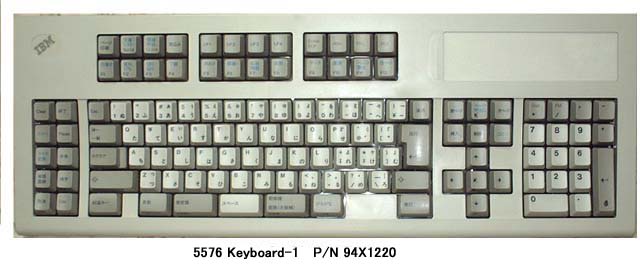
Bucklespring keyboards are iconic keyboards with distinct sound effects, sadly they went out of fashion however you can still relive the wonder of them on any keyboard you have

Downloading as a snap vs .deb

The most popular way to download this trick is via a snap, but I don’t like to use these nor have any of them installed. I still prefer the old fashioned .deb packages. 


A bucklespring keyboard

The packages

The package bucklespring_1.4.0-2_.deb can be downloaded easily from Debian’s packaging website (I shall link it below), please note that you won’t find this deb package in Synaptic.

Download the bucklespring-data_1.4.0-2_all.deb and the bucklespring_1.4.0-2_.deb.Install the data first then the bucklesrping package itself.

How to run Bucklespring?

Bucklespring has no GUI (Graphic user interface), so in order to get it to run you need to open the terminal and simply type in: 

buckle

Download links

Please choose the right architecture for your processor.

Important notes

You have to keep that terminal (x session) open in order to enjoy the bucklespring sounds as you type on the keyboard.

I happened to notice that some keys don’t produce the sound as they are typed on (the number pad on the right side of the keyboard).

Final words

It’s a cool trick to have enabled, totally changes your using experience of the keyboard. I find that it’s best paired with LED enabling (also enabled from the terminal) for a maximum nerdy effect.

Have you enjoyed this tip? Do you like the bucklespring noise? Tell me what you think in the comments section below, and I’ll catch you in another one!

Synaptic package manager 0.83 not adding downloaded packages [fixed]

Synaptic LogoSynaptic package manager happens to be my favorite way of installing software, much better than Gnome software and Software center, I even blogged twice about how it can be used to batch install downloaded packages (one was the older one and the other was a rewrite).
but lately it won’t add the downloaded packages and that was frustrating to me!


 Describing the issue

When clicking on add downloaded packages nothing happens, the installation prompt doesn’t appear, to me that is a serious issue because I copy the packages from my laptop to other computers around the house to update and add new software

The first solution that cam to mind was to uninstall Synaptic 0.83 and install an older version, 0.82 and 0.81 needed some dependencies so I dropped the idea!

Uninstalling and reinstalling Synaptic didn’t do anything, not even when using the option “completely remove” option from inside Synaptic (ironic, isn’t it?).

Finally fixing the Synaptic package manager 0.83 not adding downloaded packages issue

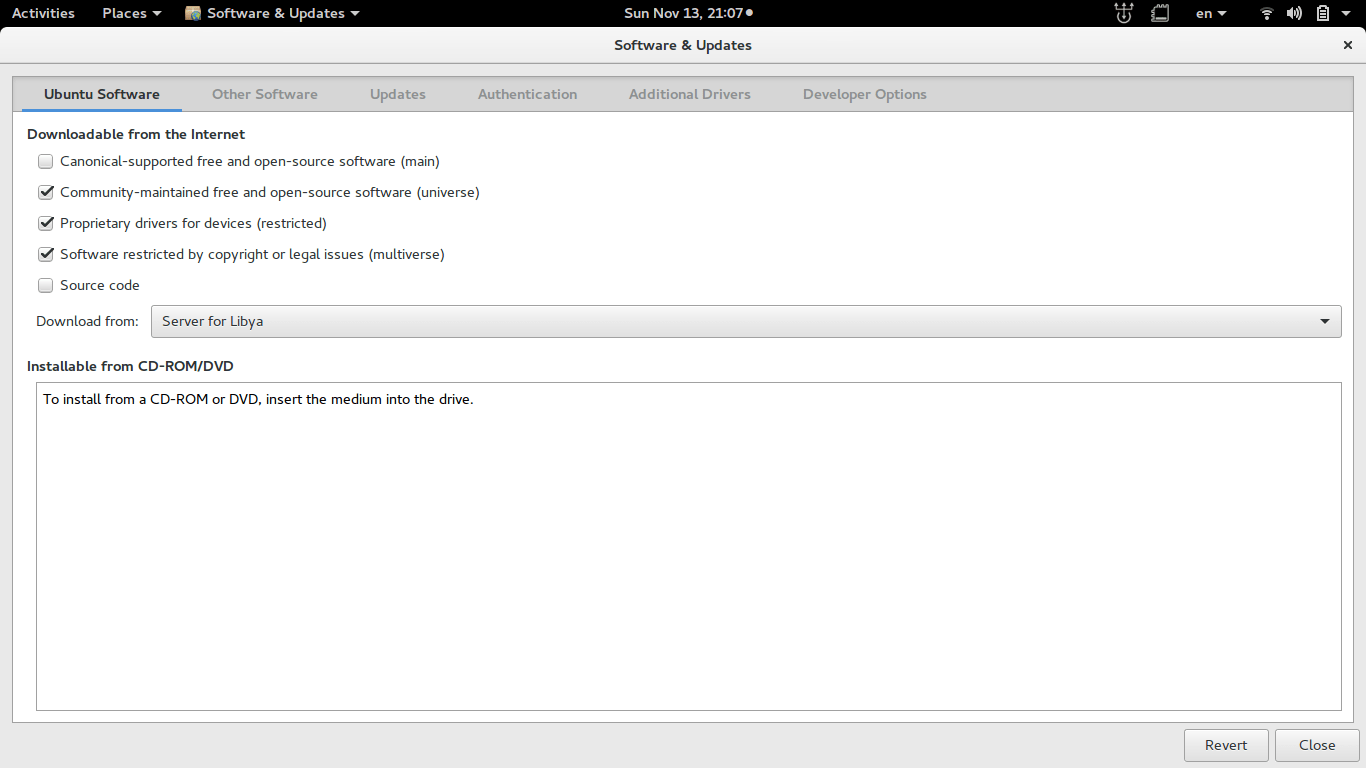
  • To fix the Synaptic package manager 0.83 not adding downloaded packages issue you need to close Synaptic and go to Software and updates.

Software and updates interface

  • From there make sure that the first option is checked, if it’s checked then uncheck it and then check it again, you will be promoted to enter your password, then click close.
     
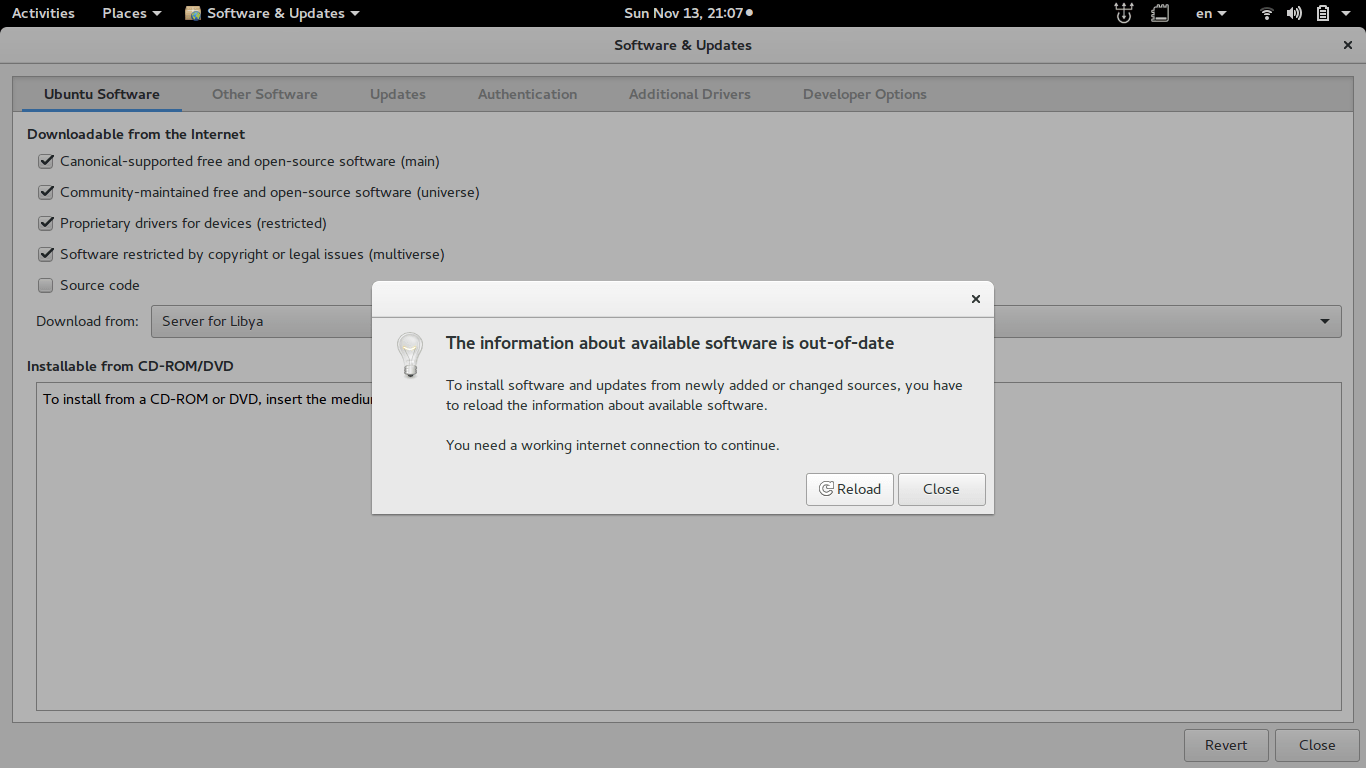
  • A pop up will appear telling you that package information is out of date and needs updating, and that you need a working Internet connection , click on “Reload” to continue.
    Reload package information (out of date)
    Reload package information (out of date)
     
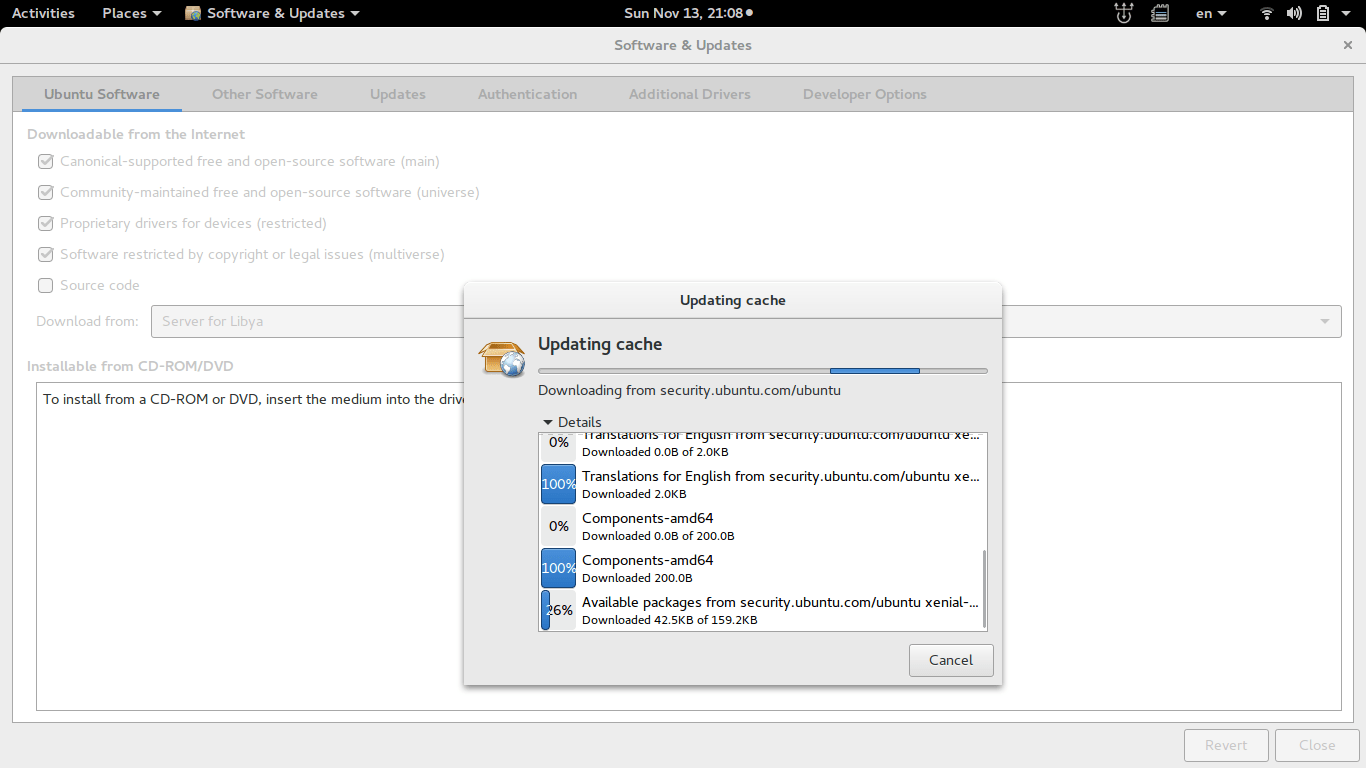
  •  The following windows will appear, the system is updating cached information, After the package reload is complete, it will be closed automatically.
    Updating cache
    Updating cache

  • Now you can go into Synaptic and add downloaded packages without a problem!

Final words

Fixing this annoying bug was so easy after all and it felt so good! I hope this helps you go through a hard day.
Please share this post so you can help someone else in need, and leave a comment if you have any questions!
Have a nice day 🙂

How to add downloaded packages to Synaptic Package Manager in Ubuntu 13.04

Hi, good day to you

There are several ways to install software in Ubuntu, some are easy like the Software Center, and are a bit advanced like Synaptic Package Manager, and you can download a DEB file form the Internet and install it (not recommended)..


But what happens when you want to transfer a lot of software to another computer, or install them on your freshly installed Ubuntu?

You can download them one by one of course :/ but you don’t want to do that, don’t you?
That’s why you are here 😉

My way is very simple and requires a little knowledge of your system.

  •  First copy the software you need from this directory on your computer:
    “/var/cache/apt/archives”
  • Copy the ones you need or all of them if you like
  • Paste them in a folder in your system partition (Where Ubuntu is installed), like your home folder.
  • Now open Synaptic Package Manager and enter your administrator password.
  • When it loads up navigate to File Add downloaded packages
  • Browse to the folder Archives you just copied form the old computer
  • Wait for it to add the packages, and here you have them.
  • It will install the changes automatically (Batch install your packages). 

As easy as that 😀

And the sweet part is: If you previously backed up your computer and restored it after adding the packages you will restore the settings as well 😀

Here you have it 😀 I hope you find this useful  🙂
P.S: I tested it on Zorin OS 7, so it should work on Ubuntu 13.04 with no problem.
If you like it please recommend it on Google + and subscribe to my blog
Have a nice day <3