Category: 16.04

Kubuntu 16.04 slow boot [FIX]

Kubuntu has a reputation for being one of the slower and heavier flavors of Ubuntu, and some users accepted that as a fact and decided to live with a slow boot rather than doing something about it, fear not fellow Kubuntu user, because I have your back!

Understanding the issue

After moving from Ubuntu Gnome 16.04 to Kubuntu 16.04 I noticed that the boot became much slower! I thought this was a temporary problem but a quick searched showed me I’m in for the long haul!
Even when using an SSD, my system was ready to use after almost 2 minutes (1.48 to be exact!) and thats’ slow even for a computer running Windows on a 5400 rpm HDD!

To put you in perspective, Ubuntu Gnome needed less than 10 seconds to fully boot to desktop (I had the black screen issue, but still..).

Now let’s not waste too much time with the problem, it’s time to fix the issue!

The solution

There are several tweaks that can be done to fix this issue, I found all of them on askubuntu, and managed to shave down the boot time from 1.48 minutes to 19 seconds!

First fix: Pre-boot

  • At first I went to my BIOS and changed the Sata mode from AHCI to Compatible, Ubuntu gnome wouldn’t boot unless the controller was AHCI.
  • Then I disabled the Intel Virtualization Technology because I no longer use VirtualBox.

Second fix: Removing the deleted swap partition entry from Fstab

When I installed Kubuntu 16.04 it came with a swap partition, and since I didn’t use hibernate it was safe to delete it by making sure of the UUID from the BLKID command, I forgot to delete it from Fstab and that causes the system to boot slower because it’s looking for swap.

I entered the command:sudo kate /etc/fstab command to edit fstab with root privileges and it looked something like:

    /etc/fstab: static file system information.

    #
    Use ‘blkid’ to print the universally unique identifier for a
    device; this may be used with UUID= as a more robust way to name devices
    that works even if disks are added and removed. See fstab(5).

    #
    / was on /dev/sda1 during installation UUID=4840d72b-2435-4dc1-9227-ab7671fd3d93 / ext4

    errors=remount-ro 0 1
    swap was on /dev/sda5 during installation UUID=0023c124-ea85-41d2-834c-83f6877d6959 none swap sw

    0 0

After deleting the swap entry (in green) it became like this: 


    /etc/fstab: static file system information.

    #
    Use ‘blkid’ to print the universally unique identifier for a
    device; this may be used with UUID= as a more robust way to name devices
    that works even if disks are added and removed. See fstab(5).

    #
    / was on /dev/sda1 during installation UUID=4840d72b-2435-4dc1-9227-ab7671fd3d93 / ext4

    errors=remount-ro 0 1

Third fix: Tweaking Services

Disabling services isn’t the best idea especially if you aren’t sure of what you are doing, but tweaking the services start and stop times could mean the difference between a slow and a fast boot! To be able to do so you need to edit System.conf

To edit system.conf enter the commandsudo kate /etc/systemd/system.conf into the terminal and search for the line#DefaultTimeoutStartSec=90s and remove the “#” to change it from being a comment, and set the value to 1 rather than 90, and do the same for #DefaultTimeoutStopSec=90s.

After this tweak the processes will start and stop much faster, and so does your computer!

Fourth fix: Tweaking Grub

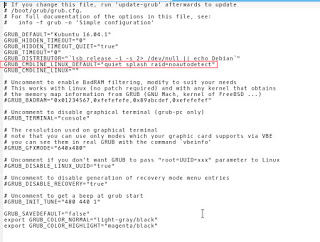
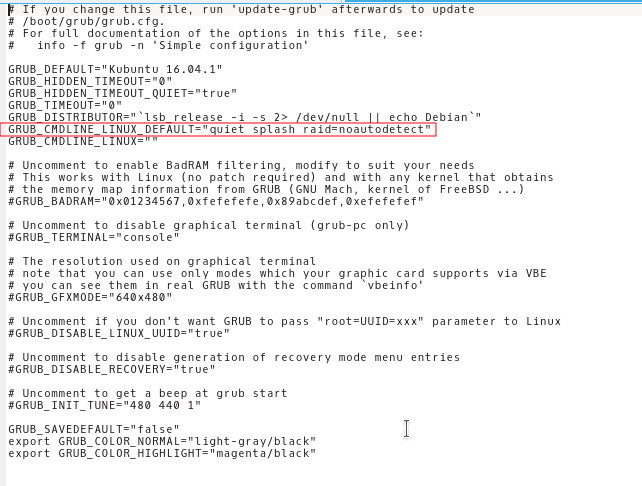
Enter the command into the terminalsudo kate /etc/default/grub and add the and added raid=noautodetect toGRUB_CMDLINE_LINUX_DEFAULT to become:

   GRUB_CMDLINE_LINUX_DEFAULT=”quiet splash raid=noautodetect”

Thensudo update grub 2 sudo update grub
 
Boot time is now 19 seconds.

Thanks for reading!
Please share it on social media and have a nice day. 
Kubuntu 16.04.01 Install and review

I have been using Ubuntu Gnome for over a year now, and it has been great, there has been some bugs here and there that I could work my way around, but it got really out of hand lately so it was time for a change!
Disto hopping

I admit, distro hopping is something I am guilty of; you get to try many distros and interfaces very easily, and it is criticized for being counter productive and a total waste of time and resources, but that’s not always the case, it’s sometimes you need to take a step back to keep going forward.

 Reasons why I left Gnome

The corner jester that summons the work spaces in Gnome isn’t really productive, and the Gnome classic mode isn’t very “classic”, I couldn’t achiever the level of productivity I strives to archive.

Other choices to look at

So I started to look for an alternative that isn’t “Gnome based” and that left me with few options! Many popular interfaces are built on Gnome and I believed that the problems will tag along.

Unity isn’t even an option on my list because I don’t like it! I’m glad there is a choice in the open source world, so I decided to try Kubuntu for a change, and to get rid of my issues.


Kubuntu has a support cycle of 5 years, perfect!

Going for Kubuntu

I downloaded Kubuntu as usual by a torrent because it’s better for the network and my pocket, and it took a lot as usual (7 hours).

Installing Kubuntu

Installing Kubuntu was easy, same as the usual installation of Ubuntu, and it was up and running in a few minutes.

Interface and user experience 

The interface on the other hand is completely different from Gnome, and I instantly remembered Windows because of the menu and the bottom panel, Kubuntu is aimed for an easier user experience, I think they meant it was “a windows like experience”.

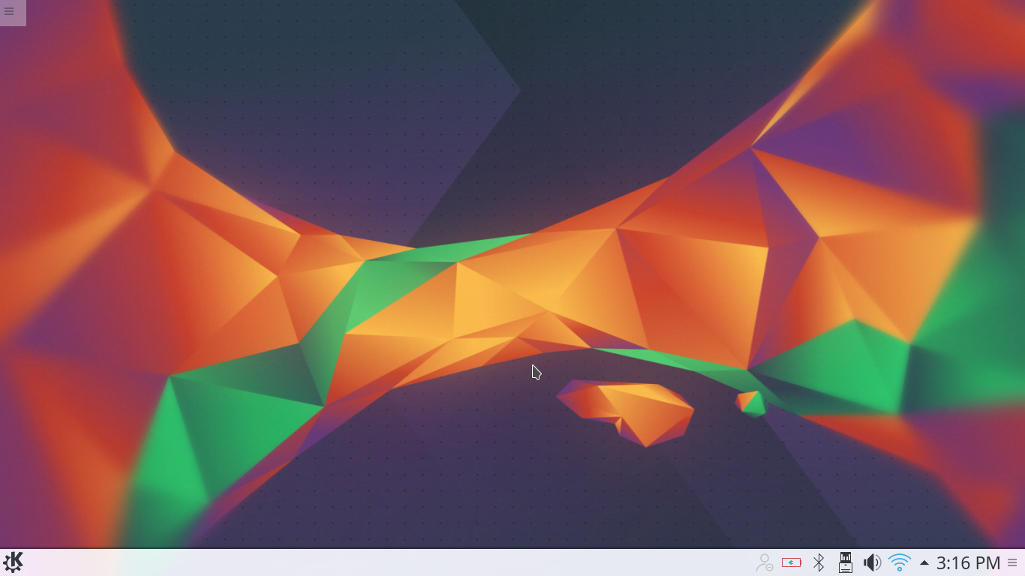
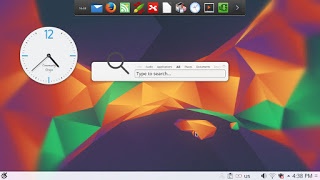
Default interface in Kubuntu

It’s even has an Aero peak like feature, when you hover the mouse over a taskbar program and you see a preview of the program running in a box.

Areo peak in Kubuntu


So far the experience is smooth, but it’s different from all the interfaces I used before,  and the default applications are also different from the gnome/unity bunch.

Of course KDE comes packed with tools that start with “K” like Kedit and Knote, I’m not ready to give up Zimwiki for example so some of these K tools had to go! 

I have a tip for you: If you copy and paste terminal commands from web pages, you are going to have to change Gedit to Kate, so you get your commands up and running 🙂

The Widgets are interesting and really give a larger scale for customizing.

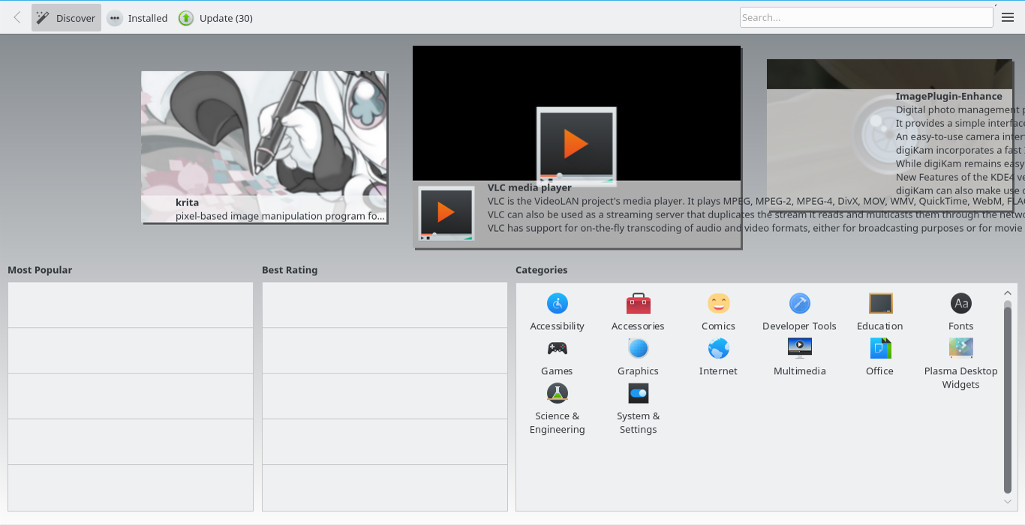
While the software center is a bit, different!

Software and updates

I’m used to having the software settings and sources in a separate application than the software center, in Kubuntu they are merged up together and aren’t exactly easy to find, as if the Kubuntu developers don’t want you to find the source settings and edit them properly.

Kubuntu software center

The file manager Dolphin

Some of the things I really liked is the Dolphin file manager, it’s much better than Nautilus, the interface is clean and clear, and doesn’t have some of the chronic bugs Nautilus plagued with, it’s also featured packed as it has a double pane and gives a better access to the main controls and preferences. 

Dolphin file manager

Adding my set of tools

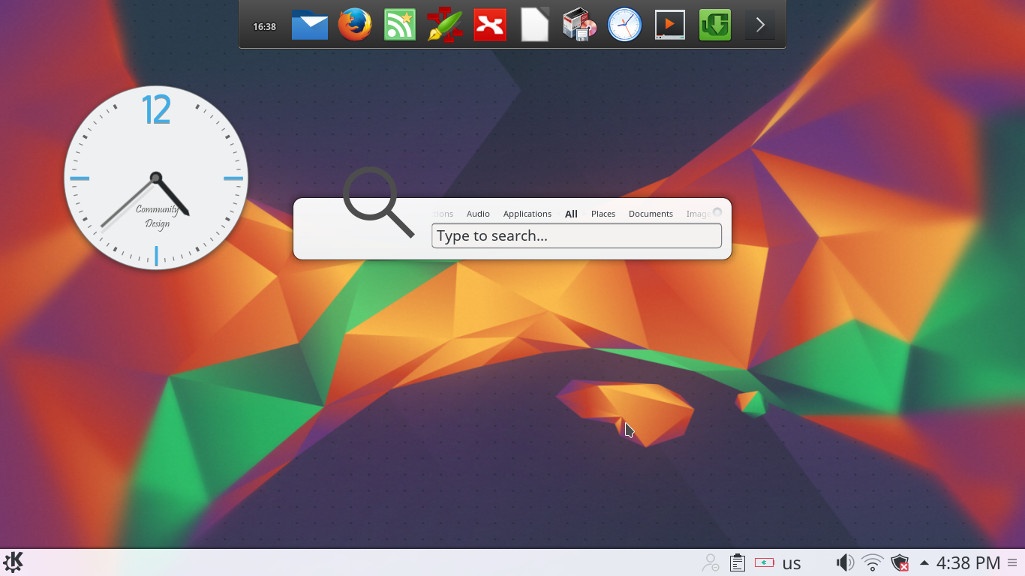
The final Kubuntu desktop

Things to note

I also noticed that Kubuntu doesn’t have a backup utility? That is not good to be honest, it was so easy adding Deja backup from Synaptic but a backup utility is something you need out of the box! 

Another thing is the terminal emulator Konsol, it doesn’t start with the usual CTRL + ALT + T key combination right away and it takes a bit of tweaking to get it to work.

Dolphin doesn’t handle the smartphone very well, it can’t write to the phone’s memory and often fails to explore it’s contents in MTP mode.

My post about Ubuntu Gnome is still relevant to a great degree, I do miss the Gnome pomodoro timer because it’s a Gnome application and you have to install all of Gnome libraries and dependencies, to get it to work, which isn’t exactly productive. And I’m really unsure how to integrate it into the KDE interface, so it has to go! Ktimer on the other hand has great potential of launching scripts and apps on a specific timer.

Slow boot!

One of the main issues I noticed is the slow boot, nearly 10 times what Gnome needed to boot, I managed to fix this problem and you can find the solution here

Warning

Never install any distro if the Checksum don’t match! I did it and I was in for a world of pain, and had to reinstall all the packages from synaptic.  

Final verdict

I think Kubuntu and KDE in general is underrated and doesn’t get as much “mainstream attention” as other flavors and interfaces, it is worth a try!
It feels really well polished and almost reminds me of Macs OS, I’ve never had or worked one on, but that’s what I think at least.

What do you think of this post? Do you use Kubuntu? What do you think?
Please share this on social media, and subscribe to my mailing list to get updates before anyone else! 

Ubuntu 16.04 Beta 2 is out

Ubuntu 16.04 Beta 2 was released yesterday!

As we follow the highly anticipated launch of Ubuntu 16.04 here on this blog, we saw the Alpha roll out and then the first Beta, now it’s time for the second beta to launch.

Remember this version is far from over and it’s for testing purposes only, but if you would like to download it and give it a spin, you are more than welcome!

On a lighter note, this is the official Ubuntu 16.04 Mascot.

With the Ubuntu 16.04 release being less than 1 month away, I presonally can’t wait and will blog about it as soon as it rolls out god willing.

Have a nice day!