
Category: Activate windows

Transfer Windows 8 licence to a new machine (Dual Boot Saga)

This is the third episode of the Dual Boot Saga. In the last two episodes we talked about installing Windows 8 and restoring the Grub menu so we can actually dual boot.
In this episode we will be covering the most important aspect of the whole saga, Transferring Windows license. 


What was the situation at the time?

I was informed that the key was installed on an another computer (Which is something I already know!) but the old HDD was “fried” and the laptop is thrown on some dusty shelve somewhere! How to let Microsoft know that? I was given an activation ID and was instructed to call my local Microsoft support number. No response.
I Googled half a dozen of local support numbers (Libyan) and none of them even replied. The last one said that the license cannot be transferred. And started giving me pricing and offers. I wasn’t going to give up just yet (Which is true if the license was OEM, mine was PRO which I got separately).


I wasn’t about to give up just yet!

I read on the Microsoft answers site that if you call the support center and provide the installation ID. (You will see it in the Activation settings when your Windows is not activated) They will give you an activation code you use to activate your Windows. I looked up the nearest support number and it was in Kuwait! And the minute prices were high! I couldn’t call them via any VoIP service  like Viber or Skype. And Windows was still not activated!

This is how the actual call went

I called a good friend of mine who worked in a call shop who said he can help me. I went to him and I was surprised he moved business. And took me to a shop across the street to a friend of his! The guy was so nice. He took the number and gave me a decent working phone (most of the phones were dirty and smashed) I called the number and it was an automated response. I navigated through the options until I reached the most important part. I entered the ID with shaking fingers on the phone. Then the machine dictated a number sequences. I entered that to the computer. And Windows was activated!! The guy won’t take a penny for a 10 minute call to Kuwait! God bless him!

 

This is what a callshop looks like


Finally!!

I drove home so happy! I had activated Windows and proven the local salesmen wrong (the customer is always right? Not in Libya that is!!)
I had a good idea about the call process because I read this tutorial before going there, it would save you some time and money to do so!

Now that I had my Windows running side by side with Linux. I had one more thing to do before ending this saga, and that is to update Windows 8.1
But this will have to wait for the next episode of our Dual Boot Saga!!
How are you liking these posts so far? Let me know in the comments below!

Windows 8 Installation and Activation (Dual Boot Saga)

I freshly installed Windows 8 Pro on an old friend’s laptop that soon collapsed. So I had to do something so I don’t lose the Pro license!
That laptop has been acting off for quite some time.

It was time to replace the 4+  year old laptop with a new one. (The old one came with Windows 7 so I got it a new HDD and installed Windows 7 on it.)  But what will happen with the original Windows 8 pro that was installed on it? I decided not to let that code go to waste! I had Linux running on my computer and I decided to dual boot (I don’t like having two laptops).

The step process was pretty straight forward and there was nothing to write home about.

Creating the partition table

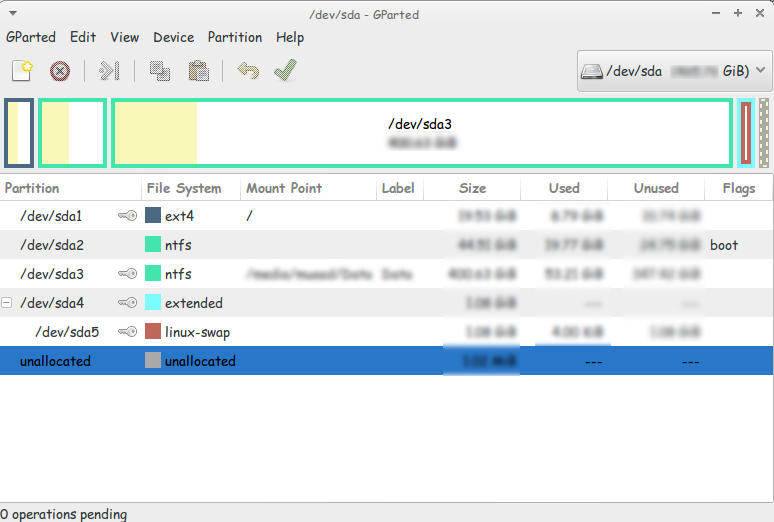
I used Gparted to create a new partition on my computer (after I backed up all the data of course!).
This is the drive after I used Gparted to create a Partition to install Windows
You must use Gparted with care. This link doesn’t show the exact steps but it’s very close!
I used this tutorial to put a Windows 8 Pro ISO on a USB drive.  It’s faster to install from a USB. So I went for it.

Then I entered my install media USB chose the newly created partition and installed Windows, This is a link from Microsoft showing how to “clean install” Windows.

Now we come to the Activation part

Upon activation I couldn’t activate the key I had! It won’t activate!
It took the key but didn’t activate..

A quick Googlesearch and I was good to go!

Check the link for the steps.

I was glad at this point. I installed Windows and activated it. but at this point I had two major problems!

These major problems were:

  1. Installing Windows 8 ruined the boot settings! I can’t see Linux anymore!
  2. I needed to transfer the Windows from the old laptop to mine.

There were some minor things I solved right away!

  • There was a minor nuisance of Incorrect Clock Settings in Windows when dual booting. I fixed easily following this tutorial
  • I wanted to Enable .Net Framework 3.5 without downloading it. it was an easy fix and you can check it out from here.
  • Windows 8 has the Fast boot feature that makes the disk unaccessible from Linux if Windows 8 was shutdown unexpectedly. This is why you need to disable it. And this is how!

I’ll be getting to those major problems in the second and third part of our saga! Stay tuned!!

Make sure to leave your comments and suggestions in the comments section below.

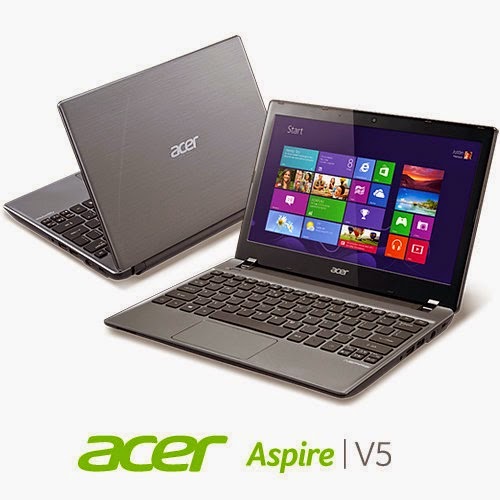
Acer Aspire V5-P122 boot problem FIX !! OEM saved!!

Hey there you guys 🙂
I’m happy to report I was able to fix the Acer Aspire V5-P122 boot problem!

I must emphasis that this tutorial is at your own risk and I can’t be held  responsible for any damages that occur from it! I’m not even sure this is 100% legal and that it doesn’t void Acer warranty! In this case we don’t have an Acer service in our country (It was imported) and therefor I had to take action (To save the OEM license) ..

After the long introduction, let’s get down to business:
As you remember in this post we managed to make the Acer boot under Linux by changing the boot settings. And we could access the hard drive after accessing the repair mode under windows and writing some commands. For the full steps go to this post.
At this point we have our data at hand (since we booted under Windows for repair. Then under Linux for data recovery), we could easily backup the data to an external hard drive, but can we restore Windows?

Sadly I couldn’t manage to use any of the options to make the laptop work again!

  • I couldn’t refresh the system.
  • I couldn’t use the repair utility from the setup.
  • I didn’t have an image ( and I doubt that would have done anything ).
  • It won’t restore to a previous restore point.

Well a mistake happened with us and it totally wiped the hard drive! What happened was instead of booting Linux into live mode I installed Linux on the whole drive! Wiping the data and partitions completely !! ( Deleting the system partition, data partition, the recovery partition. And all of Acer’s bloatware!)

A fresh start

With nothing at hand, I knew that I needed to format! My main concern was the Windows license!  Now I have to go shopping for another Windows version! But I just got this laptop! And it has OEM Windows already on it! Isn’t there a way to keep the license?
Well .. There is 😀
Luckily the new Windows license is stored in the BIOS. Meaning it won’t be lost even if the hard drive was replaced!

Next step

The only thing left now was to install windows again, it’s pretty basic. Checkout the detailed method in this post I made sometime ago 🙂
Again I was stressing, will the license be picked by the setup?
I couldn’t find that version of Windows to install with anywhere! All I could find was the Pro version! Does that mean I have to buy it again? Or I should transfer the license from my other laptop and use it here. Keeping that device a Linux machine?
Anyway I begun the installation via USB ( The Acer doesn’t have a DVD-Rom).
After the setup was complete it noted that windows wasn’t activated, but it was reading the license file!

Viewing the License

I knew that because I downloaded the Nirsoft license viewer tool and tested it on my other device, 100% accurate!
It showed when I used it on the Acer Netbook that indeed the OEM bios has a license. It was yet to be activated.

Powerful command

I used this command and restarted the computer. After the restart I clicked Activate Windows
Windows was activated (With the O.E.M license!!). And it was downgraded to Windows 8 ( The setup was 8 Pro)!!
It was a total success!
I postponed creating a system image until upgrading to 8.1 (it’s equal to a format).
And that was it!
Maybe you need to call Microsoft after the format! And if you have an Acer reseller. Go to them! ( As I said, we have no means of support. I tried to make this as legal as possible. I hope it doesn’t violate any laws)

Final words

To sum the whole post in a paragraph: I reinstalled Windows 8 Pro and activated windows via the O.E.M bios, downgrading it to Windows 8.
Of course I lost all the Acer tools, guides, drivers and even bloatware!
Again I must insist to resort to this as a final solution knowing it may void your warranty!
I hope you find this post useful. Please tell me what occurs with you!
Have a nice day 🙂
Make sure to follow my blog and join my mail-list NEW