Category: Install windows 8

Updating to Windows 8.1 from the store (Dual Boot Saga)

Those were really busy days. But this step comes as the final step. Finally I can upgrade to Windows 8.1 from the store to get this over with. I’ll have the latest update in both Linux and Windows. If you followed the saga you would know that none of this came easily!!

 For those who just joined us. I decided to install Windows 8 pro on my computer side by side with Xubuntu 14.04.

I installed Windows 8 and activated it. Then repaired the boot issue where Xubuntu was overlooked in favor of Windows 8 pro, then it was a true odyssey trying to transfer the license to my computer.
Now we come to the finally step, installing 8.1


Downloading Windows 8.1

Microsoft provided the 8.1 upgrade for 8.0 users via the Windows store. You can upgrade your system for free (not sure if there is a time constrain).

I decided to make use of that offer that our ISP provided (free download from 2 AM till 10 AM for a few months) to download Windows 8.1 and install it.

t took me two days to download 3GB from the Windows store! (The download was resume-able). And after the download was complete the installation began!

Important note:  You need to update Windows 8 before installing Windows 8.1 The update size is over 1.2 GB, and that includes optional updates as well!!

Installing Windows 8.1

It was really easy and didn’t take much time either! In a few moments I had the system up and running with no problem at all! You can see the tutorial Microsoft provided from here and for the more visual oriented readers here is a video:


What happens to Windows 8 after the update?

Some of the files remain in a Windows.old folder, it will be deleted within 28 days or you can delete it through disk clean up (I just clicked it and pressed Shift + Delete!!)

feel free to read more about Windows.old from here

This concludes the Dual Boot Saga. Please note that every computer is different and that you need to backup either way! Consult your local IT personnel or your OEM provider, this might void warranty so be careful!

Transfer Windows 8 licence to a new machine (Dual Boot Saga)

This is the third episode of the Dual Boot Saga. In the last two episodes we talked about installing Windows 8 and restoring the Grub menu so we can actually dual boot.
In this episode we will be covering the most important aspect of the whole saga, Transferring Windows license. 


What was the situation at the time?

I was informed that the key was installed on an another computer (Which is something I already know!) but the old HDD was “fried” and the laptop is thrown on some dusty shelve somewhere! How to let Microsoft know that? I was given an activation ID and was instructed to call my local Microsoft support number. No response.
I Googled half a dozen of local support numbers (Libyan) and none of them even replied. The last one said that the license cannot be transferred. And started giving me pricing and offers. I wasn’t going to give up just yet (Which is true if the license was OEM, mine was PRO which I got separately).


I wasn’t about to give up just yet!

I read on the Microsoft answers site that if you call the support center and provide the installation ID. (You will see it in the Activation settings when your Windows is not activated) They will give you an activation code you use to activate your Windows. I looked up the nearest support number and it was in Kuwait! And the minute prices were high! I couldn’t call them via any VoIP service  like Viber or Skype. And Windows was still not activated!

This is how the actual call went

I called a good friend of mine who worked in a call shop who said he can help me. I went to him and I was surprised he moved business. And took me to a shop across the street to a friend of his! The guy was so nice. He took the number and gave me a decent working phone (most of the phones were dirty and smashed) I called the number and it was an automated response. I navigated through the options until I reached the most important part. I entered the ID with shaking fingers on the phone. Then the machine dictated a number sequences. I entered that to the computer. And Windows was activated!! The guy won’t take a penny for a 10 minute call to Kuwait! God bless him!


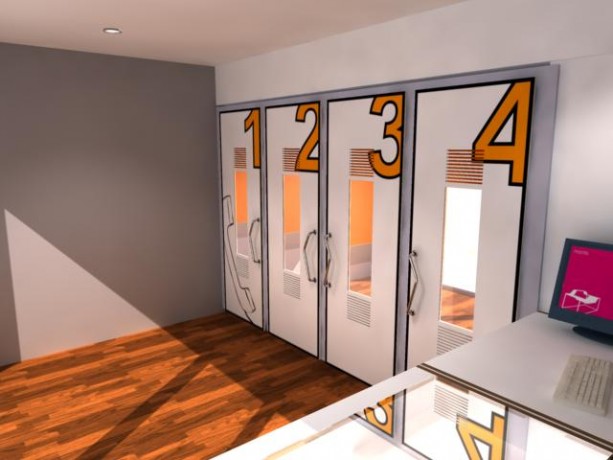
This is what a callshop looks like


Finally!!

I drove home so happy! I had activated Windows and proven the local salesmen wrong (the customer is always right? Not in Libya that is!!)
I had a good idea about the call process because I read this tutorial before going there, it would save you some time and money to do so!

Now that I had my Windows running side by side with Linux. I had one more thing to do before ending this saga, and that is to update Windows 8.1
But this will have to wait for the next episode of our Dual Boot Saga!!
How are you liking these posts so far? Let me know in the comments below!

Windows 8 Installation and Activation (Dual Boot Saga)

I freshly installed Windows 8 Pro on an old friend’s laptop that soon collapsed. So I had to do something so I don’t lose the Pro license!
That laptop has been acting off for quite some time.

It was time to replace the 4+  year old laptop with a new one. (The old one came with Windows 7 so I got it a new HDD and installed Windows 7 on it.)  But what will happen with the original Windows 8 pro that was installed on it? I decided not to let that code go to waste! I had Linux running on my computer and I decided to dual boot (I don’t like having two laptops).

The step process was pretty straight forward and there was nothing to write home about.

Creating the partition table

I used Gparted to create a new partition on my computer (after I backed up all the data of course!).
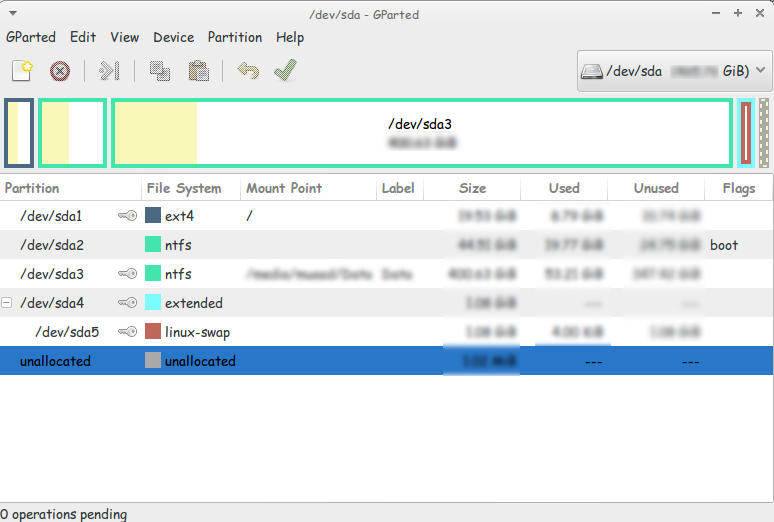
This is the drive after I used Gparted to create a Partition to install Windows
You must use Gparted with care. This link doesn’t show the exact steps but it’s very close!
I used this tutorial to put a Windows 8 Pro ISO on a USB drive.  It’s faster to install from a USB. So I went for it.

Then I entered my install media USB chose the newly created partition and installed Windows, This is a link from Microsoft showing how to “clean install” Windows.

Now we come to the Activation part

Upon activation I couldn’t activate the key I had! It won’t activate!
It took the key but didn’t activate..

A quick Googlesearch and I was good to go!

Check the link for the steps.

I was glad at this point. I installed Windows and activated it. but at this point I had two major problems!

These major problems were:

  1. Installing Windows 8 ruined the boot settings! I can’t see Linux anymore!
  2. I needed to transfer the Windows from the old laptop to mine.

There were some minor things I solved right away!

  • There was a minor nuisance of Incorrect Clock Settings in Windows when dual booting. I fixed easily following this tutorial
  • I wanted to Enable .Net Framework 3.5 without downloading it. it was an easy fix and you can check it out from here.
  • Windows 8 has the Fast boot feature that makes the disk unaccessible from Linux if Windows 8 was shutdown unexpectedly. This is why you need to disable it. And this is how!

I’ll be getting to those major problems in the second and third part of our saga! Stay tuned!!

Make sure to leave your comments and suggestions in the comments section below.

I’ve decided to rewrite the (Dual Boot Saga)

 Going back I felt that the posts weren’t really coherent and didn’t have that much information to be a guide to anyone!!
So I decided to rewrite it with greater detail and a lot of references.
I will code name it dual boot saga instead!
And instead of three parts this saga is composed of four parts. I’ll be linking them here for easy reference.
I will publish it sometime later so Stay tuned!