Category: Fedora (Page 1 of 2)

Tech news digest June 2016 (Linkedin sale, OnePlus3, snaps for Linux and more)

This week had many interesting news happening all over the tech world!
Let’s take a look at this digest and catchup really fast!
Microsoft is said to buy the enterprise social media site Linkedin for a record 26.02 Billion dollars in cash, the deal is trending worldwide with people shocked over the size of the acquisition, it’s a bold business choice to say the least!
The current S.E.O of Linkedin Jeff Weiner will report to Satya Nadella the C.E.O of Microsoft, as Microsoft is looking to reach to the 433 million users of Linkedin to expand it’s business and products such as Office 365 and cloud solutions.


Microsot’s logo

In other Microsoft news the Windows 10 “free upgrade” will expire on July the 29th, so if you are planning to update you better put that on your checklist and fast!

OnePlus is ready to launch the third smartphone of it’s famous “flagship killer” series: OnePlus3, the highly anticipated phone will come with a 64GB internal memory and 6GB of RAM! (specs according to GSMarena).
The countdown is almost done and the launch event will be presented in virtual reality via a The Loop. A special App available on the Google store.
More details will be available as soon the smartphone is released.
Here is the official unboxing video.


Apple’s logo

Apple annonced at WWDC 2016 the release of it’s latest update to iPhone and iPad: iOS 10. Which brings many improvements to iPhones such as a redesigned message app, lock screen and the ability to delete many pre-installed apps, the update will be shipped this fall. (for more details check the Apple site from here)



It’s not a Snap! Just a package icon!

Now we take a tour of the Linux world:  Sanps are the hottest thing in the Linux world today and for a good reason! Snaps were first announced as a feature of Ubuntu 16.04 that installs programs easily without needing to install dependencies (as it’s packed with the binary) or use command lines to install, these snaps can run virtually on ANY Linux distro! Meaning you can use Ubuntu apps anywhere you go on Linux: Desktop, server or cloud!

The main advantages of Snaps are security, speed and ease of use as they are easier to create, install and update! And many of the major open source projects like LibreOffice and Ubuntu will use them very soon as the standard way to deliver software.

This has been a dream for Linux users for many years because different distros use different package managers, meaning that Debian software won’t work on Fedora and vice-versa.
I’m glad to see that happening finally, learn more about this awesome new technology!

Fedora’s latest release: Fedora 24 was supposed to be released today, but due to some bugs not being fixed it was postponed, Fedora is ready when it’s ready! Checkout the bug list if you can’t wait!

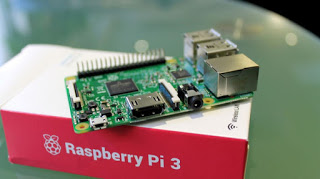
Finally the Linux oriented blog it’sfoss is celebrating it’s fourth anniversary (does it ring a bell?) by throwing a giveway, the prise is the awesome Raspberrypie3.

It’s F.O.S.S’ logo

Here is my lucky link for you to enter and help me win, because if I did I’ll make a video review of it and many posts about it! 😉
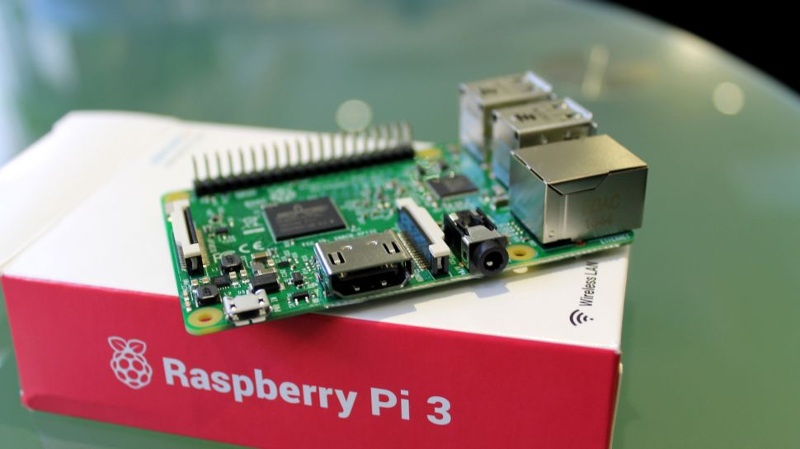
Raspberry Pi 3
The Raspberry Pi 3 as shown on the giveaway site!


That was the tech news of the week segment, I hope you enjoyed this quick digest, let me know what you think in the comments section below!
My review of Ubuntu Gnome 16.04

It’s been a couple of weeks since Ubuntu 16.04 was out! I decided to take my time and give the new distribution some time before making a review, I think two weeks are enough time, so let’s take a look at Ubuntu Gnome 16.04!!


Ubuntu Gnome 16.04 new logo

The distribution

Ubuntu Gnome 16.04 became an official Ubuntu flavor, making use of the Gnome interface, unlike the official Ubuntu that uses Unity as interface, it comes with Gnome software and isn’t a clone of Ubuntu, there are some minor differences in apps, Basero is  the default disk burn utility for example, and gnome software is at 3.20 out of the box.


Ubuntu Gnome 16.04 Screenshot

Please note that some of the tools in the screenshot aren’t installed natively, such as Zim-wiki and Sublime text.

Download and Install

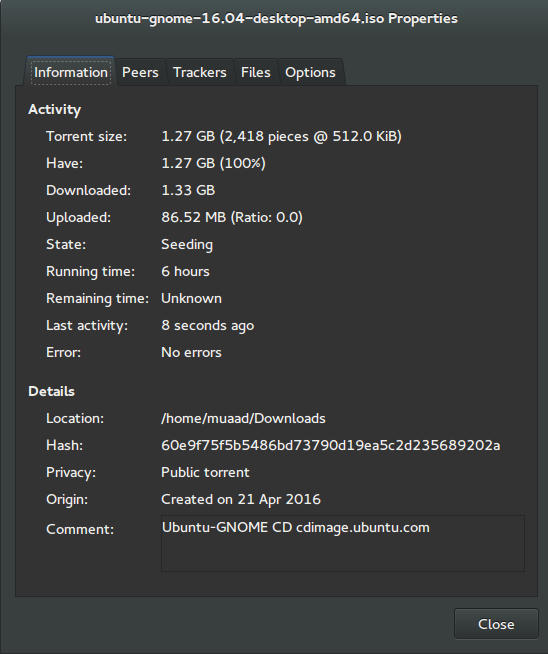
I’ve downloaded Ubuntu Gnome via torrent because I read it’s better for the servers, and come to think of it since the electricity goes out very often here, it’s better to download Ubuntu via torrent to save myself the trouble of downloading it all over again! It was downloaded eventually after 6 hours.
Checkout the download link from here.


It took 6 hours to download!
Torrent download information

I put it on a USB and began installing, pretty much the same since Ubuntu 10.10.
This version has 3 years of LTS support, why not five years? I’m not sure.


Steps to take after installing Ubuntu Gnome 16.04

Most of these steps are on my blog, but it won’t hurt to collect them all together in one neat list, would it?
  • Configuring wireless and Bluetooth, which is really easy to do but very important.
  • Installing the extras, the restricted extras needed to view media files and flash, and some fonts.
  • Installing my softwares, the usual package of stuff: VLC, Inkscape, GimpXmind and Zimwiki
  • Installing extensions: Clipboard indicator and OpenWeather.
  • Editing input sources to make it change between languages by pressing alt + shift, you can find how to do it from this link.
  • Restore the bookmarks and data (notes), Firefox is pretty easy to restore, and so is Zimwiki! All you have to do is to put the note folder in Home.
  • Customize LibreOffice. To make it more compatible with Arabic.
  • Disable apport, more details in the defects section.
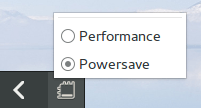
  • Installing powertop for more power save and CPU Frequency to reduce fan noise!
  • Pomodro timer works beautifully with Ubuntu Gnome 16.04 and you have to install it, it’s the best timer app for Ubuntu to date! Read my review about it from here.
  • Disable tracker-store as shown in this askubuntu link. 
  • Disable evolution safely without uninstalling it. Saving nearly 170 MB of RAM.
  • I also decided to skip the Grub menu since I only use Ubuntu 16.04, to do that you need to download and install Grub Customizer with these commands:

    sudo add-apt-repository ppa:danielrichter2007/grub-customizer
    sudo apt-get update && sudo apt-get install grub-customizer

    After that go to Grub customizer and enter your password, go to settings and uncheck: show menu and look for other operating systems. This way you will get rid of Grub and boot to Ubuntu right away, don’t do this if you dual boot!!< red;”


Features and improvements

  • I do appreciate the Gnome 3.18 interface! A huge jump from the 3.10 that Ubuntu 14.04.4 ships with, as it has many improvements and tweaks and fixes for annoying bugs in Gnome 3.10 (LTS to LTS upgraders will relate!).
  • The notifications style has changed completely, it’s now displayed in a drop-down menu under the clock.
  • The annoying bottom bar was removed completely, a feature I will never miss! It’s replaced with a neat arrow that’s docked on the bottom left corner of the screen.
    Notification dock in Ubuntu Gnome 16.04
  • The new boot logo is so much better than the old one! That looks like a foot! This is more sleek and streamlined, reminds me of SEGA’s logo somehow!


Ubuntu Gnome’s new logo


Issues and defects

  • So far the performance is OK and there are few crashes, pretty much the same as Ubuntu 14.04.4 which is pretty stable by the way.
  • I’ve noticed that the network icon sometimes disappears, hopefully an update will fix this, my only fix is to reboot.
  • I would recommend that you disable apport as it will bring up a message every time you reboot.
  • Software isn’t as clear as it should, I can’t tell how big are the softwares and updates, so I use Synaptic on a daily basis to get things done!
  • When disconnecting the wireless network with the hardware key it’s not recognized anymore until several reboots, it’s a known bug but with no fix afaik! The only info I could find was this terminal command: sudo service network-manager restart This command will restart the network manager and allow it to connect without the need to restart several times.
  • The fan noise was too much at times, even when the computer was idle, I thought upgrading from Ubuntu Gnome 14.04.4 to Ubuntu Gnome 16.04 would fix this but it didn’t, until I installed CPU Frequency!
  • Nautilus 3.14 could use an update and we don’t have to wait till 16.10 to get one! I managed to follow a rather risky tutorial to update it to 3.20 and it’s so much better!
  • If you are using an SSD you might want to look at this post to avoid the /dev/sd1 :Recovering Journal issue.
  • Starting up without a user interface at times, and my only cure was to restart the computer, I found a fix that suggests to clear the packages config from Synaptic.
  • Sometimes shutdown can be slow, I found the steps in here worked like a charm!

“Software”

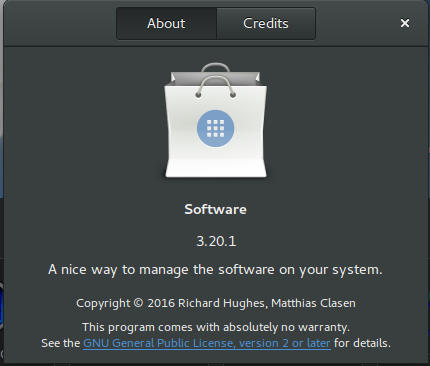
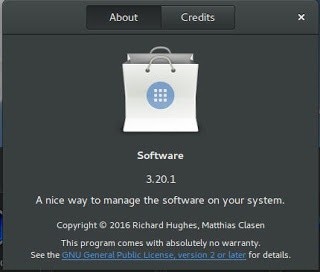
Ubuntu Gnome 16.04 ships with Gnome software 3.20. Which is the software that is supposed to replace Ubuntu Software center, I find them both buggy and unusable, as I use Synaptic to do my package work.


Softwares 3.20 on Ubuntu 16.04

I do believe it needs more work to become a reliable software center, it stays in the background and behaves oddly, it doesn’t show the download progress on software being downloaded too, which seems odd!

I winded up un-installing software and reinstalling the good’ol Ubuntu software center!

Final words

Ubuntu Gnome is a great choice for anyone who wants to enjoy Gnome  without having to leave the Ubuntu universe to Fedora or OpenSuse, it provides the purist Gnome experience possible for Ubuntu, and it preformed better than regular Ubuntu installed on older machines (with proper tweaking mentioned here).

The more I use it the more I could tell that this is the distro for me, great job indeed by the team, and I rate it as a must have!

I hope you enjoyed this post, please let me know what you think in the comments section below, and remember: Sharing is caring!!

Gnome 3.20 is out!

Gnome 3.20 is out today, let’s take a look at what’s new in this release!

Gnome 3.20 was released on March 23th, it took 6 months of development and the work of 837 contributors and includes 28.933 changes!
This version is named Delhi recognizing the efforts of the  team Asian Gnome team.

The date was delayed from March 20th (which would have been perfect!) to March 23th for reasons unknown to me.

Main highlights for this release

  • OS upgrades can now be installed using Software
  • Wayland support has improved significantly, with kinetic scrolling, drag-and-drop, and middle-click paste
  • Keyboard shortcuts and gestures can be easily learned with new shortcut overlay windows
  • Privacy controls have been improved with per-application location access
  • Quick access to media controls directly from the shell
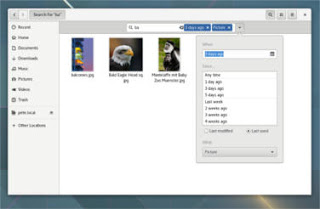
  • Searching in Files has been much improved
  • Builder can now build XDG-Apps, a new cross-distro framework for building and distributing desktop applications. These can also be installed directly from GNOME Software
  • Gnome photos receives a huge update.Gnome Photos screenshot
  • The file manager is also updated and refined.
    Gnome files screenshot
  • There is more to find out, like the new map application, the enhanced web browser, or the fonts! Check out the details from here.

How to get this awesome release?  

It’s immediately available on Fedora and Opensuse, but if you want this on Ubuntu you are going to have to wait a little bit, as the highly anticipated Ubuntu 16.04 is going to be released with Gnome 3.18 (there is an unofficial port of course, let’s leave that until Ubuntu Gnome is out!)

I hope you liked this post, I personally can’t wait as I’m writing this on Gnome 3.10 that ships with Ubuntu Gnome 14.04.4 
Share this post with your friends and family, and if you tried it give us your feed back!

uGet downloader

A download manager is a must have tool for any computer user, and there are many options to choose from, my favorite is FDM that only exists on Windows (was recently ported to Mac and soon to Ubuntu). But until FDM is available for Ubuntu, let’s take a look at another popular option, that’s uGet, I chose it over the rest of the bunch for many reasons.


uGet logo

Uget is a light weight fully featured download manager available for many operating systems, Linux (Arch, Debian, elementary OS, Fedora, Gentoo, Linux Mint, Mageia, openSUSE, Semplice, Slackware Sparky, Ubuntu), Windows (XP – 10), BSD, Mac OSX And Android. 


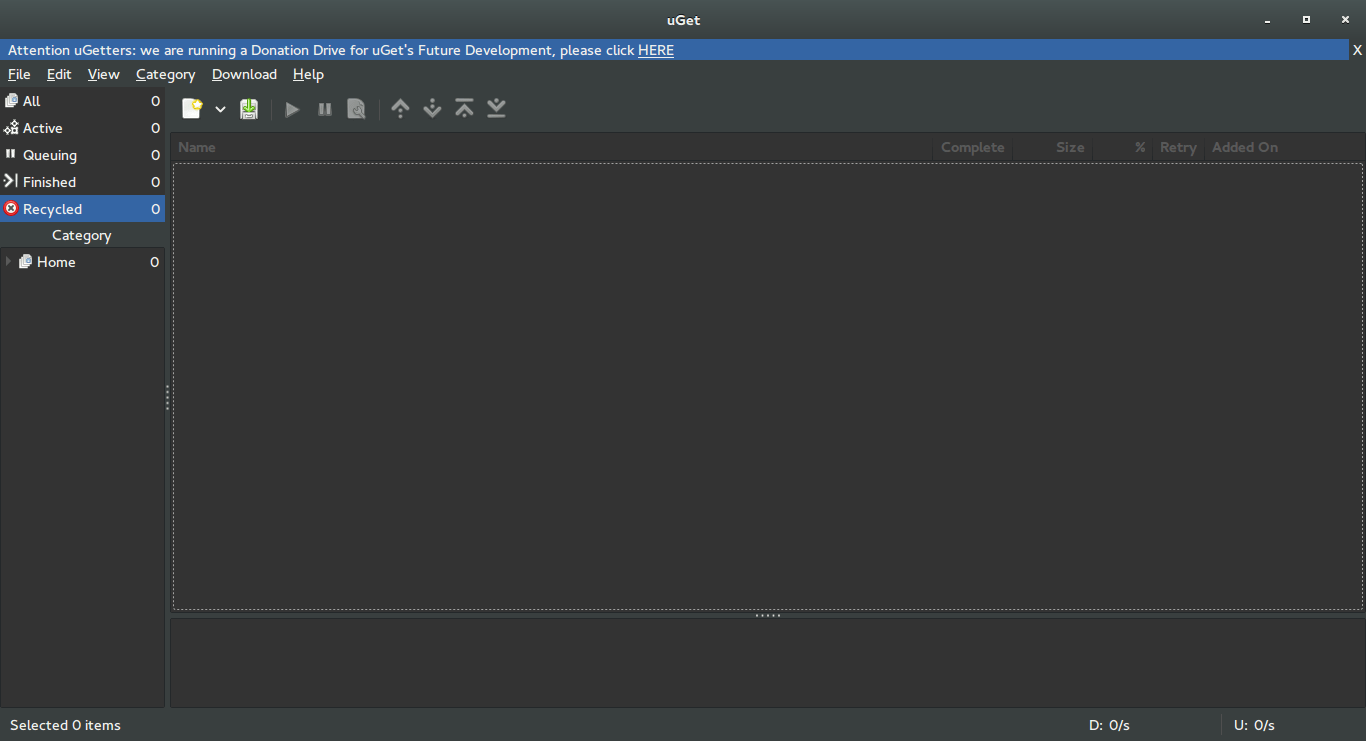
uGet interface


Uget is free and open source and available in 29 languages. It has many features like: Mutil mirrors, Pause/Resume, Speed Limits, Clipboard Monitor, and many other features you can check from here.


Despite being a powerful downloader, Uget is very light weight, here I quote from the feature page as it goes: “Uget is a VERY Powerful download manager application with a large inventory of features but is still very light-weight and low on resources, so don’t let the impressive list of features scare you into thinking that it ”might be too powerful” because remember power is good and lightweight power is Uget!”.

Download

Visit the download page and click on your operating system to get specific instructions on download and install.

I recommend using this download manager with Ubuntu, it’s a good one!

Did you like this post?  Would you consider downloading uGet? Let me know wha you think in the comments section below.

« Older posts