Category: LibreOffice (Page 6 of 12)

LibreOffice is more than just a MS office alternative

The timing couldn’t have been more prefect, with Libreoffice convention just ending and as we enjoy the freshly released LibreOffice 5.2, this post has been siting as a draft for quite some time! It’s about Libreoffice taking the lead as a unique word processing suit.

Many websites that claim to be expert on software label LibreOffice as a “drop dead alternative” for MS office, some are down playing LibreOffice by calling it: the best of the “free” bunch, those are still a little better than the guys who can’t tell LibreOffice apart from Apache OpenOffice (I am afraid that OpenOffice might be dead already)!
Those are the people who rather use a pirated MS product than to use LibreOffice, for shame!
The only thing that LibreOffice has in common with MS office is the “word processing” part, and other than that, LibreOffice is a different project completely!

If you think that LibreOffice is just a meek second for MS office, then you need to think again!

LibreOffice is not a MS office copy cat!

Some people download LibreOffice thinking it should look and feel like MS office and should even act the same, and when it doesn’t they get frustrated and blast the entire open source movement for not copying MS office’s look and style.
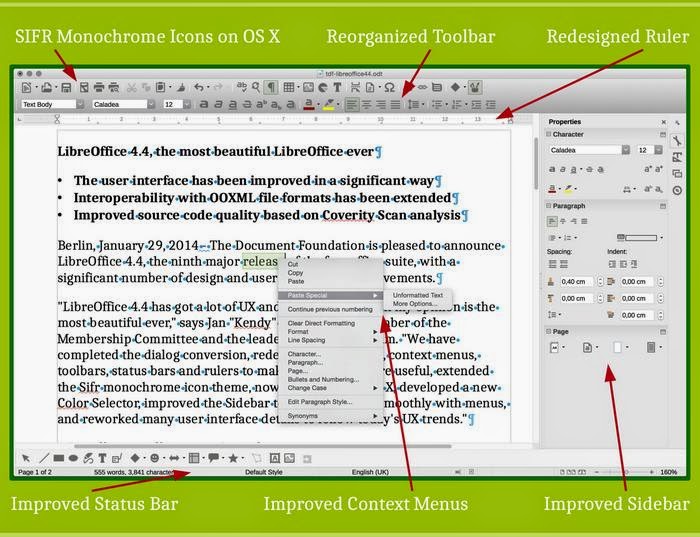
 

The unique interface on LibreOffice write explained

A lot of that frustration comes from the fact that the buttons aren’t arranged in the same way, or that the theme doesn’t look the same as it does on MS office, it doesn’t look like MS office, here is a little shocker:  It’s not supposed to look like MS office. It’s a completely different product! LibreOffice wasn’t made to be MS office lite.

There are numerous word processing suits that look and feel like MS office for a fraction of the price, but if you want the MS look and feel I suggest that you invest in a licensed copy of MS office, plain and simple!! 

Other than looks, there are some serious complaints regarding compatibility.

Compatibility issues broken down

Another major complain is that documents edited in MS office don’t look as it should on LibreOffice, and that has a reason as well, let’s look at the first reason.

ODT vs OOXML

LibreOffice uses ODT file format by default, which stands for open document text, while MS office uses the OOXML standard, which is used and imposed by Microsoft as the standard for all documents, it is changing gradually as many countries are adopting the ODT standard and started to impose it on companies, even Microsoft!
Now that we covered the document standard, it’s time to look at another huge issue, is the fonts!

Fonts

Fonts used in MS office are a part of the office license, you can’t simply download them and use them on another computer that doesn’t run MS office, that wasn’t discovered until later! And the document foundation are doing what they can to help replace the fonts effortlessly within LibreOffice.
So when that .docx document looks horrid on LibreOffice, remember who to blame!

Let‘s take a look at some of the features that make LibreOffice a unique suit.

Cross platform and portable

While MS office is only available to Mac users and Windows users (since it’s a Microsoft product), LibreOffice is available to almost every computer platform out there, no matter what kind of system you have, you can enjoy LibreOffice’s power!

And, you can use a portable version of it, if you don’t want to mess your current settings, or you are in a domain and can’t install software, you can have LibreOffice on a USB and run it from there, I’d like to see MS office do that!!

A swiss army knife of tools 

  • LibreOffice can do so much more than meets the eyes, it has a lot of hidden menus that can preform so many awesome tasks, I’ve blogged about it in detail in this post.
  • LibreOffice can be used to write and layout books easily, with adding a few extensions and using some features the right way, I’ve also blogged about it in this blog and you can find it here.
  • Finally, I’ve managed to improve a way to use LibreOffice draw to design mind maps, I suggest you check it out from here.

Pricing

This is an obvious one, but it had to be mentioned!
I stopped following MS office news a while ago, but the last I know is they have two payment plans: One time, and a monthly subscription with many license forms like student, home, etc. While LibreOffice comes free of charge, and all donations are welcomed!

Development speed

While you get one product per year from Microsoft, one cloud and one regular, the Document Foundation rolls out a version of LibreOffice every month, that fixes bugs and adds features, with a major milestone every six months. That’s on the Fresh branch, but if you don’t like living on the fast lane, you can go with the Stable branch and enjoy stability, it provides updates not as often as Fresh but quicker than MS office!

With these obvious advantages explained, let’s look at the organization behind LibreOffice

The Document Foundation

The document foundation is an independent self-governing meritocratic entity, created by former leading members of the OpenOffice.org Community, in the form of a charitable Foundation under German law (gemeinnützige rechtsfähige Stiftung des bürgerlichen Rechts).
It continues to build on the foundation of ten years’ dedicated work by the OpenOffice.org Community.
The Document Foundation logo

It was created in the belief that the culture born of an independent Foundation brings out the best in contributors and will deliver the best software for users.
It is open to any individual who agrees with our core values and contributes to our activities.
It welcomes corporate participation, e.g. by sponsoring individuals to work as equals alongside other contributors in the community.
The Document Foundation is proud to be the home of LibreOffice, the next evolution of the world’s leading free office suite.
Please support our efforts: Your donation helps us to deliver a better product!

The team

LibreOffice is a community project by the document foundation, with thousands of programmers and volunteers working on the project passionately around the world to make LibreOffice a better product, who is the MS team responsible for MS office? I don’t know either!

One might argue the age old Open Source VS closed source argument that has been around since the dawn of computing, well.. It’s here also!

Community

The LibreOffice community like many open source communities is the place to get support, with friendly people willing to help and share their knowledge and help fix bugs and issues. It’s also available in many native languages, without extra fees.
It’s one of the best – if not the best – open source communities out there!

LibreOffice has been around for six years, how much impact did it have globally?

Global Impact

LibreOffice exceeded Apache Openoffice record download of 100 million in a few years! It took Open Office over a decade to achieve this record number of downloads, and LibreOffice is been around for six years!
 
People from all over the globe are using LibreOffice on daily basis, entire cities are converting to LibreOffice to reduce licensing costs.
LibreOffice communities are emerging all over the world, spreading the culture of open source and promoting the use of LibreOffice, chances are there is one where you live!

Other projects

Here are some other projects that aren’t directly linked to LibreOffice, but a part of the on going development at the Document Foundation.

LibreOffice cloud

There are efforts to make LibreOffice is available in the cloud, to be able to use LibreOffice inside the cloud without the need to install it on your computer! A lot like Google Docs!

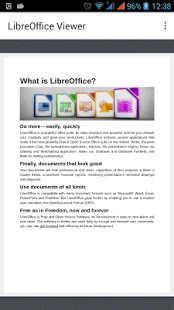
LibreOffice Android viewer

This app is terrific for viewing documents you created on the go from your smartphone, it’s available on the store for android.
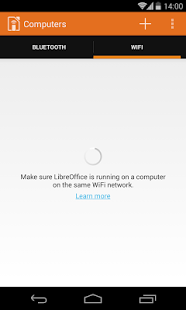
Impress remote 

it can be used as a remote to navigate through your presentations without added software! Brilliant for students, teacher and office workers alike! You can download it from here for Android.

Conclusion

So there you have it, LibreOffice, the open source project with over 20 years of heritage from the Star office days, taking the pure open office soul you loved, and turning it into something spectacular! One of the best open source projects out there if not, the best! Much more than a “word processing suit”, it’s truly a lifestyle!
Feel free to download, create, and share with your friends and family, and please don’t forget to give back to the wonderful people behind LibreOffice to keep it going!
if you aren’t sure how much to place, think of how much MS used to cost you and pay a part of that to the document foundation.

How did you like this post? Tell me what you think in the comments section below. 
And share it on your social media please!
My 3 year journey with GNU Linux

Linux has been around for 25 years! Last week the world celebrated the 25th anniversary since Linus Torvalds wrote the Minix kernel.
I’ve been using Gun/Linux based operating system as my main OS for three years now, and it’s been very rewarding! In this post I’ll talk about a journey with GNU/Linux and how it turned into what I use on daily basis and feels right to me rather than the new interesting idea I saw in a tech magazine!

My beginnings with Linux

Although I learned about Gnu/Linux over ten years ago (thanks to the wonderful LTT magazine) I didn’t fully convert to open source until I graduated from college. We depended on Microsoft based products for school such as SQL server and Visual studio, which were essential softwares for a computer science major and I couldn’t risk converting to Linux and messing up my school work so it had to wait, I was itching to get rid of Microsoft Windows and start fresh with an all open source system.

Even then I relied on open source software to do my daily tasks such as Gimp and Apache Open office (LibreOffice came into play in 2011) and the only proprietary software was Windows itself. Once I graduated it was time to kiss Windows good bye.

My Windows setup

My computer had Windows 7 installed on it and I have to admit. It was running like a charm!
I had everything I wanted and had the system fine tuned and optimized to my liking. I downloaded tools and learned how to harness their power to the max, I even blogged about it here on this blog at the time.
But I was willing to give all that up for the sake of open source! Apparently I don’t have a problem of fixing what doesn’t need to be fixed.
Research.
Before converting to Linux I did a lot of research and took my time looking for the best alternatives for tools I used daily, luckily many tools are cross platform and open source so these were a given like VLC and Firefox.
I also took my time testing it as a live version and I even installed it under Windows as a software (older versions of ubuntu supported that).
I didn’t do much distro hopping, I liked Ubuntu from the start and still use it until now.
Distro hopping is one of the major criticism points GNU/Linux receives as people say there are too much distros out there for a person to try and it can be confusing and counter productive.
I have a theory about that!

Distro hopping

Linux is all about freedom and you can try what ever you like, it would be a good idea if you used a virtual machine to test so you don’t ruin your HDD with the excessive installation and removal of systems.

Preparing to convert

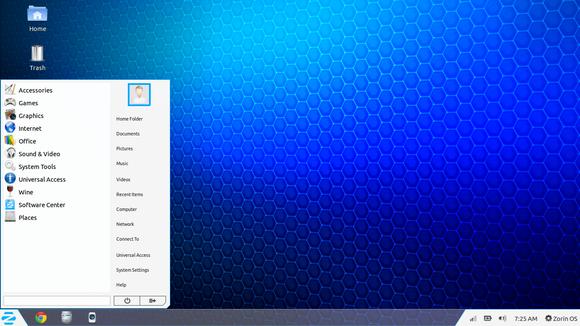
After I listed my software and got the alternatives (executor wasn’t ported to Linux) I decided to install Zorin, built on Ubuntu and came fully featured with everything new comers to Ubuntu needed. 

Zorin-Os-7
The Linux gateway for Windows users.

From flash support and restricted extras all the way down to Wine and Playonlinux to make sure your tools from Windows didn’t go to waste.
It looked and behaved like Windows 7 and I didn’t like that very much. Trying to change it messed it all up and nothing worked, not even installing it fresh?! I was a beginner and didn’t know what to do so I decided to move on to something new.

Installing Ubuntu

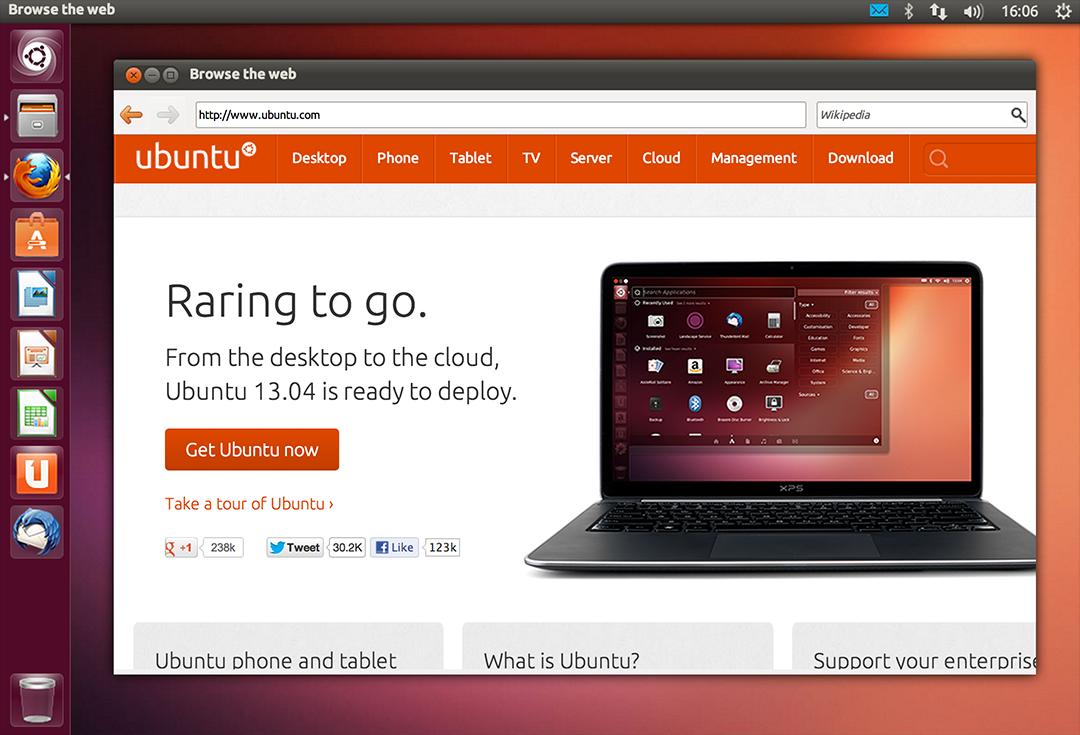
So I installed Ubuntu 13.04. It was really good and got even better when I added xfce interface, while googling for it I learned that latest version of Ubuntu won’t be released for another 2 months, and was going to be an LTS (long support version). 

At the time I had a separate laptop for work and I didn’t think that was really productive!

My first LTS and dual booting

As soon as Ubuntu 14.04 was out I got it and installed it clean, I chose the Xubuntu version because I enjoyed the XFE interface.
It was the best time ever getting to know the new distro and customizing it to my liking.
I had to install Windows for work. And since I gave away the work laptop I decided to dual boot Windows 8.1 and Xubuntu on my computer.
I used Windows to work and it was a good solid experience with the metro interface, but I didn’t feel home until I restarted and went to Xubuntu, I sighed in relief as I saw the loading screen knowing that I enjoyed working on this system and I wrote a list of reasons why.

My interface revolution

After a while I felt I needed a change, so I began testing  with different interfaces until I  decided to go with the Gnome interface, but my “home brew” distro was buggy. I was delightfully surprised to know that there is a project where Gnome was used as the interface for Ubuntu (Ubuntu Gnome) and I downloaded it and installed it right away after a successful trail on a virtual machine. It was the end of the dual boot period for me.

Settling down with Ubuntu Gnome

I got Ubuntu Gnome 16.04 as soon as it got out and I couldn’t be happier! I did a review about it here on this blog which proved to be a total success! Hundreds of readers tune in every month to read this tutorial which I keep to update as often as I find new things (I use the same principle all over my blog).

Windows is residing now on the virtual machine, I use it every once in a while.

The 1% percent dogma and the “Personal computer failure”

Many people claim that GNU/Linux failed on the personal computer with user share just above 1%. While it remains to be a success in the server and super computer department.
Just for your information, GNU/Linux’s user share has exceeded the 2% barrier in July.

And to be honest I never really cared for those people’s opinions anyway, I have a system that is well supported, totally free and I get the job done just as good as I did on Windows based systems (and maybe even better) so why all the fuss?

I love Linux, and so does Microsoft!

I could sing the praises of Gnu/Linux and open source on and on and totally miss the point, I enjoy using and contributing to open source, and I don’t have a problem with Microsoft based software, I think it’s really good!

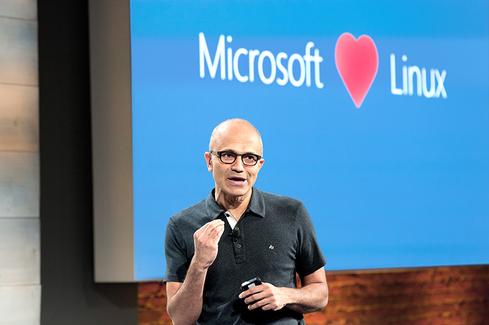
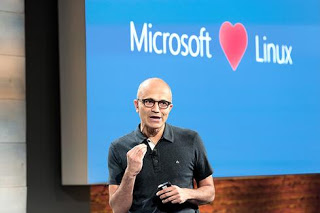
Microsot loves linux
This image is still strange to me!


Gnu/Linux has came a long way from it’s humble beginnings and it’s a force to be reckoned with in the computer world today, even Microsoft has showed it’s love and support and there is a lot of cooperation between Canonical and Microsoft (it doesn’t necessarily make me happy, but times change).

Final words

A long journey of exploring indeed.  I didn’t do it by the book and I took my time experimenting with things and making my mistakes along the way. But I’ve settled into my system and it feels great!  I wouldn’t have it any other way! Much like life itself.

How did you like this post? Are you using open source or thinking of converting to it anytime soon?
Drop a line below and let’s see what we can do 😉

P.S: I have reached 110000 views on my blog 🙂

Productivity tips for a better working session

I always wanted to post on being more productive when working on the computer, I listed a few ideas that should help you achieve the right balance of productivity without exhausting yourself, being productive and consistent gives you more credibility and it means you will meet your deadlines rather than running breathless and sleepless trying to finish before the clock strikes midnight! I also listed a set of handy tools you can add to your arsenal and help you become a productivity guru.

List the tasks you have to do

You can’t just browse causally and do random things and hope these random activities will get you anything done!

IF you don’t know what to do, how will you achieve anything?


Some people still enjoy good old pen and paper

Know what needs to be done, and how much time does it need before getting down to business, and don’t forget to prioritize your tools as well!

The best way to keep ahead is to write a to-do list or use a software that arranges that for you, I reviewed a great task management suit from here for Windows, and for GNU/Linux I have my trusty Zim-Wiki to do the trick.

Prepare everything up ahead

Have everything you need by your side so you minimize those “ mini trips” just to look at things or to do trivial tasks, these little pauses damage your focus and makes it harder for you to start working again. Instead use the breaks to do the minor things.
While keeping yourself hydrated always leave the water and other drinks away from the computer or power source, I can’t stress that enough!

Handle distractions

Probably is the hardest part when working, how to disengage from the world and getting into the zone! Here are some suggestions.

No Wi-Fi could fix your procrastination issues!

Turning off the Wi-Fi is too extreme, especially when most of the tools used to work are on line! I suggest a site blocker for your browser, this sets a blacklist of sites you shouldn’t be wasting your time on, and leaves the rest for you to work, if you found yourself fiddling with the extension to get on line then turn off the Wi-Fi!

Again the breaks are your best friend, use those breaks to check on the people you care for, don’t shut your family and friends off to work! That’s never a good idea!

A little tip goes all the way, I set my wifi not to connect automatically anymore! So I have to connect it manually when I need something!

Have a working goal

Say to yourself: I’m not having that treat until I finish writing 5 pages today, or I’m not going to watch my favorite show until I finish the post I started, that way you work for a goal or a reward, and you will find out yourself that the sense of achievement is more rewarding than any treat!

Set a timer

It’s a good idea to use a timer to enhance your productivity, as recent studies show that the brain needs frequent breaks to maintain focus, sadly it’s very easy to forget taking frequent breaks while working.

Regular stretches can prevent RSI and help you rest from long work sessions, hence the need for a good timer!


Using a timer for productivity
Ready? Set. Go!


I’ve blogged about several timers here on this blog, feel free to check Instant boss for Windows, and Pomodro timer for Linux, as I rate those the highest.
While Instant boss is more “aggressive” and I would totally recommend it to anyone wanting to get the job done while having procrastination issues, it’s not cross platform, but I spoke to the developer on Twitter and said she might port it to Linux if she had the time, and Pomodro timer is the best timer I came across on Linux, and the post was very well received by the readers of my blog!

The right tools for the job

Use a software package that helps you to do more and focus on the job at hand, I’d recommend LibreOffice as I believe it packs a ton of potential!
You will need a spell checker also, so make sure that the dictionaries for your language are installed in LibreOffice.


Toolset
Without the right tools, you will suffer!


You might want to add a clipboard manager and a screenshot tool as well if needed. It will help you be more productive, that’s the office worker starter pack!

All of these tools mentioned in this point come preloaded with Ubuntu (so much for GNU/Linux failing on the desktop) so maybe I should list Ubuntu as one of the right tools for the job?

For many purposes (other than document creating) I tend to use Zim-Wiki and do believe that it’s highly underrated! It can do the work of many tools at once, I use it to make and follow to do lists and keep notes, journals, and all sorts of information, you might want to check it out!

Using better software means making your work easier without putting too much load on your computer, which takes us to the next step.

Your computer

Assuming you work from a laptop / desktop computer -as I find the smaller devices running Android impossible to do any real work with- there is nothing worse than a slow unresponsive computer that hangs all the time.


It looks cute doesn’t it? :3


For that I will be making a separate post that will help many people be happier and more productive at work, simply by optimizing the computer’s performance, so stay tuned.

Working at a specific time of the day

Some writers swear that writing on a specific time of day helps them get the best out of them, why not you? I think we can take this advice forward and apply it on general working and not just writing, you have everything in place and all the tools set up and ready to work.
Building a consistent routine will help you be more productive and will make starting work very easy and more of a habit than a chore.

General health tips

There are more common sense tips that I’ll list very quickly like getting enough sleep and eating healthy, these are often overlooked and that can cause some serious health issues, I’m no doctor but you need to sleep at night, drink enough water and eat your vegetables!


Eating healthy and living healthy
Never underestimate the importance of a good diet

How did you like this post? What are your productivity secrets? Do you use any special tricks or tools I didn’t mention here? Please let me know in the comments section below.
And share this with your social media circles and keep the productivity going.

LibreOffice Draw to design Mind maps! (Template inside)


LibreOffice Logo

There are many free and commercial tools to create mind maps, I for one prefer a bit of minimalism, and who can’t be a minimalist when the Document Foundation develops such an amazing software package such as LibreOffice! I use it personally to do many day to day tasks, and I just added one more thing to my list of uses!

Today’s post doesn’t require you to be a master LibreOffice Draw user (even when making the map is so easy!) all you have to do is to download the template and edit it to suit your needs! I’ve put the download link at the bottom of the post, so read on!


The Map

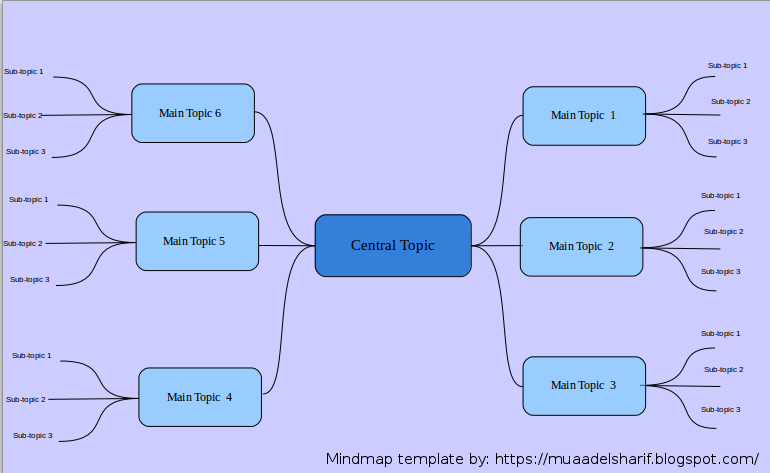
The template I prepared is a three level map with six main topics ordered in counterclockwise order, with each topic having three sub topics, you can increase them easily by copying and pasting then using the proper connector type from the tools.


Mindmap created with LibreOffice Draw

You can easily customize the colors of topics and font types to suit your needs, this is just a template after all! And feel free to remove the attribution I put -feel free to visit my blog tho ;)-

I’m sharing this template under creative commons CC BY you can use it freely as long as you mention I made it when asked so.


CC BY

I was going to make this post a detailed one on how to make this mind map, but I realized that it’s basic skills and no need to repeat them, especially that I’m sharing the mind map template itself so everyone can use it.

To download the mind map template, please click here.

So here you have it! We used the versatile LibreOffice to create a great looking mind map! Let me know what do you think in the comments section below, and remember to share with your friends and family.

Happy mind mapping with LibreOffice!

« Older posts Newer posts »