Category: Windows 10 (Page 6 of 11)

You are getting Windows 10 Whether you like it or not!

I haven’t been using Windows very often lately!

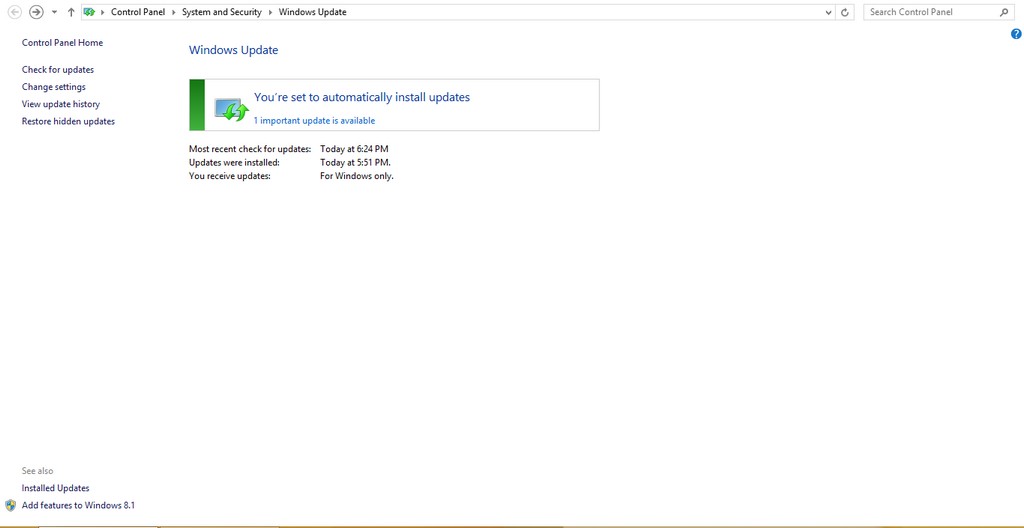
I am mostly on Xubuntu doing things light and easy. Today I logged in to defrag and checkout things. I also checked the updates, looking closely I found a bad surp
rise!

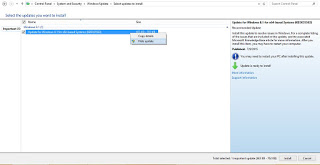
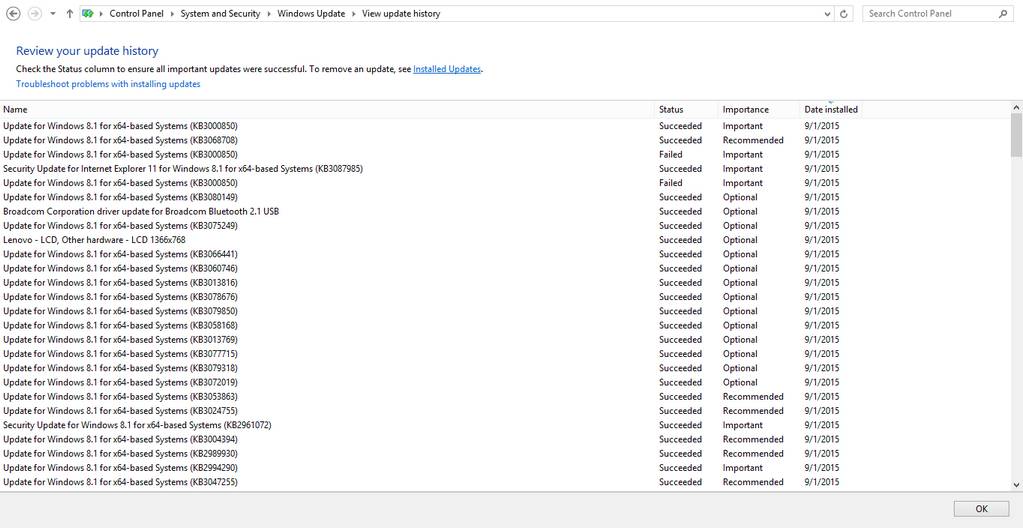
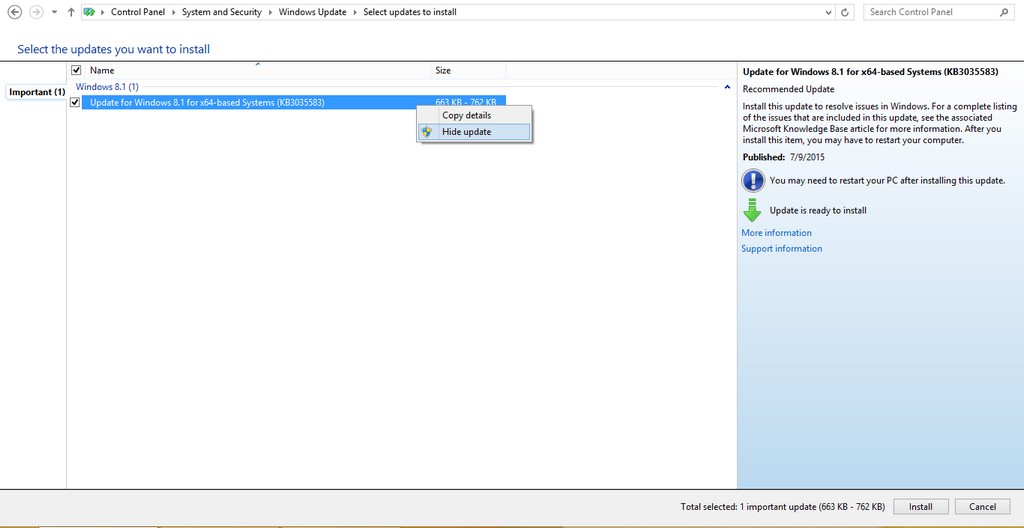
I was looking at the optional updates when an update number caught my attention. I had to look in the knowledge base to make sure, yes! It’s the notorious Get Windows 10!!
But.. I did my best to get rid of it! I even hid the update when presented with it!

I read some reports online that Microsoft are getting aggressive in terms of Windows 10 adaptation, they want you to install it and install it now!

My impressions so far

I didn’t think Microsoft would go that low! But here they are!
I tried it. Didn’t like it, uninstalled it and moved on! Why can’t you Microsoft?
There is no way on god’s green earth I’d go back to Windows 10. It’s just that bad!!
I have many reasons to stay away from Windows 10.  Being too pushy is now one of them.
Windows 10 is being shoved down our throats, I don’t want it, I don’t care for it. End of story..
Be careful and keep an open eye. They will not rest until you are using Windows 10, and that’s when the fun starts!!
If you installed the get Windows 10 by mistake. Check my tutorial on how to remove it and prevent it in the future!

Benefits of clean installs

Over time your system gets overloaded with problems and dead shortcuts, the installations and removal of software, some hidden malware you aren’t aware of. Even with cleaning solutions like Iobit advanced cleaner and Ccleaner. You still have some things you can’t clean. You will notice over time a slower boot and a general drop in performance. That’s time to consider a clean install.

What is a clean install

A clean install is the process of erasing your system and installing it again. It’s clean because all the cruft and mess will go when you format your drive (hopefully not taking away precious data) and it will return your computer’s snappy fresh performance. Much like restoring the factory settings, an option available in the late Windows versions: Windows 8, Windows 8.1 and Windows 10.

But what if your computer isn’t OEM and it doesn’t have a recovery disk? Then you have to clean install your system.

The benefits you will gain from clean installing your computer

I got rid of many unneeded Visual C++

This was somewhat of a problem to me! I had nearly 10 Visual C++ and I couldn’t find a way to remove them, even the pages I looked recommend leaving them as-is. Now all of them are gone!

Office fonts and data.

I used to have Office 2010 demo and it installed hundreds of fonts, and removing them by hand was a hassle! Not to mention the tons of registry cruft left down by MS office.

Every trial is now reset to zero.

Some of the tools I experiment with are trials, after I clean install the system all of them can be used all over again!

Registry is smaller and healthier

It’s all about the registry, as it’s where the program’s data are stored. And when removed it doesn’t gain back the size, even defragging it won’t do much good.

I installed much less software (only the necessities).

I was surprised by the amount of tools installed which of I NEVER use! I try to keep it to a minimum. And use tools that do more than one function. I don’t install Gimp and Inkscape for instance because in Windows I have Fast-stone viewer and LibreOffice draw could do the design work, if it’s more than that I have to use Inkscape.

I recovered even more space

More space as the Windows.old is gone, and other things that I don’t need and can’t clean.When I upgraded to Windows 10 there was the Windows.old folder which is supposed to take you back to Windows 8.1. I then discovered it was just a dummy and had to clean install. I saved a lot of space because of that and because of cutting down my software list.

In theory start-up time should be faster.
And it is faster! It has improved between the old 8.1, Windows 10, and reinstalling 8.1.

Solved the Swow drama I had when I was “interested in games”

I had to copy tons of DLL files to make some games work. And that was a mess! I almost ruined Windows over copying some files by mistake.

All the tricky settings you changed once and forgot how to return (and feel too lazy to return)

As I was doing some PHP work I had to Install the Xampp server on my computer, it wouldn’t work so I had to change a lot of settings to make it work, formatting meant that it went back to default on it’s own!

The first actual clean install I had in a while

Since starting the dual boot thing I haven’t clean installed! I installed Windows 8, Windows 8.1 was a store update, and Windows 10 was an upgrade. Even when I clean installed Windows 10 I was being forced. And not actually doing it to gain any benefit.

These were the benefits I found and could think of, do you have any more benefits to add?
I’m sure that the factory option is also good and will probably do the same good, but my system isn’t OEM and that doesn’t apply to me. If I could get a chance to try that option I’ll make sure to note of it.

How should often to do this reset?

That’s a tricky one! It depends on you mostly, if you have a slow changing system then it won’t be necessary for two years at most. On the other hand if you tend to install and uninstall software a lot. You might want to do that yearly (You will enjoy it!).
Have a nice day 🙂
Remove the Get Windows 10 once and for all

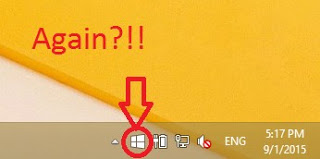
What is GWX? Get Windows 10 is the advert Microsoft slipped into the Windows updatemasked as a “recommended update” KB3035583, after you install it you have to restart the computer. After that it will stay until you upgrade to Windows 10. I was flattered at first, especially after my upgrade was reserved “on it’s own”, but after upgrading and going back I started to think of it as more of a Spyware than a flattery.


Think of it! It was installed on it’s own, there is no way of closing it, it starts with the computer. Totally sounds like a Spyware to me!

Now that we know what is it and where it came from. Let’s take a look at removing it all together. And removing it means you don’t get to upgrade to Windows 10 from the store (good riddance!) Ehm! Removing GWX will tackle the source of the problem, attempting to close the application GWX will only close it for now. And it will dock itself happily on the task bar the next time you boot.

Removing Get Windows 10

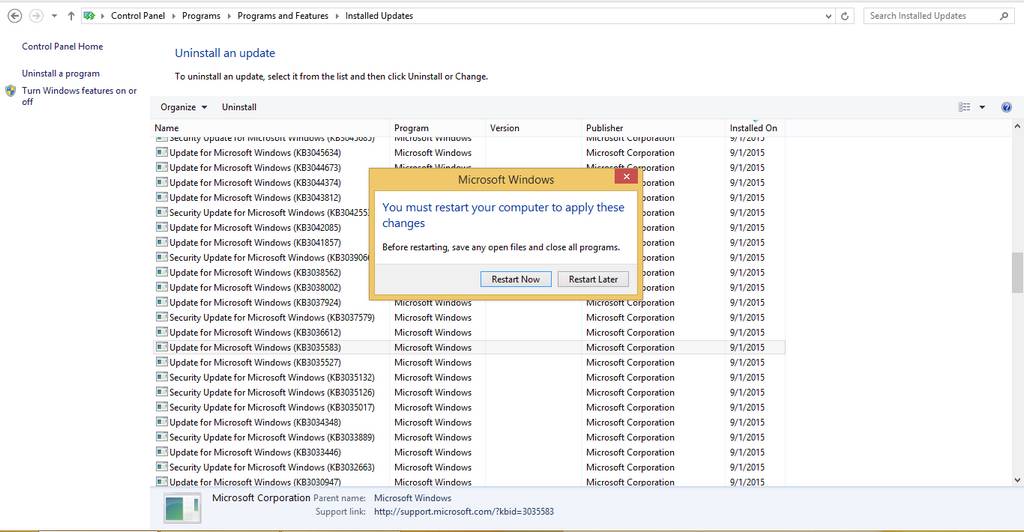
We will uninstall the update that installed GWX which is KB303586 (make sure you only uninstall that and nothing else) and after restart the problem should go away.

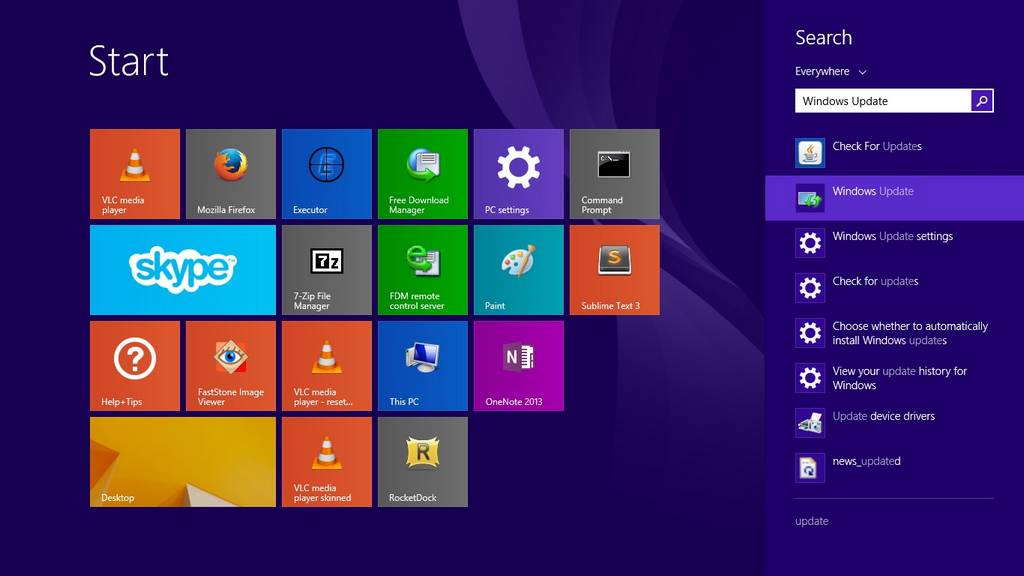
Go to the start menu and type in Update to go to the Windows update, alternatively you can right click the GWX icon to go to the update (make a use of it at least!).

Open Windows Update

From there go to installed updates.


Go to installed updates

Scroll down until you find the culprit and uninstall it.

Click yes to uninstall it.

  Restart to continue


And once it’s done you need to restart to finish uninstalling

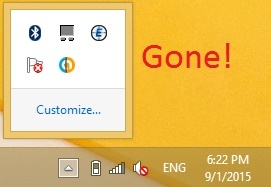
Do so and when you log in you won’t find it! Until you check again for updates! (remember how I underlined the should?).

GWX is gone!

To make sure you don’t install it again. Go to show all updates and right click it and choose hide.

Hide the update to get rid of it.

It should disappear now! But what if it doesn’t?

  • If you happen to see GWX again open Run and type in Regedit
  • Navigate to HKEY_LOCAL_MACHINESOFTWAREPoliciesMicrosoftWindowsGwx
  • Inside GWX create a new 32-bit DWORD value on the right-hand side named DisableGwx, and give it a value of 1.
  • This should take care of it once and for all!

I must repeat! If you had the least interest in downloading or trying Windows 10 don’t try this method as it will disable the application and thus take away your Windows 10 upgrade (for shame!).

Another tip to seal the deal

To prevent Windows 10 from downloading all together set your connection to be metered. I’ll be showing you how to do it in Windows 8.1 but I really don’t know how to do it in Windows 7 (I don’t have Windows 7).

Go to the network icon on the bottom right corner of your screen.

Right click on the network you use to connect and choose set as a Metered connection.

Windows will understand that you actually pay money to access the Internet and will not download the 3.6 GB update to your system (how considerate of him!).

Uninstall Windows 10 Reinstall Windows 8.1 using the same license (Not a rollback).

I’m happy to announce that I found a way to get back to Windows 8.1! Not from the rollback option or the recovery! My way is uninstalling Windows 10. And reinstalling Windows 8.1 using the same license!

It’s not a rollback. I had Windows 10 for over a month, plus I removed the Windows.old and reinstalled Windows 10. So no recovery options were available. What I did was an old fashion uninstall / reinstall job with some license work.
The method is very simple. I’m going to list somethings you need first:


  • Make sure your Windows 10 works.
  • Make sure you are using the same version of Windows 8.1 you had before.
  • You must be online the whole time. Your Windows 10 has to work because we are going to “Uninstall it”. If it doesn’t work for any reason DON’T INSTALL WINDOWS 8.1 RIGHT AWAY. I warned you!!

You need to repair or fresh install your version of Windows 10 in order to complete this tutorial. I made a post about it so feel free to check it out!

Uninstalling Windows 10

The first step is running the command prompt in administrator privileges.

and type in the commandslmgr /dlv

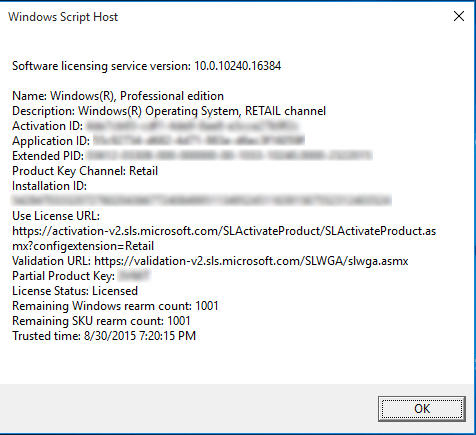
You will get an information box about your computer. What we need from here is the Activation ID.

Information box about your license
  • After getting it we are going to uninstall that product key (so we can use it after reinstalling 8.1). Type in :
    slmgr /upk 181520dd-3fc4-4df2-81f5c513467ad56d –
  • Iblurred out my key, so just put in yours-
  • If a box comes out saying your product is uninstalled. You done it right.
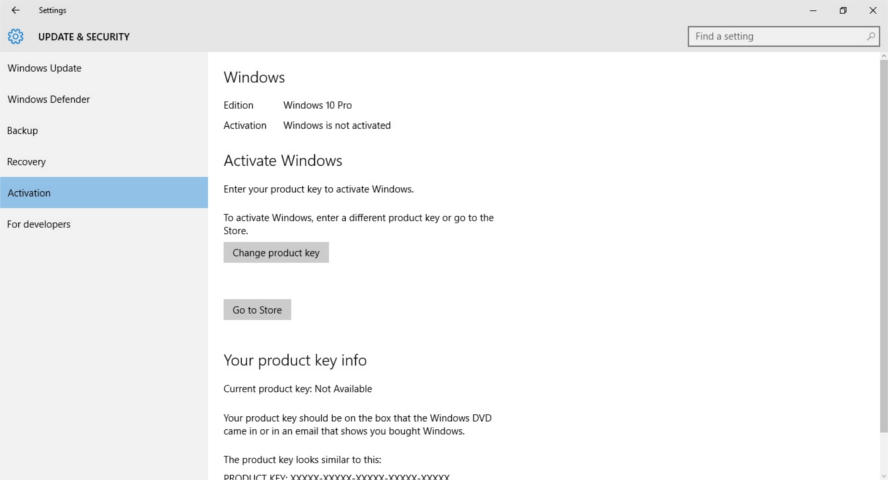
  • Go check the activation. If it says it’s not activated, then you are free to move into the next step.
Windows 10 is not activated

Installing Windows 8.1

Make sure you backup all your data. And that you have your license key (That came with the disk or in an e-mail) and if you don’t know where to find it. There is a helpful way to find it.
Get the Windows 8.1 disk. Boot from it by hitting F12 on boot.
Follow the installation procedure, format the drive Windows 10 is on and install Windows 8.1 there.
Make sure you are connected to the Internet when prompted.
Complete the installation as you would do normally. And when it comes to entering the key. Skip that step.

Activating Windows 8.1

When Windows 8.1 is up and running, run the command prompt in administrator privileges and type in the command
slmgr /ipk XXXXX-XXXXX-XXXXX-XXXXX-XXXXX
 Where XXXXX is your serial number, which you will find on the label of the disk or in the e-mail sent to you.

You will get a box saying key XXXXX-XXXXX-XXXXX-XXXXX-XXXXX installed successfully.

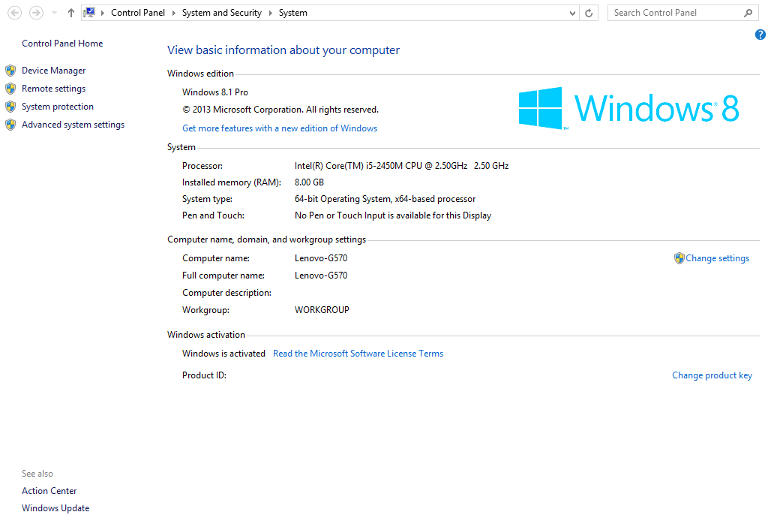
When checking the Windows activation, I found that the key used to activate was the same I had before upgrading to Windows 10. (I blurred mine for obvious reasons).

Windows 8.1 activation

Important Notes

If you use a different version of Windows other than you used, it won’t activate and you would have to reinstall Windows 8.1.

You must be online the whole time.
If you are dual-booting, you will have to do these steps again to make sure everything works.
If you are unable to find your license key use the software in this post.
Update: This part is written after rolling back.
I was forced to download all of the updates released for Windows 8.1. A total of 1.5 GB download on top of the 3 gigabyte download!
I hope you found this a useful post. Please comment below if anything. And if you are out there. Don’t upgrade to Windows 10.
« Older posts Newer posts »