Category: install (Page 1 of 2)

Ubuntu 14.04.4 LTS released

Ubuntu 14.04.4 was recently released and it comes with a bunch of bug fixes and security features since 14.04.3

What are the new features in this release?

  • Support for new hardware and stability.
  • One of the hardware features that really captured my eye is the Hardware stack,.
  • Ubuntu 14.04.04 had the same kernel as Willy werewolf 15.10 of Linux 4.2, which is a huge jump from the 3.19 that Ubuntu 14.04.03 has! 

I confirmed that myself by typing in the commanduname -r into terminal after install. I decided to download Ubuntu Gnome 14.04.04 and give it a test on a virtual machine before installing it, the test was encouraging so I decided to install it.

But, what about 16.04?

I could just wait for Ubuntu 16.04 to roll out in April, but I had too much issues going on anyway. The reason is I had so much troubles with my system, I couldn’t continue with it they way it was. So I decided to remove the system I had and install a fresh one.

The end of Dual booting!!

To make space for the distro I decided to drop Windows and the idea of dual booting all together, did you notice I even changed my domain a while back? It’s just not working for me. I found myself constantly jumping from one OS to the other, as I had two systems, two documents, and two bookmarks, and syncing those wasn’t exactly a walk in the park. I was dysfunctional and unorganized, almost the same of having two laptops running side by side, which was the main reason to start the dualboot saga! I use the same tools on Ubuntu and Windows, so having two instances of LibreOffice and Gimp isn’t really working! 

Virtualization

Since I don’t own licenses to software (except Windows itself) it made the decision much easier to follow. I have a solution, visualization! Instead of having two systems living side by side, I decided to move the Windows license to the virtual machine I made, and then to delete the partition all together, because I barley use Windows anymore, but at the same time I could use it, so that’s why I’m using Virtualbox, for the moments I wish I had Windows. I had a clear plan and I was on to execute.

Getting to work!

I decided to remove Windows, install the new Ubuntu and make sure it had plenty of space to run. Deactivating Windows I started by following the steps in this post, which was easy because I have done it several times before, I removed the activation and then activated Windows on the virtual machine, all in under 10 minutes! Then came the fun part! 

Preparing install media

I downloaded my distribution of choice, Ubuntu 14.04.04 from the server as a torrent download, which was much faster than regular download, I put it on a USB drive using Yumi and I was good to go. Setting up the HDD I used Gparted on Partedmagic to repartition the HDD (it’s crucial to take a copy of the data and keep it in a safe place), I made sure that Ubuntu gets over 50 GB of free space because over time you are going to need the space, I merged the old Windows partition with the Linux partition and rebooted to begin the install. 

Installing Ubuntu

Installing Ubuntu is one of the easiest installations you can ever have, it’s user friendly and super fast, you can finish it all in under 15 minutes and you are good to go! I installed Ubuntu, and proceeded to reinstall my software and tools. I noticed that Libreoffice was 4.2 which is out of date, even for the stable release! I had to remove it and install the latest 5.1 to enjoy the performance and newly designed interface! I also had to add VLC and Gimp manually, as well as Zimwiki
I also installed Pomodro timer, it works very well with Ubuntu Gnome 14.04.
All and all it took less than a day to get my computer back to normal.

mpression after installing Ubuntu 14.04.4

I must say that running a native Ubuntu gnome is much better than adding Gnome interface to any Ubuntu installation. It runs much smoother and many of the bugs I noticed are long gone! 
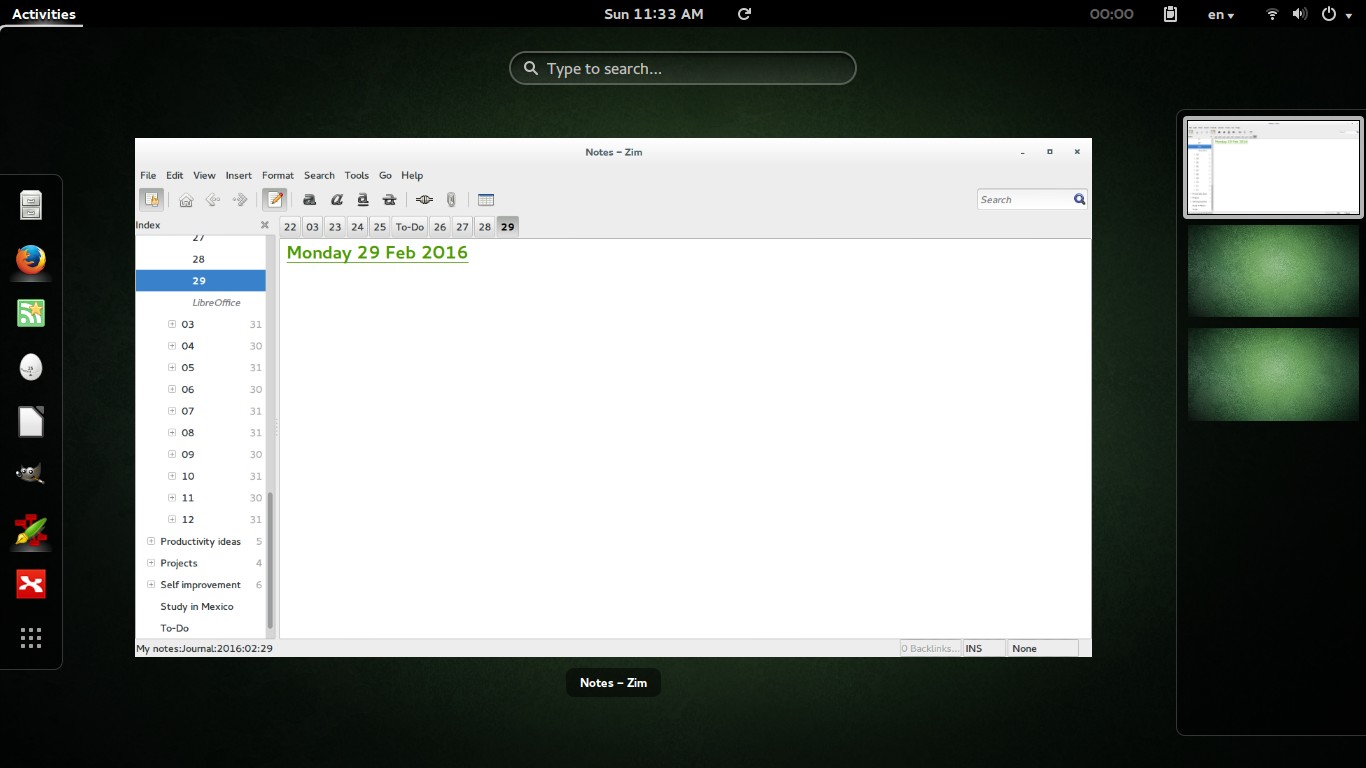
Ubuntu 14.04.4 Screenshot
Screenshot from Ubuntu 14.04.4 after install

Final words

Looking back, my main goal of installing Windows alongside Ubuntu was to enjoy gaming on my computer, looking back I hardly did any gaming and I had Windows installed for almost 2 years! I can still play on Ubuntu and if must use the Virtual machine to play (I tested for that and it wasn’t promising). I’ll be keeping you posted about anything I notice!

P.S: I no longer use this awesome distro, I’m on Ubuntu Gnome 16.04 and it was an excellent distro to use, so good I almost didn’t upgrade!
Uninstall Windows 10 Reinstall Windows 8.1 using the same license (Not a rollback).

I’m happy to announce that I found a way to get back to Windows 8.1! Not from the rollback option or the recovery! My way is uninstalling Windows 10. And reinstalling Windows 8.1 using the same license!

It’s not a rollback. I had Windows 10 for over a month, plus I removed the Windows.old and reinstalled Windows 10. So no recovery options were available. What I did was an old fashion uninstall / reinstall job with some license work.
The method is very simple. I’m going to list somethings you need first:


  • Make sure your Windows 10 works.
  • Make sure you are using the same version of Windows 8.1 you had before.
  • You must be online the whole time. Your Windows 10 has to work because we are going to “Uninstall it”. If it doesn’t work for any reason DON’T INSTALL WINDOWS 8.1 RIGHT AWAY. I warned you!!

You need to repair or fresh install your version of Windows 10 in order to complete this tutorial. I made a post about it so feel free to check it out!

Uninstalling Windows 10

The first step is running the command prompt in administrator privileges.

and type in the commandslmgr /dlv

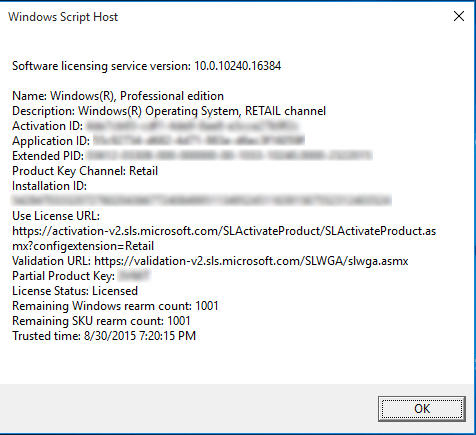
You will get an information box about your computer. What we need from here is the Activation ID.

Information box about your license
  • After getting it we are going to uninstall that product key (so we can use it after reinstalling 8.1). Type in :
    slmgr /upk 181520dd-3fc4-4df2-81f5c513467ad56d –
  • Iblurred out my key, so just put in yours-
  • If a box comes out saying your product is uninstalled. You done it right.
  • Go check the activation. If it says it’s not activated, then you are free to move into the next step.
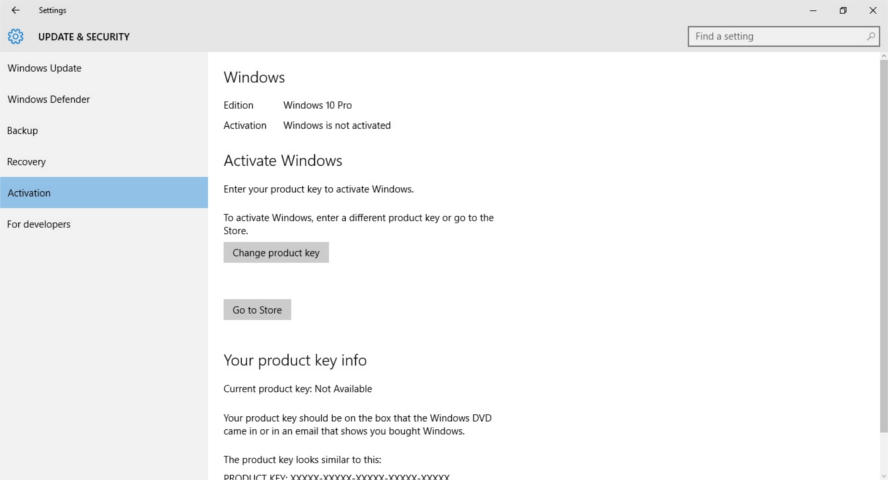
Windows 10 is not activated

Installing Windows 8.1

Make sure you backup all your data. And that you have your license key (That came with the disk or in an e-mail) and if you don’t know where to find it. There is a helpful way to find it.
Get the Windows 8.1 disk. Boot from it by hitting F12 on boot.
Follow the installation procedure, format the drive Windows 10 is on and install Windows 8.1 there.
Make sure you are connected to the Internet when prompted.
Complete the installation as you would do normally. And when it comes to entering the key. Skip that step.

Activating Windows 8.1

When Windows 8.1 is up and running, run the command prompt in administrator privileges and type in the command
slmgr /ipk XXXXX-XXXXX-XXXXX-XXXXX-XXXXX
 Where XXXXX is your serial number, which you will find on the label of the disk or in the e-mail sent to you.

You will get a box saying key XXXXX-XXXXX-XXXXX-XXXXX-XXXXX installed successfully.

When checking the Windows activation, I found that the key used to activate was the same I had before upgrading to Windows 10. (I blurred mine for obvious reasons).

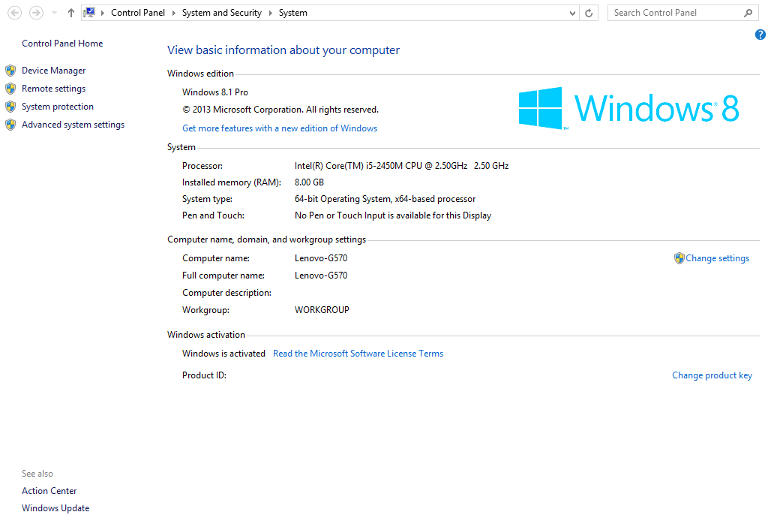
Windows 8.1 activation

Important Notes

If you use a different version of Windows other than you used, it won’t activate and you would have to reinstall Windows 8.1.

You must be online the whole time.
If you are dual-booting, you will have to do these steps again to make sure everything works.
If you are unable to find your license key use the software in this post.
Update: This part is written after rolling back.
I was forced to download all of the updates released for Windows 8.1. A total of 1.5 GB download on top of the 3 gigabyte download!
I hope you found this a useful post. Please comment below if anything. And if you are out there. Don’t upgrade to Windows 10.

Upgrade to Windows 10 today! Not from Windows Update!

I’ve been following the Windows 10 hype since it’s been rumored to be named Windows 9. And I have covered many news and opinions about it, including the release date and the debate of it being free or not.

As Windows 10 arrive today I decided I deserve an early taste, after all I might not get it for months! Who knows when my “turn” will arrive? I also wasn’t too keen about downloading from the Windows Update and have been vocal about it!


While browsing the Windows 10 news I came across a Reddit post that claimed to have “Clean ESD” for installing Windows 10. (ESD stands for Electronic Software Delivery). I had to make sure so I posted in the Microsoft answers site and it was confirmed to be “legit” so I got to work!

Difficulty: Medium

Continue reading

Batch install downloaded DEB packages on Ubuntu

Today’s post is a re-write of “How to add downloaded packages to Synaptic Package Manager in Ubuntu 13.04” because I had to install packages Offline when I was fixing my brother’s computer. And something wasn’t right!

In that particular case I installed Ubuntu 14.04 twice in the same week so using the same packages to update was probably the right thing to do to save time and data plan.

Anyway based on my recent experience it will be much more clear. And I added pictures too! Synaptic is a GTK+-based graphical user interface for Advanced Packaging Tool (APT)—the Package management system used by Debian and its derivatives. Synaptic is usually used on systems based on deb packages but can also be used on systems based on RPM packages. (Source)

We are using it today to batch install software on Ubuntu, and you must take note that it’s a powerful tool and can potentially harm your system. So take care. You are going to need admin permission to access Synaptic.

Also don’t install anything you don’t trust! Be careful because now the program has admin permission to change your system!


After we took a look at the warnings, let’s take a look at the scenarios:
You are an Ubuntu admin and you have 10+ computers. And you need to install the same software on all 10 computers. So instead of Connecting them all to the Internet and downloading the same software. Connect one of them and download the required software. Then install it on the rest.

You just installed Ubuntu on a machine and begun to download software. But the Internet is really slow! (Third world problems) so you take the programs on a USB from another computer and get to work!
You have a limited data plan and you are trying to save!

No matter what was the situation. It’s a handy trick and you will comeback to this tutorial over and over to read it!

First of all. Let’s prepare the software.

You can either use the software center cache. Or any random .deb packages you have. (Or both)

If you want to copy the software center cache then go to the directory:

“Computer/var/cache/apt/archives” where “computer” is your system partition.

This is a system folder so you can’t cut or delete any of these packages. And if you copy the .lock file or the partial it will result in copy error.

Remember where you put the packages and the folder name as we are going to need that later.

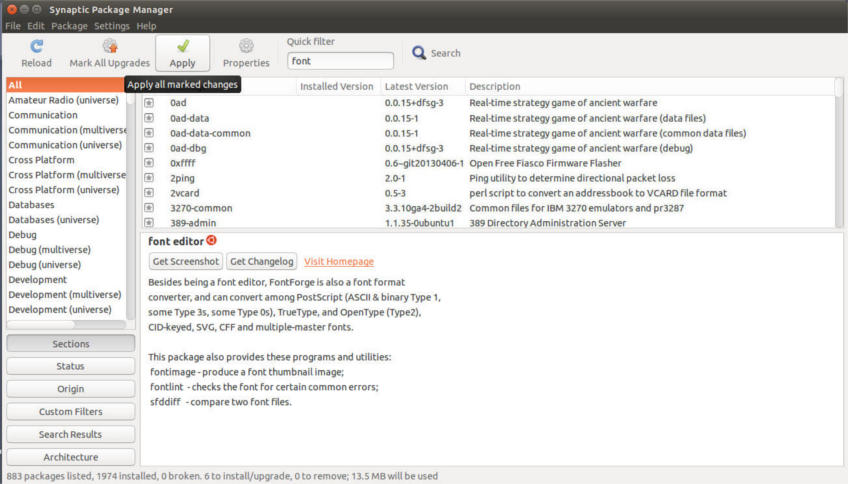
Open Synaptic and enter your password. If you don’t have Synaptic you have to install it. Say from the Ubuntu Software Center.


Once you opened it you have to confirm that you are online. I can’t stress this enough. And it won’t work if you aren’t connected to the Internet.

You can confirm that by reloading package information. If it downloads package information without problem. Then you are good to go!


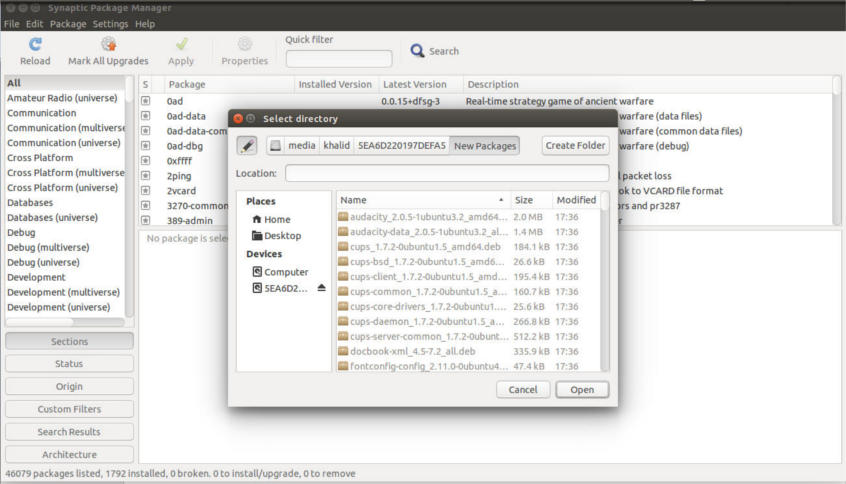
Paste all the packages in that directory, in this tutorial it’s called “New Packages”.

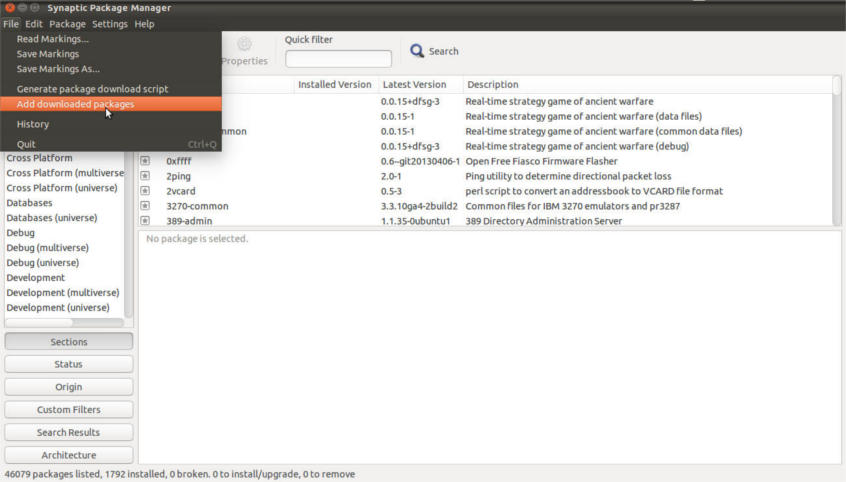
Click file Add downloaded packages.


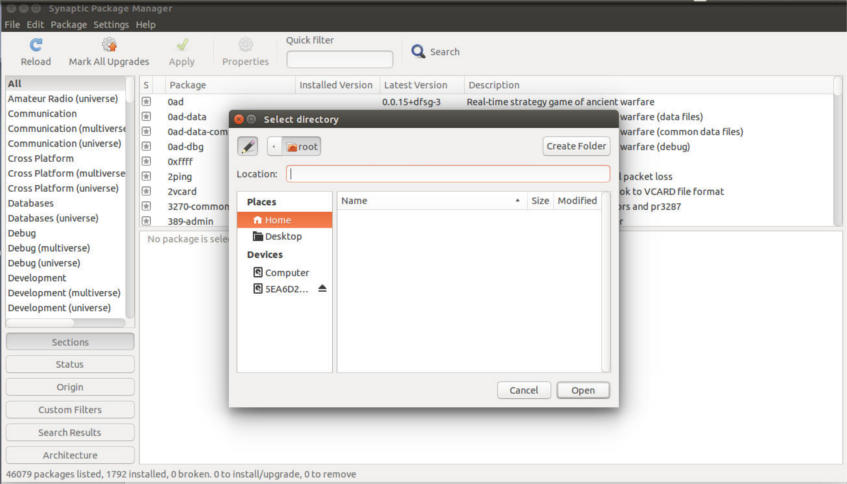
You will see a browse dialog., use it to navigate to your folder.

once there click open.


Wait a moment for the packages to add. It can take several minutes when adding a lot of packages.

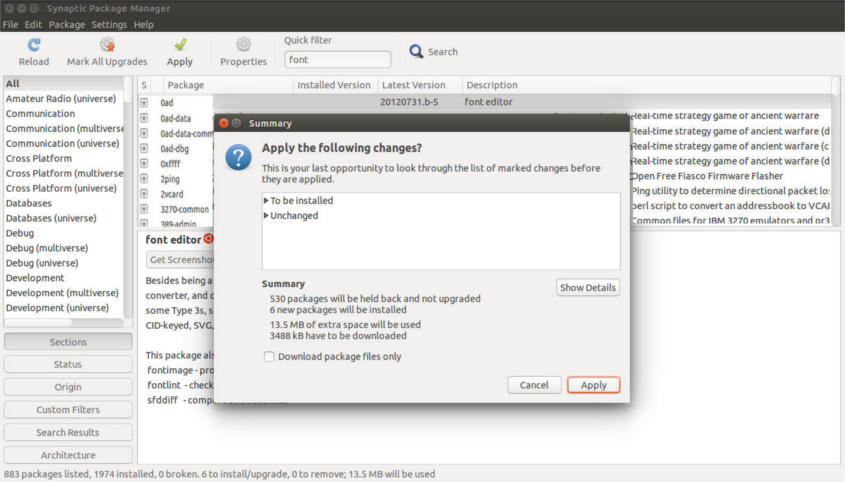
Click Apply and Synaptic will tell you how much packages will be installed. The size of install and how much it will download.

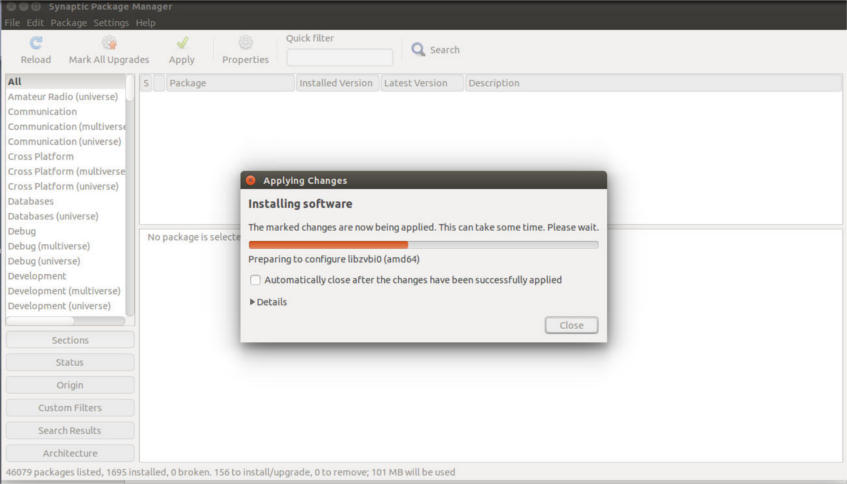
Wait for the progress bar to end.


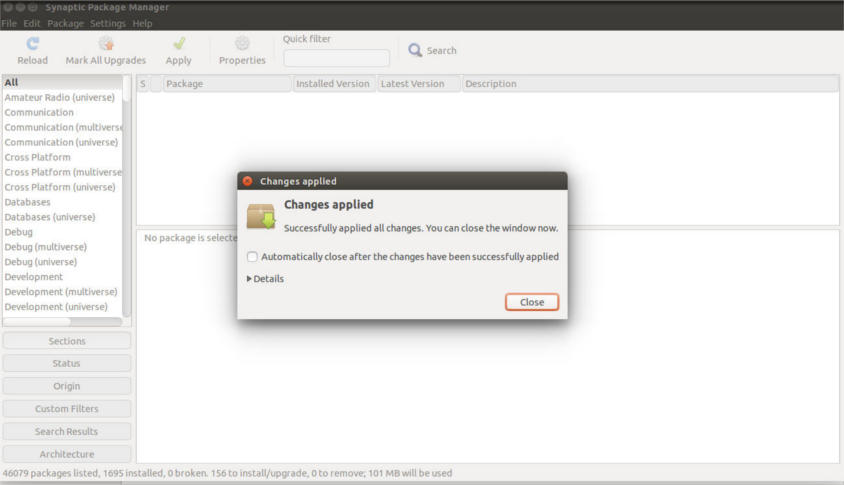
Then click close to finish installing the software.

This way we installed a batch of software as we would install a single one. Without re-downloading them again!

Pretty handy isn’t it?

« Older posts