Category: Windows XP (Page 1 of 2)

What’s registry defrag and how often do you need to do it?

Hey there you guys, how are you today?

Today we are going to talk about registry defragging. And what benefits it may bring you?
It’s very similar to normal defragging. Instead of working with files and folders. It works inside the registry
Over a long period of time the registry becomes clustered with useless keys and unused values. Which affects the overall system performance.


It’s pretty safe to do with the right tool. Ainvo Registry Defrag is an easy to use tool and really effective. It’s free for non-commercial use. So make sure to check the license before getting to work! It’s compatible with Windows XP, Vista and 7. Useless on Windows 8 / 8.1 (Trust me. I tried it several times).

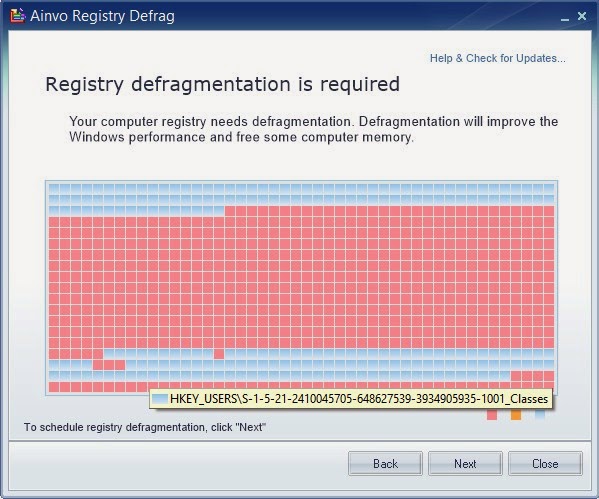
The tool itself is pretty straight forward. It’s a wizard that calculates the registry defragment. If you don’t need defragment it will tell you so.At first it will run an analysis of the system to determine how fragmented is the registry. As you can see here it’s pretty fragmented!

You need to reboot for it to work. When you reboot a black screen will appear (Don’t be scared!!) and you will see the progress. Then you have to reboot again to the system.
The reason is: It cannot work on the system files while they are in use. It works outside of windows (Pre-boot).

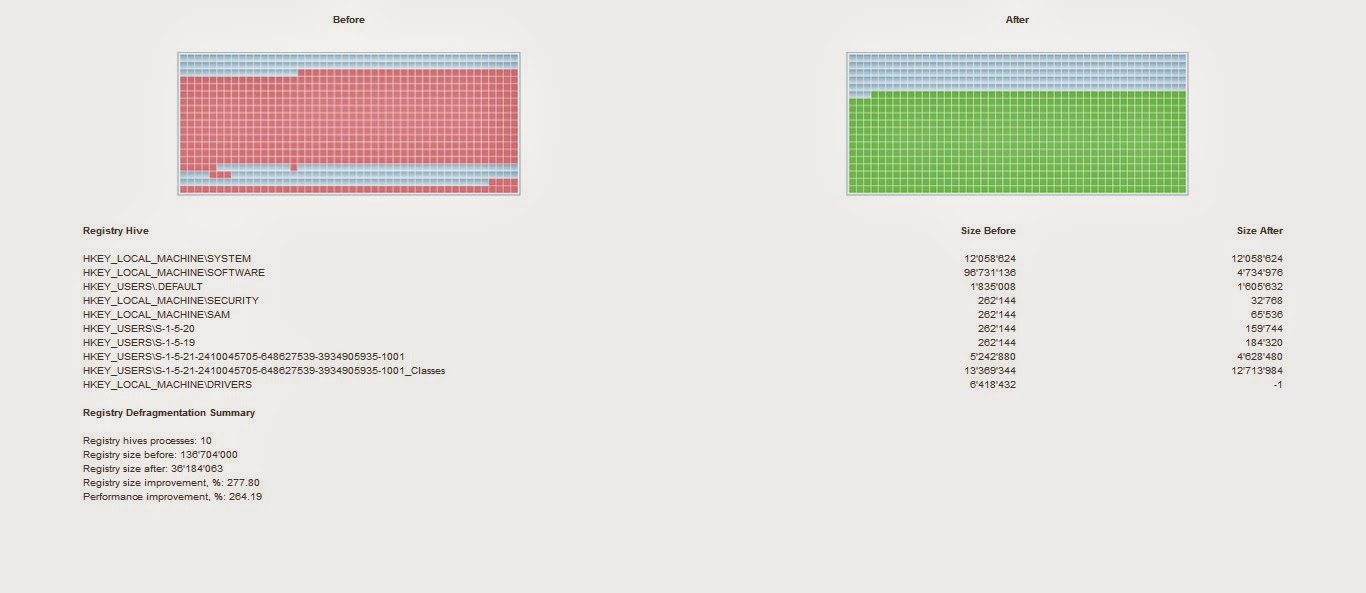
Then after the second reboot you are shown the defrag results in your default browser.
The detailed results show where the tweaks were made and the sizes before and after.


Feel free to check it out and give your system an overhaul.
Now I must warn you: Don’t attempt to do anything to the registry on your own, unless you know exactly what you are doing, it can cause some serious damage to your system.
I hope you enjoyed this post and found it useful. Feel free to comment below!
Also join my blog and subscribe to mailing list so you don’t miss a post!

Doesn’t work on Windows 10.

Boost your productivity with these softwares

Hey guys, how are you doing today?
Today I want to talk to you about making your day more productive, and getting more done in a simpler way, we start with the first software:


RSS Feeds

You know how much time checking your favorite blogs take, and that loading time is just not what you need right now, if you feel this way then i suggest that you start looking for RSS feeds and you will see how will you master all of your favorite blogs and site all in one place!

E-mails manager

The second software is even more important and productive, it helps you with your scattered emails across the web, if you have several emails on multiple domains you might find it useful to round up the day using Thunderbird.

Pester application

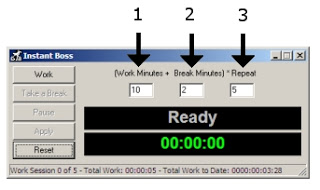
As a free lancer it maybe hard to focus and getting things done, and often you fail in meeting deadlines, instead of working you are Facebooking or watching an old episode from The Simpsons on Hulu! For that I recommend this little fellow !
Working hard or hardly working? This guy will tell you the scoop 🙂
The perfect method to stop slacking and getting to work seriously.

Total Organizer

And to master everything and stay on top of all your daily needs I recommend this software as a PIM manager that is light and easy.

The awesome combo

You can’t be productive on Windows without having Executor and Everything search play side-by-side!

While Executor automates almost every aspect of your computer, Everything search makes sure that every file and folder on your drive is accessible within seconds of searching it! Check out the full post from here.

I hope these softwares can help make your day more productive , all free and down-loadable with no issue, if you have any comment or like to add to the list.

I’d be more than happy 😀

Speed up Windows XP with AlwaysUnloadDll

I only added this tweak for reference in a another post about gimp 2.8 which you can check from here.


“Users that still has and using Windows operating system prior to Windows 2000, such as Windows NT, Windows Me, Windows 98 and Windows 95, there is a trick to free up memory without using any third-party software utility. The trick is to force Windows to unload and free cached DLLs from memory.

These are the steps to do this tweak

   1. In system prior to Windows Vista, user can force Windows unload the unused DLL to free up the occupied memory by using “AlwaysUnloadDLL” setting in the registry.

   2. Run Registry Editor and navigate to the following registry key:

   3. [HKEY_LOCAL_MACHINESOFTWAREMicrosoftWindowsCurr entVersionExplorer]

   4. Create a new sub-key named AlwaysUnloadDLL and set the default value to 1 to disable Windows caching the DLL in memory.

   5. Restart Windows for the change to take effect.

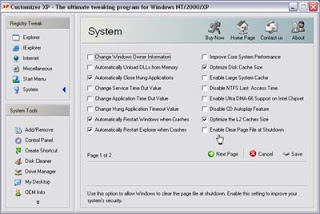
If you use Customizer XP, it has this tweak among many others. But the shareware is free for 30 uses only.

« Older posts