Category: Xmind (Page 2 of 2)

Minimalism is the new efficiency

The year 2017 is coming to an end, here I have some updates to share, small changes in my productivity flow that might prove to be a game changer in the near future!

Bye bye Xmind!

I’ve been using Xmind as a mind map manager for over 4 years now, I’ve even blogged about it and boasted it’s features. Only to realize that it’s bloated! I don’t use half the features it has and most of the “good stuff” are locked away with a commercial license.

Most posts start out like that.

I’m back to using Freemind V 1.0.1 and I couldn’t be happier.
Just opening Xmind 3.5.2 sent my laptop fan on a frenzy, spinning like I’m rendering an HD video, as I’m writing this Freemind is sitting in the background like it doesn’t exist! Brilliant!

Even tho there is a way to make mind maps in Libreoffice, it’s can’t beat the quality of Freemind.

Why the change?

Freemind is smaller in size, consumes less resources, and while it may not look as pretty or well finished as Xmind it gets the job done completely free of charge.
It’s all about simplicity and achieving productivity.
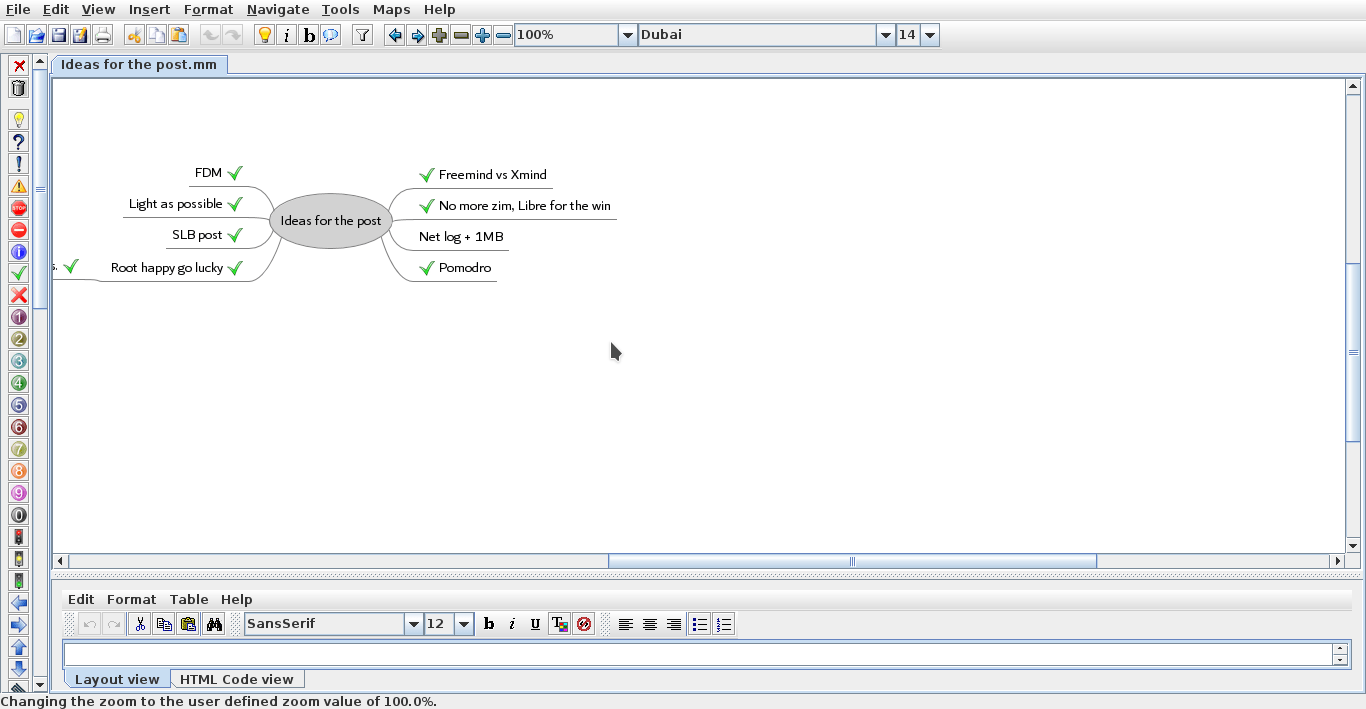
 

Freemind 1.0.1 interface


Going back to Pomodro

Since moving to Kubuntu I haven’t had a decent timer for my system, I tried out several ones but none of them was as good as pomodro timer, I installed it and the Gnome app works perfectly on KDE, it’s one of my most viewed posts for a reason!

No more Zim?!

Yes Zim-Wiki is the best personal wiki I came across, and while it’s functional I find having to change from it and to LibreOffice quite irritating, so I had to clear out the clutter and stick to one productivity suit, LibreOffice is packed with features and so much I don’t feel like I miss anything.
I had to install tasque again, but I removed it because I like managing my tasks in a graphical way using a mind map.

Phone Tweaks

I’ve blogged about customizing and rooting my phone in Arabic (follow at your own risk), and I’ve rendered my phone useless before by removing an essential system app using root privilege, now after everything went back to normal I decided to remove some apps that I felt like I no longer need.

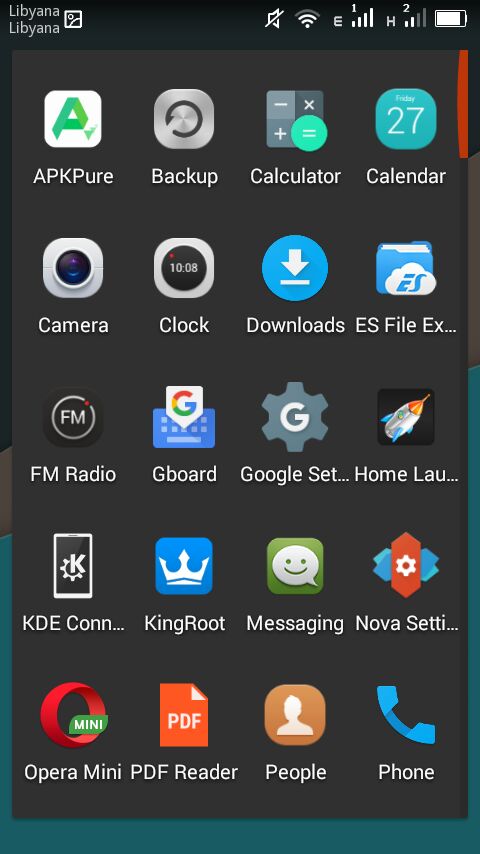
I installed ES file explorer, from back when it was ad free, and since it does so many functions I took the liberty to remove the file manager, the music player, video player, photo gallery. ES file explorer does all that and more!
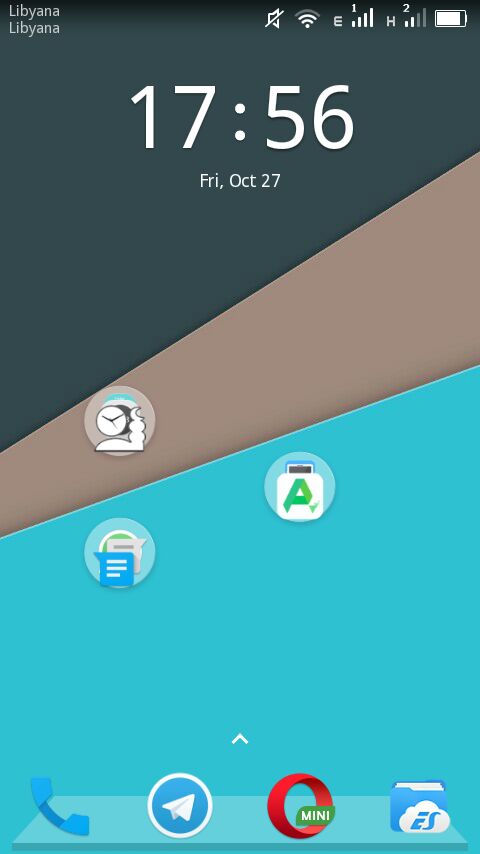
 I’ve also removed all the moving backgrounds. I’ve also removed Apex and installed Nova launcher, which is working great!


Phone’s interface with Nova


The app drawer

I don’t use a note keeping app because I send the notes to myself via Telegram, and I removed maps because I never got anywhere using it!

Before I had the default android keyboard disabled, now I deleted it all together. I use Gboard as the default keyboard, and using ES file explorer and root privlages I tweaked the keyboard sounds (I need a life).

I’d remove Google play store if I could, but sadly it cannot be done, it doesn’t even work for me and it was the root cause of all my of issues, I use APK pure and I haven’t had an issue with it yet!

I’ve replaced the prayer time app with a lighter one and the feature packed Adobe with a simple PDF reader.

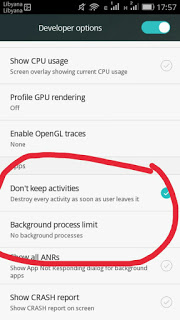
To save more battery power I changed the developer options to kill unused apps, there is some improvement, but again you’re advised to try any of these tricks at your own risk. Gotta keep it charged and happy because you never know..
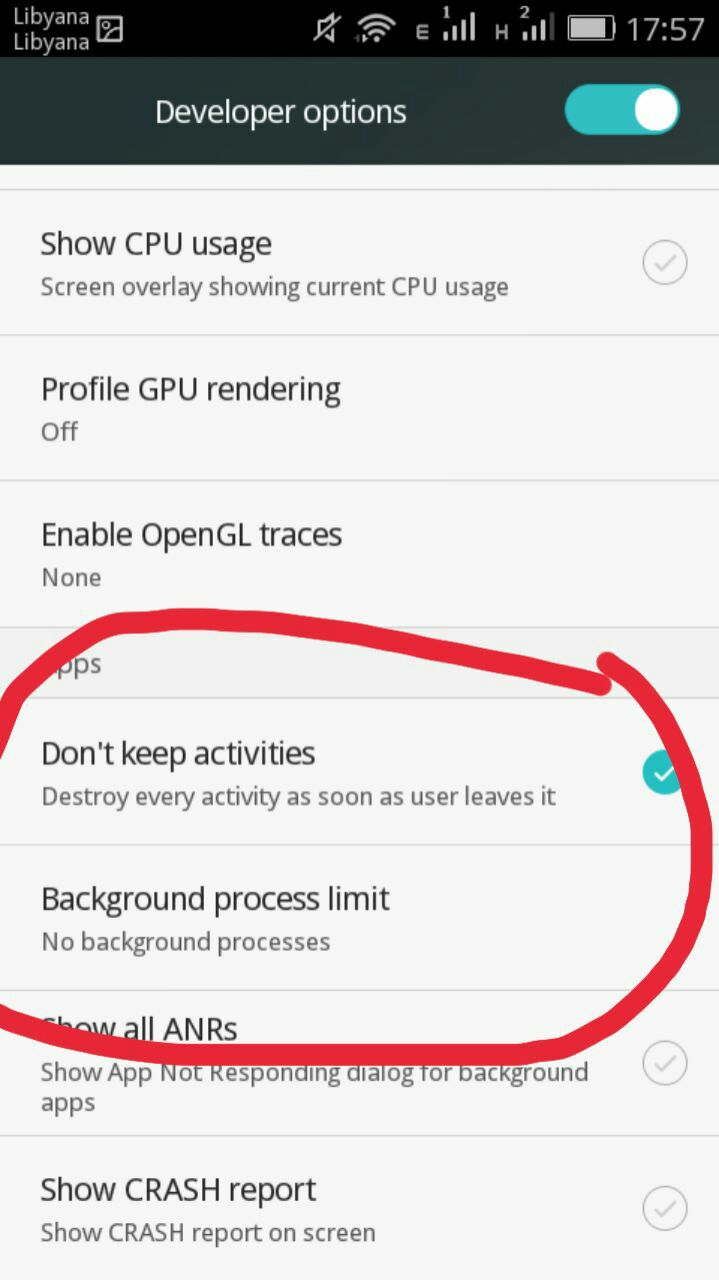
Tweaking developer options
And since the system didn’t fall apart yet, I think it was a success, I do keep a stock ROM just in case the phone fails, and I advice you to do so too if your phone manufacturer
provides them.

Software for work

What I’m trying to do is creating a productive work flow, that’s minimal and efficient, while moving to Linux was a great first step, I feel more needs to be done, and since I downloaded several gigabytes worth of software for college work (all free and open source of course), I have to make budget cuts to keep the system going!

No more room for Sublime or Atom (god forbid), and since I downloaded Android studio and Netbeans, I decided that Kate (default text editor in Kubuntu) would suffice to write code, rather than the former two. All in favor of saving space and resources.

Kate can’t handle large text files, such as the blog backup for example.

Blogging ventures

I blogged on Itsfoss, one of the leading open source blogs to help draw attention to a Linux version of FDM, I blogged about it a while back but it wasn’t enough to tip the scale in favor of FDM Linux, after my post on itsfoss was published FDM Linux went from being 5th on the future feature vote with 840 votes to being the 1st post on the feature vote, with over 24% of the votes! Talk about domination!!

Now it’s the matter of getting the development team to start working on the long awaited Linux version, I’ve been waiting for over 4 years now!

SLB experience

I’ve blogged about the internship I had at Shlumberger a few years ago, and the support from the community was overwhelming, I should have written about it earlier. The post ranked in over 950 views in a week, I don’t get this kind of attention usually!


A blogging interview!

I was a guest on Ms. Malak Altaeb’s blog, she is doing a fantastic job and I suggest that you give her a follow.

LTT’s net

“Bykyfk” or pay as you go by LTT is cleaning my pockets dry, I have to charge in a new card daily, which is silly if you ask me considering that the internet is really slow, the only option at hand was to change the package from 2MB/s to 1MB/s. Reducing the line’s speed by half doesn’t mean it reduces the cost by half, but it’s a good start to save some money, since this stupid liquidity crisis isn’t going anywhere.

I’ve also made a net log to track when each card is recharged and how long did it last, I don’t have to keep cards till they finish!

I’ve blogged about Libyan internet back in 2015, little improvement (if any) happened since then.


Final words

This post is a break between the “job posts” I’m writing on my blog in Arabic, looking back; I’ve had some terrible jobs! Is my current job better? Slightly, but don’t tell my manager!!

I hope you enjoyed this technical update, have a lovely weekend and leave a comment below, it’s free!
My review of Ubuntu Gnome 16.04

It’s been a couple of weeks since Ubuntu 16.04 was out! I decided to take my time and give the new distribution some time before making a review, I think two weeks are enough time, so let’s take a look at Ubuntu Gnome 16.04!!


Ubuntu Gnome 16.04 new logo

The distribution

Ubuntu Gnome 16.04 became an official Ubuntu flavor, making use of the Gnome interface, unlike the official Ubuntu that uses Unity as interface, it comes with Gnome software and isn’t a clone of Ubuntu, there are some minor differences in apps, Basero is  the default disk burn utility for example, and gnome software is at 3.20 out of the box.


Ubuntu Gnome 16.04 Screenshot

Please note that some of the tools in the screenshot aren’t installed natively, such as Zim-wiki and Sublime text.

Download and Install

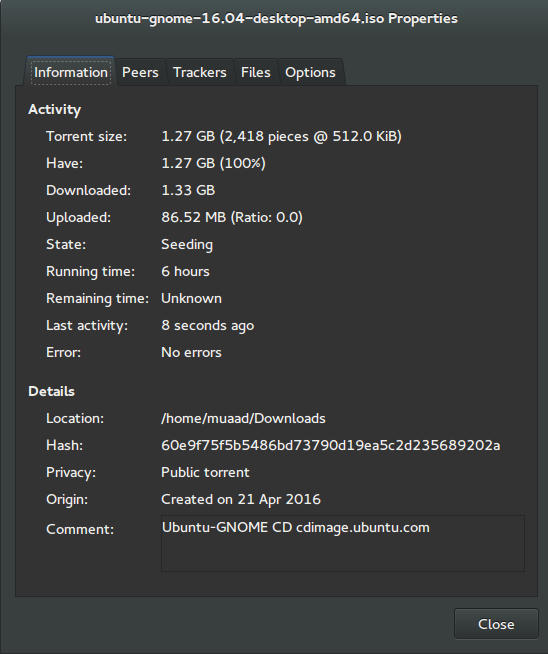
I’ve downloaded Ubuntu Gnome via torrent because I read it’s better for the servers, and come to think of it since the electricity goes out very often here, it’s better to download Ubuntu via torrent to save myself the trouble of downloading it all over again! It was downloaded eventually after 6 hours.
Checkout the download link from here.


It took 6 hours to download!
Torrent download information

I put it on a USB and began installing, pretty much the same since Ubuntu 10.10.
This version has 3 years of LTS support, why not five years? I’m not sure.


Steps to take after installing Ubuntu Gnome 16.04

Most of these steps are on my blog, but it won’t hurt to collect them all together in one neat list, would it?
  • Configuring wireless and Bluetooth, which is really easy to do but very important.
  • Installing the extras, the restricted extras needed to view media files and flash, and some fonts.
  • Installing my softwares, the usual package of stuff: VLC, Inkscape, GimpXmind and Zimwiki
  • Installing extensions: Clipboard indicator and OpenWeather.
  • Editing input sources to make it change between languages by pressing alt + shift, you can find how to do it from this link.
  • Restore the bookmarks and data (notes), Firefox is pretty easy to restore, and so is Zimwiki! All you have to do is to put the note folder in Home.
  • Customize LibreOffice. To make it more compatible with Arabic.
  • Disable apport, more details in the defects section.
  • Installing powertop for more power save and CPU Frequency to reduce fan noise!
  • Pomodro timer works beautifully with Ubuntu Gnome 16.04 and you have to install it, it’s the best timer app for Ubuntu to date! Read my review about it from here.
  • Disable tracker-store as shown in this askubuntu link. 
  • Disable evolution safely without uninstalling it. Saving nearly 170 MB of RAM.
  • I also decided to skip the Grub menu since I only use Ubuntu 16.04, to do that you need to download and install Grub Customizer with these commands:

    sudo add-apt-repository ppa:danielrichter2007/grub-customizer
    sudo apt-get update && sudo apt-get install grub-customizer

    After that go to Grub customizer and enter your password, go to settings and uncheck: show menu and look for other operating systems. This way you will get rid of Grub and boot to Ubuntu right away, don’t do this if you dual boot!!< red;”


Features and improvements

  • I do appreciate the Gnome 3.18 interface! A huge jump from the 3.10 that Ubuntu 14.04.4 ships with, as it has many improvements and tweaks and fixes for annoying bugs in Gnome 3.10 (LTS to LTS upgraders will relate!).
  • The notifications style has changed completely, it’s now displayed in a drop-down menu under the clock.
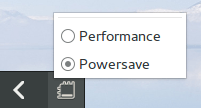
  • The annoying bottom bar was removed completely, a feature I will never miss! It’s replaced with a neat arrow that’s docked on the bottom left corner of the screen.
    Notification dock in Ubuntu Gnome 16.04
  • The new boot logo is so much better than the old one! That looks like a foot! This is more sleek and streamlined, reminds me of SEGA’s logo somehow!


Ubuntu Gnome’s new logo


Issues and defects

  • So far the performance is OK and there are few crashes, pretty much the same as Ubuntu 14.04.4 which is pretty stable by the way.
  • I’ve noticed that the network icon sometimes disappears, hopefully an update will fix this, my only fix is to reboot.
  • I would recommend that you disable apport as it will bring up a message every time you reboot.
  • Software isn’t as clear as it should, I can’t tell how big are the softwares and updates, so I use Synaptic on a daily basis to get things done!
  • When disconnecting the wireless network with the hardware key it’s not recognized anymore until several reboots, it’s a known bug but with no fix afaik! The only info I could find was this terminal command: sudo service network-manager restart This command will restart the network manager and allow it to connect without the need to restart several times.
  • The fan noise was too much at times, even when the computer was idle, I thought upgrading from Ubuntu Gnome 14.04.4 to Ubuntu Gnome 16.04 would fix this but it didn’t, until I installed CPU Frequency!
  • Nautilus 3.14 could use an update and we don’t have to wait till 16.10 to get one! I managed to follow a rather risky tutorial to update it to 3.20 and it’s so much better!
  • If you are using an SSD you might want to look at this post to avoid the /dev/sd1 :Recovering Journal issue.
  • Starting up without a user interface at times, and my only cure was to restart the computer, I found a fix that suggests to clear the packages config from Synaptic.
  • Sometimes shutdown can be slow, I found the steps in here worked like a charm!

“Software”

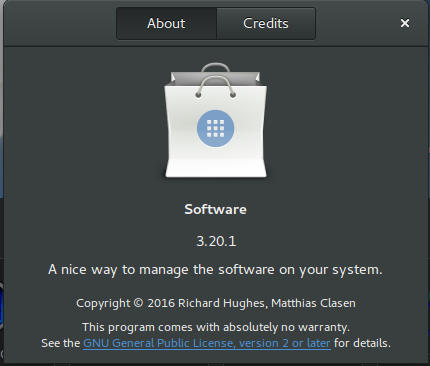
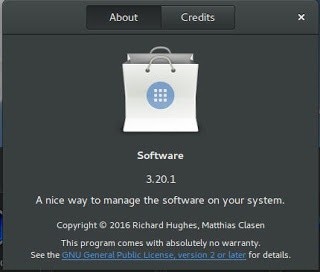
Ubuntu Gnome 16.04 ships with Gnome software 3.20. Which is the software that is supposed to replace Ubuntu Software center, I find them both buggy and unusable, as I use Synaptic to do my package work.


Softwares 3.20 on Ubuntu 16.04

I do believe it needs more work to become a reliable software center, it stays in the background and behaves oddly, it doesn’t show the download progress on software being downloaded too, which seems odd!

I winded up un-installing software and reinstalling the good’ol Ubuntu software center!

Final words

Ubuntu Gnome is a great choice for anyone who wants to enjoy Gnome  without having to leave the Ubuntu universe to Fedora or OpenSuse, it provides the purist Gnome experience possible for Ubuntu, and it preformed better than regular Ubuntu installed on older machines (with proper tweaking mentioned here).

The more I use it the more I could tell that this is the distro for me, great job indeed by the team, and I rate it as a must have!

I hope you enjoyed this post, please let me know what you think in the comments section below, and remember: Sharing is caring!!

Newer posts »