Month: February 2015 (Page 2 of 3)

Clipboard managers for Ubuntu and Windows will boost your productivity!

Clipboard managers are a very handy tool and a total must have for anyone working on a computer.

Office workers, students, and even bloggers!

It’s a pain! It feels like juggling!

Ubuntu clipboard managers

Well with Clipboard managers we can minimize this pain!

There are many great applications both paid and free! But I’m going to talk about two, one for Linux and one for Windows.

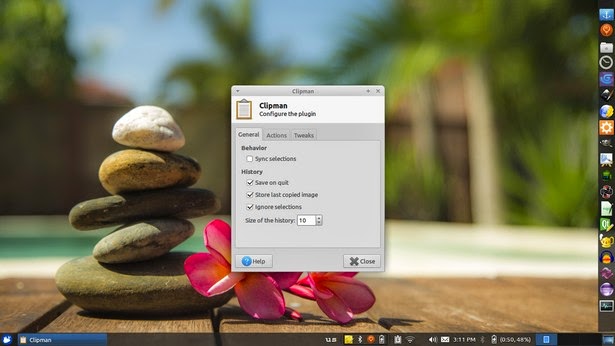
The one I used with Linux came with Xubuntu is panel plugin called Clipman Which is a huge help and can be added as a plugin on the panel. It’s light weight and super effective!


Windows clipboard managers

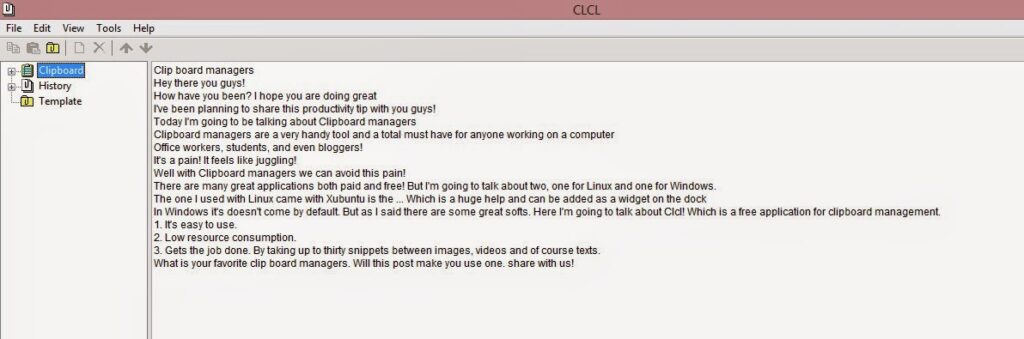
In Windows it’s doesn’t come by default. But as I said there are some great softs. Here I’m going to talk about CLCL! Which is a free application for clipboard management.


Advantages of using CLCL

1. It’s easy to use.

2. Low resource consumption.

3. Gets the job done. By taking up to thirty snippets between images, videos and of course texts.
Download it from here

What is your favorite clip board managers. Will this post make you use one. share with us!
Our next post will discuss screenshots! Stay tuned!


How to fix the boot failure in windows 7

 Hey there 🙂 And welcome to a new post 🙂

 A huge part of being a geek is being the first to go to / call when computers fail! I don’t know why!
This time it’s not related to Linux, not directly at least!
For this particular issue this laptop was an e-machines running windows 7 home edition. It was a bit old and the battery was depleted. The same laptop from this post actually!

What’s wrong with it?

It had to be connected all the time or it would power off attempting to save the session, if it failed doing so it would refuse to power up again! When I press the power button after connecting it to power it shows the boot logo then it powers off right away!!
Many people would assume that the system is gone! And they need to reinstall it.
The first thing to do is to check the drive using a Linux CD or a Bootable USB. You will see that the system drive is intact. Then what is the problem?
The repeated power failures ruin the boot files located in the hidden boot partition, and the only way to fix them is by repairing the boot!

The fix is pretty simple!

1. Enter the windows installation disk or USB installer, it has to be the same version as the windows installed!: e.g Professional, home premium etc. In this case we need home premium. (Fell free to test with another version and tell me what you got 😉 )
2. At the install Windows window , choose the language and keyboard (As your system settings ).
3. Select advanced options ( You will find it below the installation options to the left of the screen)
4. From there you will find four options, pick repair boot (First option) and hit OK.
After a reboot your computer will be OK!
As simple as that! Sorry I have no pictures. It’s because the setup menu has no print-screen functions (AFAIK).

P.S: I have made this fix a couple times! I noticed at some extreme cases the boot screen won’t even show! Go to bios menu and make sure the F12 menu is enabled. Then boot from boot disk or USB 😉

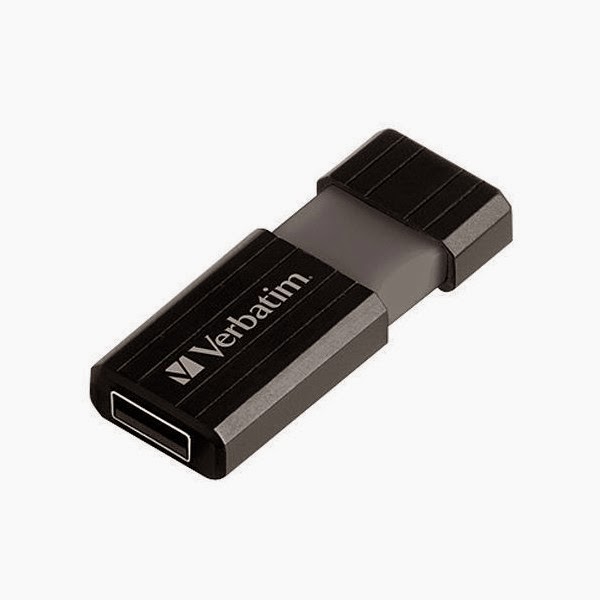
How to create bootable USB for Linux?

Hey guys, how are you doing today?

Today we are putting Linux on a USB! Really easy and very important!

As we said in the Acer Netbook repair post  that we will post about making bootable USB for Windows and Linux. We are using the same method we used to put Windows on a USB. Only this time, it’s much easier!
That’s because most Linux distributions are downloaded off the internet as .ISO files, no need to use Infrarecorder to change them!

I have to admit! I based this article on a previous post. Only because it’s THE EXACT SAME WAY.

Steps to make the bootable USB:

For this step we are going to need a software called YUMI. (Your Universal Multiboot Installer ) Also free and can be downloaded from Here.. I found this to be the easiest way around when it comes to burning ISOs on a USB. And it can add many ISOs on one flash! So it’s efficient and easy!

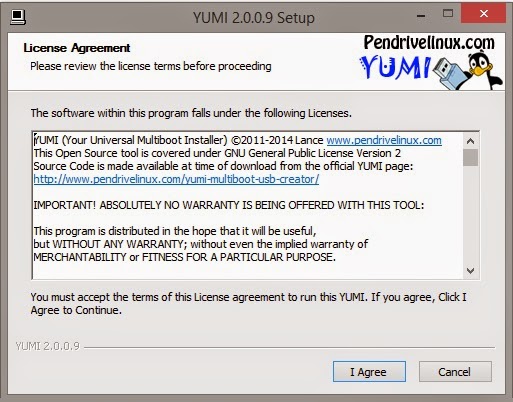
1. After the download run the setup and click agree.

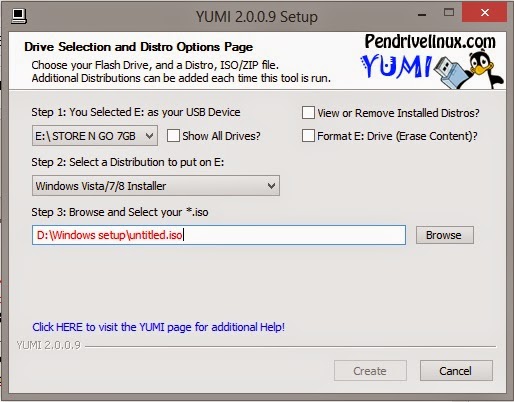
2. From this window select the USB drive you are going to use.

A. Select  from the drop-down list. It has many Linux distributions and many live CDs too. Scroll down to find the distribution you chose, for example: Ubuntu
B. Browse for the ISO we downloaded, note that the name of the ISO will be the name in the boot menu.

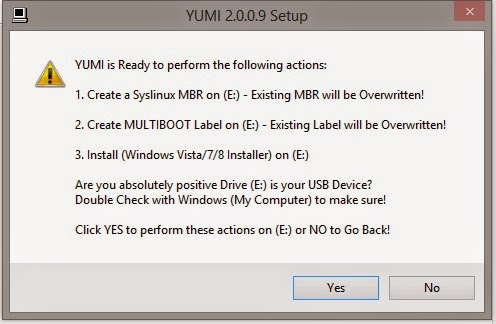
3. On the warning menu choose yes (will format the USB so double check)

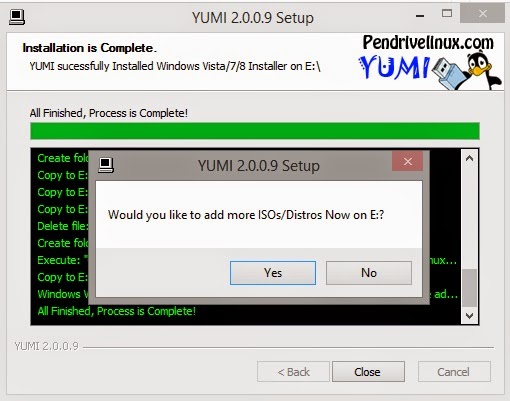
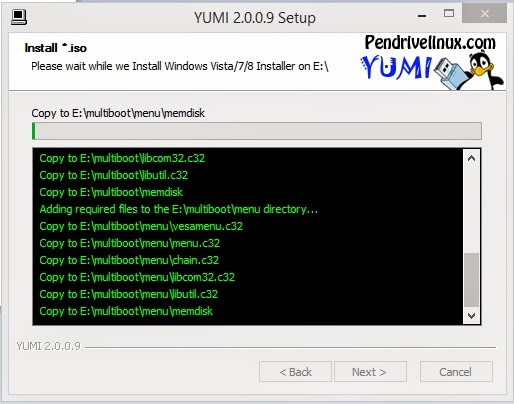
4. You will see the progress windows copying all the files to the USB.


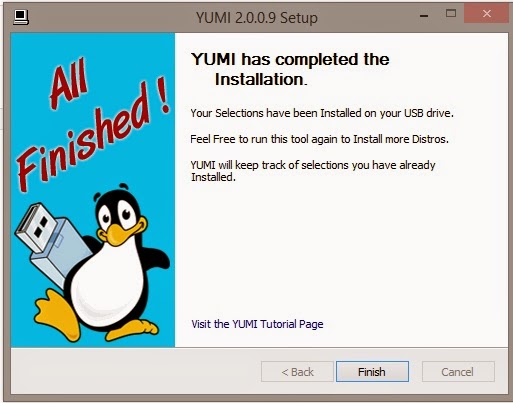
5. Wait for a few minutes and you are done!
You can add other ISOs using the same steps, or remove them if you like!

6. Yes will reopen the selection window while no ends the program .

7. After you are done, make sure to back up the data on the target computer. Reboot it and select from the boot selection menu ( Usually accessed by F12, can vary depending on the bios ). And continue form there 😀 .

That was it! Pretty easy isn’t it? I hope you enjoyed it as much as I enjoy making it 😀
Please feel free to leave your feedback.
This post will be mentioned in my next post! Stay tuned!
Have a nice day 😀

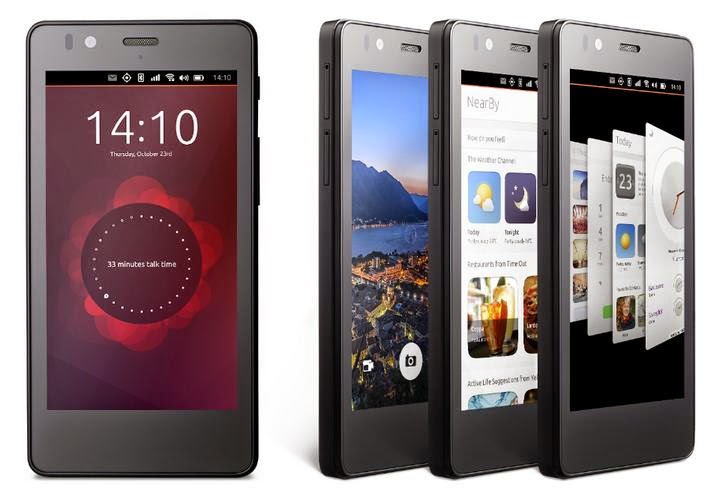
First ubuntu phone coming next week by BQ!

Hey you guys 🙂

I’m so excited! The Ubuntu phone is finally lunching after two long years since it was announced!

The specs are mid-ranged! It’s built on the BQ Aquaris E4.5 that normally ships with Android. And it’s nothing special.

Specifications

The phone sports a 1.3 quad core processor. 1 Gigabyte of RAM and 8 Gigabyte of storage, 8 Megapixel rear camera. And a 5 Megapixel front camera. ( Apeerently the specs were chosen upon the announcement two years ago! )

Impression

Over all looks pretty nice and solid. BQ will be providing it online in flash sales in Europe only! ( Similar to Chinese phone companies like Xiaomi ) ..

Weird sales strategy!

The question I had for nearly two years remains!

Will Canonical provide the operating system for download? Could normal Android smartphones be flashed to run Ubuntu? Only time will tell.

I hope you enjoyed this update. Have a nice day

Feel free to share your opinion in the comment section 🙂

« Older posts Newer posts »