Month: August 2015 (Page 3 of 4)

LibreOffice 5.0 hanging on Ubuntu, can’t highlight fix!

While messing around with LibreOffice Writer 5.0 on Ubuntu I discovered that I can’t highlight text, and trying to highlight text made the whole program freeze! I managed to fix it and this is how I did it..

I always download two versions of LibreOffice, one for Linux and the other for Windows, usually the one with the issues it the Windows version, but in this case it worked fine, while the Linux version was acting off.

I assumed that the main culprit is the Java machine, because in Windows it refused to work with the 32 Java machine I had installed which ran version 4.4 well. So installing a 64 bit Java machine did the trick, and the reports worked fine!
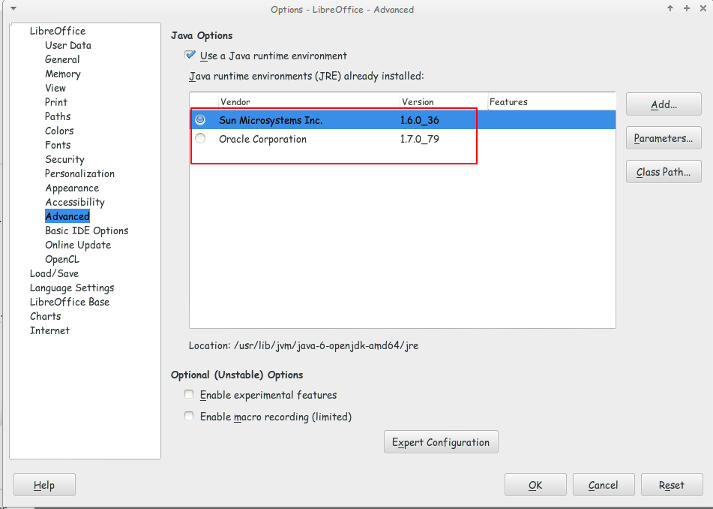
I looked at the machines I have installed and they were: and none of them made the problem go away!
You can access them by clicking: Tools Options Advanced


Java machines on Ubuntu

They were both excepted by LibreOffice but the problem persisted even after restarting over and over again!

I’ve finally been able to fix the problem that made LibreOffice hang and freeze when highlighting a text.

All you have to do is to navigate to:

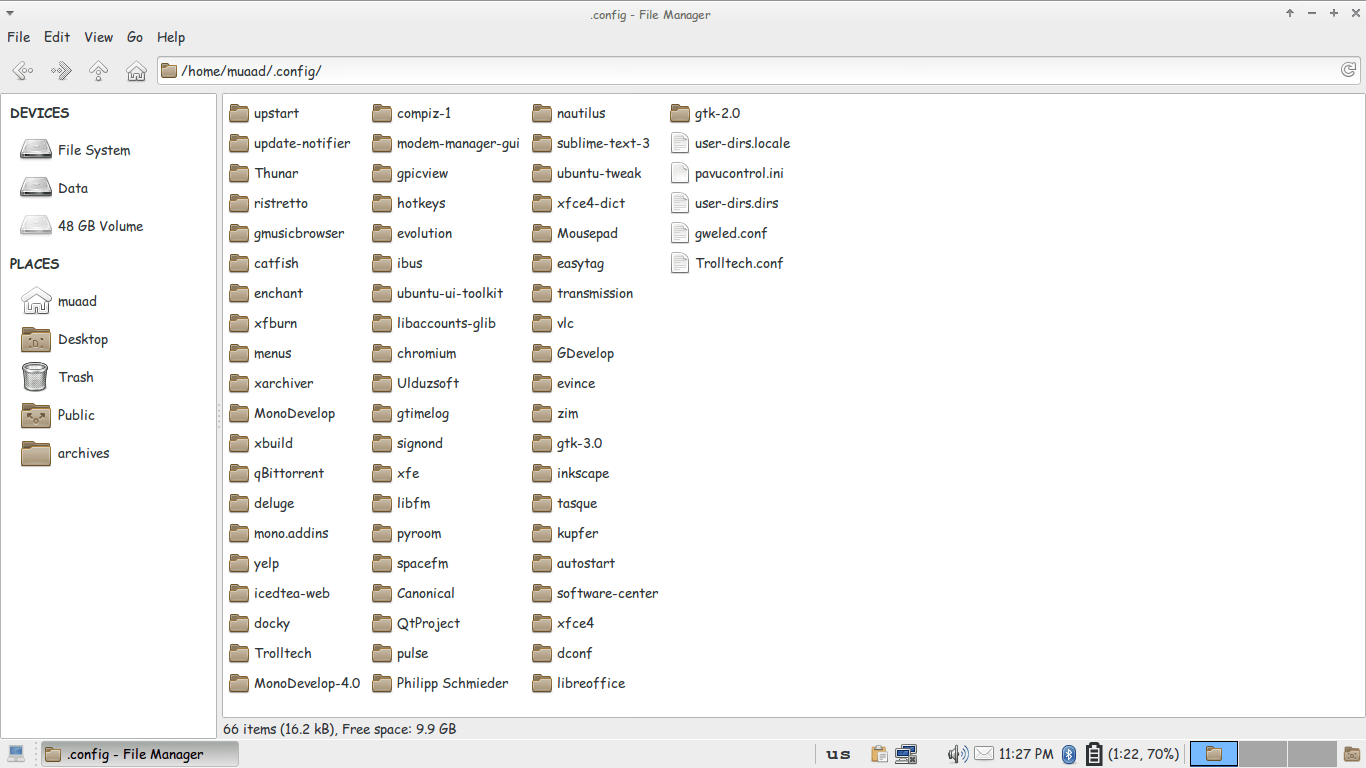
/home/”User name”/.config/ and delete the folder LibreOffice.

It will work fine after that!!

Thunar confing file unhidden to delete LibreOffice config

You might have to unhide the folder in your file manager!

It’s not a Java machine problem. But I don’t think it would hurt if you download the latest version.

لماذا نستخدم الویندوز؟

ولم لا ؟ فهو الذی وجدناه فی جهاز البیت عندما إشتریناه، وهو الذی یوجد بكمبیوتر المدرسة و العیادة. وكافی الانترنت. وهو الذی أخذنا علیه دورة الكمبیوتر التی أهلتنا للوظیفة التی نحلم بها، وهو الذي يحوي عشرات اﻷلاف من اﻷلعاب التي تمتعنا وتسلينا،  وهو الذی أصبح ملازما للكمبیوتر ولایفارقه بإضافاته العدیدة، وإصدارات برامجه التی تصدر كل سنة..

ميكروسوفت تجبر شركات العتاد أن تحمل اﻷجهزة بأنظمة تشغيلها، دون أن ننسى أنها صارت مصنعة عتاد تحمله بنسخة ويندوز (الأخيرة) و بعد شرائها شركة نوكيا صارت اﻷمور أوضح.
سیاسة میكروسوفت الاحتكاریة تتلخص فی أنك:

  •  تدفع ثمن البرنامج.
  • التحدیث.
  • دورات التدریب.
  • الدعم الفنی والصیانة.

مجددا هذا فی الدول المتقدمة. أما فی الدول الأقل تحضرا فإن نسخة الويندوز المكركة لا تكلف شيئا، وكذلك اﻷوفيس، والفوتوشوب، واليد العاملة رخيصة، والعتاد رخيص..

ولكن؟
كم من مرة حصل إنهيار شامل للجهاز؟ غزو فيروسي رغم وجود مضاد فيروسات وغيرها من برامج الحماية المكركة كذلك!
كم من مرة تلف الهاردسك بالكامل وخسرت سنوات من الملفات؟
هل تعلم أن الجهاز الموجود به برامج مكركة أكثر عرضة بكثير للإختراق من أجهزة ويندوز العادية؟
كم مرة تقوم بالفورمات في السنة؟ من تجربة شخصية كنت أقوم بالفورمات مرتين أو ثلاث في السنة (في ظروف مثالية) ووصلت معي الى مرة في اﻷسبوع!!
ليس من المفترض أن ينهار الويندوز هكذا، وحتى وإن إنهار فهنالك طرق أكثر ودية لتصليحه دون اللجوء للفورمات وإعادة تنصيب كل برنامج مكرك تستعمله.
هل تعتقد أن كل هذه مصادفات؟
إن ويندوز يمكنها حظر كل النسخ المقرصنة ولكنها سمحت بها حتى لا تتجه إلى سواها، فهي تعلم عاجلا أم أجلا أن أموالك ستقع بين يديها!
أنا لست ضد أن تتربح ويندوز من المستخدمين، أنا ضد القرصنة وضد الإحتكار..
من حق كل مستخدم أن يستخدم البرامج التي تلائم إحتياجاته، شريطة إحترام التراخيص.
أتمنى أن تكون هذه التدوينة أفادتكم، وأتمنى ردودكم التفاعلية.

Restoring Linux boot (Dual Boot Saga)

After I installed Windows. I have lost Linux in the boot menu, in fact there wasn’t a boot menu at all!
As soon I boot the computer Windows would come up and take the boot from there?!

I wanted to have Windows, not for Windows to be all I have!!
I had to restore booting to Linux, not only I liked it so much, my data and programs were there (Windows can’t “see” the Linux partition).
At first I tried installing BCD Boot to create a boot menu, it failed on a daily biases for me!
I had to try a better solution, and what better solution that the Linux terminal? <3
I booted to Linux from a live disk (you can create one by following the steps in here).
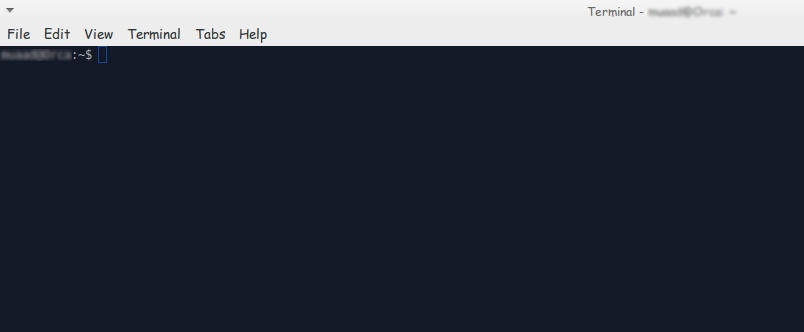
After it boots go into the terminal and enter the following command:


sudo fdisk -l

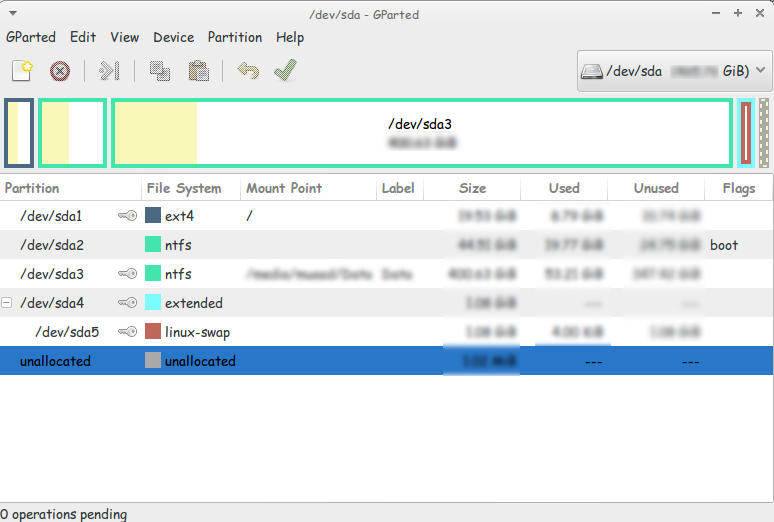
This command will show you all the partitions on your HDD, you have to know which partition your Linux distro is installed on (Gparted can be a great help in that).

Use gparted to see where is Linux installed

and enter this command:


sudo mount /dev/sda1 /mnt

then this command:


sudo mount --bind /dev /mnt/dev

then this command


sudo chroot /mnt

then this command


 grub-install /dev/sda 


then this command

update-grub 

If the computer boots directly into Ubuntu (or whatever Linux distro you have)
go to the terminal and enter:


sudo update-grub

Finally reboot and you will have the grub menu with Both Linux and Windows!

If you have an issue mounting you should use this command

Sudo touch /cow

The purpose of these commands is to install Grub (The boot manager) so you can dual boot easily from the menu.
If you want to customize grub for example the names of the systems and the list order you need to download Grub Customizer. I think I’ll post about it sometime later 🙂

Setting the first line as the file name in LibreOffice

LibreOffice Logo

One of the few features I missed moving from Microsoft Office was the auto name upon save, where Word takes the first line of the text and uses it to name the text file. LibreOffice (and OpenOffice before that) don’t have this feature! It’s a small thing but over time it becomes a growing nuisance!

Luckily there is an easy fix for that! Which enables you to enjoy the luxury of easy naming of files and limit the Untitled flood over time!

We are going to use a feature known as macros. macros in office are a Visual Basic code that is used to preform a certain task over and over and is triggered by an event. In this post I’ll be showing how to create a macro that saves the file using the first line of text when pressing the key combination of CTRL + S (assigning the macro to save or save as will result in two files: untitled and the first line of text!) So at first, we are going to need our macro. I took this code as is from an OpenOffice form, it works fine without editing:


  Sub FirstLineFileName_Writer
    On Error goto EH
    oDoc = ThisComponent
    oVC = oDoc.CurrentController.getViewCursor
    Mark = oDoc.Text.CreateTextCursorByRange(oVC)'mark position of view cursor.
    oTC = oDoc.Text.CreateTextCursor 'created at the beginning of doc.
    While oTC.isEndOfParagraph 'skip empty paragraphs.
    oTC.gotoNextParagraph(false)
    Wend
    oVC.gotoRange(oTC,false) 'a text cursor can't go to the end of a line
    oVC.gotoEndOfLine(true)  'so we have to use the view cursor.
    filename = oVC.String
    url = ConvertToURL("C:\" & filename & ".odt")'Insert Your Desired Directory Path.
    oDoc.StoreAsURL(url,Array())
    oVC.gotoRange(Mark,false) 'return view cursor to original position.
    oDoc.Modified = false 'avoid Save being called if doc closed without further edits.
    End 'end normal execution.
    EH: 'error handler.
    MsgBox "You may have illegal file name characters in the first line." & Chr(13)_
    & Chr(13) & filename,,"AN ERROR OCCURRED"
    End Sub


This code is used to save the text file by taking the first line of text and setting it as the name. You can edit the directory of the save. Please note that it saves without conformation!


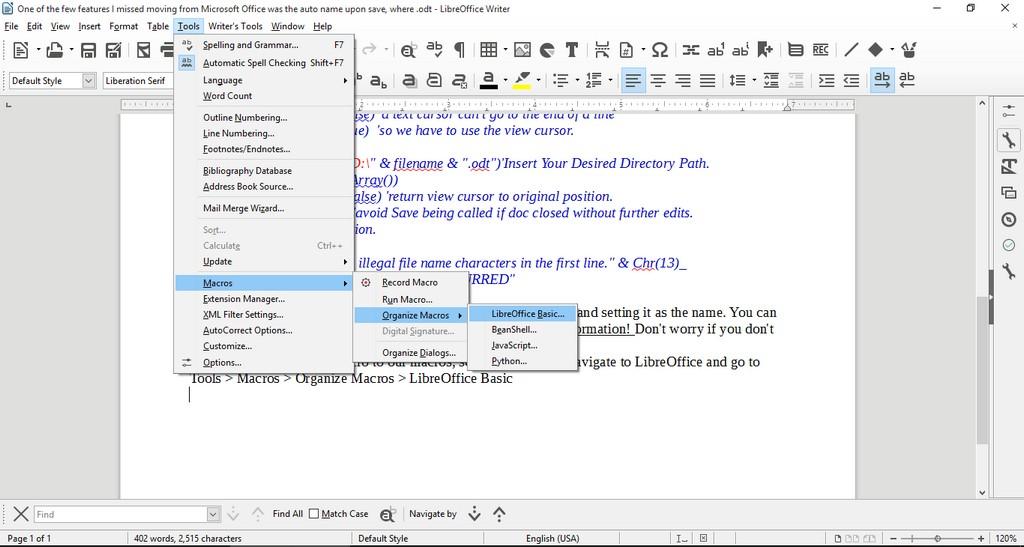
Tools > Macros > Organize > Macros >LibreOffice >Basic

Opening the macro menu

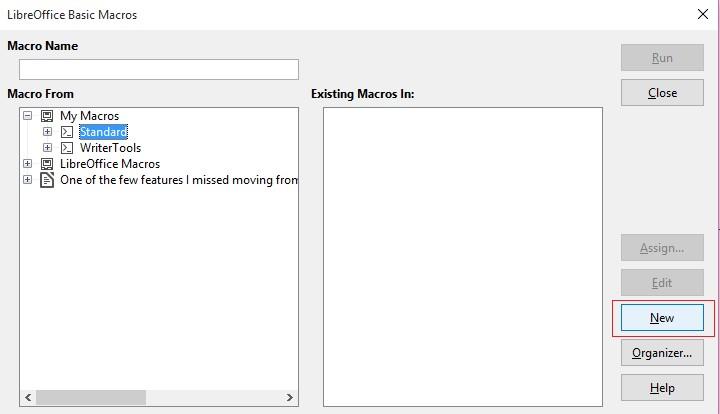
New to add a new macro.


Adding a new macro


Run Macro then choose the macro manually from the menu. But that’s not too handy, is it?

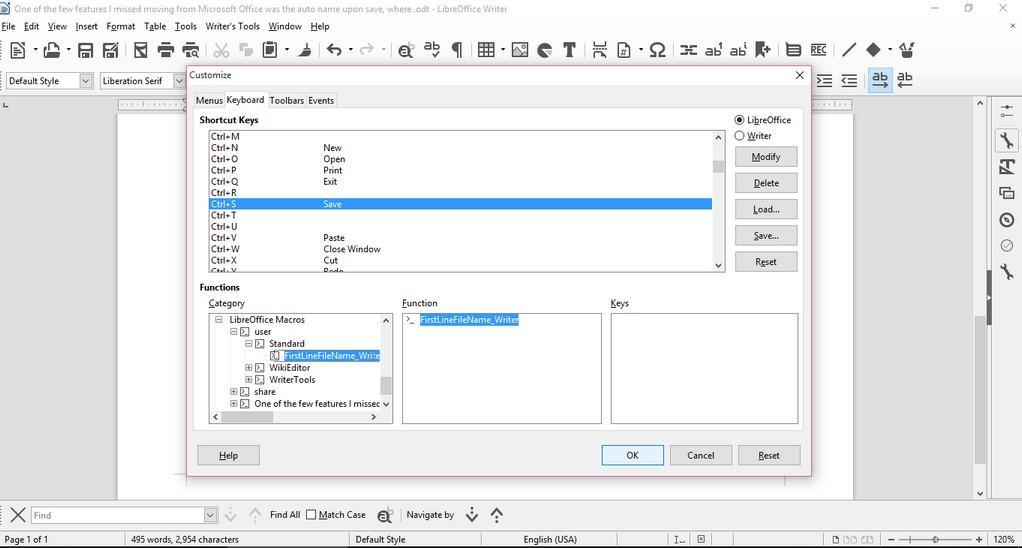
Customizing the key combination

Go to LibreOffice writer and navigate to the menu: Tools > Customize > Tab: Keyboard.

Delete whatever is on CTRL + S, and assign it to the new macro by looking for it, and if everything went according to plan. It should save the 1st line as a file name.

Checkout this for more information.

Important notice

If you get errors it’s because the directory isn’t correct. Libreoffice will default to C:\ and when it can’t save in it. It will crash the macro. I edited the code to: “D:\Documents\ but make sure to choose your own folder.

« Older posts Newer posts »