
مرحبًا بك عزيزي القارئ في العدد 100 من حديث الأربعاء. أستعرض فيه القليل من الأخبار والنوادر، والجديد من هنا وهناك. لذلك هيا معي لنطالع فحوى هذا الحدث الجديد!
Category: Dock (Page 1 of 2)
I blogged about Docky a few years ago when I moved to Ubuntu from Windows as I needed something to replace Nexus dock, and later RocketDock, and I added it to a post about the best docks for Linux and Windows.

Introduction
Docky is the dock to go to when using Ubuntu, it’s fast and it’s light, not to mention it’s free, it has two branches for development which I find to be a bit confusing!
One of the branches is stable but lacks features, and the other crashes often but is full with features.
What if there was a dock that had the best of both branches? Stable and fully featured? Meet Plank everyone!

Plank
Plank is a fork of Docky that is shipped by default with the popular operating system Linux Elementary. It is based on Docky 3.0.0 according to the Plank wiki, and it’s aimed to be the simplest dock available, to preform what a dock is supposed to do, and I couldn’t agree more!
How to install Plank?
In a terminal window enter these commands one by one to install Plank, and after it’s done you can find it by searching the name in any interface you use.
sudo add-apt-repository ppa:ricotz/docky # <- is not a typo
sudo apt-get update
sudo apt-get install plank
Configuring Plank
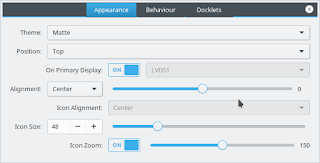
By right clicking an empty place in the dock you can summon the preferences of Plank, but that proves to be a little difficult, so by typing the command: plank –preferences
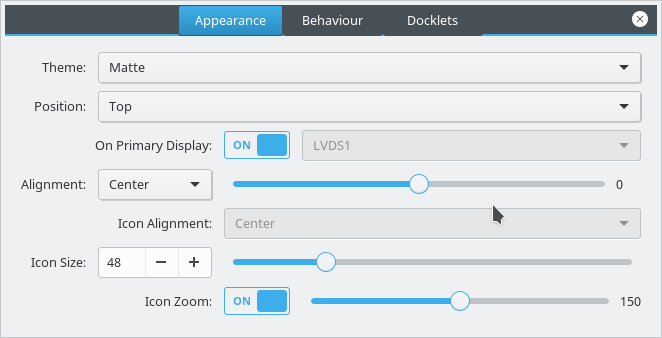
to adjust and fine tune the settings of Plank.
How to add executables as shortcuts to plank?
If you are using plank on Ubuntu you know that you can’t add executable files right to the doc, you need to add the icon to the program directory and then add the icon to the dock, here is a really simple way to do it from here.
My verdict
It’s the best dock I used so far, so light and does exactly what it should, without having to choose between two branches and having to roll back packages.
What do you use on your system? Are you considering Plank? Share your thoughts in the comments section below, and don’t forget to share the post on social media 🙂
Today I’ll be talking about making the awesome Docky dock even more awesome!
As you know Docks are really productive and once you get used to them you are hooked for good! I mentioned it in an earlier post as an honorable mention, but I always felt Docky deserved a post of it’s own!
First of all let’s take a look into how many versions of Docky are available and what to choose from?
Docky has two active branches : Stable and Development, each one has it’s pros and cons. I will be talking about them in detail and why I choose one over the other!
Stable branch
It’s the official Docky branch currently at version 2.2.0.2
You can add it to your system by adding the PPA to your software sources. If you aren’t sure how to add the PPA then check this post I made some time ago that shows how to add a PPA.
- It has many options compared to the development branch with the ability of adding more than one dock!
- It also has docklets and helpers which are excellent for productivity.
- It has some bugs tho like crashing on standby and not docking the file manager (easy to fix).
- I tested out both and came up with a resolution!
- I choose the stable branch simply because it gives you more options to work with, not to forget the docklets that add great productivity value, like adding a work timer!
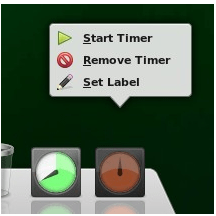
I didn’t find a similar work timer to the awesome Instant boss, this is really close! Checkout how to set this awesome clock from it’s help page! It can also work as an RSI timer! All from within your Dock!!
You can set more than one timers and set labels each, For example one for work and one for rest and have them work together on the Dock!!
I overcame the stable branch not pinning my file manager Thunar simply by dragging the home folder and dropping it on Docky! Now whenever I click it I get my home folder in a blink of an eye.
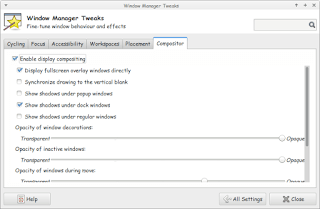
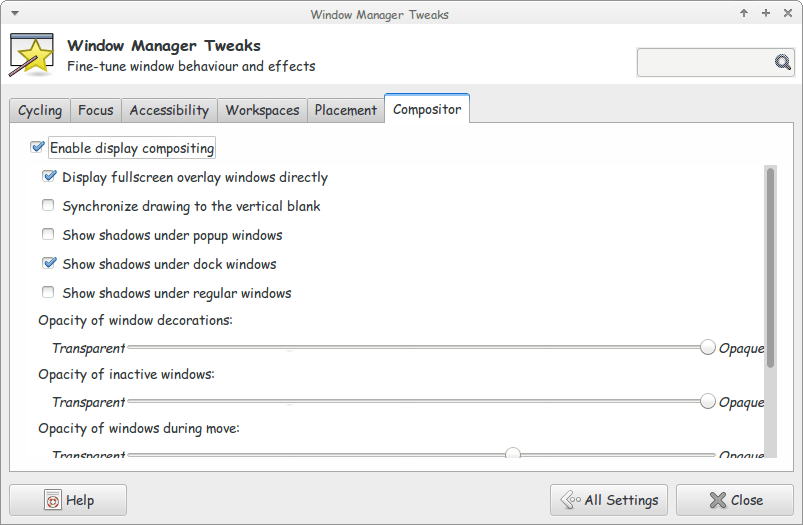
Another bug is when you install Docky for the first time it asks for composite to run properly. And you will notice that the dock seems off!
Go to Settings Windows Manager Tweaks And on the Compositor tab enable composition, it will work like a charm!
A strange bug
Finally there is one weird bug that happened with me on 14.04 LTS Trusty, whenever I put the computer to sleep and wake it again, Docky isn’t there!
I used to put an icon for it on the desktop to “wake it up” but that’s just too counterproductive isn’t it?
The answer is really simple and I can’t wait to share it with you! All you have to do is to add a script to your sleep folder and execute it using terminal.
The steps are displayed in here, because I’m using Xubuntu I had to change gedit to mousepad. But the rest applies and works 100%
*Update 1: It didn’t go as planned and I had to undo it.
**Update 2: Not all updates can be installed: partial upgrade.
Once this message appeared Docky 3.0 was removed and I wasn’t able to install it again. Docky 2.2 closes itself without warning. I still haven’t figured that out yet!
***Update 3: I managed to make docky 3.0 work again I used the debs downloaded from the repositery and installed them using gdeb. The secret is the order of install. Libplanlkcommon at first, then libplank, and finally docky. Read about it here.
There you have it! We made the awesome Docky even more awesome! And you thought that wasn’t possible!
I chose Docky 3.0 over 2.0.2 because it’s more stable and doesn’t crash randomly all the time.
Anyway I hope you enjoyed this! And I’ll see you in a coming post!
Hey you guys 🙂
How are you today? I hope you are doing great! Here is a post on my new favorite dock. RocketDock!
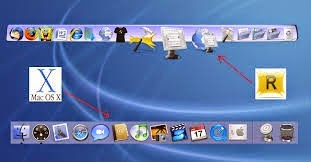
RocketDock is an awesome dock for windows. Developed by two hardcore Mac lovers who wanted to bring a piece of Mac to windows!
You can put almost anything on it. Customize it in anyway you like, plus it’s super fast and doesn’t affect the performance at all, let alone the boot 😀

Pros
- It’s easy to use!
- Free of charge! (Provided under the Creative Commons license ).
- Light on the system (My memory print was 8.7 MB)
- Works great with lower end computers! I tested it on Windows 7, Windows 8, Windows 8 pro, Windows 8.1 and it works fine!
It’s also expandable via a great number of skins and add-ons and docklets! (Available from the download website).
RocketDock compared to Mac dock
I’ve tried it to replace my old favorite Nexus, who was a huge impact on the startup despite my utter love for that dock. I love a speedy boot more! xD
There are also tutorials on-line on how to develop your own skins. And the one I found was using Gimp! I really need to check that one out 😉
I have been using it for a month now! Works great! I don’t even miss nexus that much anymore ..
And yet .. Nothing is perfect! I’ve had some “issues” with it in general.
Cons
- It has been version 1.3.5 for so long! Dare to say it’s dead now?
- It doesn’t start up with the system right away. You need to set it from the settings! ( I don’t know if this counts as a con or not .. )
- It doesn’t pin opened software automatically like Nexus does!
Personal tweaks
I have been tweaking the settings and these are my top must have settings I’m going to share with you to maximize the use of RocketDock:
- General Run at Startup
- Position Layering – Always on bottom
- Style Theme – Choose your favorite theme from there 😉
- Open running application instance. Which minimizes and maximizes the open windows into the dock.
License
The license is “Free for non-commercial use” and to a free lancer like me this is a real bummer!(Just to clarify RocketDock’s license, you can absolutely use it in a work environment. You just can’t sell it. 🙂
The developer of Rocketdock reached out to me and corrected that statement! She is awesome!
Do you have any favorite settings to share with us? Any remarks to add? Possibly a better dock to share with us? Please let us know!
Make sure to follow my blog and join my mail-list NEW
أنا الفائز بجائزة المدون المنتظم لعام 2025 من موقع مرجع التدوين
