Category: Linux (Page 11 of 33)

Lutris, a game management software for Ubuntu

I’ve been into gaming for as long as I could remember, and I’ve devoted a lot of posts on this blog to talk about games that I like. My taste varies between retro games and free / open source games. Sadly I can’t get much gaming done and my style is close to short random bursts followed by ever-long hiatuses. Well today I present a software that I think will have a pivotal role in my future gaming habits. Lutris..

But before that, lets take a look at the origin of the issue

I’ve slowly fallen out of favor with games, from being someone who played anywhere from 4 – 6 hours a day to someone who plays once every blue moon. I know that growing up and finding a steady job changes a person, however I don’t want to drop video games out of my life altogether, I hate to think of how my life would’ve been without video games!

Failed attempts

I’ve tried different things to rekindle my passion for gaming, buying a gaming keyboard was the latest attempt but so far to no avail. I still forget to play games even when I spend a long time on the computer. I blame social media and Reddit. They are too attractive!

Trying to allocate a time for gaming and putting that on a To-Do list feels so forced and takes the joy out of something that used to be spontaneous and joyful.

I think my problem is that I don’t know exactly what games I have, more specifically I forget my game progress and anything else done. In my previous attempts I tried making a folder and placing game shortcuts in it, or a dock like plank and putting game shortcuts on it, but that never worked.

Linux not for gamers

I love Linux, however it’s not a system for gamers, the games are little and not so good, beggars can’t be wishers I suppose.

I’ve searched repeatedly for a software that could be a game hub, one place for all my games, and until yesterday I thought something like that cannot exist, until I met Lutris!

Lutris, the game collection software

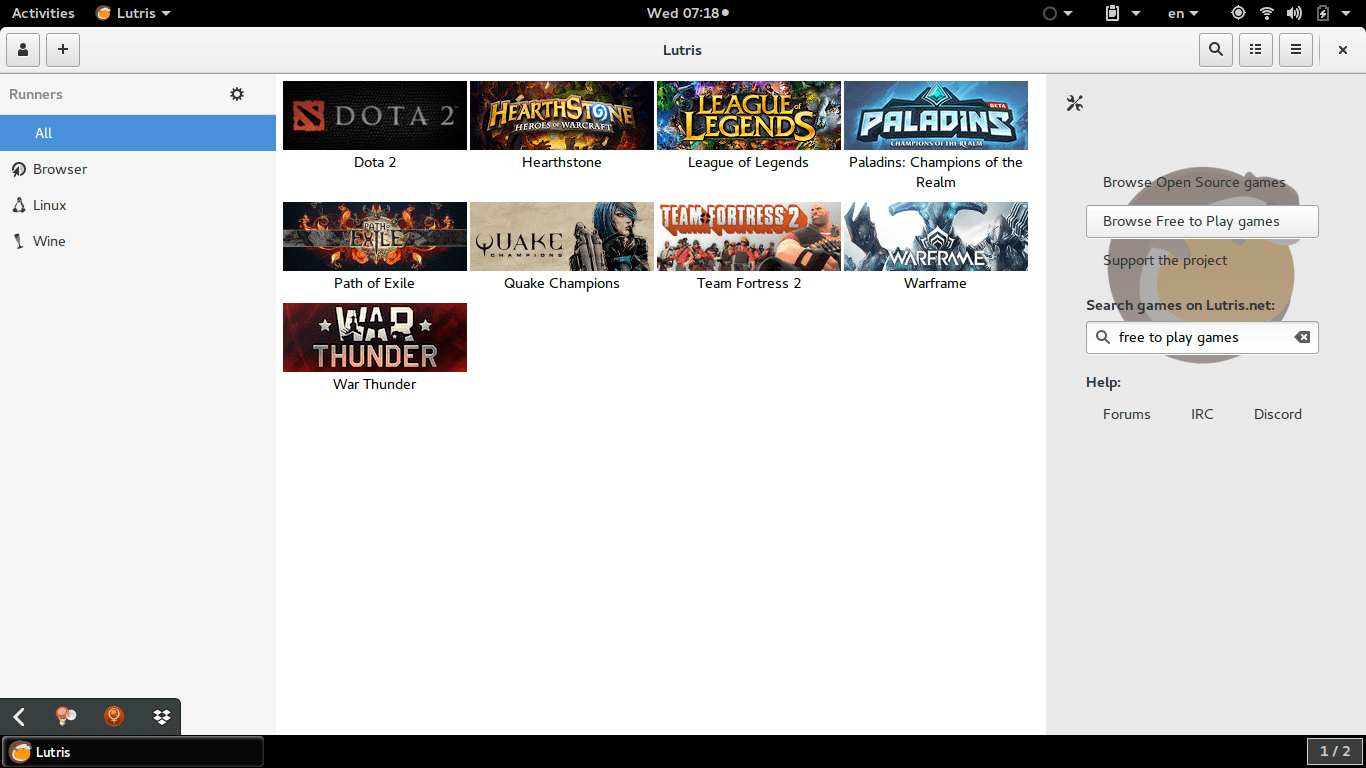
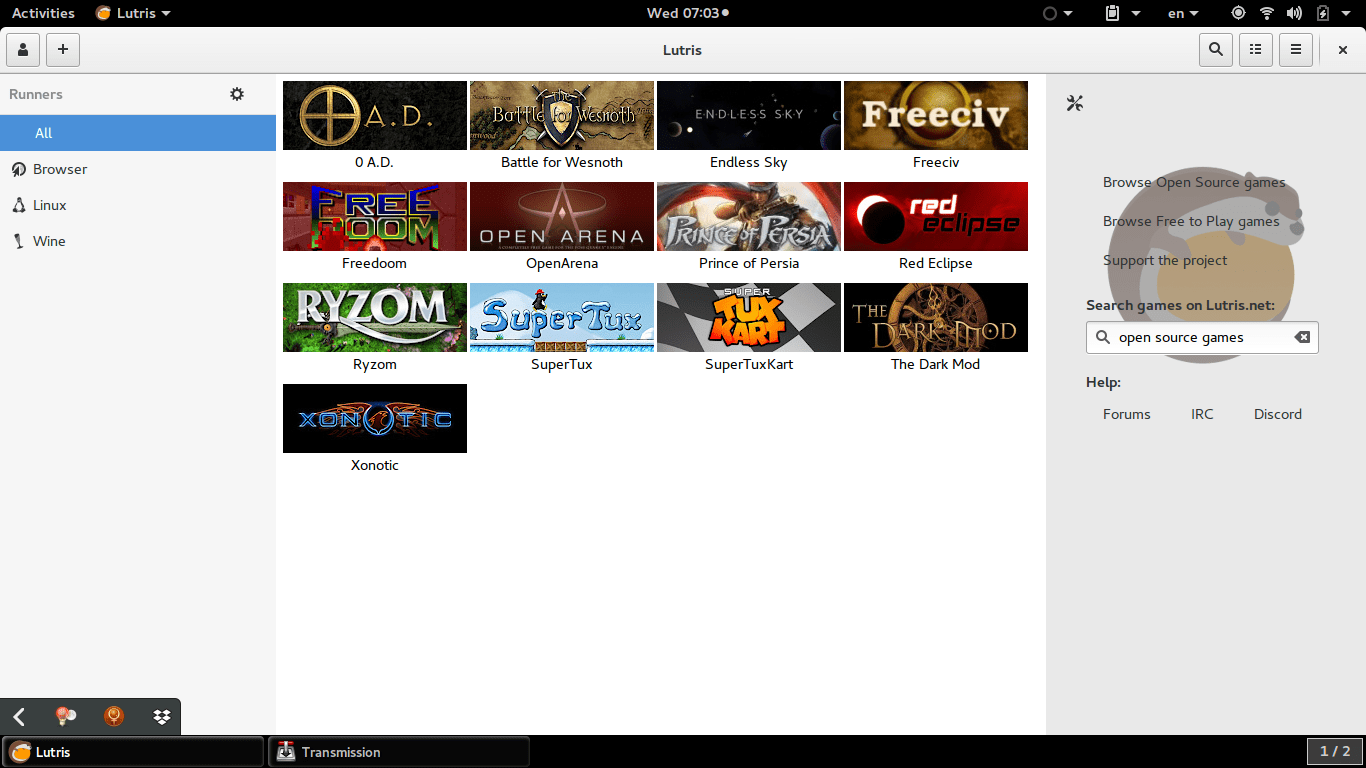
Lutris is a free and open source game library that puts all your games in one place inside one interface, each game would have information and a picture that help you easily choose a game from the list.
Lutris is very easy to use, and is incredibly useful. I managed to collect the games installed on the system, with the archives downloaded in tar.gz (making icons for these is a hassle in Linux), and even games from my old windows collection using wine. To me this is a dream come true.
A sense of order in a rather chaotic collection, and for the first time Linux feels like a system that could do gaming. 


Pros of Lutris

  • I really like the statistics in Lutris, tells you when did you play a game last, and how much time did you spend on that game.


  • I also appreciate the extensive settings it has, such as forcing the keyboard language to be English during playing, and setting the screen resolution back to original after closing a game. (Especially useful with Wine games).


  • Can easily import all of your installed games with one click. Be careful as importing games after that using this method will result in duplicates.


  • The settings are powerful and wonderful, give more control over the gaming experience as whole.


Cons of Lutris

  • Lutris isn’t without faults, it hangs a lot (during game downloads mostly) and still in early releases judging by the performance.


  •  I also don’t like the icon very much, however if you design a tool this awesome, you get to choose whatever you want as a mascot.


  • I also wasn’t able to play any game I downloaded from the online collection, all had mistakes and I had to remove them. I don’t know what’s the problem and it’s not really an issue to me. I just want a place to gather my games.
  • having to add pictures manually to games rather than the default Lutris icon, which is super easy to use by the way, but can be a tedious process if you own a lot of games.


  • Importing the library over and over will result in duplicates, so you have to be careful when importing and deleting games, especially when you check the choice of removing the game from the system all together! (This was later fixed in version 0.5.2).


How to install Lutris on Ubuntu

Enter these commands one by one into a terminal, and after some time it will be installed on your system, download size around 118 MB


sudo add-apt-repository ppa:lutris-team/lutris

sudo apt-get update

sudo apt-get install lutris


D9VK

D9kx frame work aiming to improve the Linux gaming experience using Lutris. Can be downloaded from GitHub and installed via this tutorial on YouTube.

Final words

I think Lutris is the best game library I’ve seen for Linux, it’s sleek and feature packed. I think I’ll do more gaming since installing Lutris, only time could tell.

Enable LED light on JINDIAO K8 Multimedia LED Keyboard in Linux!

LED keyboards are awesome! They make night working and gaming so much easier -especially if you live somewhere where electricity goes off very often– And they look great!
Some affordable models like the Jeway Phantom K7 Keyboard and JINDIAO K8 Multimedia LED Keyboard won’t work with Linux right away, but with some clever hacking you can make your affordable keyboard into a fully functional, Linux friendly hardware. 


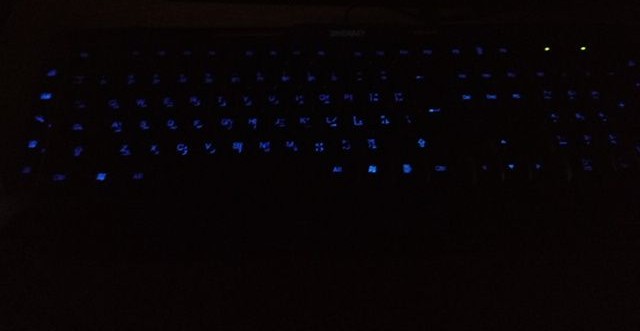
A picture of the keyboard led on


An issue with support

Sadly these products don’t have websites and the companies don’t provide any kind of support, let alone for Linux! But that’s where this post comes in handy.

The case

When you turn on the computer and press the LED switch, it works during boot. But as soon as the Linux kernel loads it turns off and stays off. You might even notice new lines when booting similar to the Comm reset issue, but don’t worry, Xset is our friend!

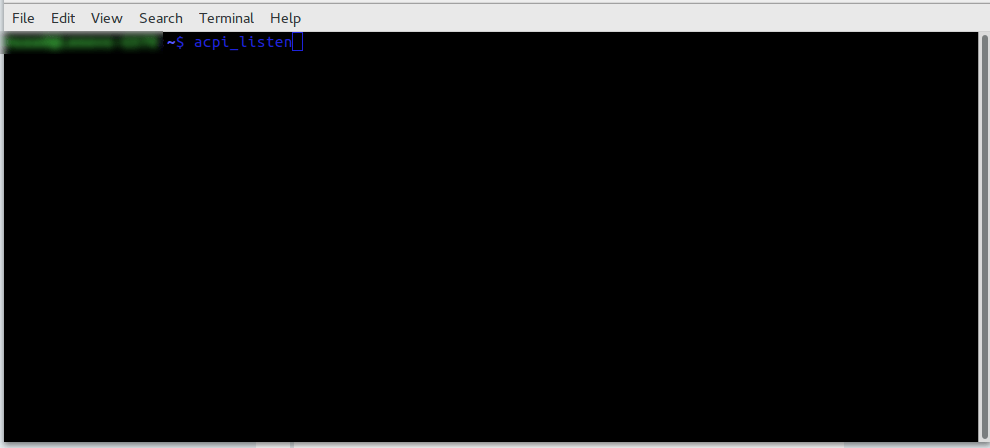
Testing the button with acpi_listen 

The button that enables the led light isn’t recognized by Linux, you can make sure by typing in the command acpi_listen and testing it for yourself. It won’t be recognized and won’t give out a code, unlike other multimedia keys.  

Enable the keyboard light

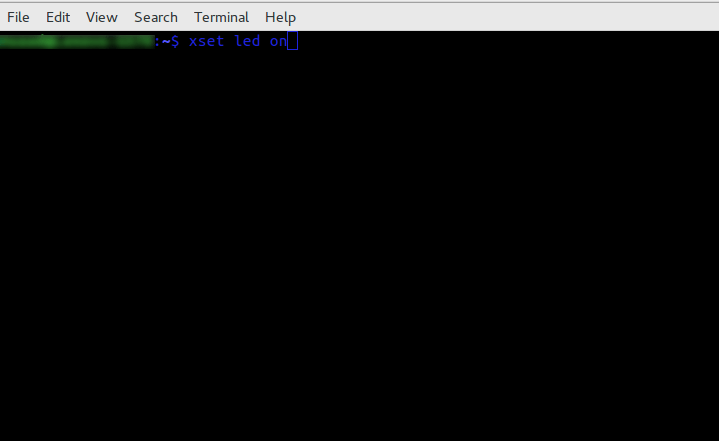
To enable the keyboard light, all you have to do is to open a terminal window and type in the command
for the light on the keyboard to work:

xset led on 


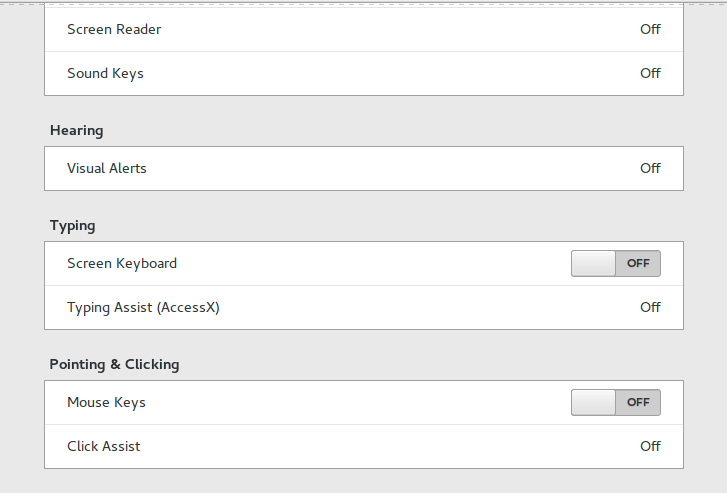
Yes it’s as simple as that, but that command is incomplete! When I tried it on my computer it enabled the mouse keys, an old bug dating back to 10 years ago in Xorg that didn’t get fixed. I made sure the two were related (the LED being on and mouse keys). 


Having to go into accessibility every time and disable the mouse keys by hand every time the computer was out of sleep was frustrating, no where near a fix!

But luckily, the terminal has a fix..

To enable the LEDs and maintain regular Number pad functionality use this command in the terminal

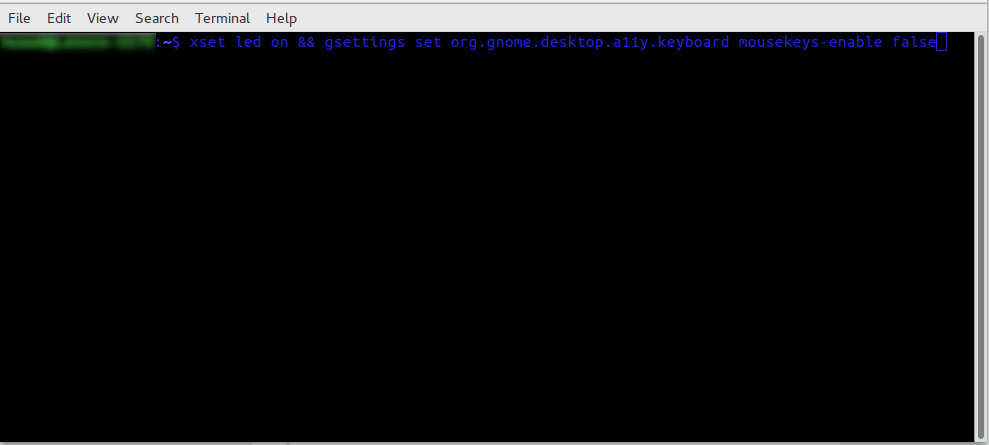
xset led on && gsettings set org.gnome.desktop.a11y.keyboard mousekeys-enable false

This will enable the led light and keep the number pad acting the way it should. 

You will have to enter this command every time you turn off your computer, if I managed to turn it into a bash script and make it start with the system, I will update this post.

Final words

You don’t have to break the bank to get a decent looking keyboard, and using Linux doesn’t mean you need to sacrifice functionality or have to dual boot windows just for a keyboard to function normally!

Let me know how the code worked for you. And have a good one.  

P.S: If you shutdown or unplug the keyboard, you will have to enter into the terminal the script again.

Having a backup plan

I’ve always been a minimalist person of sort, I hate having things laying around and I always prefer to get rid of things that I don’t need, one phone and one laptop seemed like the way to go for ages (If I could get a device that fits all, I would do it), but that all came to a screeching halt one day.

A rude awakening 

One day I was cleaning my laptop and applying thermal grease, I got carried away and started cleaning the fan forcefully, and before I know it, I broke several blades! It’s a long story that you can find on this link, which taught me an important lesson:

Being too minimalist can backfire, big time!

Everyone needs a backup plan, be it a backup of your files and folders (you can find a tutorial on how to do an image for windows here, and how to make a Linux backup here), or a backup device to carry on when everything is lost, it’s all about creating a balance between minimalism and not affording downtime.

Ideas to stay working

Having a phone with USB OTG can be useful, connect it to a full sized keyboard and you have yourself a typing interface combining the easy controls of the keyboard, and the battery life of the phone, it’s alien and a makeshift, but it gets the job done in a hurry, I’ll post about my requirements for a phone short enough.

Netbooks for the win

You can always have a light weight cheap Netbook to do some typing on the go, which won’t replace your desktop setting, but is great for typing away in a coffee shop (if you have 10 hour power outage a day, you will frequent a coffee shop to work!), I got one myself and blogged about it so feel free to check it out from here.

These are just ideas I suggested, you know your flow and what works best for you, and try to make it work.


What is your idea of a backup plan, does it involve another computer? Or are you the laptop hating kind?

Let me know what you think in the comments section below.

My morning news paper

One of my favorite morning rituals is to have a cup of coffee while reading the news, but unlike Johnny Business pants over here, I don’t read the newspaper, I use something more high tech!

What is RSS?

I use a service called RSS, which is in short known as a type of web feed which allows users to access updates to online content in a standardized, computer-readable format.

Why do I use it?

Newspapers are at an all time low, and even if I try to get the paper to read first thing in the morning, it won’t catch up to the latest news as it happens, here is where the internet excels over traditional press.

How to use RSS on your computer / phone?

There are several tools to choose from, after Google retired it’s reader (sending shock-waves throughout the RSS world), there are some very good alternatives you can choose from.

RSSOwl

One of my all time favorites, a cross platform tool that is free and open source, the only downside to it is that development stopped over 5 years ago, I stopped using it after upgrading to Ubuntu 18.04 because of dependency issues, RIP Owl.


QuiteRSS

A light weight RSS client built around QT, has less features than RSSowl (can’t grab the contents of the feed without opening it in a new window), but still a very decent client to run on Ubuntu Linux.

Lifera

It’s a lightweight RSS reader on Linux, worth a try.

Firefox Extensions

For those who appreciate a minimalist feel, there are Firefox add-ons that can grab feeds and display them on your system, surely has less features than a dedicated client, but it’s always fun to tinker around with them, Feedbro is highly recommended (also available for chrome).

There are bunch of apps in the Google play store, choose whatever you like (I don’t use any).

General notes

Not all sites support RSS, don’t get frustrated, look for others.
Some software works better with some sites than others, sometimes you have to compromise.
Always make a backup of your feed file, the format is OPML.

Final words

There has been a decline in the last few years due to the rise of social media, but it’s still a popular way to stay updated and on top of news, and while it doesn’t have the flare of buying the daily newspaper, it sure has more versatility and effectiveness, and the same good feels of getting to know what’s going on in the world today, while sipping on a cup of coffee.

Do you use a RSS feed reader? What’s on your feed list? Any sites you recommend?

« Older posts Newer posts »