Month: February 2016 (Page 1 of 4)

60,000 views! Can you feel it?

I’m taking this pause to celebrate a milestone on my blog: Reaching 60,000 views!

 It’s very important to take a step back to admire the bigger picture, and find inspiration to go on.
I feel grateful and thankful to Allah, for enabling me to achieve this. Then to all the people who supported me and stood with me to reach where I reached today.
I’m glad that my work all these years is finally starting to pay off, and the techniques I picked up along the way are working together very nicely (I’ll be happy to share them here once I master them!).
Now that I got that off my chest, let’s set a new bar!
I’ll see you at 70,000 with my eyes set on the grand 100,00 views 🙂

Once again: Thank you..

Ubuntu 14.04.4 LTS released

Ubuntu 14.04.4 was recently released and it comes with a bunch of bug fixes and security features since 14.04.3

What are the new features in this release?

  • Support for new hardware and stability.
  • One of the hardware features that really captured my eye is the Hardware stack,.
  • Ubuntu 14.04.04 had the same kernel as Willy werewolf 15.10 of Linux 4.2, which is a huge jump from the 3.19 that Ubuntu 14.04.03 has! 

I confirmed that myself by typing in the commanduname -r into terminal after install. I decided to download Ubuntu Gnome 14.04.04 and give it a test on a virtual machine before installing it, the test was encouraging so I decided to install it.

But, what about 16.04?

I could just wait for Ubuntu 16.04 to roll out in April, but I had too much issues going on anyway. The reason is I had so much troubles with my system, I couldn’t continue with it they way it was. So I decided to remove the system I had and install a fresh one.

The end of Dual booting!!

To make space for the distro I decided to drop Windows and the idea of dual booting all together, did you notice I even changed my domain a while back? It’s just not working for me. I found myself constantly jumping from one OS to the other, as I had two systems, two documents, and two bookmarks, and syncing those wasn’t exactly a walk in the park. I was dysfunctional and unorganized, almost the same of having two laptops running side by side, which was the main reason to start the dualboot saga! I use the same tools on Ubuntu and Windows, so having two instances of LibreOffice and Gimp isn’t really working! 

Virtualization

Since I don’t own licenses to software (except Windows itself) it made the decision much easier to follow. I have a solution, visualization! Instead of having two systems living side by side, I decided to move the Windows license to the virtual machine I made, and then to delete the partition all together, because I barley use Windows anymore, but at the same time I could use it, so that’s why I’m using Virtualbox, for the moments I wish I had Windows. I had a clear plan and I was on to execute.

Getting to work!

I decided to remove Windows, install the new Ubuntu and make sure it had plenty of space to run. Deactivating Windows I started by following the steps in this post, which was easy because I have done it several times before, I removed the activation and then activated Windows on the virtual machine, all in under 10 minutes! Then came the fun part! 

Preparing install media

I downloaded my distribution of choice, Ubuntu 14.04.04 from the server as a torrent download, which was much faster than regular download, I put it on a USB drive using Yumi and I was good to go. Setting up the HDD I used Gparted on Partedmagic to repartition the HDD (it’s crucial to take a copy of the data and keep it in a safe place), I made sure that Ubuntu gets over 50 GB of free space because over time you are going to need the space, I merged the old Windows partition with the Linux partition and rebooted to begin the install. 

Installing Ubuntu

Installing Ubuntu is one of the easiest installations you can ever have, it’s user friendly and super fast, you can finish it all in under 15 minutes and you are good to go! I installed Ubuntu, and proceeded to reinstall my software and tools. I noticed that Libreoffice was 4.2 which is out of date, even for the stable release! I had to remove it and install the latest 5.1 to enjoy the performance and newly designed interface! I also had to add VLC and Gimp manually, as well as Zimwiki
I also installed Pomodro timer, it works very well with Ubuntu Gnome 14.04.
All and all it took less than a day to get my computer back to normal.

mpression after installing Ubuntu 14.04.4

I must say that running a native Ubuntu gnome is much better than adding Gnome interface to any Ubuntu installation. It runs much smoother and many of the bugs I noticed are long gone! 
Ubuntu 14.04.4 Screenshot
Screenshot from Ubuntu 14.04.4 after install

Final words

Looking back, my main goal of installing Windows alongside Ubuntu was to enjoy gaming on my computer, looking back I hardly did any gaming and I had Windows installed for almost 2 years! I can still play on Ubuntu and if must use the Virtual machine to play (I tested for that and it wasn’t promising). I’ll be keeping you posted about anything I notice!

P.S: I no longer use this awesome distro, I’m on Ubuntu Gnome 16.04 and it was an excellent distro to use, so good I almost didn’t upgrade!

منظومة حجز موعد استخراج جواز السفر: يوم الحجز

 هذه التدوينة هي تجربتي الشخصية من يوم فتح منظومة الحجز، بما أن المنظومة تفتح بشكل دوري كل أسبوع ، أصبحت هذه التدوينة مرجعًا لكل من يريد حجز موعد في منظومة الجوازات، وفيها إرشادات مهمة يجب أن يتبعها من يذهب لالتقاط صورة الجواز لضمان إتمام العملية بنجاح ودون متاعب.
كما أنها تحتوي على المستندات المطلوبة لحجز الموعد بالتفصيل.


كانت هذه التدوينة تمثل تجربتي الشخصية في عملية الحجز، لكن لأن المنظومة صارت تفتح بشكل أسبوعي قررت تعديلها لتناسب أي مواطن (شخصيًا أخذت مني العملية قرابة العشر ساعات لحجز موعد!).


للدخول على موقع المنظومة الرجاء الضغط هنا. هذا الرابط هو الرابط الرسمي والوحيد من مصلحة اﻷحوال المدنية.


 كيفية الحجز في منظومة موعد الجوازات

بعد دخولك على الموقع، يرجى إدخال البيانات وهي: الرقم الوطني لرب اﻷسرة، رقم ورقة العائلة (تجده أسفل الكتيب)، رقم الهاتف الخاص بك.
ثم اختيار المدينة التي تسكن فيها وموقع التصوير الذي تفضله.
بعد ذلك يتم إختيار الموعد، وطباعة الإيصال.
نظريًا تبدو هذه الخطوات سهلة جدًا ولكنها استغرقت يومًا كاملًا مني لتنفيذها!
للمزيد من الإرشادات الهامة بعد عملية الحجز استمر بالقراءة.

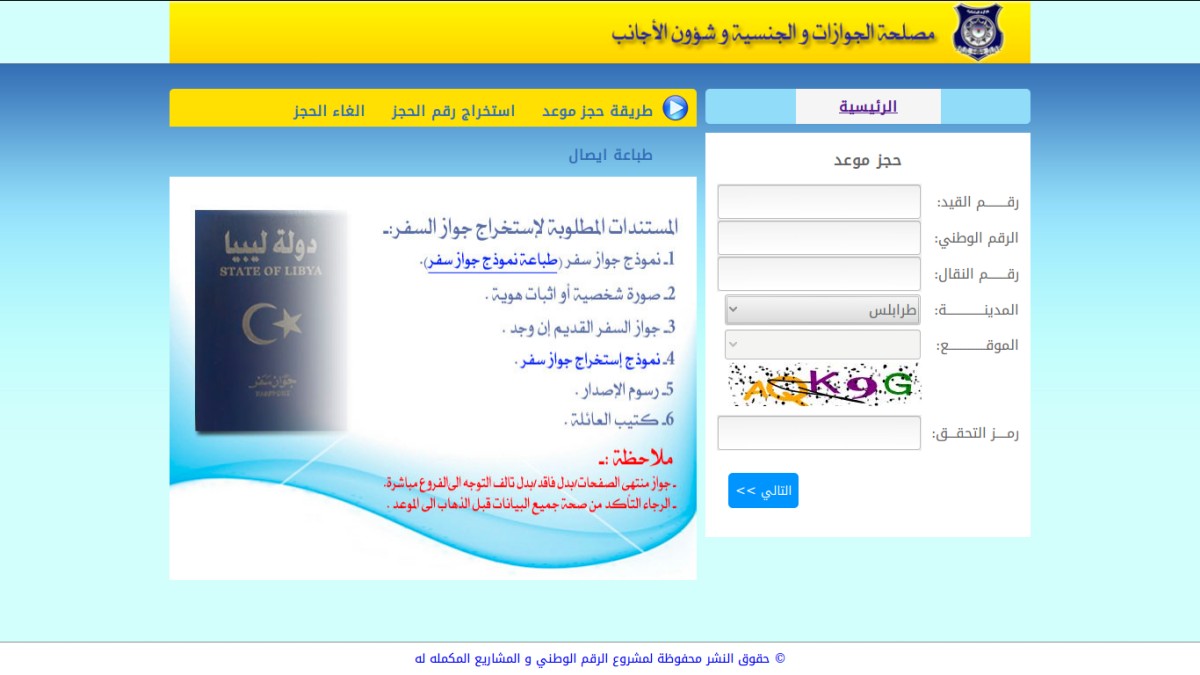
هذه صورة المنظومة قبل إدخال البيانات، يجب إدخال البيانات كاملة ورمز التحقق للانتقال للخطوة التالية، رمز التحقق يتغير كل مرة ويجب إدخاله بشكل صحيح.

منظومة حجز الجوازات الليبية متوقفة
صورة للمنظومة وبها كافة البيانات

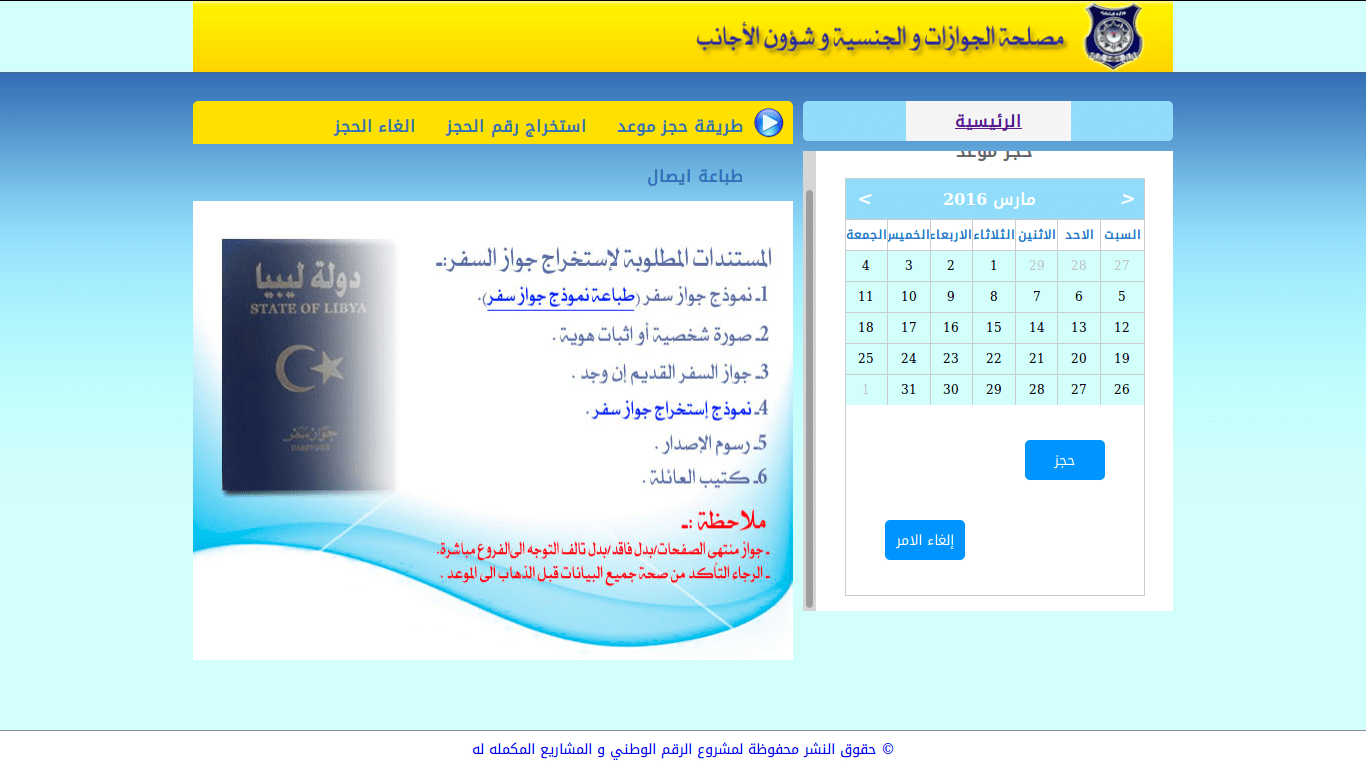
كيفية اختيار تاريخ للحجز بالضغط على التاريخ المتاح من الجدول، اﻷلوان تحدد اليوم الذي يمكن الحجز فيه وأيام العطلة.


منظمة حجز الجوازات الليبية محجوزة بالكامل
كيفية إختيار موعد لإلتقاط الصورة


الخطوة اﻷخيرة: طباعة إيصال الموعد

في حال اتصال جهازك بطابعة محلية سيتم طباعة إيصال يحتوي اﻷرقام الوطنية التي تم الحجز لها وتاريخ الحجز ومكانه، من الضروري اصطحاب الإيصال يوم التقاط الصورة مع تذكر رقم الحجز لأنه يمثل رقمك في طابور التصوير.

إن كنت لا تمتلك طابعة يمكن حفظ الملف بخاصية PDF لتتمكن من سحبه لاحقًا، وينصح باستعمال متصفح انترنت اكسبلورر ليكون النموذج مطابقًا للمنظومة.


واصل حجز الموعد
صورة من واصل حجز الموعد


أهمية واصل الموعد

  1. واصل الموعد هو إثبات أنك قمت بحجز موعد في الفرع الذي اخترته، لذا يجب إصحابه معك يوم التقاط الصورة مع باقي المستندات (النقطة التالية).
  2. واصل الموعد يمكنك من التقاط الصورة لمدة شهر من تاريخ الموعد في حالة عدم تمكنك من ذلك في تاريخ الحجز (وهو ما يحدث غالبًا للأسف).

ماذا لو ضاع واصل الموعد؟

هذا السؤال يتكرر كثيرًا في قسم التعليقات، وبعد التواصل مع مستشار لمصلحة الجوازات، أفادني بأن رقم الحجز غير مهم كثيرًا، وفي حالة نجاح الحجز يكفي الذهاب لمصلحة الجوازات مع الرقم الوطني وسيقومون باستخراج الموعد لك.

المستندات المطلوبة

توجد بعض المستندات موضحة على الموقع  مثل:
  • نموذج طباعة جواز السفر الذي يمكن سحبه من الموقع بعد تعبئته، يحتوي على الاسم بالعربي والاسم باللغة الإنجليزية.
  • صورة شخصية أو إثبات هوية (جيب بطاقتك معاك ولا صورة عادية)
  • جواز السفر القديم حتى لو كان منتهي الصلاحية (لغرض أخذ بيانات منه فقط لا غير).
  • نموذج استخراج جواز سفر (يمكن سحبه من المنظومة أو شراؤه من أي مكتب تصوير مستندات).
  • كتيب العائلة (أحد أهم المستندات التي يجب اصطحابها معك).

هنالك مستندات غير موضحة على الموقع يجب اصطحابها معك عند التقاط الصورة

  • صورة من  صفحة كتيب العائلة، ومع كل صورة صورة من صفحة رب اﻷسرة (بالليبي لما تمشي للمصوراتي قوله يصورلك الكتيب من رب اﻷسرة لأخر واحد، ومع كل صفحة صفحة من رب اﻷسرة، يعني كانكم ستة صغار ما شاء الله كل واحد صوروله صفحته ومعاها صفحة من كتيب بوه).
  • شهادة الإقامة لكل فرد حجز في موعد الصورة (علم وخبر) ويمكن التحصل عليها من مختار المحلة.

خطوات هامة جدًا يجب القيام بها بعد إتمام الحجز بنجاح

تهانينا! لقد حجزت موعدًا في الجوازات بنجاح، قبل ذبح الخروف والذهاب في زردة أرجو منك الاهتمام بالخطوات التالية

  1. يجب الذهاب لفرع الجوازات يومًا قبل الموعد لأخذ رقم للتصوير، ما يجعل الرقم من المنظومة عديم الجدوى.
  2. سحب واصل الموعد الذي تعطيه لك المنظومة واصطحابه معك يوم أخذ رقم التصوير ويوم التصوير.
  3. أنصح بإصحاب كل المستندات الثبوتية الموضحة في النقطة السابقة.
  4. بعد دفع المبلغ المطلوب (خمسين دينار وخمسين قرش) يتم إعطاء واصل دفع، احتفظ به جيدًَا (مش نفسه واصل الموعد!).
  5. اصطحاب الجواز القديم ضروري جدًا لإتمام عملية إدخال البيانات، وعند الاستلام باستخدام واصل الدفع يتم تسليم الجواز القديم واستلام الجديد، يمكن لك إن كان في جوازك القديم صلاحية أن تسافر به حتى تستلم الجواز اﻷزرق، صلاحية الجواز يمكن التأكد منها من أي فرع جوازات بالمنطقة مع العلم أن أي جواز تاريخ إصداره أقدم من أبريل 2007 لا يصلح للسفر ولا للتجديد.
  6. أنصح باصطحاب كراسي قابلة للطي وقناني مياه للشرب (شيش مية) لأن الانتظار سيطول.

يوم الموعد

 ذهبت لفرع الجوازات في الموعد المحدد، فوجدت أناسًا قد سبقوني (وصلت الثامنة صباحًا!!)  بعض الناس بات ليلته في الفرع!!

بعد الوقوف ليوم كامل حدثت مشادة في مقر الفرع (مشكلة) وتم قفل الفرع وطرد المواطنين منه، أحتاج لأسبوع إجازة بعد هذه المأساة..


نقطة مهمة جدًا

في حالة أن لديك شهائد من الخارج أو سبق لك السفر لأوروبا واستخرجت تأشيرة (شينقن)، يجب عليك تنبيه موظفي الجوازات لكي يحافظوا لك على الاسم بالإنجليزي، وإلا ستجد صعوبات كبيرة!!


 لماذا لم تفتح المنظومة؟

من المفترض أن تفتح منظومة الجوازات كل يوم خميس من الساعة الحادية عشر صباحًا، إن لم تفتح فربما توجد مشكلة فأنصح بتكرار المحاولة، للأسف فإن المصلحة لا تتواصل مع المواطن بشكل جيد وتقدم التفسيرات لعدم فتح المنظومة.

موقع المصلحة

أضافت المصلحة موقعًا إلكترونيًا للزوار يجمع بين خدمات الجوازات ومفصولا عن مشروع الرقم الوطني، لا زلت لا أعرف إن كان موقع مصلحة الجوازات والجنسية سيوفر التواصل مع الجمهور، حتى صفحة المصلحة على فيسبوك لا توفر ذلك، لزيارة الموقع الرجاء الذهاب لهذا الرابط.

في النهاية، شكرًا لك عزيزي القارئ على قراءة التدوينة حتى النهاية، مع تمنياتي باستخراج الجواز بكل سهولة.

الرجاء ترك أسئلتكم وتعليقاتكم باﻷسفل وسأقوم بالرد عليها بأسرع وقت إن شاء الله.
وقوموا بمشاركة الصفحة على فيسبوك وتويتر لتعم الفائدة.

A Pomodoro Timer for GNOME

Using a timer is essential for productivity and fitness using a computer, as it helps you maintain focus and mental agility. Let alone preventing RSI which is a serious issue that affects computer users worldwide.

Timer apps on Linux

There aren’t many good timers for Ubuntu, but this one is clearly different!  
I tried many timers for my productivity use like the timer dockelt on Docky and world timer, I also tried RSI Timer,  but something always felt missing! 

Pomodro timer

Pomodro timer is the best of the bunch. 

Availability

This timer for Linux only as it supports several distros like: ArchLinux, Debian, Fedora, Gentoo, OpenSuse, Ubuntu and more.
It integrates with the interface and works nicely with the notifications. *Gnome only currently.

Work Flow

It’s a must have as it supports a whole work session without the need of manual interfering. It’s better than Gnome clocks which sets one Alarm and the program Alarm that needs a lot of configuration. It’s almost as good as instant boss. Supports productivity and efficiency. While keeping you aware of moving and taking frequent breaks. 
I’ve been able to work it into Ubuntu Gnome 16.04 and it’s been working like a charm, even making use of the notifications, very nice!

Download

It can be downloaded freely from the site for many Linux distributions (Linux only), to download go to the site and scroll down to download. 

It runs perfectly on Ubuntu Gnome 14.04.4 and Ubuntu Gnome 16.04 without a problem.

Did you like this timer? Will you be downloading it? Please let me know what you think in the comments section below.

« Older posts