Category: issue (Page 1 of 4)

ZKTeco iFace 950 configuration on Windows 10

If you happen to buy the ZKTeco iFace 950 equipped with Bio Time 7.0. You would know that it’s an excellent bio metric machine with plenty of options to track attendance. Facial recognition, fingerprint scanning, ID cards. A lot to choose from.
And it happens to be a nightmare to set up!

You see Bio time is really difficult to configure. I found a 40 minute video on Youtube that explains how to do it, and I still got it wrong.
Bio time = waste of time. 

What was I doing wrong?

I’ve bought the machine, installed it on a wall and begun inserting the employee names into the machine and registering their information. Just like any regular machine would do, right? 
No, this software is very different, it would require you to register all staff from a web interface, then put that into the machine. Overriding any information you had.

You could take a USB copy of the data, but that’s useless. I mean there are two tables that are impossible to link. One is for employees and the other is for attendance log. Trust me I’ve tried many times to create a database and it didn’t work..

So the web interface doesn’t work. Dumping information on USB doesn’t work. What does work?

ZKTeco Attendance Management

Enter ZKTeco Attendance Management. Which is the predecessor of Bio time made by the same company . It’s a stand alone software that’s installed on your computer and you can access the fingerprint scanner using the software interface.

Pros of using ZKTeco Attendance Management

1. Can work on multiple models and machines. In my case I’m using the aforementioned i950 and UT800.
My setup is composed of two finger print scanners of different models linked on the same network. This software has no problem reading them and downloading information from them.
Please note that this version of the software supports 2 default machines. If you have more than that then additional configuration might be needed. 

2. Can work directly with the machine or via a server
If your fingerprint machine is connected to a server and given an IP address, then there is no problem connecting to it using this software. On the other hand if you connect to it directly using a network cable you will also be able to download the log from it when you need it.
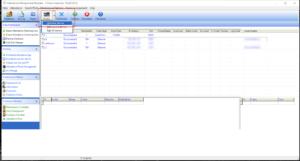
3. Simple and easy to use

The interface is simple and intuitive. Unlike the abomination Bio time is.

Adding a machine

Adding a machine is very easy. All you have to do is click on “Add machine” .
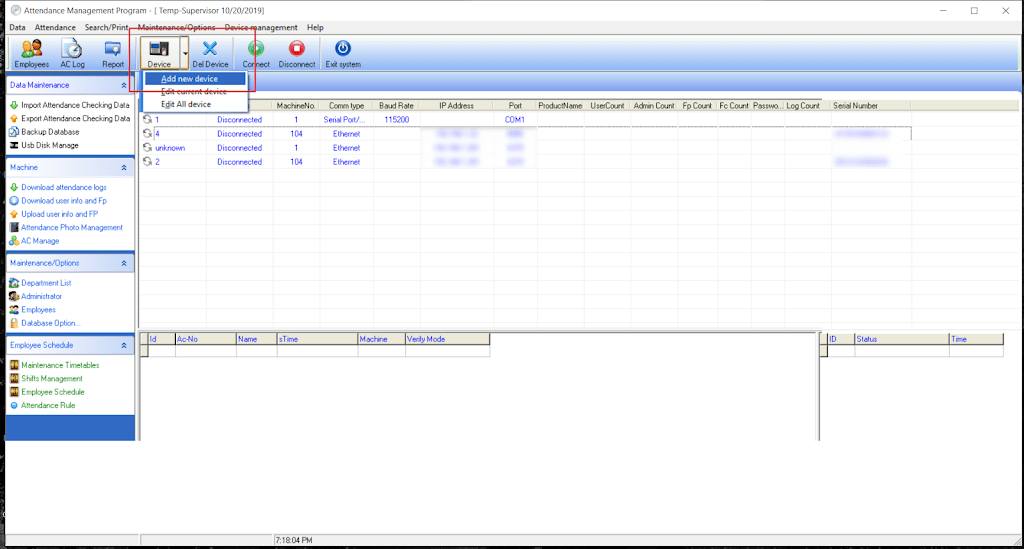
Then enter the IP of the machine. If it’s connected to a router / server then use that IP. Or use the one from your network settings if it’s connected directly to your computer. 
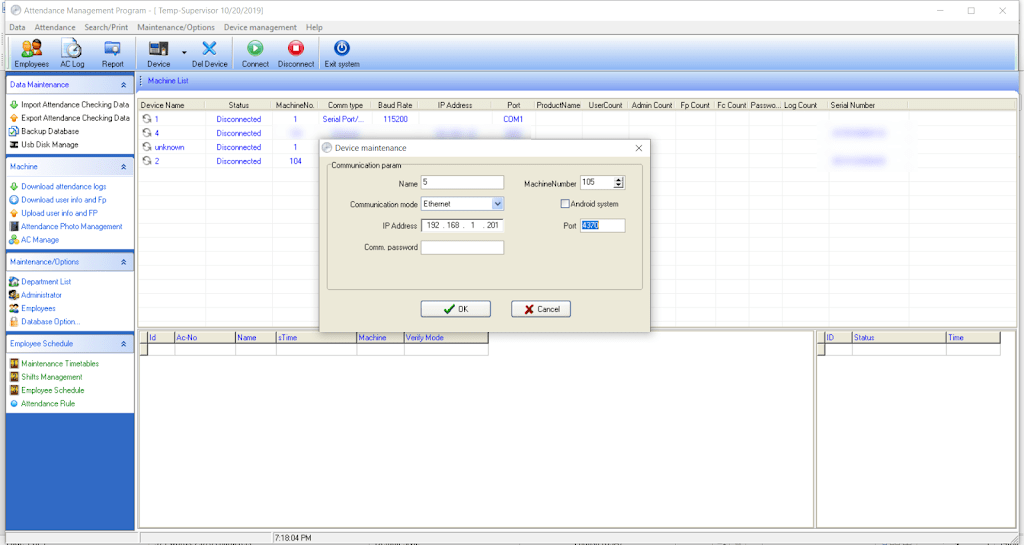
Giving the machine an IP is done under COMM / IP. You also need to set a port number for the machine.
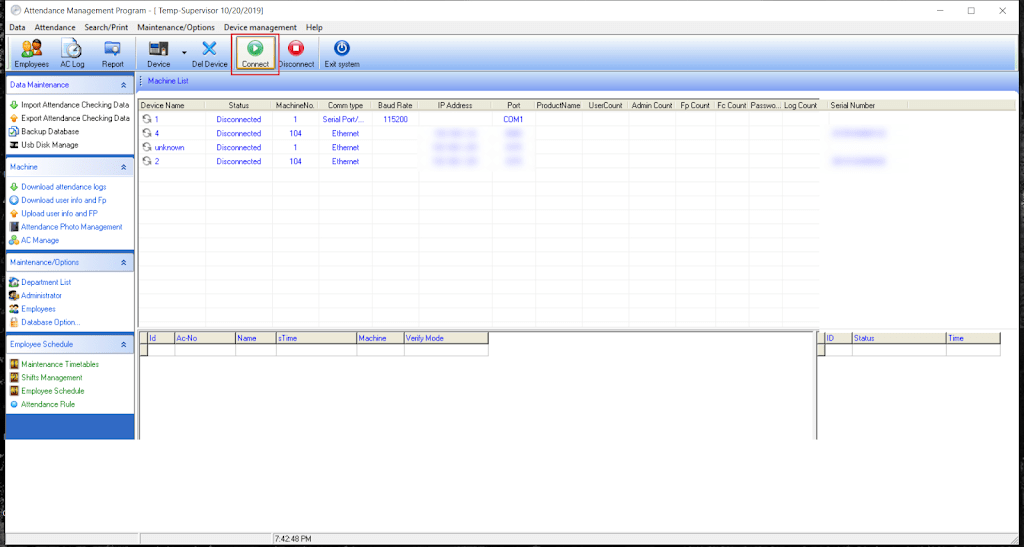
After that you connect to the machine. Wait for a bit and if everything goes well. You will be able to proceed to the next step.

Change the database directory to your installation directory

By default the directory would be set to a folder that doesn’t exist on your computer. I recommend changing to: C:Program Files (x86)ZKTeco5]”C:Program Files (x86)ZKTeco5att2000.mdb”

Downloading attendance log

All you have to do is click on the button “Download attendance log”.  To save the log on your computer. You can choose the format and I recommend excel sheet file format.
You can set rules for your establishment from “setting rules”. But I’ll leave that for you to work it out.

Download the software

You can download the software from here. 

Final words

Sometimes and older solution is a better solution. Both software are made by the same company and will work on machines made by ZKTeco / Trust. I haven’t tried products by other companies such as Fingertec for example. Give it a try if you want but chances are it won’t work..

Did you find this tutorial useful? If so please let me know in the comments section below and I’ll see you in the next one.
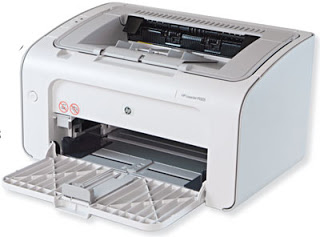
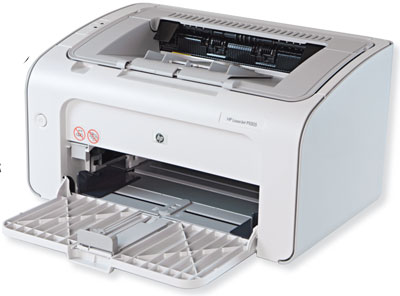
HP 1005 not printing paper stuck fixed

While working as an IT, I come across some technical problems that simply make me wanna blog!
There was this old HP printer sitting on a shelve at the department I worked for, and while fixing other major downtime issues, the head of the department asked me to look at it: “I know you are busy, but could you look at this printer when you have some time to spare? It stopped printing and we already ordered another one, but it wouldn’t hurt if you fixed it so we could have another one to spare?”.

I wasn’t going to turn the request down.

Problem description

I plugged the printer to the main PC at the department (running Windows 7 professional) and the printer was recognized by the computer, took the printing command. And made that printing noise, but nothing was coming out! The paper was jammed!


I did some research on the HP forums, but couldn’t get a single piece of information regarding the issue, and I wasn’t going to sign-up for the form and post the issue (it’s a 10 year old printer!) so I let it go at that point.


The actual fix

One day I was feeling bored and decided to give it a go.

I took the printer and removed the ink cartridge and inspected it for physical damage, nothing was broken or dislocated, so I decided to clean it up since it had gunk inside it, mainly dried up ink that fell from a broken ink cartridge.

I used some alcohol and a cloth to clean the ink, then decided to lubricate all the moving parts and wheels with some alcohol (since the alcohol evaporates and won’t mess things up).

I then plugged it into the same computer and gave it a printing command, to my pleasure it printed up a page! In many years no paper has came off that printer tray!

Sadly the page was all black!
So far I wasn’t able to tell what’s the reason of that or how to fix it! So if anyone knows give me a clue in the comments section below 🙂

Fun update

While sharing this post on Twitter I got some feedback from the HP support account which was really nice! Didn’t fix the issue tho.

I hope you enjoyed this post, let me know what you think in the comments section below 🙂
Have a lovely weekend, share this post with your friends and help the blog grow 🙂

75,000 views!

Today I reached 75,000 views!

Today is one of the days I feel my hard work is paying off!
It’s an important step towards a goal I set for myself, the 100,000 views, three quarters of the way.

reaching 75000 on my blog

I’m also really close to reaching 15,000 followers on Twitter, which is a huge part of my promotion success!
Since I don’t want to be overly talkative on the blog, I wanted to use this post as a total update, I’ve been experimenting with several templates lately, and until I can find something decent I’ll stick to the basic template, I’m afraid I’ll be sticking on it for a while!

As for the domain issue some of my readers reached out to me saying that the domain is down, and that’s true! My LTT hosted domain went down and I’m yet to fix it, I’m still unsure how to add it to the blog, this makes me rethink the whole “third party domain thing”.

An update

I haven’t been able to restore the domain, so I just configured it to redirect to here until it expires, and I don’t think I’ll be renewing it.
The contact page hasn’t been working for a few days (thanks for letting me know!) And I fixed it by not touching it at all!

The simple template proved to be far too simple, I had to change it a little bit, I found a perfect template but had some issues I had to fix, and the developer wasn’t replying to anyone who contacted him, so I came up with the one you see now. I hope you like it.
Last but not least, linkedwithin.
For some reason, linked within is showing posts with the new domain and the old one together, and even tho I made a redirect, it doesn’t work with the posts, just the home page.
I tried contacting them several times, but they didn’t respond to my initial e-mails that I sent over a year ago, and didn’t respond now..
So Linkedwithin had to go to. 


Thanks for being a part of this journey! See you at 80,000 views

Tell me what you have in mind in the comments section below, if you can help with the domain issue or have a cool template for me.

Common Windows Phone errors and how to fix them

Windows 8.1 logo It’s not all fun and games with Windows phone. It’s better than Android as it doesn’t crash as often, but I ran into several bugs the other day that I have to blog about.

Let’s take a look at the issue

I turned off the phone and removed the battery to remove the SD memory card that’s underneath (a major design flaw) and when I returned it, it was not the same! I noticed that many apps were refusing to work the way they used to! And the browser won’t load search results. I thought it was a connection issue ( Error 800704CF). but the error messages were about syncing with outlook ( Error 80070020).
At this point I was going to restore the factory default settings, which would have deleted everything on the phone and I would have to start all over!
After researching several error codes I realized it was far too simple!

The fix

I set the date wrong! (Error 80072F05) The easiest fix was to set the time automatically, to do this follow these three easy steps!

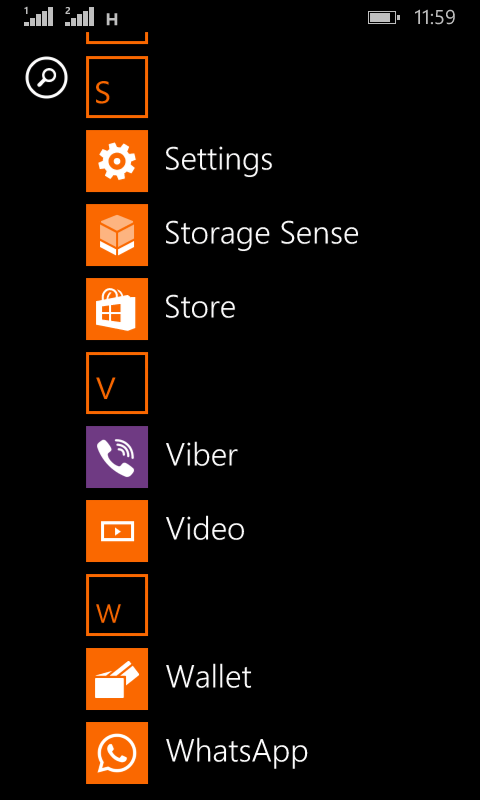
  • Go to the main menu (swipe left from the desktop).

Windows Phone main menu
  •  From there go to Settings
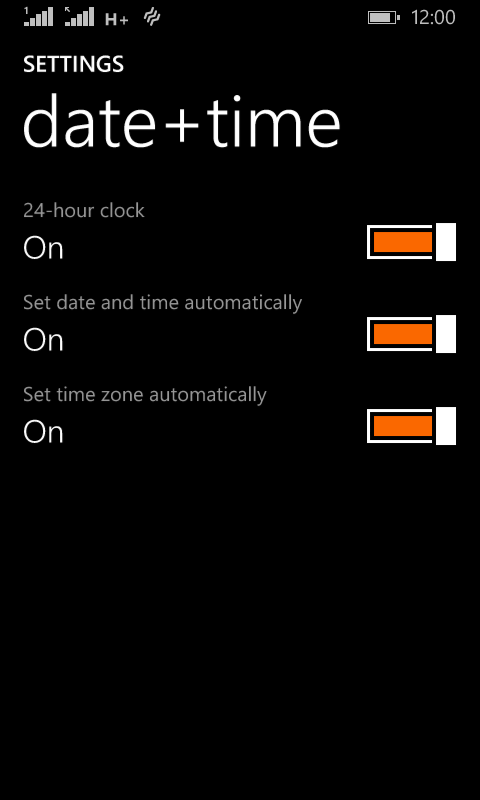
Windows Phone time and date settings
  •  On the date and time settings, set all of the values to on (24-hour clock, set date and time automatically and Set time zone automatically).

  and the phone went back to normal!
 

The codes I encountered were: 80070020, 800704CF and 80072F05. So if you face any of those the first thing you need to check is the time settings. I hope you found this tip useful, and please share it with your friends and family to help the blog grow! 

« Older posts