
Category: Linux (Page 10 of 33)

How to compile the latest version of Wesnoth on Ubuntu and integrate it with Lutris?

Wesnoth is a wonderful game available for free for Linux, however lately it has been falling out of favor with packagers; currently stuck at 1.14.5 while the latest version is 1.14.7 as of this writing! This tutorial will show you how to compile the source code of the game and integrate it with Lutris, and even add a custom icon so it can be searched easily across the system and docked on launchers.

Compiling Wesnoth from source on Ubuntu 16.04

While this method is not recommended and it’s only advised for advanced users only, it could be the only way to have the latest version of Wesnoth on Ubuntu.

1. Download the source code from the game’s site, always go for the latest version. and make sure to checksum the source code prior to doing anything, the value of the checksum is provided on the download page and you can easily check it using the terminal.


2. In the terminal, install scons using: sudo apt install scons
I’ve  decided to compile the source using scons rather than cmake because it’s much easier, however the compiling process happens in the same directory as the game, so make sure to copy the game to the target directory first, I’m going with /opt/wesnoth-1.14.7/wesnoth for the rest of the tutorial.

3. Download all the missing dependencies:
sudo apt install libsdl2-dev libsdl2-image-dev libsdl2-mixer-dev libsdl2-ttf-dev 


libboost-all-dev libvorbis-dev libcairo2-dev libpango1.0-dev l


ibssl-dev libreadline-dev cmake make scons pkgconf

4. Go into the game directory, for example /opt/wesnoth-1.14.7/wesnoth and install with the command scon.
Please note that the process is long and resource extensive, so please be patient.

More instructions and options can be found here on the official wiki.

And that’s it, now the game works fine!

Note: If you played an earlier version of Wesnoth, please be sure to copy your save games and preferences so you don’t start from scratch.

Integrate with Lutris

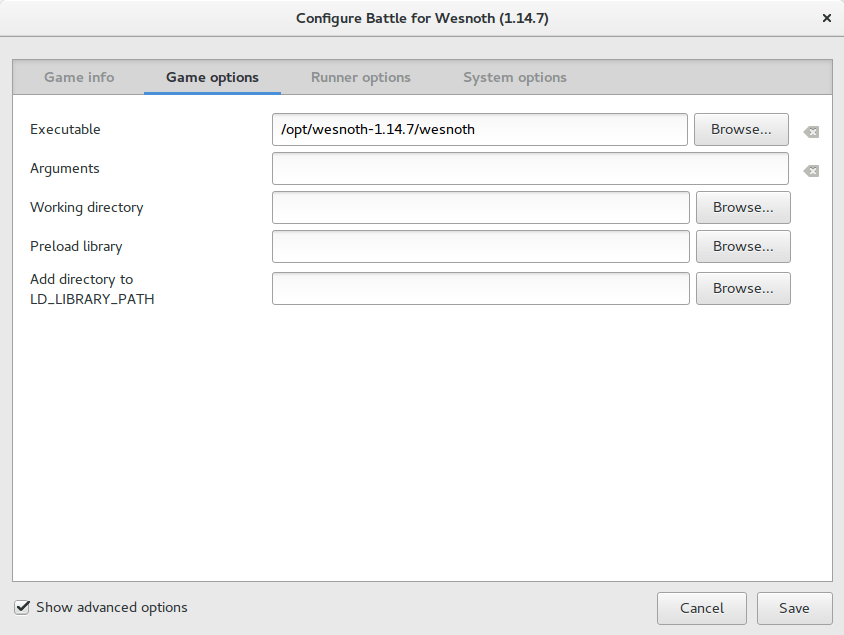
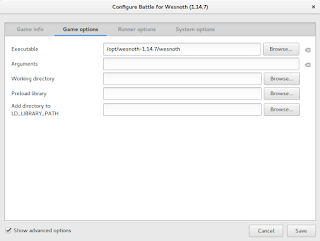
After compiling from source, Wesnoth can be easily configured to work with Lutris, simply by changing the path of Wesnoth from the default to wherever you installed it, I happened to install in /opt/wesnoth-1.14.7

Lutris icon


A screenshot from Lutris showing how the directory is changed


Adding an icon so you can dock it and be able to see it in the dash

Compiling Wesnoth this way won’t allow you to be able to search it or add it to plank for example, you will have to add a custom icon for this to work.

1. Go to /usr/share/applications/ as root and create a new .desktop file using a text editor (with sudo privilege).
The contents of the file should be like so:
[Desktop Entry]
Name=wesnoth
wesnothComment=The Battle for Wesnoth
The Battle for WesnothEncoding=UTF-8
Exec=/opt/wesnoth-1.14.7/wesnoth
Icon=/usr/share/applications/wesnoth.png
Terminal=false
Type=Application
StartupNotify=false
Categories=Application;Game;

Feel free to copy this file to your computer as long as you have everything installed as mentioned here, if you change anything make sure this document reflect your changes.

2. Save the file and you are good to go! As soon as you loook up Wesnoth in your system you will be able to find it and dock it on launchers such as plank.

After doing all that, I’ve uninstalled the old 1.14.5 and removed the repositories from my system, from now on I’ll compile on my own!

I hope that you find this tutorial useful, if you have any questions please let me know in the comments section below.

Credit goes out to Reddit user TonicAndDjinn as he provided a lot of helpful tips on how to compile the game.


Focuswriter not starting stuck on loading sounds fixed

Focuswriter is a free and open source (FOSS) cross-platform distraction free writing software that is lightweight and easy to use. Today I’ll show you how to bypass the loading sounds bug and fix it completely!


Focuswriter logo

The problem

It all started when I tried to enable the typing sounds on my Netbook running Antix Linux, the program froze and I had to shut it down manually. After that whenever I try to start the program, it won’t start!


Attempted fixes

Trying to uninstall the program and install it again didn’t work! Even removing configuration files from Synaptic didn’t work, no matter how many times I install and uninstall it again, the problem persists!

The fix

Using your file manger of choice, navigate to /home/[username]/.config/GottCode/ and in it you will find one file only: FocusWriter.conf
Delete it and restart the system, after it starts again, you will have Focuswriter running like it should.
A new configuration file will be created automatically, no need to worry about the file being deleted. 

Focuswriter interface

Final words

Going for a lightweight mixture of a Netbook, Antix and Focuswriter can be a winning combination, and as a slight compromise bucklesrping can be installed individually for an aesthetically pleasing writing experience. And if you are typing at night, enable the leds on your keyboard!

Do you use any of these tools? Do you find this tech tip useful? Please leave your opinion in the comments section below, and I’ll see you in the next one.

How to download Bucklespring as a Deb in Ubuntu and enable it?

Bucklespring keyboards are iconic keyboards with distinct sound effects, sadly they went out of fashion however you can still relive the wonder of them on any keyboard you have

Downloading as a snap vs .deb

The most popular way to download this trick is via a snap, but I don’t like to use these nor have any of them installed. I still prefer the old fashioned .deb packages. 


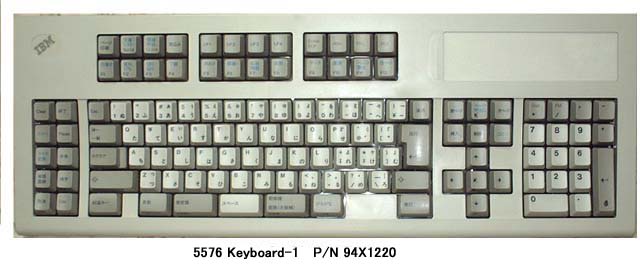
A bucklespring keyboard

The packages

The package bucklespring_1.4.0-2_.deb can be downloaded easily from Debian’s packaging website (I shall link it below), please note that you won’t find this deb package in Synaptic.

Download the bucklespring-data_1.4.0-2_all.deb and the bucklespring_1.4.0-2_.deb.Install the data first then the bucklesrping package itself.

How to run Bucklespring?

Bucklespring has no GUI (Graphic user interface), so in order to get it to run you need to open the terminal and simply type in: 

buckle

Download links

Please choose the right architecture for your processor.

Important notes

You have to keep that terminal (x session) open in order to enjoy the bucklespring sounds as you type on the keyboard.

I happened to notice that some keys don’t produce the sound as they are typed on (the number pad on the right side of the keyboard).

Final words

It’s a cool trick to have enabled, totally changes your using experience of the keyboard. I find that it’s best paired with LED enabling (also enabled from the terminal) for a maximum nerdy effect.

Have you enjoyed this tip? Do you like the bucklespring noise? Tell me what you think in the comments section below, and I’ll catch you in another one!

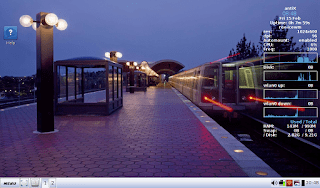
Antix Linux on my Netbook

Antix Linux is a free and open source operating system that focuses on a light weight desktop experience and ease of use, one of it’s main goals is to promote a “system-md” free approach to Linux.
Based on Debian, it provides both a rich repository of software, and a sense of reliability.

Debian origins

The fact it’s based on Debian is a huge plus, a lot of the software I use is in .deb form, and I fully understand how to work with repositories to add and remove software, it was a pleasant surprise to find that Synaptic was shipped by default with Antix.

Light weight

When it boots into GUI, it’s using less than 100 MB, that’s an impressive feat for a modern operating system.
  • Even lightweight flavors of Ubuntu (Xubuntu and Lubuntu) can’t reach that level of lightness.
  • Low minimum system requirements, needs about 256MB of RAM and a Pentium 3 processor to work.
That makes it perfect for older computers, and Netbooks.

Why Antix on my Netbook

I found that my Netbook had a performance issue, even when choosing a lighter interface i.e: XFCE. And trying to browse the web with an updated version of Firefox was impossible.
Ubuntu 14.04 is nearing End of Life, I’ve used it on and off since it’s release in 2014, but it’s time to say goodbye. 
Seeking a lightweight alternative that was both easy to use and somewhat familiar led me to using Antix.

Antix Linux Pros

  • Looks good, has a bottom bar and a menu similar to the start menu, not alien.
  • Download size was small, less than 700MB (for the base version), can be put easily on a CD, something Ubuntu can’t achieve anymore.
  • Low hardware requirements, would work on most computers old and new.

Antix Linux cons

  • It can be confusing at first, the window manager used is clumsy and like nothing I ever used. (You can toggle between them by pressing F1 on the login screen).
  • Customization isn’t easy,, won’t be everyone’s cup of tea.

An update

Updating the system changed the default file manager to Spaceman FM, which is more customizable and can access NTFS partitions with one command, a much welcomed update!  

I was able to add items to startup by editing the config file found under: Control Center Session User desktop session.  
Same goes for adding the terminal shortcut, it was under Control Center Desktop  
And from there I added the lxterminal to the key combination: Ctrl + Alt + t.

    Final words

    With a mix of lightweight performance and a sense of aesthetics, this unique distro made it’s way to my Netbook as the first non-Ubuntu distro I ever use. 
    For more feel free to visit the project’s website at https://antixlinux.com/

    « Older posts Newer posts »