Category: Linux (Page 15 of 33)

BlueGriffon 2.0 is out, And 2.1 is just around the corner!! 2.1.2 Has .DEB!!

Four months of hard work and fixing bugs have brought us to this highly anticipated release of BlueGriffon 2.0

I have posted about the Alpha and gave it a review and been following the development closely on Twitter, the beta release was just two days before the official release, so it was nearly impossible for me to download, test and finally post about it. Let’s take a look at BlueGriffon 2.0

An introduction

BluegGriffon is  a product of Disruptive Innovations SAS, a French software company founded in October 2003. Based in Saint-Germain en Laye, France, Disruptive Innovations SAS delivered in the past premium products like the popular editor Nvu (the indirect predecessor of BlueGriffon).

A total overhaul

  • This version is a total overhaul for the program, as it changes the addins system and even the licensing platform!


  • All the add-ons from the previous versions won’t be compatible with this one so you need to download the new ones.
  • There are features that are only available for those who purchase a license, BlueGriffon is still open source and the basic features

can be used freely.

  • The manual is also up for purchase, this is in order to support the development of BlueGriffon as it says on the website (the manual isn’t open source and can’t be distributed freely).
  • It will only support Windows 7 and higher, Mac OSX 10.8 and up, and the only Linux distribution supported is Ubuntu.
  • The overhaul included the BlueGriffon site, and yes! It was designed using
  • BlueGriffon! It matches the interface and looks fantastic!


Interface

It brings the darker theme that was first shown in the alpha version, complete with all functions and menus.

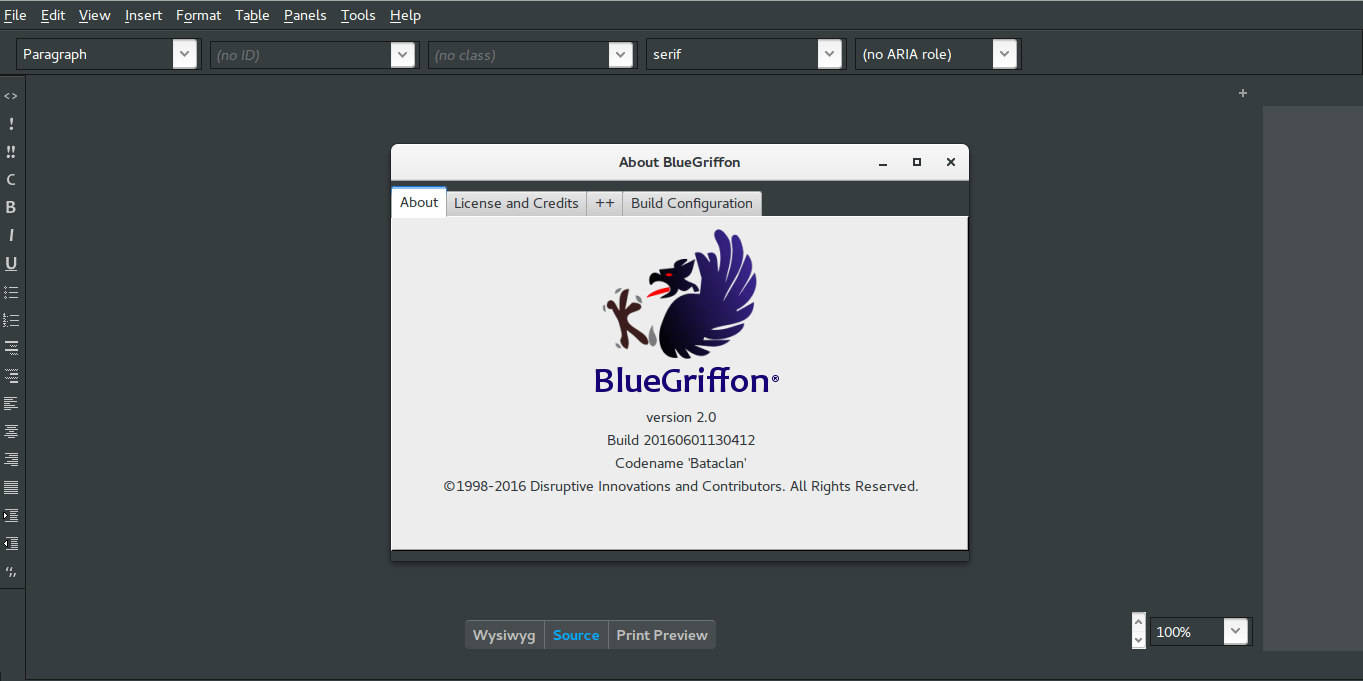
BlueGriffon Version 2.0 interface with help menu


  • It feels smoother and lighter,

image management is much better than version 1.8 and same goes for tables.

  • I do miss the function buttons

as now I have to do everything by menus!

  • I didn’t experience

any random shutdowns of BlueGriffon so far.

Download 

BlueGriffon is cross platform and is available to download for:

Windows (Windows 7 and above). And a ZIP file is available too.

Mac (OSX 10.8 and above).

Linux Ubuntu 64 BIT.   

Click on any of the links to start downloading from the official server.

Languages supported

English (USA), Čeština, Deutsch, Español (Castellano), Suomi, Français (France), Galego,
, 日本語 한국어 中文 ), 繁體字 ), Magyar, српски.

Here you can download the available dictionaries for these languages.


Final words

A version 2.1 is in the works and the developer is taking note of some fan suggestions like: a hide-able dock and a clear theme, I’m really impressed with the comeback BlueGriffon has made, as I said before it was marked as discontinued by alternativeto.net, it’s really good to have a frequently developed open source HTML editor available! I as a blogger can’t keep up with how fast this application is being developed! And that doesn’t happen often!


Update on 06/08/2016

Version 2.1 is out and you can check the change list from here!

P.S: The site is inaccessible at times, I couldn’t download it so far, and it wasn’t packed as .deb (  I suggested that several times without hearing back from them).

They aren’t very responsive to e-mails, I’ve been writing to them since the BlueGriffon was frozen at 1.7.2 back in 2013 and they haven’t replied to me once! Even on Twitter I never got to hear back from them, seriously? How hard is it to send a tweet?

Update on 06/12/2016
Version 2.1.2 is out and FINALLY it’s packed as a .DEB
You can thank me later! 😉
Download

I hope you like this post, please give me your thoughts in the comments section below, will you download BlueGriffon? And if you did, what do you think?

Have a nice day!

توزيعة جنو لينوكس أبونتو

كنت قد قطعت عهدًا على نفسي أن أساهم في نشر المصادرالحرة والتعريف بها. لذلك سأستكمل سلسلة التدوينات المبسطة حول بعض البرمجيات الحرة اﻷكثر شعبية ورواجًا، موضوعنا اليوم هو توزيعة جنو ليونكس أبونتو.

توزيعة أبونتو هي توزيعة مجانية و مفتوحة المصدر، مشتقة من توزيعة دبيان الشهيرة تطورها شركة كانوكيال، وظهرت للوجود لأول مرة في سنة 2004 .

كلمة أبونتو مشتقة من لغة أفريقية قديمة و تعني الإنسانية تجاه الآخرين، وشعار التوزيعة يمثل ثلاثة أشخاص ممسكين بأيدي بعض من الأعلى.

الإصدار

تطلق كانوكيال نسختين كل سنة، إحداهما في شهر أبريل والأخرى في شهر أكتوبر. وترقم كل نسخة بالسنة والشهر، مثلا التوزيعة الحالية هي أبونتو 16.04والتي أطلقت أواخر الشهر الماضي.

التسمية

كما تستخدم كانوكيال تميمة لكل نسخة من كلمتين، الأولى اسم حيوان مهدد بالانقراض  والثانية صفة تعبر عنه، والطريف أن الكلمتين دائما ما تبدأن بنفس الحرف الأول وتتبعان الترتيب الهجائي، مثلًا: توزيعة 16.04 أطلق عليها Xenial Xerus وتعني: “سنجاب اﻷرض اللطيف”! والتوزيعة التالية 16.10 اختير لها الرمز Yakkety Yak وتترجم إلى ثور الياك الثرثار!

شعار النسخة 16.04 من أبونتو سنجاب اﻷرض الظريف

الدعم

يدوم دعم كانوكيال لنسخة أبونتو عشرة أشهر ثم تحتاج للترقية للإصدار الجديد، باستثناء النسخة طويلة أمد الدعم Long Term فإن دعمها يدوم لخمس سنوات كاملة، هذه النسخة تأتي مرة كل سنتين ودائما ما تصدر في شهر أبريل، وللعلم فإن النسخة اﻷخيرة التي صدرت هي نسخة طويلة أمد الدعم ويستمر دعمها حتى سنة 2021 قبل أن تضطر للترقية لنسخة أخرى.

الانتشار

تعد أبونتو بواجهاتها المتعددة من أكثر توزيعات غنو ليونكس انتشارا نظرًا لسهولة استخدامها وجمالية شكلها. فهي مقصد للمبتدئين والمحترفين على حد سواء.

التنصيب

لم أتمكن من تنصيب أبونتو على جهاز الكمبيوتر الخاص بي في البداية نظرا لاعتمادي الكامل على برمجيات ميكروسوفت، والتي لم أظن أن هنالك برامج غيرها في السوق حتى قرأت سلسلة مقالات أ. مراد.


  • يمكن إقلاع توزيعة أبونتو مباشرة من القرص دون الحاجة إلى تنصيبها على جهازك، وقد استعملت توزيعة أبونتو بهذا الشكل لمدة لا بأس بها.
  • ومن الممكن تنصيبها كبرنامج تحت نظام ميكروسوفت ويندوز بحيث لا تؤثر على عمل النظام بينما تظهر مع خيارات إقلاع الجهاز ويمكن إلغاء تنصيبها كأي برنامج عادي!


بعد أن فهمت ثقافة البرامج البديلة تمكنت من إستبدال برامجي القديمة ببدائل مفتوحة المصدر تكافئ البرمجيات المحتكرة بل و تتفوق عليها في بعض الأحيان. وحان الوقت لإستبدال ميكروسوفت ويندوز بتوزيعة أبونتو.

التحول

قمت بتحول تدريجي حذر، حيث استخدمت خاصية الإقلاع من القرص الحي لفترة طويلة قبل أن أقوم بحذف ميكروسوفت ويندوز من جهازي. وأنصح أي شخص مقبل على التحول أن يجرب النظام بشكل كاف سواء من القرص الحي أو من خلال ألة افتراضية كي لا يسبب الضرر لجهازه الرئيسي.

 مميزات توزيعة جنو ليونكس أبونتو


  • صغر حجم التحميل من الإنترنت
    حيث لا يتعدى 1 غيغا بايت بأي حال من الأحوال (نسخة 64 بت)، بينما تحتاج الى أضعاف ذلك لتحميل ميكروسوفت ويندوز، دون نسيان الترخيص، يعتبر 1 غيغا بايت هو السقف الذي تسمح به أبونتو حاليًا للمطورين عند تحزيم قرص التوزيعة، لكن هنالك توجه نحو زيادة هذا السقف مستقبليًا إلى 2 غيغا بايت لنسخة 64 بت.


  • مناعة ضد فيروسات ويندوز
    لن يصاب جهاز بفيروس التشغيل التلقائي بعد اليوم ولن تختفي مجلداتك و ملفاتك المهمة ثانية، غنو ليونكس عامة مضاد لفيروسات ويندوز و توزيعة أبونتو ليست باستثناء.


  • تنوع (النكهات)
    تتوافر توزيعة أبونتو بعدة “نكهات” تلبي احتياجات و أذواقا متعددة. تختلف عن بعضها البعض بالواجهة وبعض التطبيقات، فمن واجهة يونتي الرسمية. إلى واجهة غنوم دون أن ننسى XFCE و LXDE خفيفتا الوزن. وواجهة مينت المحببة لدى الكثيرين، وواجهة سينامون اللطيفة. والفارق بينها شكلي فقط لا غير!


  • جمال الشكل
    كل الواجهات الرسومية التي سبق ذكرها جميلة بطريقتها الخاصة وعليك أن تجد “نكهتك” المفضلة منها! هنا بعض صور الشاشة من نكهات جنو ليونكس ابونتو.
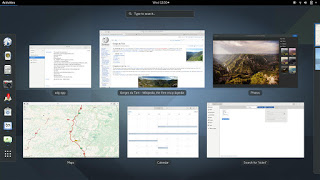
 

توزيعة جنو ليونكس اوبونتو غنوم (بواجهة غنوم 3) 16.04
توزيعة جنو ليونكس كوبونتو 16.04
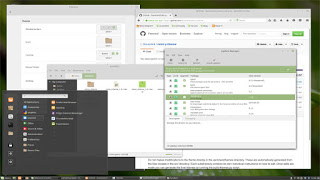
توزيعة جنو ليونكس اوبونتو مينت 17.3 بواجهة سينامون
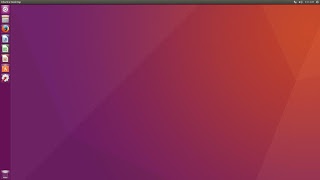
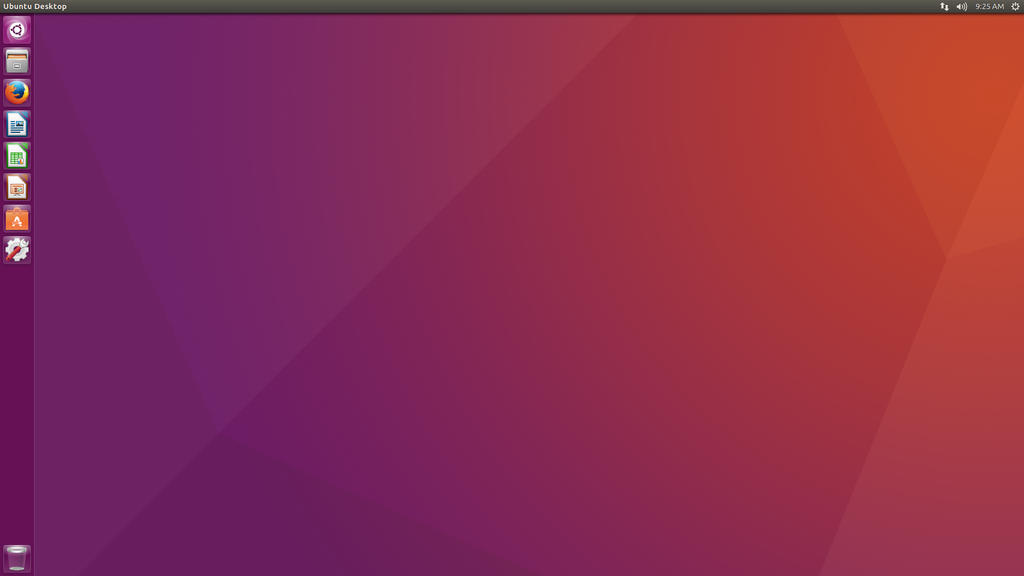
توزيعة جنو ليونكس اوبونتو (بواجهة يونتي 7) 16.04
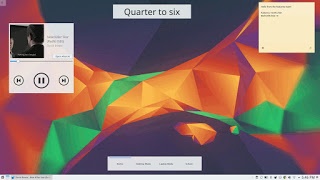
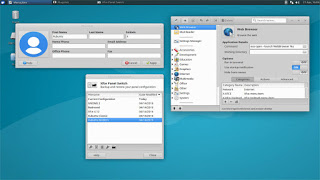
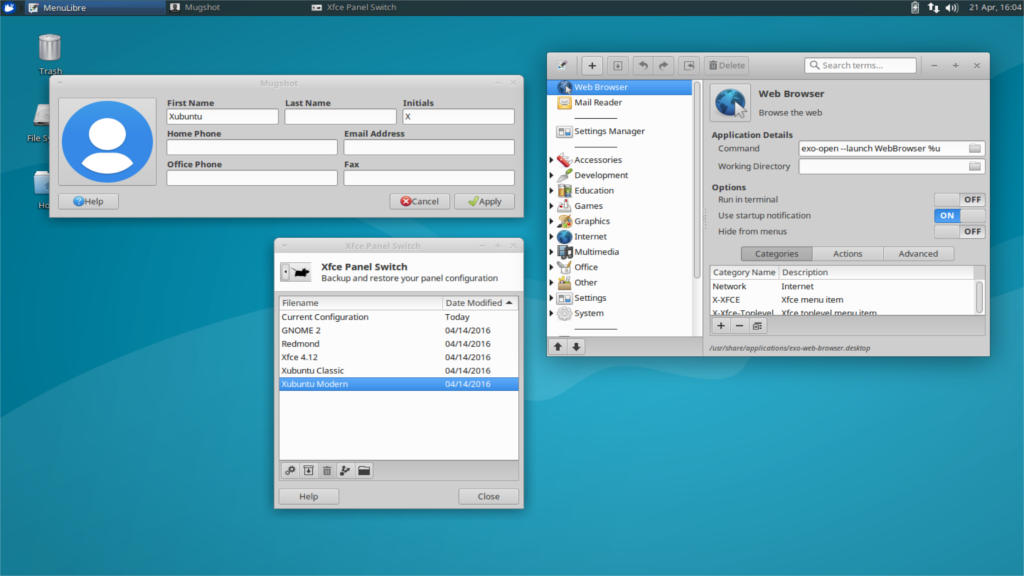
توزيعة جنو ليونكس زوبونتو  (بواجهة 4.12 XFCE ) 16.04


  • لا تحتاج مواصفات خارقة للتشغيل


لن تحتاج لإلقاء جهازك الذي لا يزال يعمل في القمامة وشراء جهاز حديث المواصفات. غالبا جهازك الحالي سيعمل بكفاءة، ومن الممكن أن تعيد إحياء بعض الأجهزة القديمة الملقاة لديك في الأرجاء باستخدام توزيعة مشتقة أبونتو خفيفة الوزن.
كما أن حجم التنصيب هو جزء بسيط جداً مما يتطلبه نظام ميكروسوفت ويندوز 7 (وما بعده من الأنظمة) الذي يتطلب من 16 – 20 غيغا بايت على الأقل للنظام فقط. بينما يمكن تنصيب أبونتو كاملة بمساحة تعادل 3 غيغا بايت فقط! 


  • سرعة التنصيب والإقلاع


ستفاجأ حين تجد مدة تنصيب التوزيعة (شاملة البرامج و التعريفات) أقل من ربع ساعة! الأمر الذي يستغرق ساعة على الأقل في نظام ميكروسوفت ويندوز، وواجهة التنصيب نفسها سهلة الاستعمال و تمكنك من التجول في النظام وتصفح الإنترنت كما لو كنت في جهازك بالفعل! كما أن سرعة الإقلاع عند بدء التشغيل ستسرك بكل تأكيد! فهي لا تتجاوز 30 ثانية لتصل إلى الواجهة وتبدأ بالعمل فعلًا!


  • هل ذكرت أنها مجانية؟!


ربما هذا لا يعني الكثير في بلد يستسهل قرصنة البرامج، لكن عالمياً يأخذون مسألة التراخيص بكل جدية، وقد يحكم على المخالفين ببضع سنوات من السجن و غرامة كبيرة! كما أن علماء الشريعة أفتو بإن استعمال البرامج المقرصنة هو سرقة ولا يجوز ذلك وينبغي شراؤها من مطوريها حتى ولم يكونوا مسلمين.
لذا سوف تقدر وجود نظام متكامل مجاني يكفل حقوقك كمستخدم ويوفر لك احتياجاتك التقنية بالكامل بالإضافة إلى دعم جيد ومجتمع نشط به حل كل مشكلة طرأت على التوزيعة تقريبًا.

عيوب توزيعة جنو ليونكس أبونتو

ما من شيء يخلو من العيوب، رغم مميزاتها العديدة فإن لدى توزيعة أوبنتو بعض العيوب سأوردها في النقاط اﻷتية

غياب البرامج الشهيرة


لن تجد نسخة من أدوب فوتوشوب متوافرة لابونتو مثلا، كما ان ميكروسوفت اوفيس غير مدعوم. وهذه مسؤلية الشركات أن تطلق نسخا من برامجها لتدعم أبونتو، فإن كانت طبيعة عملك تتطلب مثل هذه البرامج قد تضطر لتأجيل التحول (يمكن تنصيب ويندوز وأبونتو معًا ولكنها خيارات متقدمة قليلاً).


الألعاب دون المستوى

قد خصصت تدوينة كاملة للحديث عن هذا الموضوع، رجاءً اطلع على التدوينة من هنا. حتى مع دخول منصة ستيم الشهيرة الى ليونكس أبونتو تظل مقصورة على من لديه اتصال سريع بالإنترنت وحصة شهرية كبيرة أو غير محدودة (حاليا لا يتوفر الاثنان في ليبيا).


يعتبر البعض توزيعة أبونتو توزيعة مبتدئين ولا تصلح للمحترفين.


هذا ليس صحيحا تماما. توجد نسخة مخصصة للخوادم كما أن كانوكيال تعتمد على توزيعتها في مجال الحوسبة السحابية، وأوامر الطرفية التي تعد القوة الحقيقية لنظام غنو ليونكس موجودة بتوزيعة أبونتو.


  • استهلاك البطارية يزيد قليلًا عن ويندوز


سوف تلاحظ انخفاضا في أداء البطارية بين ويندوز وأبونتو حين تجربه وهي نقطة سلبية خاصة إن كانت البلاد تعاني أزمة كهرباء وتحتاج للعمل بشحن البطارية، هنالك طرق لتوفير البطارية لكنها تخفى عن المستخدم المبتدئ، أحد أشهر هذه اﻷمثلة هو برنامج Powertop من شركة إنتل، الذي يقوم بتوفير استهلاك الطاقة في الجهاز إلى حد كبير، وقد قمت بالتدوين عنه من قبل على هذا الرابط.

مصادر للتعلم

مثل كل تدوينة، يجب أن أورد مصادرًا للتعلم باللغة العربية لتسهيل التحول على القارئ الكريم 🙂


  • أحد أبسط وأروع المصادر هو كتاب أبونتو ببساطة للأستاذ أحمد أبو زيد، الذي يشرح بأسلوب رائع ومشوق نظام أبونتو من اﻷلف إلى الياء، كتابه مجاني وتحت رخصة المشاع الإبداعي ويمكن تحميله من هذا الرابط.
  • كما أن مقالات أ. مراد بلال في مجلة ليبيا للاتصالات والتقنية كانت دافعًا لي لتجربة النظام، اﻷعداد نشرت بين سنة 2007 – 2008).
  • يوتيوب يحتوي العديد من المقاطع باللغة العربية يمكن الإطلاع عليها.


انطباعي حول توزيعة جنو ليونكس أبونتو

هذا الجزء هو رد على تدوينة تحربتي مع نظام ويندوز 10 من مدونة خربشات وسام، وللأمانة فإن فكرة هذه التدوينة كانت من حديثي مع السيد وسام الذي طلب انطباعي حول توزيعة جنو ليونكس أبونتو.
لاحظت نقصان المشاكل بالجهاز الى حد كبير، خاصة الإصابات الفيروسية، كما أن عدد مرات إعادة التنصيب (الفورمات) تضاءلت بشكل ملحوظ مقارنة بنظام ويندوز وعامة تجربتي إيجابية جدًا وأنصح أي شخص بالتحول لأبونتو دون قلق أو خوف.

خاتمة

أتمنى أن تكون هذه التدوينة قد نالت إعجابكم، وأن تكون قد أوصلت فكرة مختصرة حول توزيعة جنو ليونكس أبونتو بشكل ممتع يحفز على تجربة التوزيعة! أثروا تدوينتي بتعليقاتكم وتفاعلاتكم رجاء!

 

My review of Ubuntu Gnome 16.04

It’s been a couple of weeks since Ubuntu 16.04 was out! I decided to take my time and give the new distribution some time before making a review, I think two weeks are enough time, so let’s take a look at Ubuntu Gnome 16.04!!


Ubuntu Gnome 16.04 new logo

The distribution

Ubuntu Gnome 16.04 became an official Ubuntu flavor, making use of the Gnome interface, unlike the official Ubuntu that uses Unity as interface, it comes with Gnome software and isn’t a clone of Ubuntu, there are some minor differences in apps, Basero is  the default disk burn utility for example, and gnome software is at 3.20 out of the box.


Ubuntu Gnome 16.04 Screenshot

Please note that some of the tools in the screenshot aren’t installed natively, such as Zim-wiki and Sublime text.

Download and Install

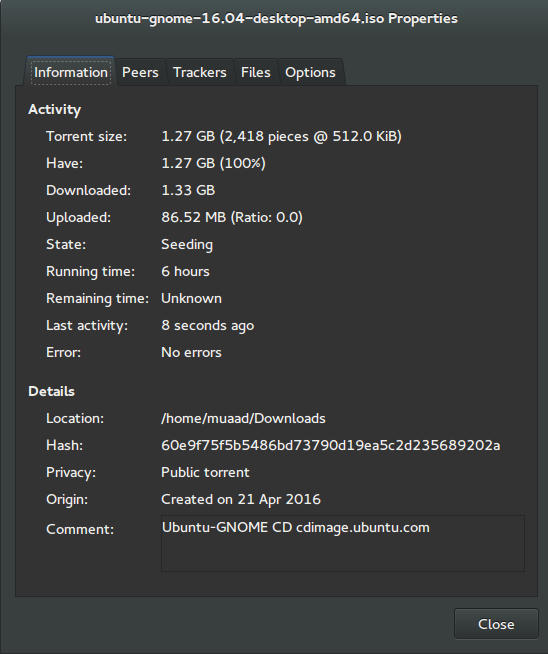
I’ve downloaded Ubuntu Gnome via torrent because I read it’s better for the servers, and come to think of it since the electricity goes out very often here, it’s better to download Ubuntu via torrent to save myself the trouble of downloading it all over again! It was downloaded eventually after 6 hours.
Checkout the download link from here.


It took 6 hours to download!
Torrent download information

I put it on a USB and began installing, pretty much the same since Ubuntu 10.10.
This version has 3 years of LTS support, why not five years? I’m not sure.


Steps to take after installing Ubuntu Gnome 16.04

Most of these steps are on my blog, but it won’t hurt to collect them all together in one neat list, would it?
  • Configuring wireless and Bluetooth, which is really easy to do but very important.
  • Installing the extras, the restricted extras needed to view media files and flash, and some fonts.
  • Installing my softwares, the usual package of stuff: VLC, Inkscape, GimpXmind and Zimwiki
  • Installing extensions: Clipboard indicator and OpenWeather.
  • Editing input sources to make it change between languages by pressing alt + shift, you can find how to do it from this link.
  • Restore the bookmarks and data (notes), Firefox is pretty easy to restore, and so is Zimwiki! All you have to do is to put the note folder in Home.
  • Customize LibreOffice. To make it more compatible with Arabic.
  • Disable apport, more details in the defects section.
  • Installing powertop for more power save and CPU Frequency to reduce fan noise!
  • Pomodro timer works beautifully with Ubuntu Gnome 16.04 and you have to install it, it’s the best timer app for Ubuntu to date! Read my review about it from here.
  • Disable tracker-store as shown in this askubuntu link. 
  • Disable evolution safely without uninstalling it. Saving nearly 170 MB of RAM.
  • I also decided to skip the Grub menu since I only use Ubuntu 16.04, to do that you need to download and install Grub Customizer with these commands:

    sudo add-apt-repository ppa:danielrichter2007/grub-customizer
    sudo apt-get update && sudo apt-get install grub-customizer

    After that go to Grub customizer and enter your password, go to settings and uncheck: show menu and look for other operating systems. This way you will get rid of Grub and boot to Ubuntu right away, don’t do this if you dual boot!!< red;”


Features and improvements

  • I do appreciate the Gnome 3.18 interface! A huge jump from the 3.10 that Ubuntu 14.04.4 ships with, as it has many improvements and tweaks and fixes for annoying bugs in Gnome 3.10 (LTS to LTS upgraders will relate!).
  • The notifications style has changed completely, it’s now displayed in a drop-down menu under the clock.
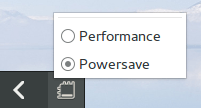
  • The annoying bottom bar was removed completely, a feature I will never miss! It’s replaced with a neat arrow that’s docked on the bottom left corner of the screen.
    Notification dock in Ubuntu Gnome 16.04
  • The new boot logo is so much better than the old one! That looks like a foot! This is more sleek and streamlined, reminds me of SEGA’s logo somehow!


Ubuntu Gnome’s new logo


Issues and defects

  • So far the performance is OK and there are few crashes, pretty much the same as Ubuntu 14.04.4 which is pretty stable by the way.
  • I’ve noticed that the network icon sometimes disappears, hopefully an update will fix this, my only fix is to reboot.
  • I would recommend that you disable apport as it will bring up a message every time you reboot.
  • Software isn’t as clear as it should, I can’t tell how big are the softwares and updates, so I use Synaptic on a daily basis to get things done!
  • When disconnecting the wireless network with the hardware key it’s not recognized anymore until several reboots, it’s a known bug but with no fix afaik! The only info I could find was this terminal command: sudo service network-manager restart This command will restart the network manager and allow it to connect without the need to restart several times.
  • The fan noise was too much at times, even when the computer was idle, I thought upgrading from Ubuntu Gnome 14.04.4 to Ubuntu Gnome 16.04 would fix this but it didn’t, until I installed CPU Frequency!
  • Nautilus 3.14 could use an update and we don’t have to wait till 16.10 to get one! I managed to follow a rather risky tutorial to update it to 3.20 and it’s so much better!
  • If you are using an SSD you might want to look at this post to avoid the /dev/sd1 :Recovering Journal issue.
  • Starting up without a user interface at times, and my only cure was to restart the computer, I found a fix that suggests to clear the packages config from Synaptic.
  • Sometimes shutdown can be slow, I found the steps in here worked like a charm!

“Software”

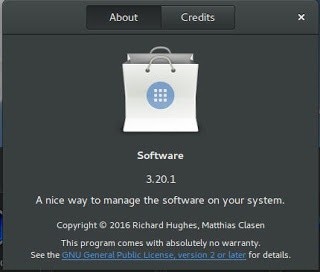
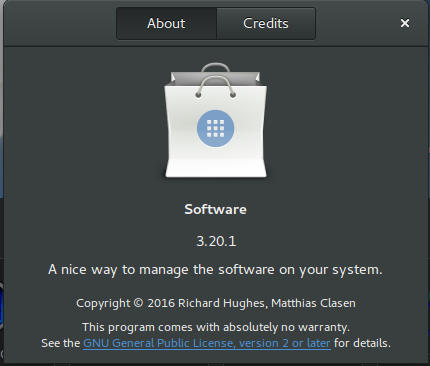
Ubuntu Gnome 16.04 ships with Gnome software 3.20. Which is the software that is supposed to replace Ubuntu Software center, I find them both buggy and unusable, as I use Synaptic to do my package work.


Softwares 3.20 on Ubuntu 16.04

I do believe it needs more work to become a reliable software center, it stays in the background and behaves oddly, it doesn’t show the download progress on software being downloaded too, which seems odd!

I winded up un-installing software and reinstalling the good’ol Ubuntu software center!

Final words

Ubuntu Gnome is a great choice for anyone who wants to enjoy Gnome  without having to leave the Ubuntu universe to Fedora or OpenSuse, it provides the purist Gnome experience possible for Ubuntu, and it preformed better than regular Ubuntu installed on older machines (with proper tweaking mentioned here).

The more I use it the more I could tell that this is the distro for me, great job indeed by the team, and I rate it as a must have!

I hope you enjoyed this post, please let me know what you think in the comments section below, and remember: Sharing is caring!!

Gnome 3.20 is out!

Gnome 3.20 is out today, let’s take a look at what’s new in this release!

Gnome 3.20 was released on March 23th, it took 6 months of development and the work of 837 contributors and includes 28.933 changes!
This version is named Delhi recognizing the efforts of the  team Asian Gnome team.

The date was delayed from March 20th (which would have been perfect!) to March 23th for reasons unknown to me.

Main highlights for this release

  • OS upgrades can now be installed using Software
  • Wayland support has improved significantly, with kinetic scrolling, drag-and-drop, and middle-click paste
  • Keyboard shortcuts and gestures can be easily learned with new shortcut overlay windows
  • Privacy controls have been improved with per-application location access
  • Quick access to media controls directly from the shell
  • Searching in Files has been much improved
  • Builder can now build XDG-Apps, a new cross-distro framework for building and distributing desktop applications. These can also be installed directly from GNOME Software
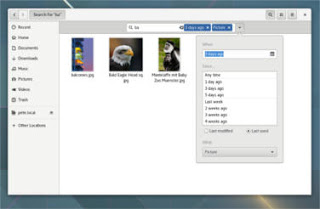
  • Gnome photos receives a huge update.Gnome Photos screenshot
  • The file manager is also updated and refined.
    Gnome files screenshot
  • There is more to find out, like the new map application, the enhanced web browser, or the fonts! Check out the details from here.

How to get this awesome release?  

It’s immediately available on Fedora and Opensuse, but if you want this on Ubuntu you are going to have to wait a little bit, as the highly anticipated Ubuntu 16.04 is going to be released with Gnome 3.18 (there is an unofficial port of course, let’s leave that until Ubuntu Gnome is out!)

I hope you liked this post, I personally can’t wait as I’m writing this on Gnome 3.10 that ships with Ubuntu Gnome 14.04.4 
Share this post with your friends and family, and if you tried it give us your feed back!

« Older posts Newer posts »