Category: Android (Page 11 of 16)

Advantages of having Windows phone over Android

Until one of my readers asked me this question, I thought I posted about this, turns out I didn’t! Let’s take a look at some of the perks that Windows phone has!
It’s an opinion piece, so don’t get all worked up 😉


  1. Part of the chosen few

    Having a Windows phone is unique, it’s unlike owning an Android device, they have a distinct look and feel to them that only a few can appreciate.

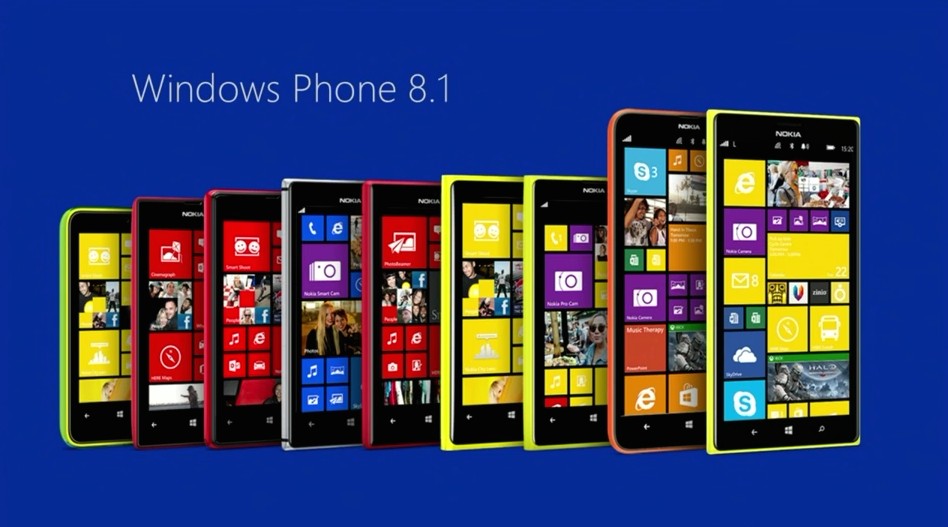
    Excellent lineup of Lumia phones
  2. Simpler interface

    The interface is really easy to navigate through, no fuss and no unneeded widgets that get in the way.
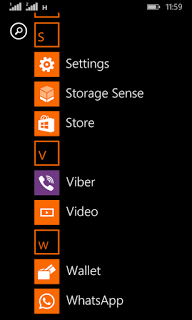
    Windows phone interface
  3. Minimalist approach to the smart phone

    Many people complain that this “app” or that don’t exist for Windows phone, but the fact is the basic stuff exist with great support, while keeping the rust of the clutter out of the box.

  4. Less prone to malware

    Since Windows phone owns less that 3% of market share, it’s less likely to be targeted with malware, unlike Android who owns over 57% of the market share.

  5. Business phone to the core

    it reminded me of the E-series back at the day, phones that were built for business and comes packed with tools to help you work, Windows phone 8.1 comes with Windows’s own personal assistant “Cortana” (Later ported to Android) and many other apps like Microsoft Office, OneDrive, OneNote, tools that help you work, let’s not forget the excellent keyboard that comes pre-installed with the system, and the excellent integration with Windows computers.

  6. Motion data

    It’s a unique feature of Windows phone that allows your phone to graph your movements via the sensor core and display it in a graphical interface, very accurately and with no impact to battery life and show what applications could use the motion data too. This feature isn’t available for other platforms such as Android and iOS. While Cortana (which was only available to Windows phone) became available for Android and iOS too, even when iOS have Siri as a virtual assistant by default.
Final words

These are some of the reasons I thought of to chose Windows Phone over Android, Keep your options open and don’t stick to one thing, I’ve used several Android smart phones in the past like the Samsung SII And Be Elite 2, and who knows what the future might hold?
Checkout my review of the Lumia 630 dual sim while you are at it.

Did you like this post? Would you consider buying a Windows phone in the future? Let me know what you think in the comments section below!

Common Windows Phone errors and how to fix them

Windows 8.1 logo It’s not all fun and games with Windows phone. It’s better than Android as it doesn’t crash as often, but I ran into several bugs the other day that I have to blog about.

Let’s take a look at the issue

I turned off the phone and removed the battery to remove the SD memory card that’s underneath (a major design flaw) and when I returned it, it was not the same! I noticed that many apps were refusing to work the way they used to! And the browser won’t load search results. I thought it was a connection issue ( Error 800704CF). but the error messages were about syncing with outlook ( Error 80070020).
At this point I was going to restore the factory default settings, which would have deleted everything on the phone and I would have to start all over!
After researching several error codes I realized it was far too simple!

The fix

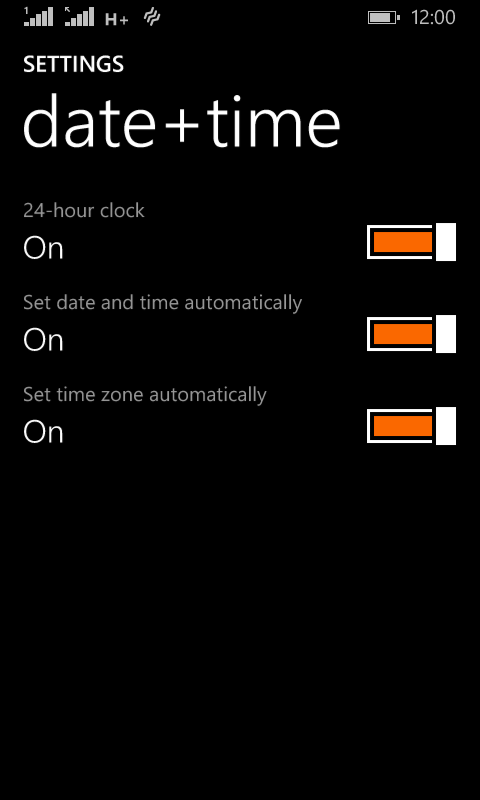
I set the date wrong! (Error 80072F05) The easiest fix was to set the time automatically, to do this follow these three easy steps!

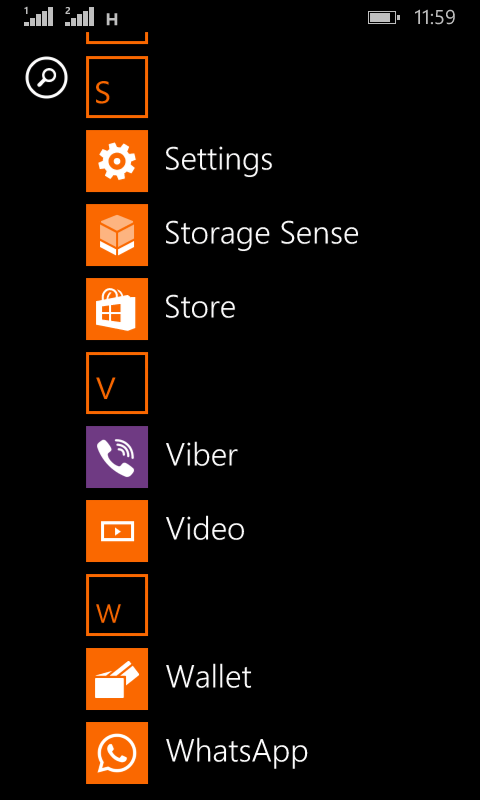
  • Go to the main menu (swipe left from the desktop).

Windows Phone main menu
  •  From there go to Settings
Windows Phone time and date settings
  •  On the date and time settings, set all of the values to on (24-hour clock, set date and time automatically and Set time zone automatically).

  and the phone went back to normal!
 

The codes I encountered were: 80070020, 800704CF and 80072F05. So if you face any of those the first thing you need to check is the time settings. I hope you found this tip useful, and please share it with your friends and family to help the blog grow! 

LibreOffice 5.1 is out! New features in here

LibreOffice 5.1 was released after months of anticipation, it’s a milestone release following the big 5.0 and it comes with it’s fair share of improvements!
Actually the list is so long I don’t know where to begin! for a full list of improvements read the list on this link.
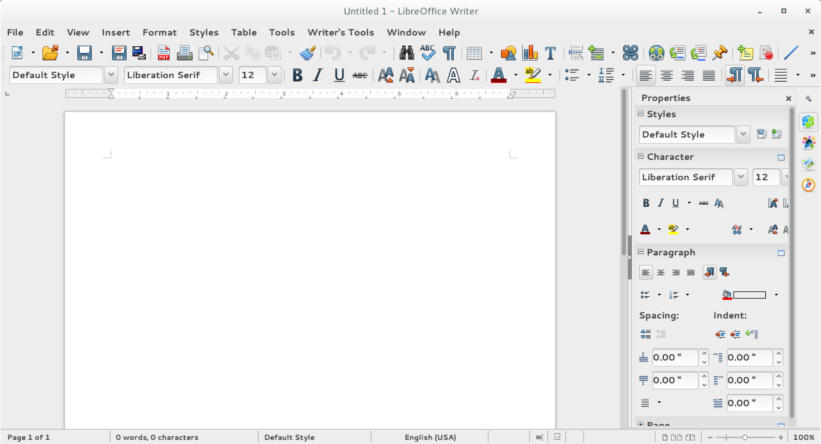
The new interface looks remapped, and I like how it can handle remote files like the files saved on Google drive, there has been work all over, I can see that.
One of the big changes I noticed was the styles menu, which you had to navigate to under format and styling in older versions.

LibreOffice 5.1 writer menu

Adding sheet menu to calc with related functions, and image control in impress, with the redesign of master sheets.

Did you install LibreOffice 5.1? Did you like what you saw?

*Update: I had to delete the configuration file of the old versions to fix some old issues like the webpage wizard crash, and to see the changes in looks.

Android-X86 on PC!

If you want to have a version of Android running on your PC, you came to the right place!
Android is a very popular platform with hundreds of millions (if not billions) of devices running it world wide, today we take a look on how and why to have Android on your computer!


To be able to install Android on your computer you need to download Android-X86, which is a project to port Android into the PC architecture, then prepare it for installation on your computer since Android is Linux at heart.
In this post we shall install it in a Virtual machine so we can test it safely, and if you find it suits your needs you can install it directly on your PC.


Installing Android on PC is easy, with a couple of extra steps added to the usual installation, you can find the steps in here.

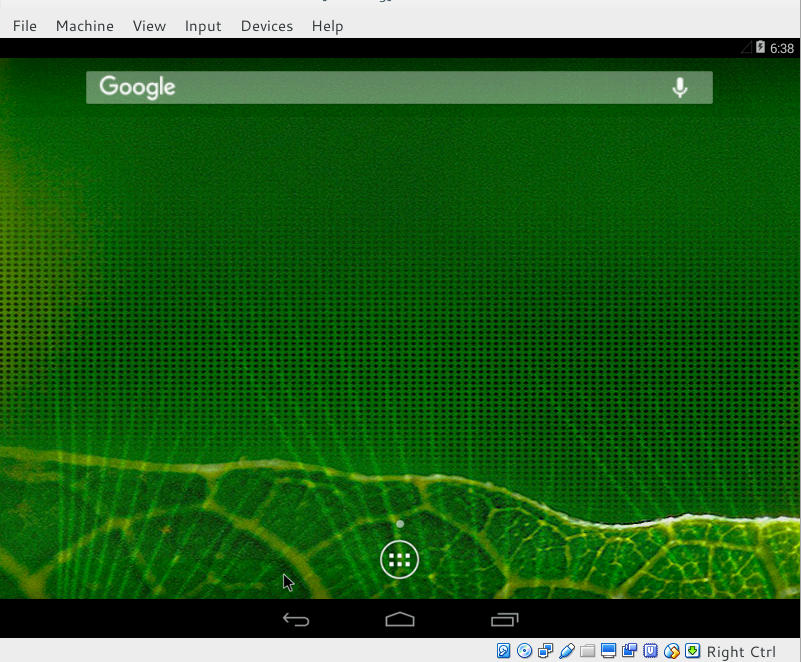
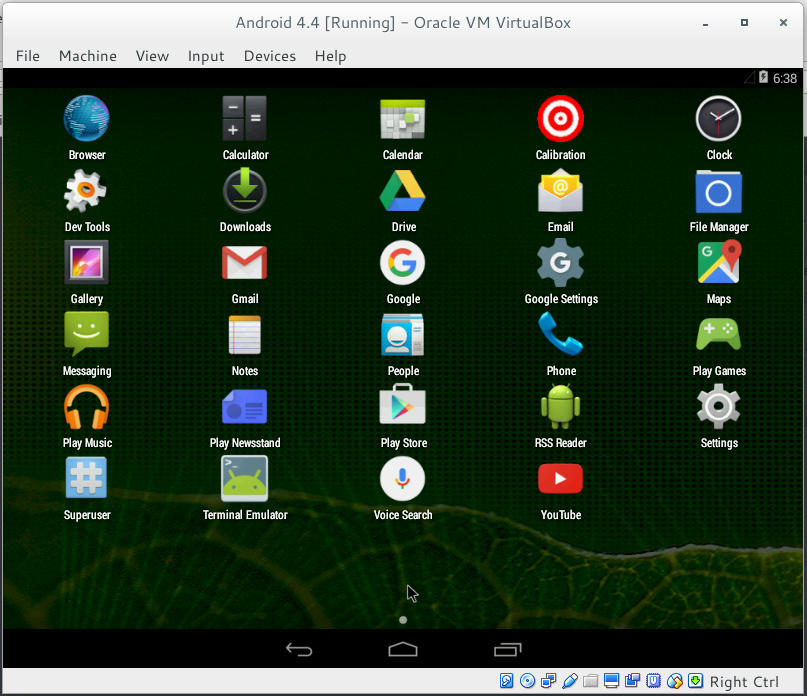
Once you install it, it looks something like this!


Remember to disable the mouse from input integration to be able to use the mouse as touch input!

now that we covered the how, let’s take a look at the why!

Why to use Android on PC

There are several reasons to use Android on PC: You could be a developer and want to test your applications in a safe environment, or you want to have another account on the VM other than your main account installed on your phone. Or you are like me, you don’t have an Android phone anymore but feel like messing with some applications 😛
It’s a fun project to try! Download the ISO and give it a test drive!
Would you install Android-X86 on an old PC of yours? You think it can be your everyday machine?

Continue reading

« Older posts Newer posts »