Category: App

Understanding sleep cycles for better sleep

I’m known for being a productivity freak, so this post caters to that niche of mine.
Sleep is a vital part of our lives, and studies suggest that we spend one third of our lives sleeping.
So a good night sleep is not to be taken lightly.

 A fair warning: This post isn’t based on a doctor’s advice, I’m not a doctor and this shouldn’t be treated as medical advice, if you have troubles sleeping please consult a real doctor!

For this post, I’m going to talk about sleep cycles and how understanding them can improve the quality of your sleep, and a great tool to help you harness the power of sleep cycles (and tools to avoid).

What are sleep cycles?

Sleeping isn’t a single phase, it’s divided to several stages that repeat themselves in cycles, the stages are: lights sleep, deep sleep and dream state.
According to this scientific finding if you wake up right during light sleep you would feel that you had enough sleep, waking up in the middle however causes headaches and discomfort.

Image credit: Wikipedia

Knowing that a sleep cycle takes about 90 minutes, you can easily predict your sleeping pattern and set an alarm accordingly, but that can be troublesome after a while.

Here is where the apps come to play!

There are several applications out there for Android (I don’t know about iOS) that can help you with determining the perfect time to wake up.

Apps to avoid

Apps like sleep bot “monitor” your sleep by recording your noise to determine the best time to wake you up, and that is a big no – no in my book!

Somewhere in the middle

There is a web app called sleepyti.me that helps you predict a sleep cycle, it’s perfect for those who want a minimal phone or system and are willing to compromise some of the functionality.

The app I use

ZzZ sleepy timer is a perfect balance between minimalist needs and functionality, it has a very simple user interface and comes with very limited permissions, making it perfect for people with privacy concerns, it is also ad free till the time of this writing.
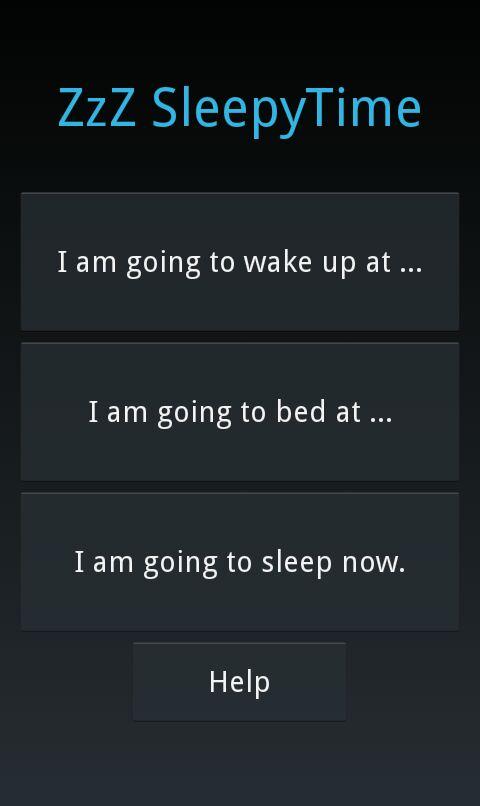
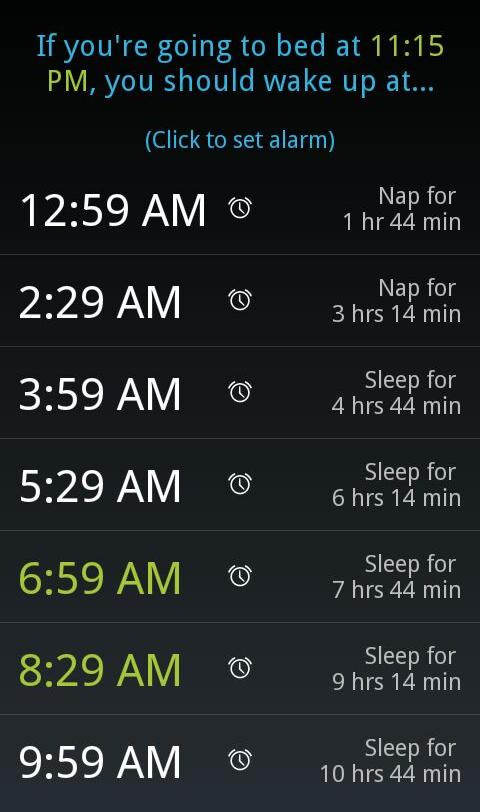
You can use it to set an alarm for waking up later, or tell it when you want to sleep. And it will calculate the upcoming sleeping cycles and determine the ideal one to wake up upon.
 To download Sleepy timer, click here.

If you doubt the importance of a good nights sleep, then try being woke up in the middle of the night or when napping in the afternoon (hurts like a Wednesday, doesn’t it?).

Fatigue Management

I remember when I worked for Schlumberger that I took a course called fatigue management, one of the important topics in that course was sleep and how to improve the quality of ones sleep. Apparently my manger and “mentor” didn’t hear of this course or ignore it on purpose..

How is your sleep dear reader? Do you use any applications to help you sleep at night? If so, what are they?

Let me know what you this in the comments section below, and I hope that you find this post useful.

Common Windows Phone errors and how to fix them

Windows 8.1 logo It’s not all fun and games with Windows phone. It’s better than Android as it doesn’t crash as often, but I ran into several bugs the other day that I have to blog about.

Let’s take a look at the issue

I turned off the phone and removed the battery to remove the SD memory card that’s underneath (a major design flaw) and when I returned it, it was not the same! I noticed that many apps were refusing to work the way they used to! And the browser won’t load search results. I thought it was a connection issue ( Error 800704CF). but the error messages were about syncing with outlook ( Error 80070020).
At this point I was going to restore the factory default settings, which would have deleted everything on the phone and I would have to start all over!
After researching several error codes I realized it was far too simple!

The fix

I set the date wrong! (Error 80072F05) The easiest fix was to set the time automatically, to do this follow these three easy steps!

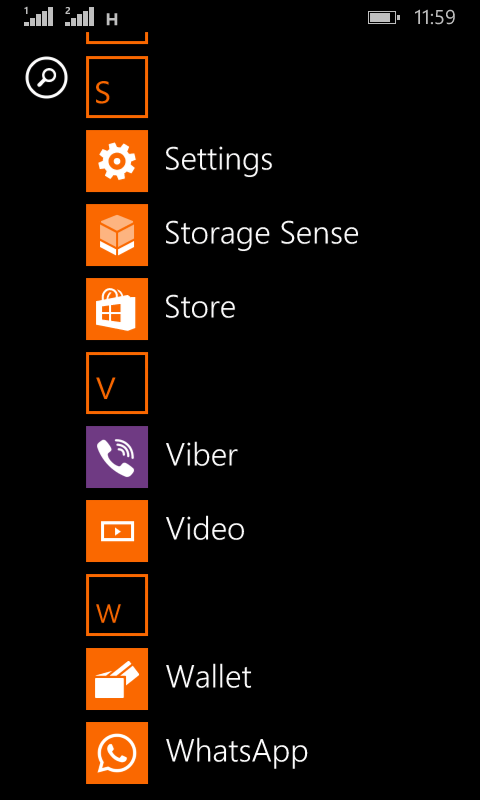
  • Go to the main menu (swipe left from the desktop).

Windows Phone main menu
  •  From there go to Settings
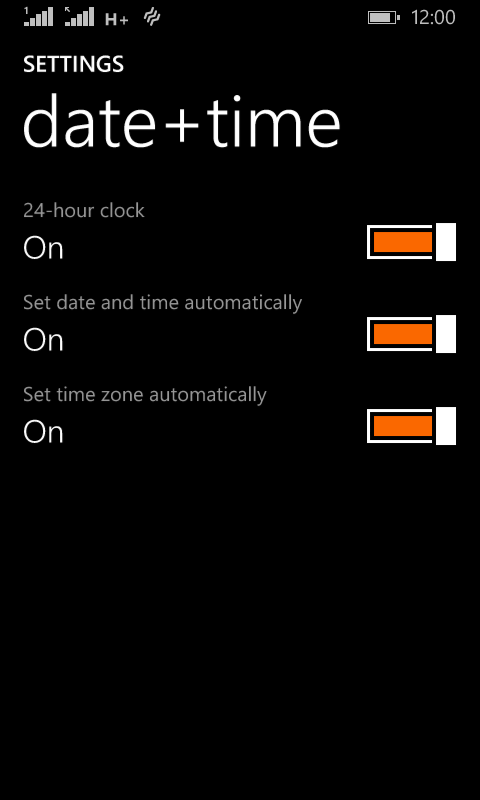
Windows Phone time and date settings
  •  On the date and time settings, set all of the values to on (24-hour clock, set date and time automatically and Set time zone automatically).

  and the phone went back to normal!
 

The codes I encountered were: 80070020, 800704CF and 80072F05. So if you face any of those the first thing you need to check is the time settings. I hope you found this tip useful, and please share it with your friends and family to help the blog grow! 

Backup your installed Android apps as .Apk files

Hey there you guys. How are you today? Today I’m going to be talking about backing up Android applications to your computer. It’s very simple and really handy!
This way you can create a personal backup of your application


I’m going to be using a software called Myphone Backup. Which comes in two parts: Android app. And Windows installation.
It’s a software used to manage your phone over a connection. And backup contents. I used version 1.8.3 for the tutorial while the links on the site are the latest 1.8.6
It’s freeware, if you like it then consider posting a donation to support the development!
Install the app on your phone and the software on your computer.
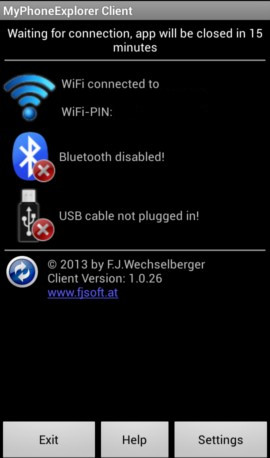
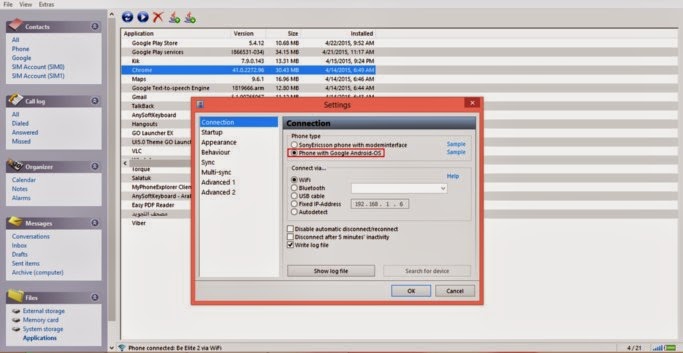
Now open the app on your mobile and select the way to connect. Let’s use Wifi.


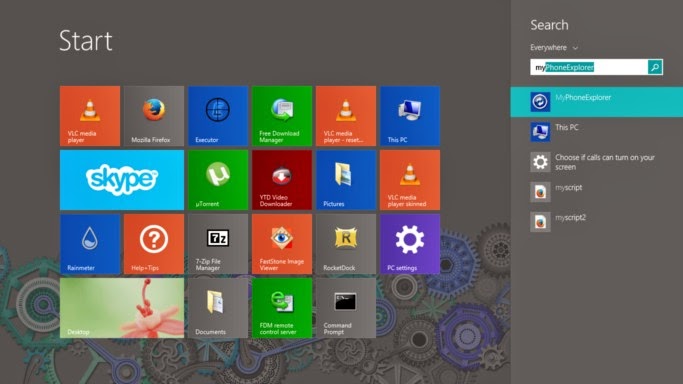
After installing it. Go to the start menu and type” Myphone” to have it appear in the search results.

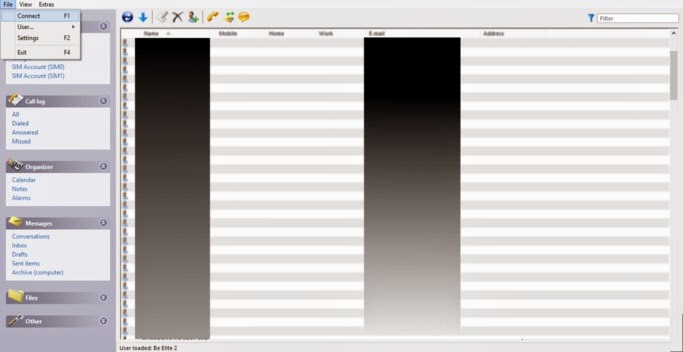
Then let’s run the computer software. And connect to the phone by going to File Connect. Or pressing F2.


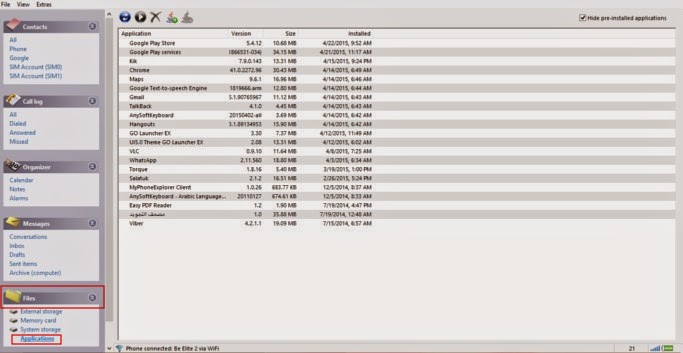
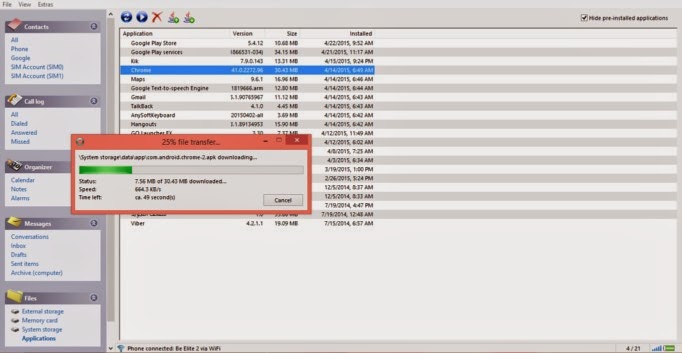
After connecting to the phone go to the pane files. Then choose apps.
Hide system apps for safety.
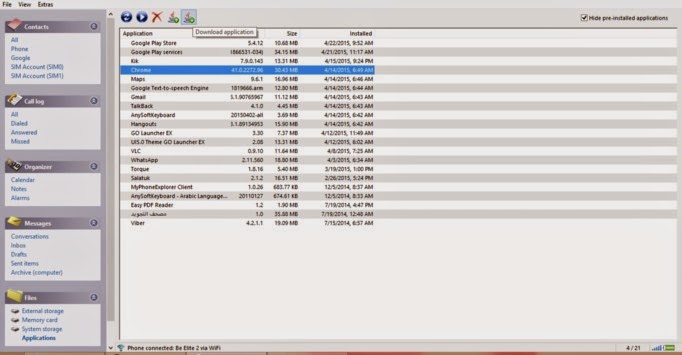
You can install apps via side loading by pressing upload, save them by pressing download,  And many other useful functions!


From here you can backup the applications one by one. Click on the desired app and select download.

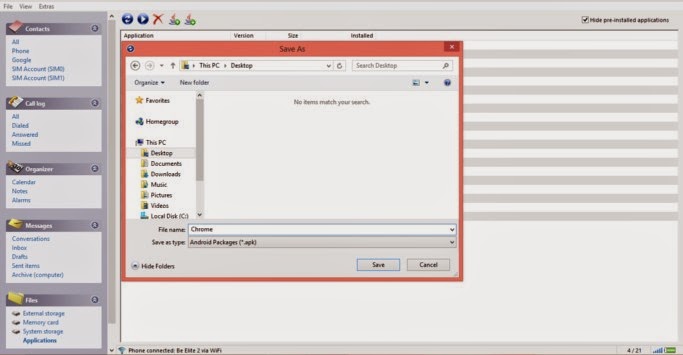
It will prompt you to select a location to save it. Wait a little, and the app is saved to your computer in .apk form 

  Wait for the progress to finish. And there you have it!

The most common way for this method to fail is the connection between the computer and the phone. So make sure you do it properly. And choose Android from the settings.
I hope you enjoyed this post! Please comment below and let me know what you think?
Do you have an easier way to backup apps. Let me know it 🙂