Category: download (Page 10 of 19)

LibreOffice Draw to design Mind maps! (Template inside)


LibreOffice Logo

There are many free and commercial tools to create mind maps, I for one prefer a bit of minimalism, and who can’t be a minimalist when the Document Foundation develops such an amazing software package such as LibreOffice! I use it personally to do many day to day tasks, and I just added one more thing to my list of uses!

Today’s post doesn’t require you to be a master LibreOffice Draw user (even when making the map is so easy!) all you have to do is to download the template and edit it to suit your needs! I’ve put the download link at the bottom of the post, so read on!


The Map

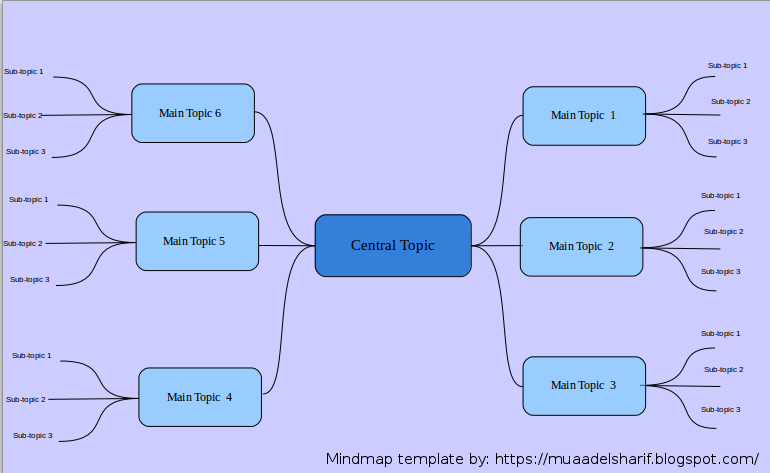
The template I prepared is a three level map with six main topics ordered in counterclockwise order, with each topic having three sub topics, you can increase them easily by copying and pasting then using the proper connector type from the tools.


Mindmap created with LibreOffice Draw

You can easily customize the colors of topics and font types to suit your needs, this is just a template after all! And feel free to remove the attribution I put -feel free to visit my blog tho ;)-

I’m sharing this template under creative commons CC BY you can use it freely as long as you mention I made it when asked so.


CC BY

I was going to make this post a detailed one on how to make this mind map, but I realized that it’s basic skills and no need to repeat them, especially that I’m sharing the mind map template itself so everyone can use it.

To download the mind map template, please click here.

So here you have it! We used the versatile LibreOffice to create a great looking mind map! Let me know what do you think in the comments section below, and remember to share with your friends and family.

Happy mind mapping with LibreOffice!

BlueGriffon 2.0 is out, And 2.1 is just around the corner!! 2.1.2 Has .DEB!!

Four months of hard work and fixing bugs have brought us to this highly anticipated release of BlueGriffon 2.0

I have posted about the Alpha and gave it a review and been following the development closely on Twitter, the beta release was just two days before the official release, so it was nearly impossible for me to download, test and finally post about it. Let’s take a look at BlueGriffon 2.0

An introduction

BluegGriffon is  a product of Disruptive Innovations SAS, a French software company founded in October 2003. Based in Saint-Germain en Laye, France, Disruptive Innovations SAS delivered in the past premium products like the popular editor Nvu (the indirect predecessor of BlueGriffon).

A total overhaul

  • This version is a total overhaul for the program, as it changes the addins system and even the licensing platform!


  • All the add-ons from the previous versions won’t be compatible with this one so you need to download the new ones.
  • There are features that are only available for those who purchase a license, BlueGriffon is still open source and the basic features

can be used freely.

  • The manual is also up for purchase, this is in order to support the development of BlueGriffon as it says on the website (the manual isn’t open source and can’t be distributed freely).
  • It will only support Windows 7 and higher, Mac OSX 10.8 and up, and the only Linux distribution supported is Ubuntu.
  • The overhaul included the BlueGriffon site, and yes! It was designed using
  • BlueGriffon! It matches the interface and looks fantastic!


Interface

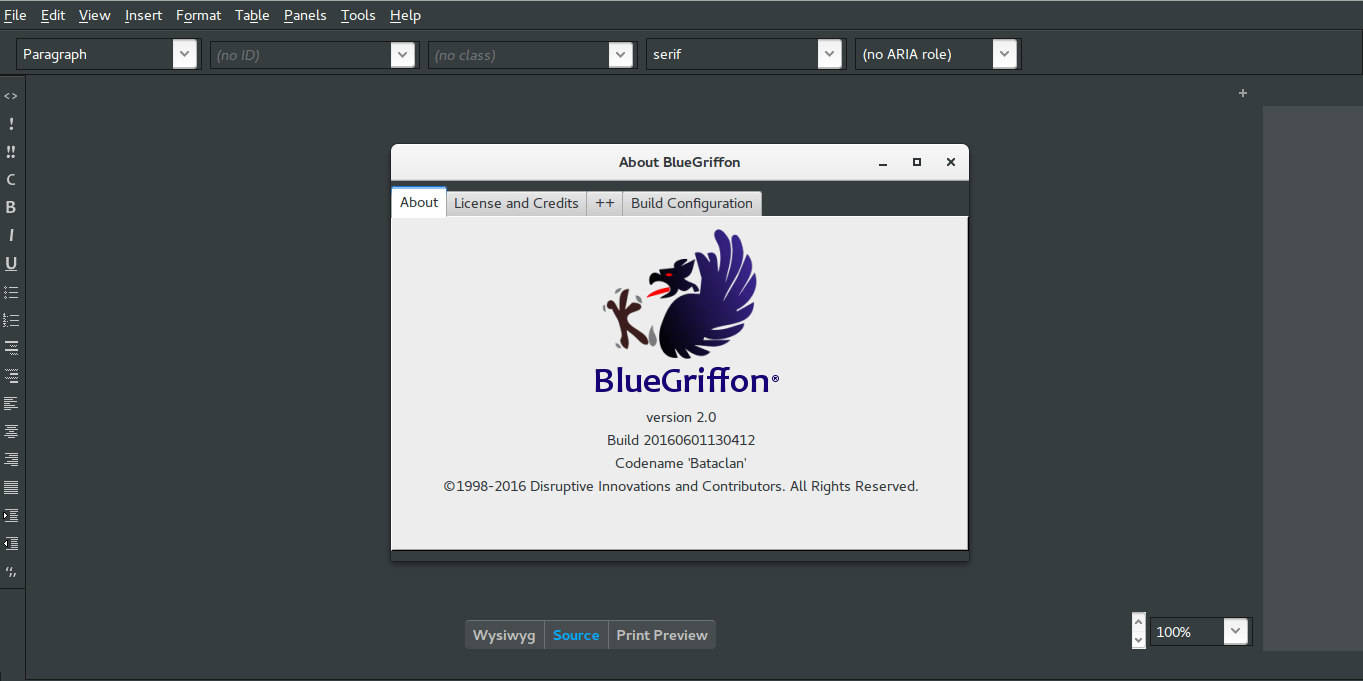
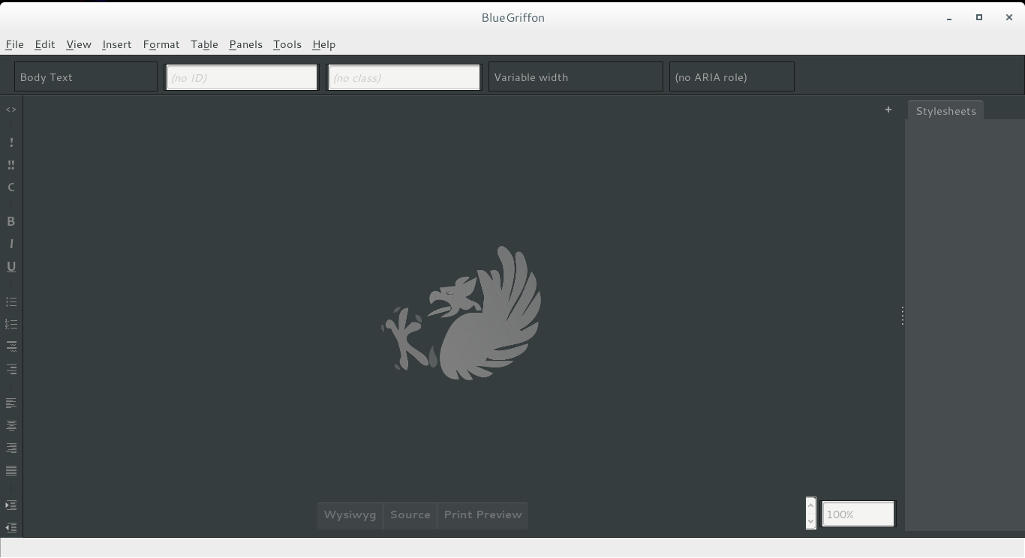
It brings the darker theme that was first shown in the alpha version, complete with all functions and menus.

BlueGriffon Version 2.0 interface with help menu


  • It feels smoother and lighter,

image management is much better than version 1.8 and same goes for tables.

  • I do miss the function buttons

as now I have to do everything by menus!

  • I didn’t experience

any random shutdowns of BlueGriffon so far.

Download 

BlueGriffon is cross platform and is available to download for:

Windows (Windows 7 and above). And a ZIP file is available too.

Mac (OSX 10.8 and above).

Linux Ubuntu 64 BIT.   

Click on any of the links to start downloading from the official server.

Languages supported

English (USA), Čeština, Deutsch, Español (Castellano), Suomi, Français (France), Galego,
, 日本語 한국어 中文 ), 繁體字 ), Magyar, српски.

Here you can download the available dictionaries for these languages.


Final words

A version 2.1 is in the works and the developer is taking note of some fan suggestions like: a hide-able dock and a clear theme, I’m really impressed with the comeback BlueGriffon has made, as I said before it was marked as discontinued by alternativeto.net, it’s really good to have a frequently developed open source HTML editor available! I as a blogger can’t keep up with how fast this application is being developed! And that doesn’t happen often!


Update on 06/08/2016

Version 2.1 is out and you can check the change list from here!

P.S: The site is inaccessible at times, I couldn’t download it so far, and it wasn’t packed as .deb (  I suggested that several times without hearing back from them).

They aren’t very responsive to e-mails, I’ve been writing to them since the BlueGriffon was frozen at 1.7.2 back in 2013 and they haven’t replied to me once! Even on Twitter I never got to hear back from them, seriously? How hard is it to send a tweet?

Update on 06/12/2016
Version 2.1.2 is out and FINALLY it’s packed as a .DEB
You can thank me later! 😉
Download

I hope you like this post, please give me your thoughts in the comments section below, will you download BlueGriffon? And if you did, what do you think?

Have a nice day!

Ubuntu 14.04.4 LTS released

Ubuntu 14.04.4 was recently released and it comes with a bunch of bug fixes and security features since 14.04.3

What are the new features in this release?

  • Support for new hardware and stability.
  • One of the hardware features that really captured my eye is the Hardware stack,.
  • Ubuntu 14.04.04 had the same kernel as Willy werewolf 15.10 of Linux 4.2, which is a huge jump from the 3.19 that Ubuntu 14.04.03 has! 

I confirmed that myself by typing in the commanduname -r into terminal after install. I decided to download Ubuntu Gnome 14.04.04 and give it a test on a virtual machine before installing it, the test was encouraging so I decided to install it.

But, what about 16.04?

I could just wait for Ubuntu 16.04 to roll out in April, but I had too much issues going on anyway. The reason is I had so much troubles with my system, I couldn’t continue with it they way it was. So I decided to remove the system I had and install a fresh one.

The end of Dual booting!!

To make space for the distro I decided to drop Windows and the idea of dual booting all together, did you notice I even changed my domain a while back? It’s just not working for me. I found myself constantly jumping from one OS to the other, as I had two systems, two documents, and two bookmarks, and syncing those wasn’t exactly a walk in the park. I was dysfunctional and unorganized, almost the same of having two laptops running side by side, which was the main reason to start the dualboot saga! I use the same tools on Ubuntu and Windows, so having two instances of LibreOffice and Gimp isn’t really working! 

Virtualization

Since I don’t own licenses to software (except Windows itself) it made the decision much easier to follow. I have a solution, visualization! Instead of having two systems living side by side, I decided to move the Windows license to the virtual machine I made, and then to delete the partition all together, because I barley use Windows anymore, but at the same time I could use it, so that’s why I’m using Virtualbox, for the moments I wish I had Windows. I had a clear plan and I was on to execute.

Getting to work!

I decided to remove Windows, install the new Ubuntu and make sure it had plenty of space to run. Deactivating Windows I started by following the steps in this post, which was easy because I have done it several times before, I removed the activation and then activated Windows on the virtual machine, all in under 10 minutes! Then came the fun part! 

Preparing install media

I downloaded my distribution of choice, Ubuntu 14.04.04 from the server as a torrent download, which was much faster than regular download, I put it on a USB drive using Yumi and I was good to go. Setting up the HDD I used Gparted on Partedmagic to repartition the HDD (it’s crucial to take a copy of the data and keep it in a safe place), I made sure that Ubuntu gets over 50 GB of free space because over time you are going to need the space, I merged the old Windows partition with the Linux partition and rebooted to begin the install. 

Installing Ubuntu

Installing Ubuntu is one of the easiest installations you can ever have, it’s user friendly and super fast, you can finish it all in under 15 minutes and you are good to go! I installed Ubuntu, and proceeded to reinstall my software and tools. I noticed that Libreoffice was 4.2 which is out of date, even for the stable release! I had to remove it and install the latest 5.1 to enjoy the performance and newly designed interface! I also had to add VLC and Gimp manually, as well as Zimwiki
I also installed Pomodro timer, it works very well with Ubuntu Gnome 14.04.
All and all it took less than a day to get my computer back to normal.

mpression after installing Ubuntu 14.04.4

I must say that running a native Ubuntu gnome is much better than adding Gnome interface to any Ubuntu installation. It runs much smoother and many of the bugs I noticed are long gone! 
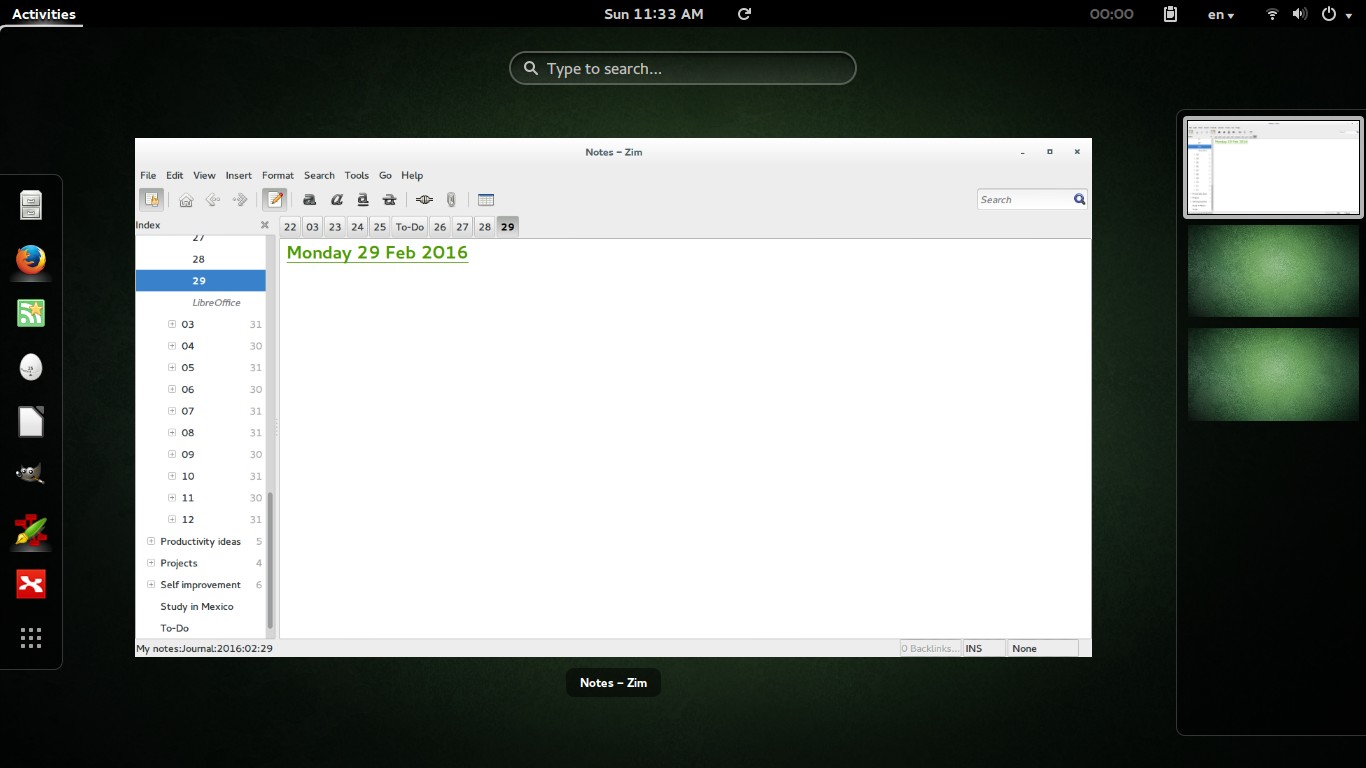
Ubuntu 14.04.4 Screenshot
Screenshot from Ubuntu 14.04.4 after install

Final words

Looking back, my main goal of installing Windows alongside Ubuntu was to enjoy gaming on my computer, looking back I hardly did any gaming and I had Windows installed for almost 2 years! I can still play on Ubuntu and if must use the Virtual machine to play (I tested for that and it wasn’t promising). I’ll be keeping you posted about anything I notice!

P.S: I no longer use this awesome distro, I’m on Ubuntu Gnome 16.04 and it was an excellent distro to use, so good I almost didn’t upgrade!


BlueGriffon 2.0 first preview

BlueGriffon is back to a steady path of development after being marked inactive by Alternativeto.net this time version 2.0 is in the works and recently a first preview version was posted on-line.


It released 1.8 in October and now 2.0 is under development!

I’ve downloaded the version and tested it on Ubuntu, what I noticed immediately is hat the color scheme is different, and that the toolbar that has been carried along since the days of nVU (one of the earliest open source web author systems).


BlueGriffon 2.0 interface

It enhanced the way that panes are displayed, instead of being awkward pop-up windows now it implements tabs which make better use of the screen.

This version isn’t fully functional and far from complete, but I had to break in the good news!
What I really hope for (and I suggested this to the developers already) that a PPA would be used (personal package archive) that way BlueGriffon will be isntalled easily and updated with the system automatically, and catograized peroperly within the applications (it’s now a portable App that needs to be extracted to the root of your computer).

I think the version 2.0 will be the best one yet, and I hope it fixes all the bugs from 1.8

Will you download the test version? What do you think?

Update: Version 2.0 and 2.1 are released! Check the review from this link!!

« Older posts Newer posts »