
Category: download (Page 9 of 19)

How to compile the latest version of Wesnoth on Ubuntu and integrate it with Lutris?

Wesnoth is a wonderful game available for free for Linux, however lately it has been falling out of favor with packagers; currently stuck at 1.14.5 while the latest version is 1.14.7 as of this writing! This tutorial will show you how to compile the source code of the game and integrate it with Lutris, and even add a custom icon so it can be searched easily across the system and docked on launchers.

Compiling Wesnoth from source on Ubuntu 16.04

While this method is not recommended and it’s only advised for advanced users only, it could be the only way to have the latest version of Wesnoth on Ubuntu.

1. Download the source code from the game’s site, always go for the latest version. and make sure to checksum the source code prior to doing anything, the value of the checksum is provided on the download page and you can easily check it using the terminal.


2. In the terminal, install scons using: sudo apt install scons
I’ve  decided to compile the source using scons rather than cmake because it’s much easier, however the compiling process happens in the same directory as the game, so make sure to copy the game to the target directory first, I’m going with /opt/wesnoth-1.14.7/wesnoth for the rest of the tutorial.

3. Download all the missing dependencies:
sudo apt install libsdl2-dev libsdl2-image-dev libsdl2-mixer-dev libsdl2-ttf-dev 


libboost-all-dev libvorbis-dev libcairo2-dev libpango1.0-dev l


ibssl-dev libreadline-dev cmake make scons pkgconf

4. Go into the game directory, for example /opt/wesnoth-1.14.7/wesnoth and install with the command scon.
Please note that the process is long and resource extensive, so please be patient.

More instructions and options can be found here on the official wiki.

And that’s it, now the game works fine!

Note: If you played an earlier version of Wesnoth, please be sure to copy your save games and preferences so you don’t start from scratch.

Integrate with Lutris

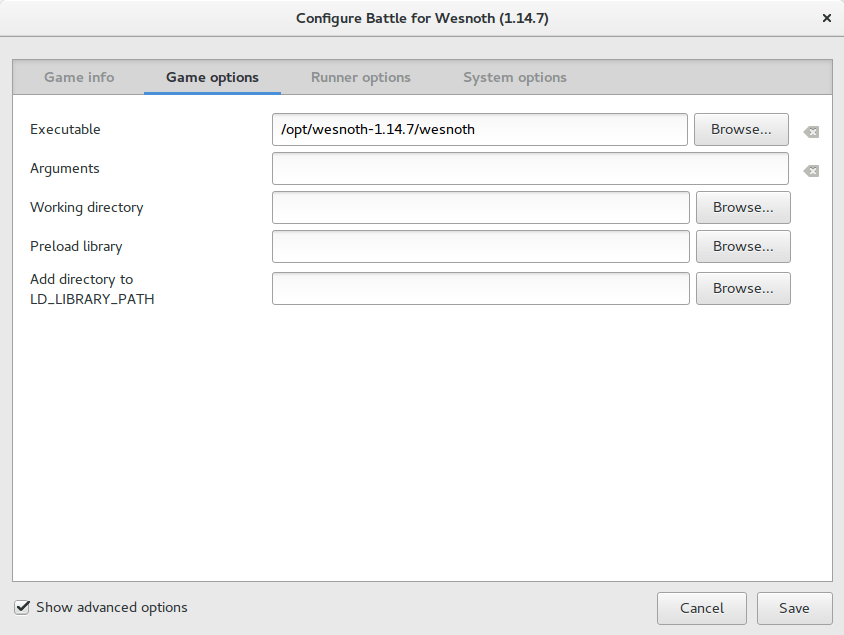
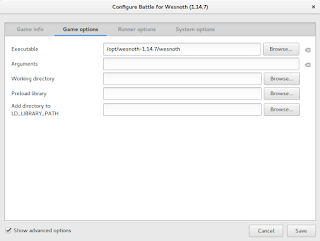
After compiling from source, Wesnoth can be easily configured to work with Lutris, simply by changing the path of Wesnoth from the default to wherever you installed it, I happened to install in /opt/wesnoth-1.14.7

Lutris icon


A screenshot from Lutris showing how the directory is changed


Adding an icon so you can dock it and be able to see it in the dash

Compiling Wesnoth this way won’t allow you to be able to search it or add it to plank for example, you will have to add a custom icon for this to work.

1. Go to /usr/share/applications/ as root and create a new .desktop file using a text editor (with sudo privilege).
The contents of the file should be like so:
[Desktop Entry]
Name=wesnoth
wesnothComment=The Battle for Wesnoth
The Battle for WesnothEncoding=UTF-8
Exec=/opt/wesnoth-1.14.7/wesnoth
Icon=/usr/share/applications/wesnoth.png
Terminal=false
Type=Application
StartupNotify=false
Categories=Application;Game;

Feel free to copy this file to your computer as long as you have everything installed as mentioned here, if you change anything make sure this document reflect your changes.

2. Save the file and you are good to go! As soon as you loook up Wesnoth in your system you will be able to find it and dock it on launchers such as plank.

After doing all that, I’ve uninstalled the old 1.14.5 and removed the repositories from my system, from now on I’ll compile on my own!

I hope that you find this tutorial useful, if you have any questions please let me know in the comments section below.

Credit goes out to Reddit user TonicAndDjinn as he provided a lot of helpful tips on how to compile the game.
How to download Bucklespring as a Deb in Ubuntu and enable it?

Bucklespring keyboards are iconic keyboards with distinct sound effects, sadly they went out of fashion however you can still relive the wonder of them on any keyboard you have

Downloading as a snap vs .deb

The most popular way to download this trick is via a snap, but I don’t like to use these nor have any of them installed. I still prefer the old fashioned .deb packages. 


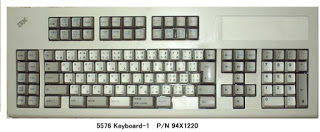
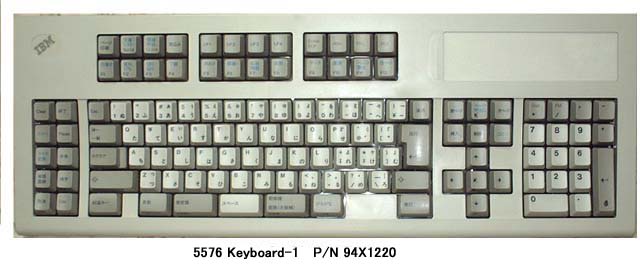
A bucklespring keyboard

The packages

The package bucklespring_1.4.0-2_.deb can be downloaded easily from Debian’s packaging website (I shall link it below), please note that you won’t find this deb package in Synaptic.

Download the bucklespring-data_1.4.0-2_all.deb and the bucklespring_1.4.0-2_.deb.Install the data first then the bucklesrping package itself.

How to run Bucklespring?

Bucklespring has no GUI (Graphic user interface), so in order to get it to run you need to open the terminal and simply type in: 

buckle

Download links

Please choose the right architecture for your processor.

Important notes

You have to keep that terminal (x session) open in order to enjoy the bucklespring sounds as you type on the keyboard.

I happened to notice that some keys don’t produce the sound as they are typed on (the number pad on the right side of the keyboard).

Final words

It’s a cool trick to have enabled, totally changes your using experience of the keyboard. I find that it’s best paired with LED enabling (also enabled from the terminal) for a maximum nerdy effect.

Have you enjoyed this tip? Do you like the bucklespring noise? Tell me what you think in the comments section below, and I’ll catch you in another one!

I’m back to using Atom Editor

Not a fan of the green icon.

Life is all about discovery, learning and not being afraid of making mistakes, with that being said, I say that I’m back to using Atom after a rocky relationship, of love and hate!

Why I am bothering to give Atom a second chance, the reasons are detailed below.


1. The only “free” editor of the bunch.

I’ve identified Sublime text as the best text editor for development purpose, let’s not forget that Sublime is not free, I know that they allowed using it for those who are under-privileged, but it’s still a Freemium that costs 70$ (free if you can handle the annoying pop up telling you to register every now and then), after changing the licensing plans in early 2018, I don’t know the current status of Sublime text and don’t care very much to be honest!
Atom editor is free and open source under the MIT license, and despite of Microsoft making a money grab for GitHub, Atom will remain free and open source for everyone to enjoy.

2. It’s down right beautiful!

Of all the text editors available on Linux (I use Linux on my everyday laptop), Atom the best looking of the bunch! Not just the color schemes and themes, everything in Atom is designed to look awesome, from user interface to the website, even the shirts and mugs look great (never got any but my birthday is coming up ;), and the user experience is great, even compared to Microsoft VS code (who is based on coffee script and javascript as well), despite my love for efficiency, I value a beautiful GUI. 

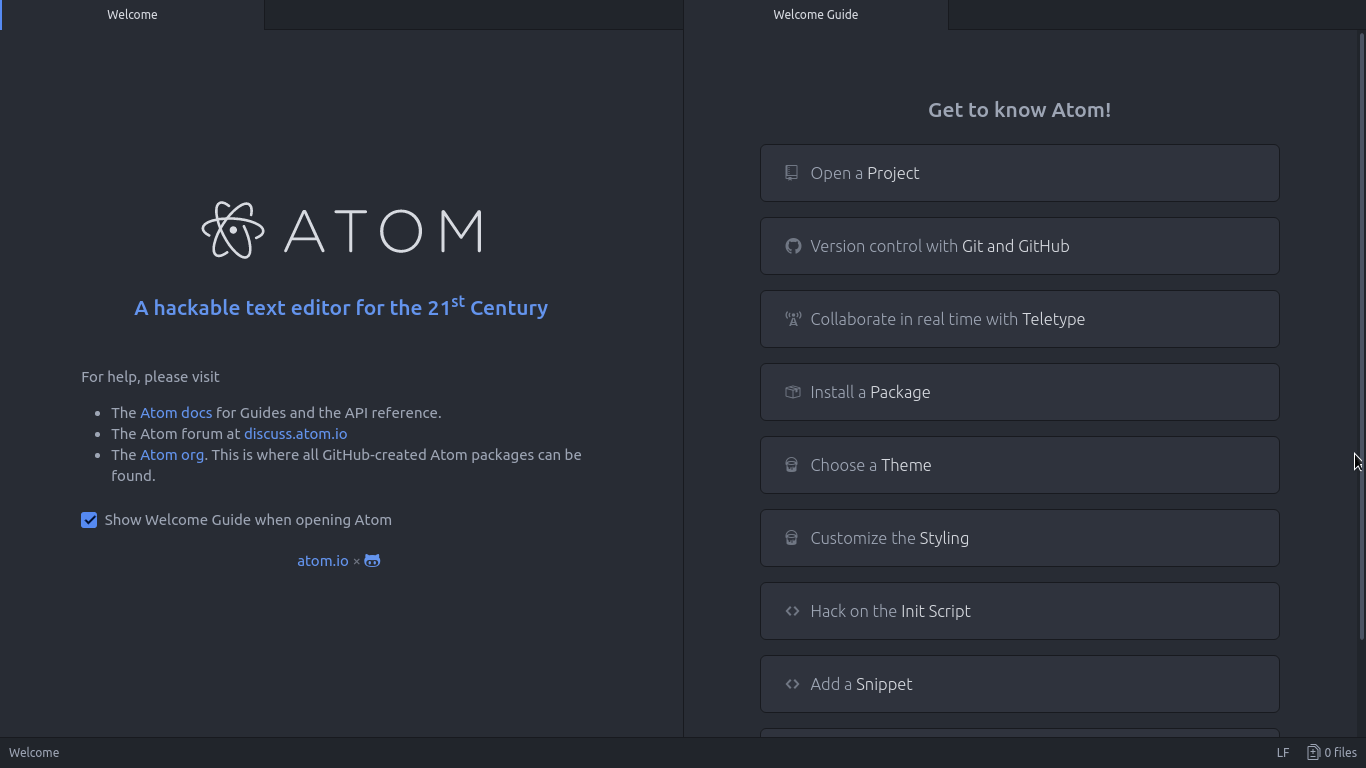
Atom Editor interface
Ain’t that a beauty?

3. Very customizable

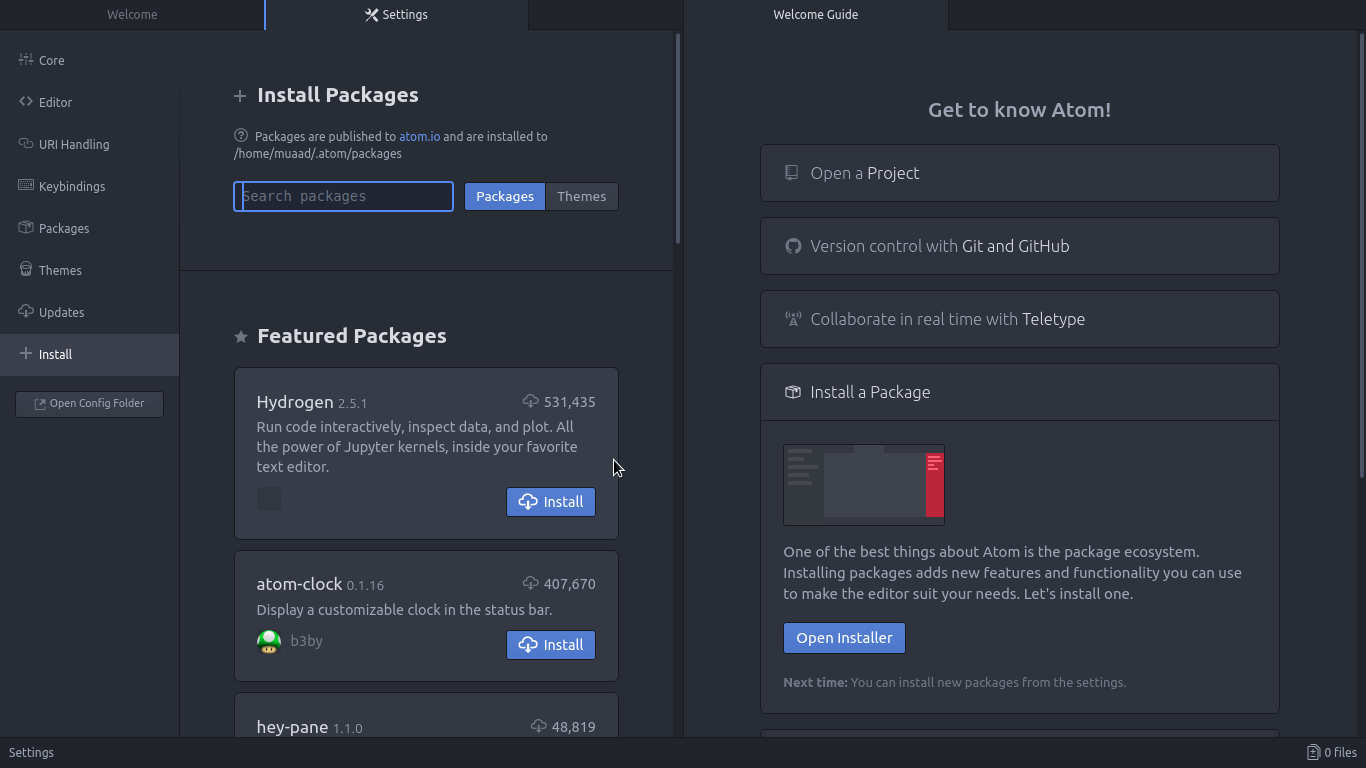
Atom has a ton of themes and packages available for download, which makes it more expandable and versatile, and with some knowledge you can develop your own themes and packages, all what you need to know is in the Atom flight manual (released in 2015 but still very informative). You can even change the key-map of Atom to whatever editor you migrated from and customize it as you like to decrease the learning curve.

Package installer interface

4. Ease of use

User experience should be always considered when evaluating software, and VIM for example despite being the most efficient and the most praised text editor in all of the Linux ecosystem, however it’s not easy to use at all, the learning curve is steep, I read the book titled “A byte of VIM“, but I still don’t see why or how can it be better than Atom or anything, as I don’t do anything “professional” with VIM. As a matter of fact, I’m not too keen on the whole terminal as a one tool for all.

5. Consumes more resource, so what?

Yes, Atom is heavier than Sublime or VIM, but does it really matter at this point? In the year 2018 laptops are getting faster and RAM is getting bigger, a few hundred megabytes almost seem like nothing when considering all the reasons mentioned above, it might not be the most resource efficient, but it’s the most usable editor of the bunch.
A well tweaked laptop (both hardware and software) can handle Atom like a breeze, and it’s getting better as time goes by. Speed won’t be an issue if you use an SSD (although using an SSD in itself can be an issue at times!), you could say it’s the price of enjoying a beautiful interface and ease of use.
Besides, converting to a less consuming Linux distro has spared some memory to spend (I’ll blog about it later and link back).

6. The devil you know!

I’ve been using Atom (On and Off) for the past three years, I’ve read the Atom flight manual and even reviewed it on my blog in a few posts (this is the fifth), so for the most part I’ll stick to Atom being the familiar editor that I’ve known and loved (sort of) for the past three years. I’m not alone, as it’s one of the most popular text editors on Alternativeto.

Have you ever used Atom before? What are your impressions about it? What do you use to edit prose and code, and if you use VIM, please take your rants to /r/VIM, because they would be appreciated better by fellow VIM zealots than me.

And yes, this post was written in Atom 1.28, so that you know!

LibreOffice 5.3 is out, Enable the Notebook bar in 3 easy steps!

The much anticipated LibreOffice 5.3 is out, the tech world and open source community welcomes the latest milestone release of LibreOffice, which brings many improvements and bug fixes, this release is on of the most feature rich in the history of LibreOffice.


LibreOffice 5.3 Logo


Whats new in LibreOffice 5.3?

LibreOffice 5.3 is packed with new features that make it easier to use and familiar to new users.

  • Improved text layout engine for a consistent look cross platforms using HarfBuzz.
  • Preserving table looks when applying edits in Writer.


  • Improvements to default cell styles in Calc.


  • A template selector when opening in impress to choose templates from, and a new slides properties deck in the sidebar when in master slide mode.


  • Many “under the hood improvements for easier development.


  • Experimental UI features, a notebook bar can be added that is similar to MS office ribbon, this feature is completely optional while the sidebar can be docked to the side with a single click.


  • LibreOffice online, the collaborative document editing service provides the
    the first source code as a docker image.

For more details please visit this page.


How to enable the notebook bar in LibreOffice 5.3?

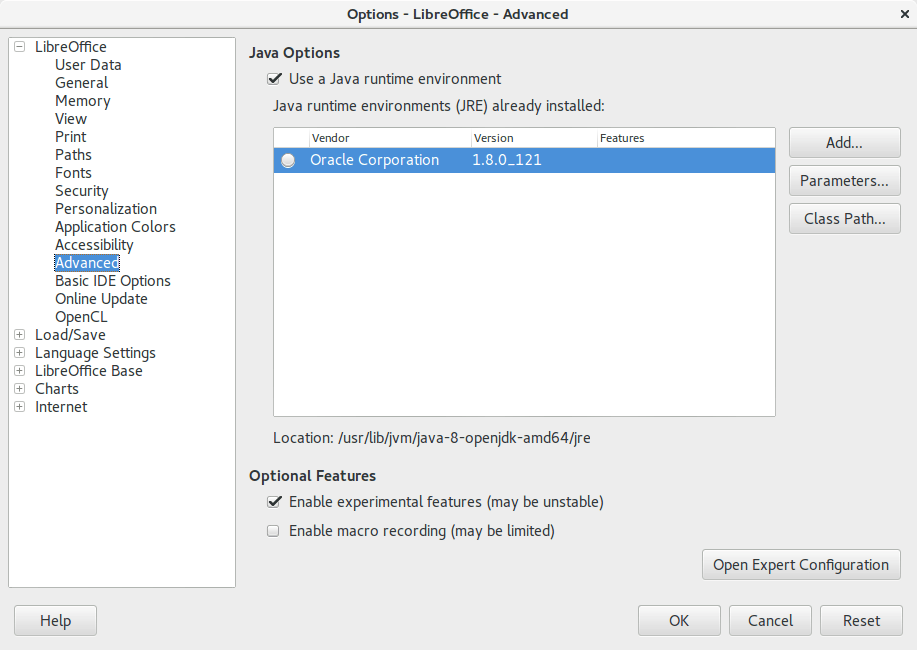
1. It’s actually very easy to enable this “experimental feature” of LibreOffice, you need to go to the options and choose advanced, from there check the experimental features, and restart the program.


Enable experimental features in LibreOffice 5.3
Enabling experimental features in LibreOffice 5.3

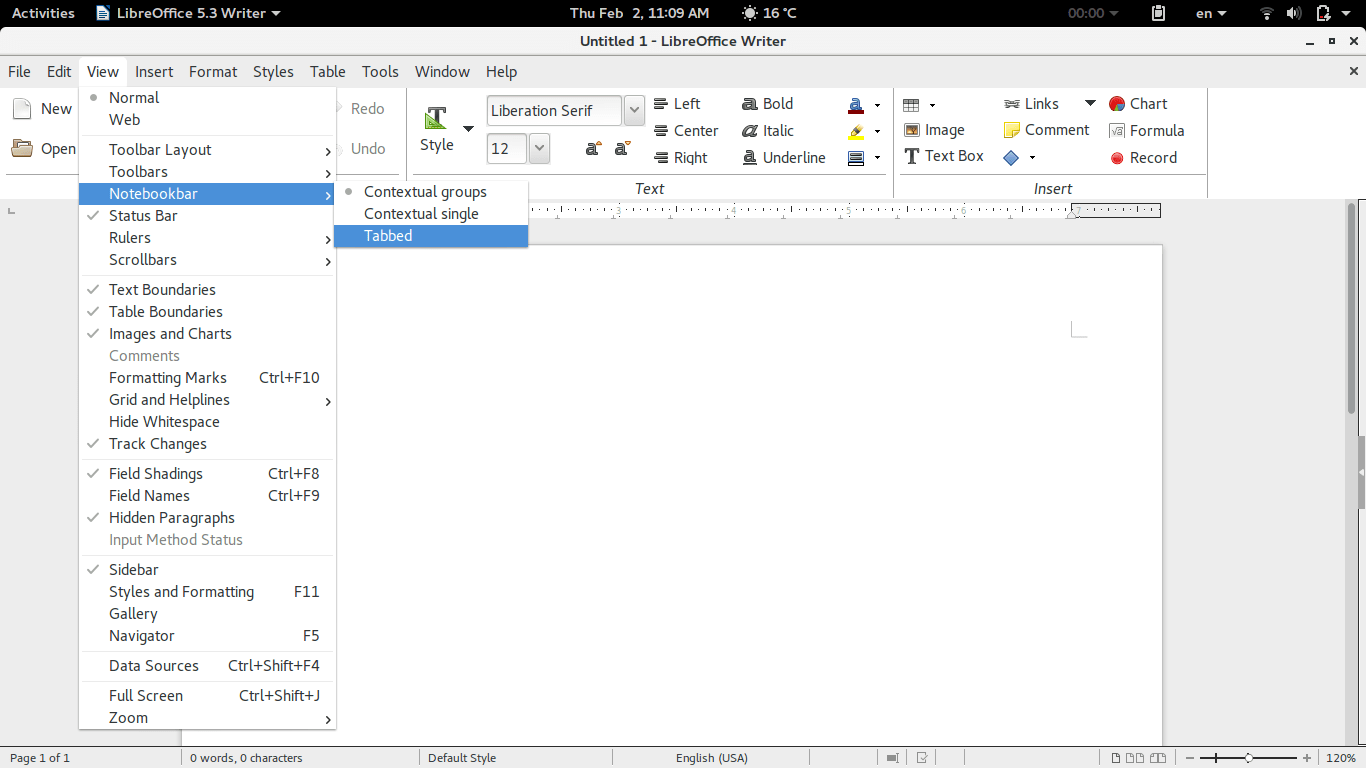
2. Then open Writer, navigate the menu to the Menu View> Notebook bar > Tabbed


Enabling the notebook bar in LibreOffice 5.3

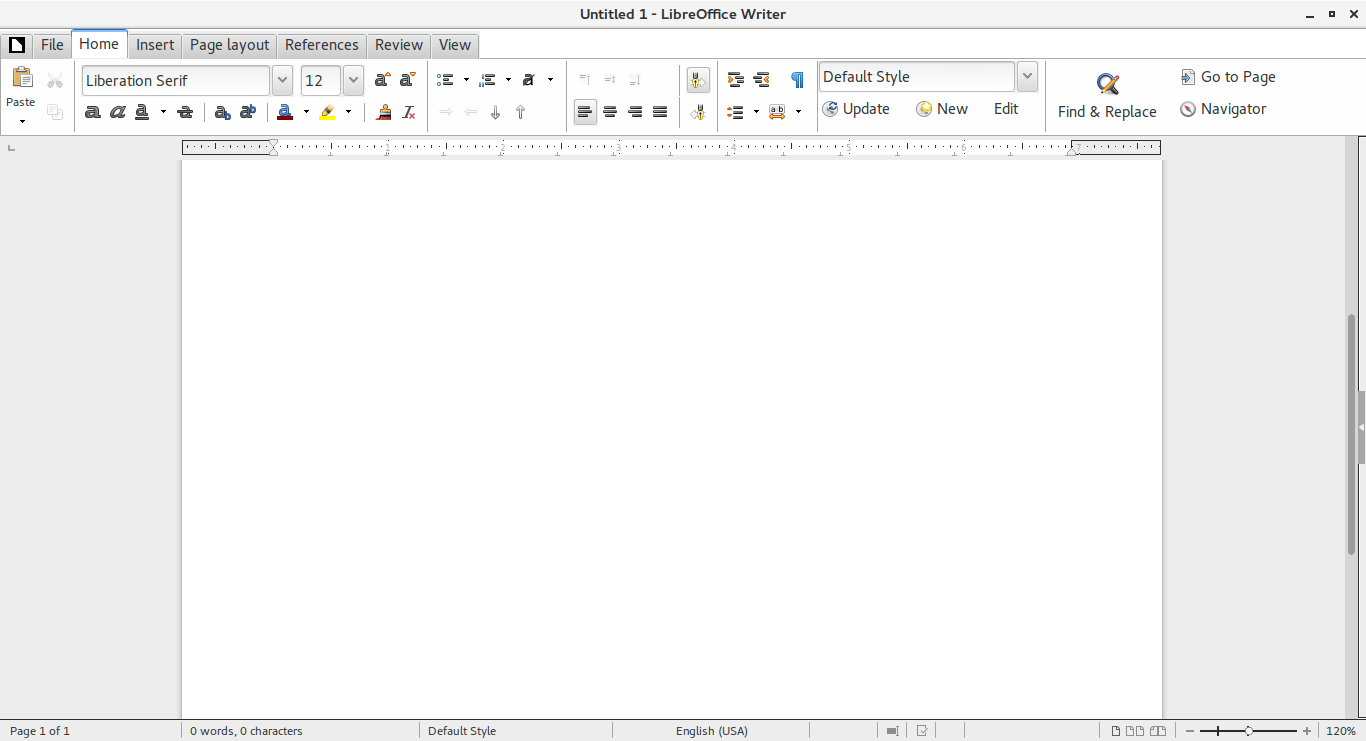
3. And it will change into a tabbed style!


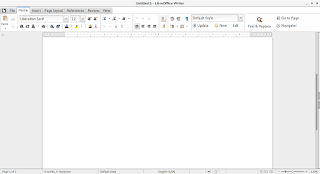
The notebook bar in LibreOffice 5.3
The final look of the Notebook bar in LibreOffice 5.3

Doesn’t it look great? Let’s not forget it’s experimental so it needs a little polishing!

Download LibreOffice 5.3

To download LibreOffice 5.3 go to the download page and choose your operating system and begin downloading, you might even consider using a torrent and seeding as well to help people download faster!

And consider placing a donation as well, it’s what keeps the foundation going!


Last words

Will you download LibreOffice 5.3? Do you like the Notebook bar? Please let me know what you think in the comments section below!

Thank you for reading this post, please share it on your social media and help my blog grow.

In more recent versions, follow this help guide.

« Older posts Newer posts »