Category: Free (Page 2 of 7)

RSSOwlnix: RSSOwl reborn!

RSSOWl is one of the best RSS feed aggregators available for free, if not the best, however it’s well known that RSSOwl has been discontinued since December 2013. This doesn’t pose a real problem as the current version is stable and usable, for now!

The journey ends here

If you plan on upgrading to a more recent version of Ubuntu (18.04 for example being the latest LTS), you will be unpleasantly surprised that RSSOwl won’t work due to dependency related issues.
You can search for an alternative, sites such as: Alternative.to provide millions of software to search through.. I have to be honest and say that no alternative of RSSOwl works in the same way or can be customized to have the same functionality.
What can be done?
If you are on Ubuntu 16.04 you can rest assured knowing that it would be supported until 2021, you will enjoy the usability of RSSOwl for a period of time.

How about something fresh and exciting?

You can use the RSSOwl fork: RSSOwlnix.
That’s the beauty of open source, it really never ends. If a project is discontinued for whatever reason, someone else will pickup the slack and continue the work.. Especially when the project has a massive following as such.
I’d like to see that happen with a commercial software!

What’s new in this fork?

This fork has updated dependencies  and should work with later versions of Linux Ubuntu and Windows. I haven’t tested it  RSSOwlnix on anything but Ubuntu 16.04 and it worked fine. It works slightly different than the original project and a bit unstable being a beta. Albeit it’s rather usable and gets the job done.

RSS essentials

If you are like me, someone who uses RSS feeds a lot and uses them to keep up with the world news, then this is for you. I’ve used RSSOwl for over 7 years and to me it’s an essential software, I no longer have to compromise if I have an upgrade planned.

Download

You can download RSSOwlnix from this link, latest version 2.7.0 as of this writing.
Windows 64 Bit
Linux 64 Bit

Final words

Do you use an RSS reader? Would you consider using RSSOwlnix? Please let me know in the comments section below.

How to compile the latest version of Wesnoth on Ubuntu and integrate it with Lutris?

Wesnoth is a wonderful game available for free for Linux, however lately it has been falling out of favor with packagers; currently stuck at 1.14.5 while the latest version is 1.14.7 as of this writing! This tutorial will show you how to compile the source code of the game and integrate it with Lutris, and even add a custom icon so it can be searched easily across the system and docked on launchers.

Compiling Wesnoth from source on Ubuntu 16.04

While this method is not recommended and it’s only advised for advanced users only, it could be the only way to have the latest version of Wesnoth on Ubuntu.

1. Download the source code from the game’s site, always go for the latest version. and make sure to checksum the source code prior to doing anything, the value of the checksum is provided on the download page and you can easily check it using the terminal.


2. In the terminal, install scons using: sudo apt install scons
I’ve  decided to compile the source using scons rather than cmake because it’s much easier, however the compiling process happens in the same directory as the game, so make sure to copy the game to the target directory first, I’m going with /opt/wesnoth-1.14.7/wesnoth for the rest of the tutorial.

3. Download all the missing dependencies:
sudo apt install libsdl2-dev libsdl2-image-dev libsdl2-mixer-dev libsdl2-ttf-dev 


libboost-all-dev libvorbis-dev libcairo2-dev libpango1.0-dev l


ibssl-dev libreadline-dev cmake make scons pkgconf

4. Go into the game directory, for example /opt/wesnoth-1.14.7/wesnoth and install with the command scon.
Please note that the process is long and resource extensive, so please be patient.

More instructions and options can be found here on the official wiki.

And that’s it, now the game works fine!

Note: If you played an earlier version of Wesnoth, please be sure to copy your save games and preferences so you don’t start from scratch.

Integrate with Lutris

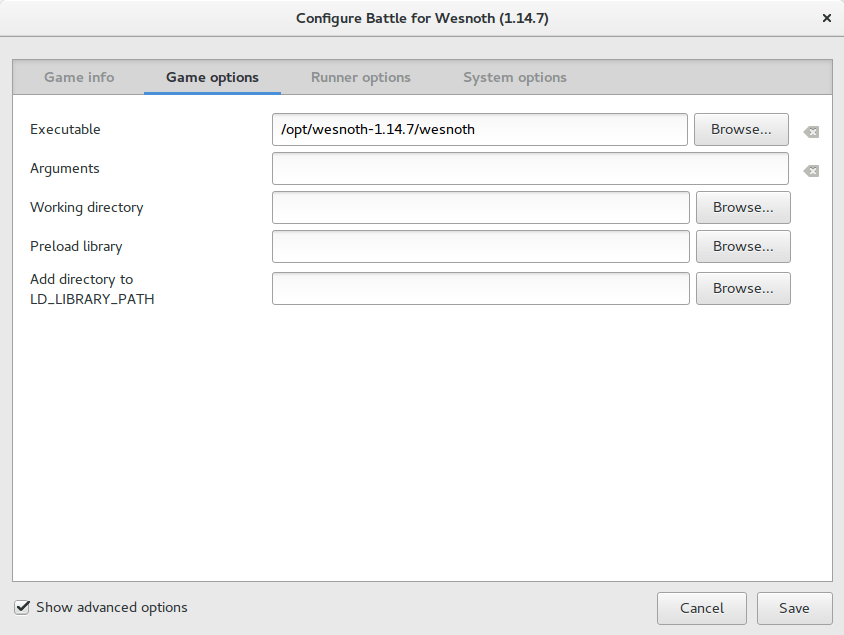
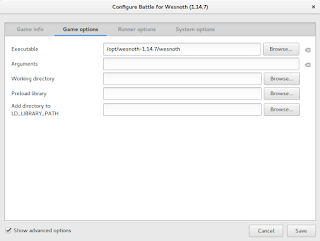
After compiling from source, Wesnoth can be easily configured to work with Lutris, simply by changing the path of Wesnoth from the default to wherever you installed it, I happened to install in /opt/wesnoth-1.14.7

Lutris icon


A screenshot from Lutris showing how the directory is changed


Adding an icon so you can dock it and be able to see it in the dash

Compiling Wesnoth this way won’t allow you to be able to search it or add it to plank for example, you will have to add a custom icon for this to work.

1. Go to /usr/share/applications/ as root and create a new .desktop file using a text editor (with sudo privilege).
The contents of the file should be like so:
[Desktop Entry]
Name=wesnoth
wesnothComment=The Battle for Wesnoth
The Battle for WesnothEncoding=UTF-8
Exec=/opt/wesnoth-1.14.7/wesnoth
Icon=/usr/share/applications/wesnoth.png
Terminal=false
Type=Application
StartupNotify=false
Categories=Application;Game;

Feel free to copy this file to your computer as long as you have everything installed as mentioned here, if you change anything make sure this document reflect your changes.

2. Save the file and you are good to go! As soon as you loook up Wesnoth in your system you will be able to find it and dock it on launchers such as plank.

After doing all that, I’ve uninstalled the old 1.14.5 and removed the repositories from my system, from now on I’ll compile on my own!

I hope that you find this tutorial useful, if you have any questions please let me know in the comments section below.

Credit goes out to Reddit user TonicAndDjinn as he provided a lot of helpful tips on how to compile the game.

I’m back to using Atom Editor

Not a fan of the green icon.

Life is all about discovery, learning and not being afraid of making mistakes, with that being said, I say that I’m back to using Atom after a rocky relationship, of love and hate!

Why I am bothering to give Atom a second chance, the reasons are detailed below.


1. The only “free” editor of the bunch.

I’ve identified Sublime text as the best text editor for development purpose, let’s not forget that Sublime is not free, I know that they allowed using it for those who are under-privileged, but it’s still a Freemium that costs 70$ (free if you can handle the annoying pop up telling you to register every now and then), after changing the licensing plans in early 2018, I don’t know the current status of Sublime text and don’t care very much to be honest!
Atom editor is free and open source under the MIT license, and despite of Microsoft making a money grab for GitHub, Atom will remain free and open source for everyone to enjoy.

2. It’s down right beautiful!

Of all the text editors available on Linux (I use Linux on my everyday laptop), Atom the best looking of the bunch! Not just the color schemes and themes, everything in Atom is designed to look awesome, from user interface to the website, even the shirts and mugs look great (never got any but my birthday is coming up ;), and the user experience is great, even compared to Microsoft VS code (who is based on coffee script and javascript as well), despite my love for efficiency, I value a beautiful GUI. 

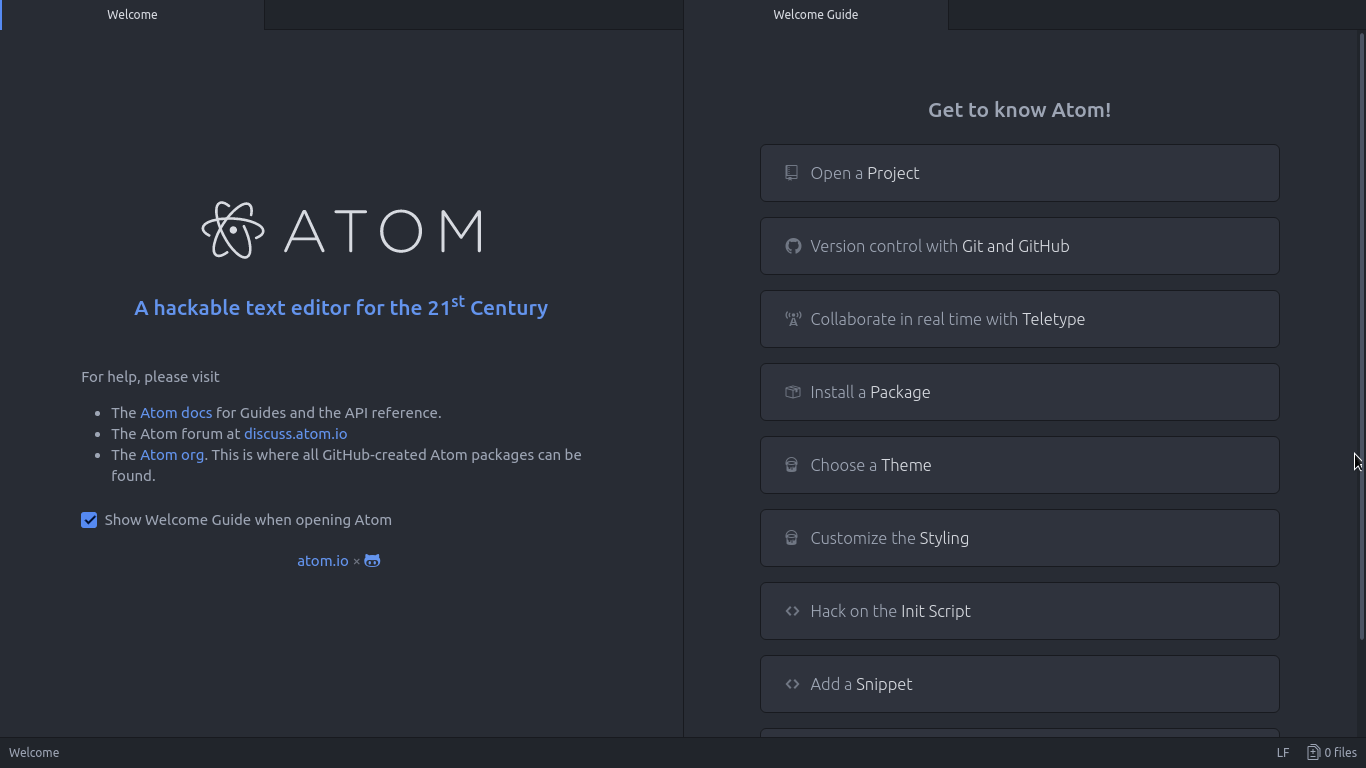
Atom Editor interface
Ain’t that a beauty?

3. Very customizable

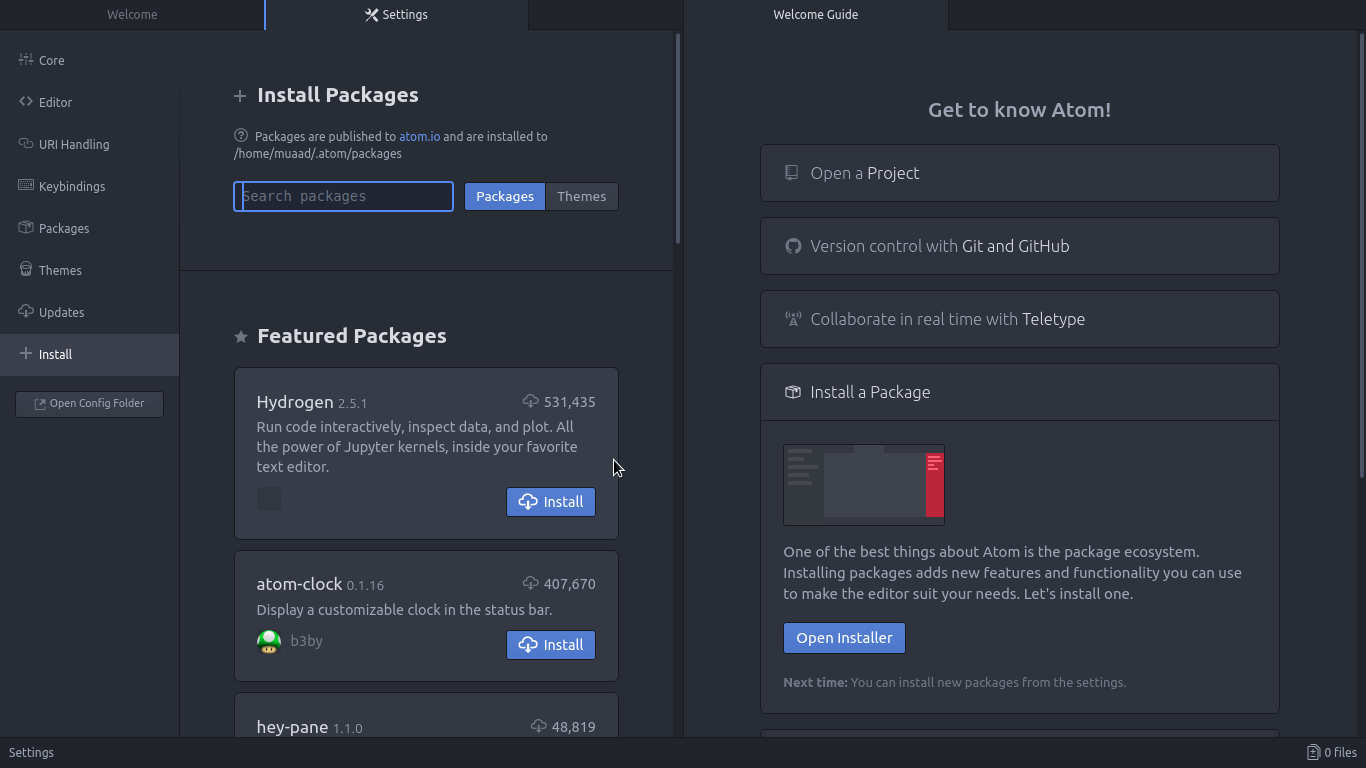
Atom has a ton of themes and packages available for download, which makes it more expandable and versatile, and with some knowledge you can develop your own themes and packages, all what you need to know is in the Atom flight manual (released in 2015 but still very informative). You can even change the key-map of Atom to whatever editor you migrated from and customize it as you like to decrease the learning curve.

Package installer interface

4. Ease of use

User experience should be always considered when evaluating software, and VIM for example despite being the most efficient and the most praised text editor in all of the Linux ecosystem, however it’s not easy to use at all, the learning curve is steep, I read the book titled “A byte of VIM“, but I still don’t see why or how can it be better than Atom or anything, as I don’t do anything “professional” with VIM. As a matter of fact, I’m not too keen on the whole terminal as a one tool for all.

5. Consumes more resource, so what?

Yes, Atom is heavier than Sublime or VIM, but does it really matter at this point? In the year 2018 laptops are getting faster and RAM is getting bigger, a few hundred megabytes almost seem like nothing when considering all the reasons mentioned above, it might not be the most resource efficient, but it’s the most usable editor of the bunch.
A well tweaked laptop (both hardware and software) can handle Atom like a breeze, and it’s getting better as time goes by. Speed won’t be an issue if you use an SSD (although using an SSD in itself can be an issue at times!), you could say it’s the price of enjoying a beautiful interface and ease of use.
Besides, converting to a less consuming Linux distro has spared some memory to spend (I’ll blog about it later and link back).

6. The devil you know!

I’ve been using Atom (On and Off) for the past three years, I’ve read the Atom flight manual and even reviewed it on my blog in a few posts (this is the fifth), so for the most part I’ll stick to Atom being the familiar editor that I’ve known and loved (sort of) for the past three years. I’m not alone, as it’s one of the most popular text editors on Alternativeto.

Have you ever used Atom before? What are your impressions about it? What do you use to edit prose and code, and if you use VIM, please take your rants to /r/VIM, because they would be appreciated better by fellow VIM zealots than me.

And yes, this post was written in Atom 1.28, so that you know!

Duolingo the best and easiest way to learn a new language!

Many of us dream to learn a new language but never actually do anything to do that! We are to busy

to take a course after work or simply won’t pay the cost for a course. Well today’s app has got you covered!

Let’s take a look at: Duolingo

Duolingo's opening screen

Duolingo is an application that helps you learn another language for free, forever, in a fun and addictive way that’s similar to a video game!

Learning on your Smartphone Who doesn’t have a Smartphone now days? Everyone has at least one and they stare at them all the time! So why not stare at an application that will help you learn a new language in an easy fun way? It’s better than checking Facebook or Twitter every 20 seconds! All you need is a good Internet connection and you are good to go! (There are some lessons don’t require an Internet connection, it is needed to keep track of progress and score.)

Duoligo's logo

Who uses Duolingo?

The app is cross platform and is available to Android, Apple iOS and Windows phone. There is also a web version so you can learn on the go and from anywhere! You can even use it in the class room for your students if you are a teacher, free of charge!
It is used by 120 million people around the world to use all sorts of languages, why don’t you join the ranks too?

Available languages

all you have to do is to download a version for your device, sign-up

with your e-mail and you are set.

Choose your native language

and see what languages are available for you!

Duolingo course list for English speakers

This list is for the English speakers, it scrolls down as it offers

many options, other languages don’t have as much options as Duolingo uses statistics to provide each region with the courses on demand, and I haven’t found any course for the native Arabic speaker on Duolingo’s version for Windows phone, but I found a course on the website aimed at native Arabic speakers who migrated to Sweden. 

Tracking progress

Set the number of experience

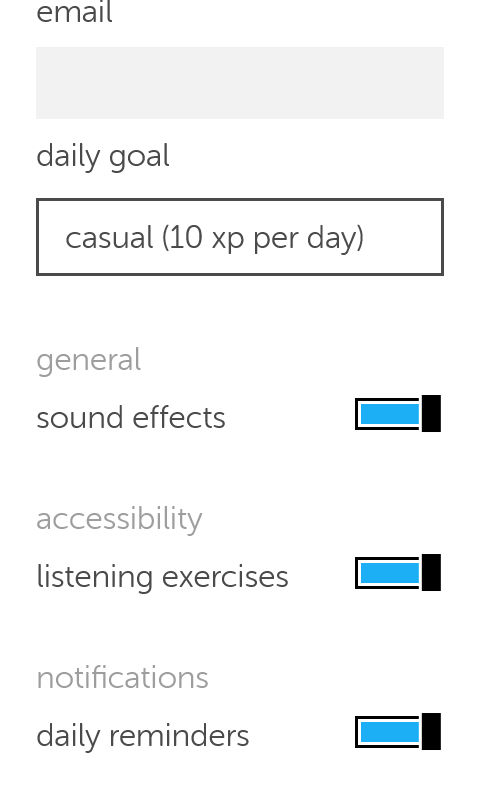
points you need to earn daily so Duolingo helps you keep track of your daily goal, you can set those from the settings, anywhere from 10 (casual) to 50 (insane).

Duolingo's settings
 You can also control getting daily reminders (I highly recommend yo keep those ON).

How does it work?

  • Duolingo

uses colors and sounds to make learning easy and fun and more game-like, by using a scoring system, ranking and rewards, similar to elements found in video games, and that’s where the name Gamification comes from.

  • The language
  • learning itself is based of quizzes and games that aims to teach you the language you plan on learning.

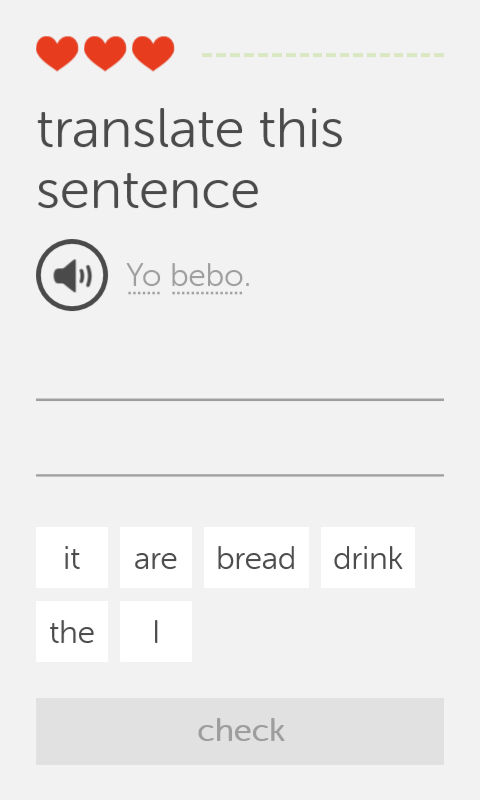
    One of Duolingo's exercises

    • This exercise i

    s very simple, you listen the word by touching the speaker icon, then choose the correct words from the choices below, each correct answer fills up the bar to the right, and a wrong answer takes a try (a heart) and when you run out of hearts, you repeat the lesson all over again! There are many other exercises and I’ll leave those for you to discover!

    Finally..

    Duolingo is a fun app that helps you jump start your language learning and have fun doing it, I don’t think it can replace the full learning experience or taking courses, but it’s a start!

    Will you download Duolingo? What is the language you always wanted to learn? Let me know what you think in the comments section below.
     

    « Older posts Newer posts »