Category: Linux (Page 20 of 33)

Installing VirtualBox on your computer

We talked about installing VirtualBox on our computer, to do that we will go to VirtualBox.org and download the latest version for our system. And as soon it finishes downloading we start the install.
This post is using version 5
Before beginning you need to go to your BIOS and enable the “Enable Visualization option” so your computer can handle them better!
Installing VirtualBox is pretty straight forward, and as soon as you finish you will have the main interface of the program, it uses wizards and it’s very easy to use.

As soon as it runs it will ask you to determine an Operating system to run, define the name and system type, the hardware specifications, size and type and location of the virtual machine and the machine is created!

You need to have licenses for the systems you are installing. Installing Windows in a virtual environment doesn’t mean it you can use a pirated version of it!

It’s recommended never to surpass the actual hardware capacity of your system, and it’s best to leave the specifications as recommended.

Also don’t overload your system, if you crash the OS system then all of the machines will crash too.
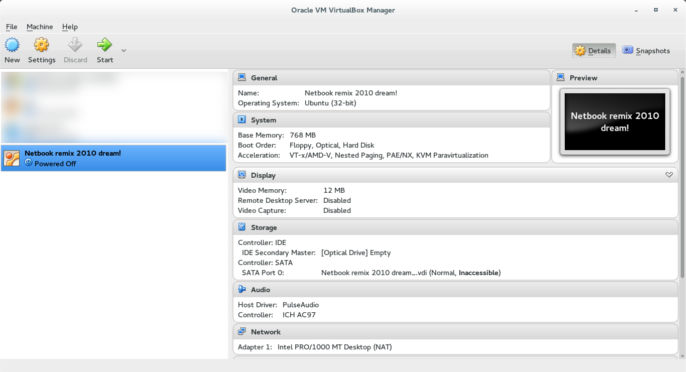
VirtualBox interface

Once you set the virtual machine you need to install the actual system inside of it, it’s totally safe and it won’t harm your host system. You need to own license to the systems you need to install, but if you are installing Linux you are free to install it without legal restrictions as the GPL license allows you to.

Installation varies depending on the system and you can find many installations detailed here in this blog, having a virtual machine is a good place to learn how to install new systems safely.
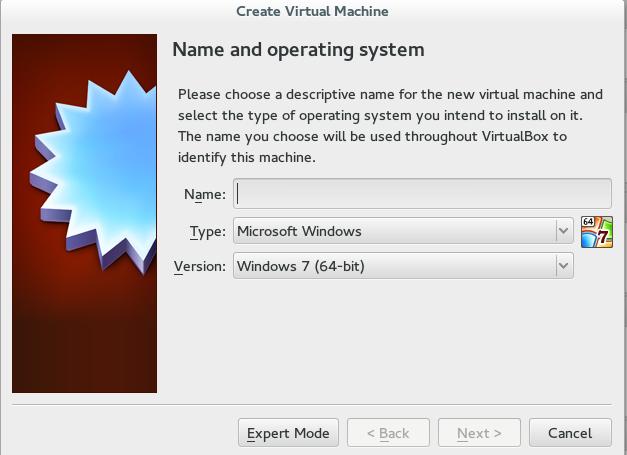
Creating a new Virtual machine

Once the system install is finished, you are ready to use your guest system.

You can’t access your host drives from a guest, for that you need to download the Extension pack to be able to access folders on your system.

Go to VirtualBox.org and download the extension pack suitable for the version you downloaded,I linked the extension pack suitable for version 5.

After installing it you are able to add the folders you wish to share from host to guest as network folders, or you can use a cloud or a USB to transfer data!

To make sure that the USB works you need to add your user to the VMBOX user group, and the eaiset way to do so is by opening a terminal windows in Ubuntu and writing this command:

sudo usermod -a -G vboxusers $USER


Did you like this post and find it useful? Share it with your friends too! Sharing is caring!

The death of the laptop

I tend to follow the tech news, and lately laptop sales are dropping and companies are losing money, isn’t that something!

It struck me! Who uses a laptop anymore? When was the last time you used your laptop to do your daily tasks? I am writing this on my phone!

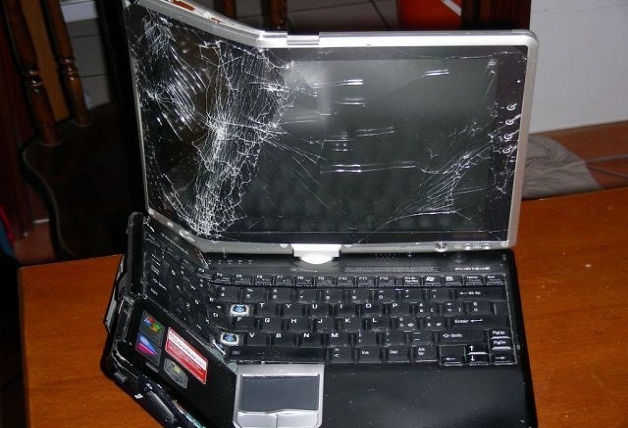
Dead laptop!

Alternatives 

Many people find smartphones and tablets to be more comfortable to use. And the manufactures make devices bigger and better, better than some computers. Check the specs of the latest smartphones and compare it to your computer 😉

What’s wrong with laptops?

Laptops are heavy and consume much more power compared to smartphones. And can do most of the daily tasks laptops (and PCs before it) did like browsing the web and sending / receiving e-mails, even gaming is becoming very popular on smartphones. There are some sites that need a smartphone to register and participate, Instagram for one requires users to sign-up using an app, then use the same app to post and interact. Does that mean you should throw your laptop in the trash? Absolutely not!

When the “smart” ones fail!

Laptops are best suited for business purposes like word processing and web development. Tasks that would be difficult to perform on smartphone or a tablet. In my humble opinion smartphones are a great PC companion. And haven’t matured yet to fully replace it. But if your computer use is for social media and chat it’s best you pick a smartphone.

Do you use your laptop more often? Or are you a smartphone type of person, let me know what you think in the comments section below.

How to make the awesome Docky bar even more awesome with these tricks?

Today I’ll be talking about making the awesome Docky dock even more awesome!

As you know Docks are really productive and once you get used to them you are hooked for good!  I mentioned it in an earlier post as an honorable mention, but I always felt Docky deserved a post of it’s own!

First of all let’s take a look into how many versions of Docky are available and what to choose from?

Docky has two active branches : Stable and Development, each one has it’s pros and cons. I will be talking about them in detail and why I choose one over the other!

Stable branch

It’s the official Docky branch currently at version 2.2.0.2
You can add it to your system by adding the PPA to your software sources. If you aren’t sure how to add the PPA then check this post I made some time ago that shows how to add a PPA.

  • It has many options compared to the development branch with the ability of adding more than one dock!
  • It also has docklets and helpers which are excellent for productivity.
  • It has some bugs tho like crashing on standby and not docking the file manager (easy to fix).
  • I tested out both and came up with a resolution!
  • I choose the stable branch simply because it gives you more options to work with, not to forget the docklets that add great productivity value, like adding a work timer!


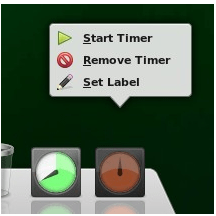
I didn’t find a similar work timer to the awesome Instant boss, this is really close! Checkout how to set this awesome clock from it’s help page! It can also work as an RSI timer! All from within your Dock!!
You can set more than one timers and set labels each, For example one for work and one for rest and have them work together on the Dock!!

I overcame the stable branch not pinning my file manager Thunar simply by dragging the home folder and dropping it on Docky! Now whenever I click it I get my home folder in a blink of an eye.
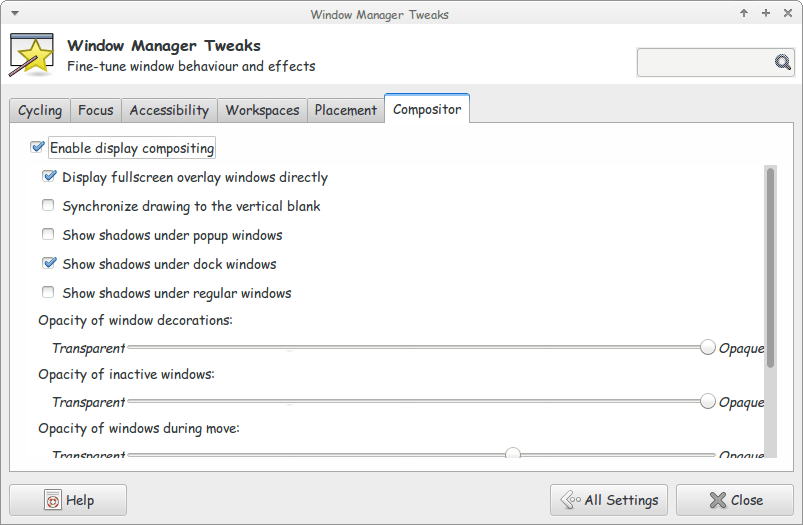
Another bug is when you install Docky for the first time it asks for composite to run properly. And you will notice that the dock seems off!
Go to Settings Windows Manager Tweaks And on the Compositor tab enable composition, it will work like a charm!

Enable composition for docky to work properly

A strange bug

Finally there is one weird bug that happened with me on 14.04 LTS Trusty, whenever I put the computer to sleep and wake it again, Docky isn’t there!
I used to put an icon for it on the desktop to “wake it up” but that’s just too counterproductive isn’t it?
The answer is really simple and I can’t wait to share it with you! All you have to do is to add a script to your sleep folder and execute it using terminal.
The steps are displayed in here, because I’m using Xubuntu I had to change gedit to mousepad. But the rest applies and works 100%

*Update 1: It didn’t go as planned and I had to undo it.
**Update 2: Not all updates can be installed: partial upgrade.

Once this message appeared Docky 3.0 was removed and I wasn’t able to install it again. Docky 2.2 closes itself without warning. I still haven’t figured that out yet!

***Update 3:  I managed to make docky 3.0 work again I used the debs downloaded from the repositery and installed them using gdeb. The secret is the order of install. Libplanlkcommon at first, then libplank, and finally docky. Read about it here.

There you have it! We made the awesome Docky even more awesome! And you thought that wasn’t possible!
I chose Docky 3.0 over 2.0.2 because it’s more stable and doesn’t crash randomly all the time.
Anyway I hope you enjoyed this! And I’ll see you in a coming post!

« Older posts Newer posts »