Category: Kubuntu (Page 2 of 3)

Kubuntu 16.04 slow boot [FIX]

Kubuntu has a reputation for being one of the slower and heavier flavors of Ubuntu, and some users accepted that as a fact and decided to live with a slow boot rather than doing something about it, fear not fellow Kubuntu user, because I have your back!

Understanding the issue

After moving from Ubuntu Gnome 16.04 to Kubuntu 16.04 I noticed that the boot became much slower! I thought this was a temporary problem but a quick searched showed me I’m in for the long haul!
Even when using an SSD, my system was ready to use after almost 2 minutes (1.48 to be exact!) and thats’ slow even for a computer running Windows on a 5400 rpm HDD!

To put you in perspective, Ubuntu Gnome needed less than 10 seconds to fully boot to desktop (I had the black screen issue, but still..).

Now let’s not waste too much time with the problem, it’s time to fix the issue!

The solution

There are several tweaks that can be done to fix this issue, I found all of them on askubuntu, and managed to shave down the boot time from 1.48 minutes to 19 seconds!

First fix: Pre-boot

  • At first I went to my BIOS and changed the Sata mode from AHCI to Compatible, Ubuntu gnome wouldn’t boot unless the controller was AHCI.
  • Then I disabled the Intel Virtualization Technology because I no longer use VirtualBox.

Second fix: Removing the deleted swap partition entry from Fstab

When I installed Kubuntu 16.04 it came with a swap partition, and since I didn’t use hibernate it was safe to delete it by making sure of the UUID from the BLKID command, I forgot to delete it from Fstab and that causes the system to boot slower because it’s looking for swap.

I entered the command:sudo kate /etc/fstab command to edit fstab with root privileges and it looked something like:

    /etc/fstab: static file system information.

    #
    Use ‘blkid’ to print the universally unique identifier for a
    device; this may be used with UUID= as a more robust way to name devices
    that works even if disks are added and removed. See fstab(5).

    #
    / was on /dev/sda1 during installation UUID=4840d72b-2435-4dc1-9227-ab7671fd3d93 / ext4

    errors=remount-ro 0 1
    swap was on /dev/sda5 during installation UUID=0023c124-ea85-41d2-834c-83f6877d6959 none swap sw

    0 0

After deleting the swap entry (in green) it became like this: 


    /etc/fstab: static file system information.

    #
    Use ‘blkid’ to print the universally unique identifier for a
    device; this may be used with UUID= as a more robust way to name devices
    that works even if disks are added and removed. See fstab(5).

    #
    / was on /dev/sda1 during installation UUID=4840d72b-2435-4dc1-9227-ab7671fd3d93 / ext4

    errors=remount-ro 0 1

Third fix: Tweaking Services

Disabling services isn’t the best idea especially if you aren’t sure of what you are doing, but tweaking the services start and stop times could mean the difference between a slow and a fast boot! To be able to do so you need to edit System.conf

To edit system.conf enter the commandsudo kate /etc/systemd/system.conf into the terminal and search for the line#DefaultTimeoutStartSec=90s and remove the “#” to change it from being a comment, and set the value to 1 rather than 90, and do the same for #DefaultTimeoutStopSec=90s.

After this tweak the processes will start and stop much faster, and so does your computer!

Fourth fix: Tweaking Grub

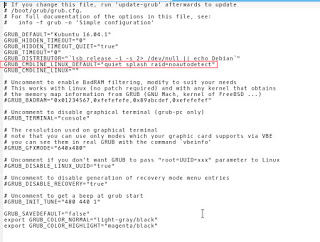
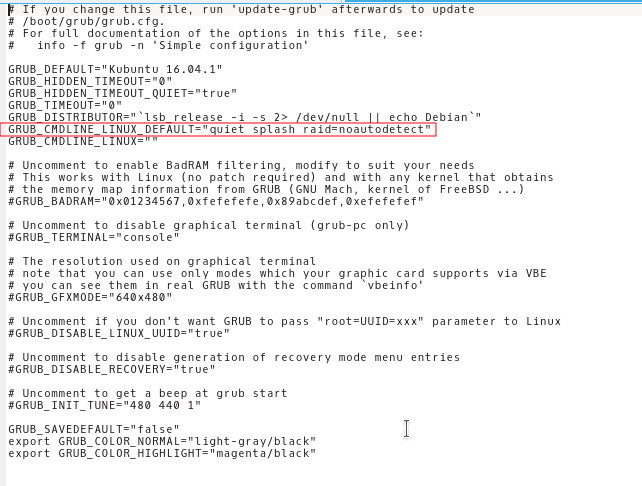
Enter the command into the terminalsudo kate /etc/default/grub and add the and added raid=noautodetect toGRUB_CMDLINE_LINUX_DEFAULT to become:

   GRUB_CMDLINE_LINUX_DEFAULT=”quiet splash raid=noautodetect”

Thensudo update grub 2 sudo update grub
 
Boot time is now 19 seconds.

Thanks for reading!
Please share it on social media and have a nice day. 

أفكار أول الشهر!!

هذه التدوينة تحتوي على أفكار متفرقة لا يربط بينها شيء سوى أنها تصطدم بجنبات رأسي وتعود لمكانها الأول بسرعة شديدة، تذكرني بالكرات الصغيرة التي تضرب بعضها بجنون في آلات التزود بالوقود عندما كنت صغيرًا!

 في مجال التدوين

  • هذه التدوينة هي الرقم 350 بعد أن كنت قد وصلت للرقم 400 ثم قمت بحذف الكثير من التدوينات لأنني لم أكن راضيًا عن مستواها، أنا فعلا أشد نقادي قسوة وأمل أن ألا أحذف تدوينات كثيرة مجددًا!!
  • بمناسبة المال، فأنا لم أسحب دينارًا واحدًا خارج المصرف منذ شهر أبريل الماضي، وأصبحت كلمة مصرف تثير في شعورًا قاهرًا بالغثيان وأعراض الحساسية! لو كنت أخذت دينارًا مقابل كل مشاهدة على مدونتي لكان لدي ثمن منزل الأن!

هل أنا من مشاهير تويتر؟

نفس شعوري حول مشاهدات المدونة ينطبق على عدد متابعي على موقع تويتر الذي يقارب ال 25 ألف متابع، رقم لا أحس به طالمًا لا يؤثر على دخلي! ذكرني هذا بمقولة يمكنني ترجمتها كالأتي: المشهور على شبكة الإنترنت فقط كالمليونير في لعبة بنك الحظ!

  • إحدى الإزعاجات اليومية التي أمر بها الرسائل التلقائية على تويتر، وجدت طريقة مبتكرة لحل هذه المشكلة وهي رد الرسالة برسالة خاصة بي فيها رابط مدونتي، أنا الآن متشوق للرسائل التلقائية! لدي كل العذر لترويج مدونتي دون مضايقة الناس التي لا ترسل رسائل تلقائية.

أفكر في كتابة تدوينة حول زيادة عدد المتابعين على تويتر وإدارة الحساب بشكل فعال، على حسب رغبة السادة القراء وتفاعلهم مع كتاباتي.

الدراسة والعمل

  • إدارة الجودة بوزارة التعليم العالي لا تعتمد الشهادات الجامعية التي تم الحصول عليها عبر الإنترنت، وكحل تلفيقي يجب مناقشة رسالة الماجستير في بلد الجامعة ليتم اعتماد الشهادة ، على فرض أن التأشيرة لدولة الجامعة يكمن الحصول عليها (أصبح الرفض شبه تلقائي لليبيين) بسبب الظروف المالية الحالية أصبح هذا الحل غير قابل للتطبيق .

حول الإنترنت

الجانب التقني

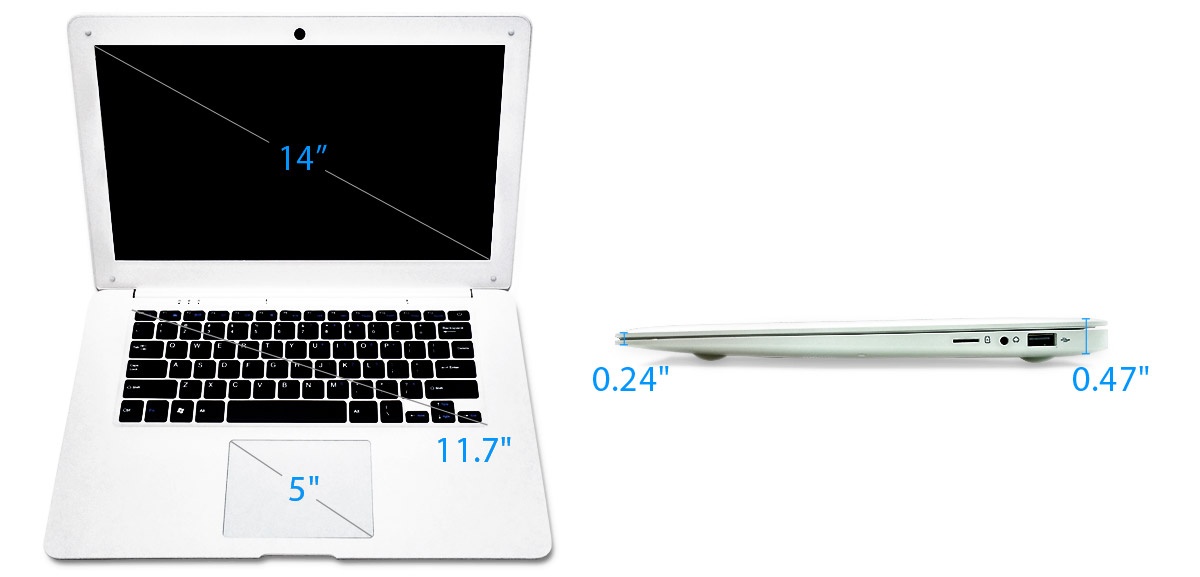
  • الحمد لله تمكنت بفضل الله من صيانة لابتوبي العتيق ما يعني أنني لن أقوم بشراء جهاز جديد في الفترة القادمة (هكذا أمل على اﻷقل). كنت مهتما بشراء جهاز مبني على رازبيري باي يعمل على نظام ليونكس، الجهاز مشوق لأن حجمه مناسب وشكله يشبه منتجات أبل وسعره لا يتعدى ال 100 دولار (بحدود 600 دينار ليبي لا تشمل مصاريف الشحن). لكنني شطبت هذه الفكرة من حسابي تمامًا، جهازي كان شبه متوقف بسبب تعطل الكيبورد والماوس والحمد لله أنني تمكنت من إصلاحه، على أمل أن نعبر معًا هذه الفترة الصعبة قبل أن أحيله للتقاعد الاختياري.
    جهاز باين بوك بقياس 14 بوصة وسعر 99 دولار أمريكي
  • الأول كان ريموت تطبيق امبرس من حزمة ليبر أوفيس، والذي بواسطته يمكنني التحكم في العرض التقديمي من الهاتف الذكي دون الحاجة للعودة كل مرة للكمبيوتر لتقليب الشرائح (وأي أحد قدم عرضًا تقديميا من قبل يعلم كم ذلك مزعج) كما أن فيه مزية مؤشر الليزر الذي يظهر على الشاشة ويمكن تحريكه باليد كأنه مؤشر حقيقي! لذا لشخص يعمل في مجال التعليم والتدريب هذا تطبيق مثالي!
  • التطبيق الثاني هو KDE Connect  وهذا التطبيق يسمح للهاتف الأندرويد بالتواصل مع الكمبيوتر الذي به واجهة KDE ولأنني إنتقلت حديثا لنظام Kubuntu  كان هذا خيارًا منطقيًا (مع إمكانية تشغيله على واجهات أبونتو الأخرى ببساطة) وهذا التطبيق به مزايا كثيرة جدَا.
  • أولها نقل البيانات من وإلى الهاتف بسهولة وإستكشاف محتويات الهاتف من الكمبيوتر دون أسلاك.
  • كذلك تحويل الهاتف لأداة إدخال (ماوس وكيبورد) للكمبيوتر -دخل إحتياطي في حالة تعطل الجهاز-.
  • التحكم في عروض الفيديو: تقديم، وإرجاع، وإيقاف، ومستوى الصوت، والعرض التالي، والعرض السابق.
  • تلقي إشعارات الرسائل والتطبيقات (يجب أعطاءه التحكم في الإشعارات من إعدادات الهاتف).
  • محتويات ال Clipboard يتم مزامنتها بين الهاتف الذكي والكمبيوتر!

الشرط الوحيد هو وجود الهاتف والكمبيوتر على نفس شبكة الواي فاي.

    مع أنني كنت مترددًا في تنصيب هذا التطبيق إلا أن نتائجه كانت رائعة! ومن السهولة تطبيقه على أي كمبيوتر يعمل بنظام أبونتو بإتباع الإرشادات في هذه التدوينة حتى ولو لم يكن به واجهة KDE.

    إعادة استعمال العتاد وتوفير المال

    هذان التطبيقان وفرا علي الكثير من المال لأنه لم أعد بحاجة لشراء كيبورد وماوس محمولين، وكذلك لن أشتري ريموت العروض التقديمية الذي لم أرغب فيه أصلا! وبالتالي وفرت قيمة اﻷجهزة والبطاريات والإعدادات الإضافية! (الموديلات التي رأيتها تعمل بالبطاريات الغير قابلة للشحن).
    وهما تطبيقان مجانيان من المتجر، طوبى للمصادر الحرة التي تعطي العتاد القديم حياة جديدة! (بانتظار فلوس مفتوحة المصرف!!).

    نظرة للخلف

    ويندوز فون لم يكن يتمتع بهذه المزايا، وأعتقد أن ميكروسوفت تعمدت أن تحرم أبونتو من التعرف على هاتفها، ولأن الحديث عن الأموات ليس من شيم الكرام، لن أذكر هاتفي القديم مجددًا (توقفت ميكروسوفت عن إنتاج هواتف لوميا بالكامل).

    هذه الخصائص ليس لها علاقة بالروت الذي قمت بعمله منذ بضعة أسابيع والذي طور جهازي بشكل كبير وجعله أكثر فعالية (أو هكذا أحس على الأقل) وأي جهاز يمكنه الاستفادة منها.

    هذه الأسطر ليست أكثر ما كتبته إيجابية، في الواقع هي انتكاسة وعودة للخلف بالمقارنة مع العهد بأن أكون أكثر إيجابية، على الأقل أنا مقر بأنني سلبي! وبإمكان مدربي التنمية البشرية جميعهم الذهاب للجحيم، أو إلى ليبيا!

    خاتمة

    أحيانا تخامرني الشكوك حول ما أكتبه هنا في هذه المدونة وإن كان جيدًا أم لا؟ وإن كان يحدث أي تغيير في حياة الآخرين؟ يجب علي تذكير نفسي أنني أكتب لنفسي فقط وأكتب لأشعر بتحسن. كما أنني أكتب لأطور من مهارتي في الكتابة، الأمر يحدث ببطء ولكنه أفضل من لا شيء.

    أتمنى من السادة القراء التفاعل مع هذه التدوينة: هل من أفكار جيدة لمشاريع صغرى؟ وسيلة لكسب ربح مشروع من المدونة؟ طريقة سحرية لسحب المال من المصرف؟

    شاركوا هذه التدوينة على وسائل التواصل الاجتماعي لتصل لأبعد مدى، وشكرا على قراءة هذه التدوينة.

    Plank. The BEST dock you will ever use on Ubuntu!

    I blogged about Docky a few years ago when I moved to Ubuntu from Windows as I needed something to replace Nexus dock, and later RocketDock, and I added it to a post about the best docks for Linux and Windows.

    Introduction

    Docky is the dock to go to when using Ubuntu, it’s fast and it’s light, not to mention it’s free, it has two branches for development which I find to be a bit confusing!
    One of the branches is stable but lacks features, and the other crashes often but is full with features.

    What if there was a dock that had the best of both branches? Stable and fully featured? Meet Plank everyone!

    Plank

    Plank is a fork of Docky that is shipped by default with the popular operating system Linux Elementary. It is based on Docky 3.0.0 according to the Plank wiki, and it’s aimed to be the simplest dock available, to preform what a dock is supposed to do, and I couldn’t agree more!

    How to install Plank?

    In a terminal window enter these commands one by one to install Plank, and after it’s done you can find it by searching the name in any interface you use.

      sudo add-apt-repository ppa:ricotz/docky # <- is not a typo
      sudo apt-get update
      sudo apt-get install plank

    Configuring Plank

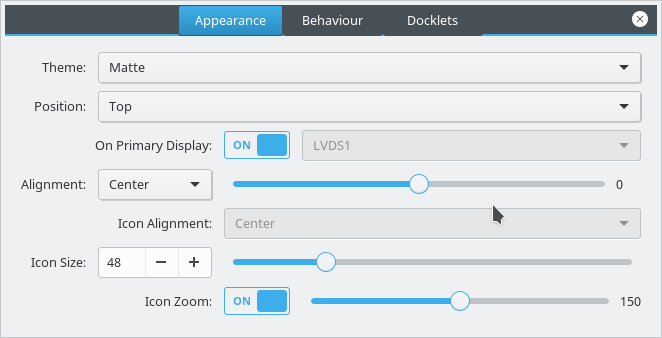
    By right clicking an empty place in the dock you can summon the preferences of Plank, but that proves to be a little difficult, so by typing the command: plank –preferences

     
    to adjust and fine tune the settings of Plank.

    How to add executables as shortcuts to plank?

    If you are using plank on Ubuntu you know that you can’t add executable files right to the doc, you need to add the icon to the program directory and then add the icon to the dock, here is a really simple way to do it from here.

    My verdict

    It’s the best dock I used so far, so light and does exactly what it should, without having to choose between two branches and having to roll back packages.

    What do you use on your system? Are you considering Plank? Share your thoughts in the comments section below, and don’t forget to share the post on social media 🙂

    Kubuntu 16.04.01 Install and review

    I have been using Ubuntu Gnome for over a year now, and it has been great, there has been some bugs here and there that I could work my way around, but it got really out of hand lately so it was time for a change!
    Disto hopping

    I admit, distro hopping is something I am guilty of; you get to try many distros and interfaces very easily, and it is criticized for being counter productive and a total waste of time and resources, but that’s not always the case, it’s sometimes you need to take a step back to keep going forward.

     Reasons why I left Gnome

    The corner jester that summons the work spaces in Gnome isn’t really productive, and the Gnome classic mode isn’t very “classic”, I couldn’t achiever the level of productivity I strives to archive.

    Other choices to look at

    So I started to look for an alternative that isn’t “Gnome based” and that left me with few options! Many popular interfaces are built on Gnome and I believed that the problems will tag along.

    Unity isn’t even an option on my list because I don’t like it! I’m glad there is a choice in the open source world, so I decided to try Kubuntu for a change, and to get rid of my issues.


    Kubuntu has a support cycle of 5 years, perfect!

    Going for Kubuntu

    I downloaded Kubuntu as usual by a torrent because it’s better for the network and my pocket, and it took a lot as usual (7 hours).

    Installing Kubuntu

    Installing Kubuntu was easy, same as the usual installation of Ubuntu, and it was up and running in a few minutes.

    Interface and user experience 

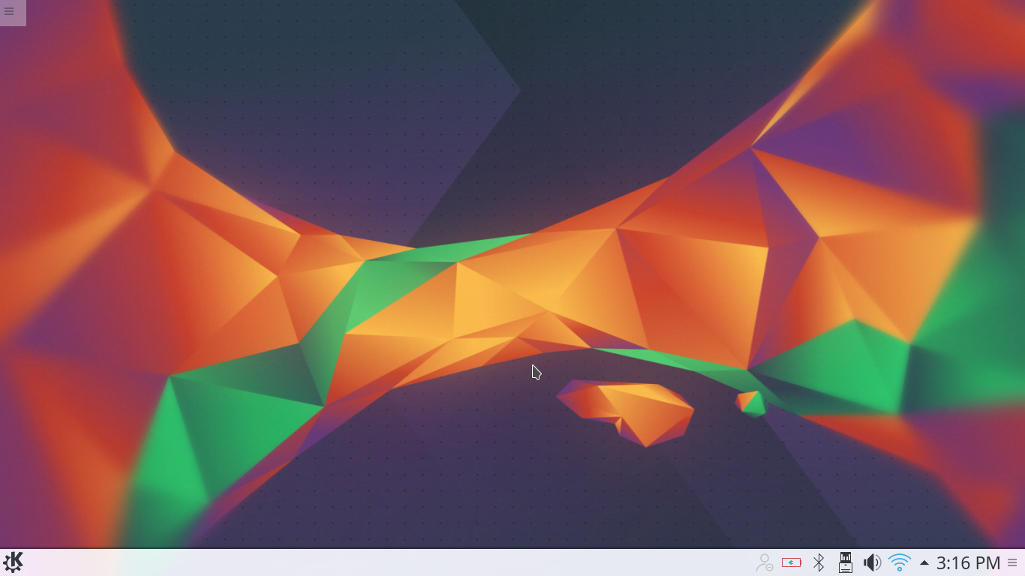
    The interface on the other hand is completely different from Gnome, and I instantly remembered Windows because of the menu and the bottom panel, Kubuntu is aimed for an easier user experience, I think they meant it was “a windows like experience”.

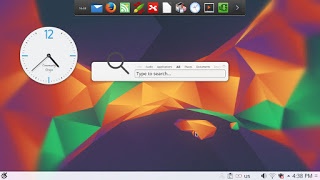
    Default interface in Kubuntu

    It’s even has an Aero peak like feature, when you hover the mouse over a taskbar program and you see a preview of the program running in a box.

    Areo peak in Kubuntu


    So far the experience is smooth, but it’s different from all the interfaces I used before,  and the default applications are also different from the gnome/unity bunch.

    Of course KDE comes packed with tools that start with “K” like Kedit and Knote, I’m not ready to give up Zimwiki for example so some of these K tools had to go! 

    I have a tip for you: If you copy and paste terminal commands from web pages, you are going to have to change Gedit to Kate, so you get your commands up and running 🙂

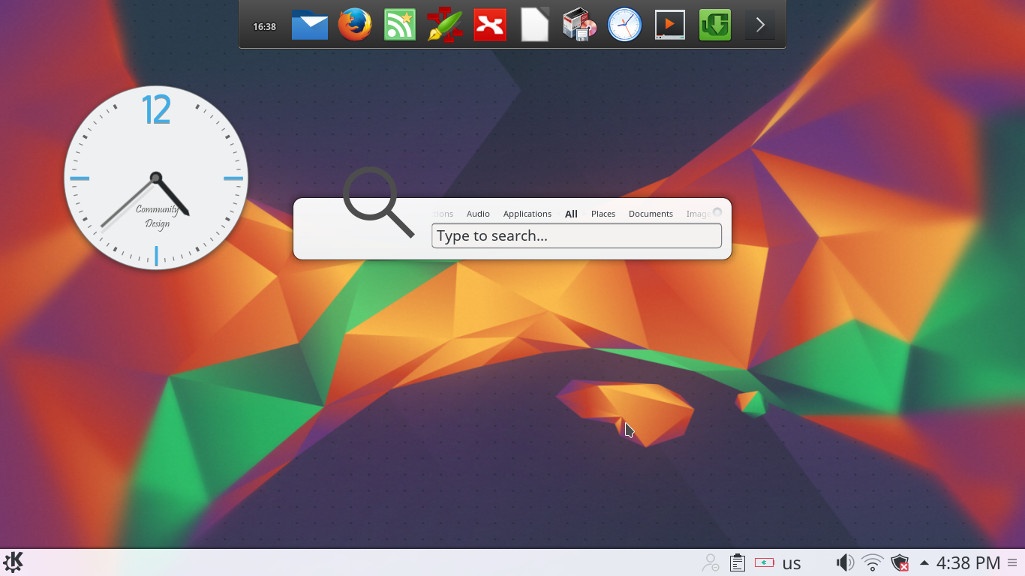
    The Widgets are interesting and really give a larger scale for customizing.

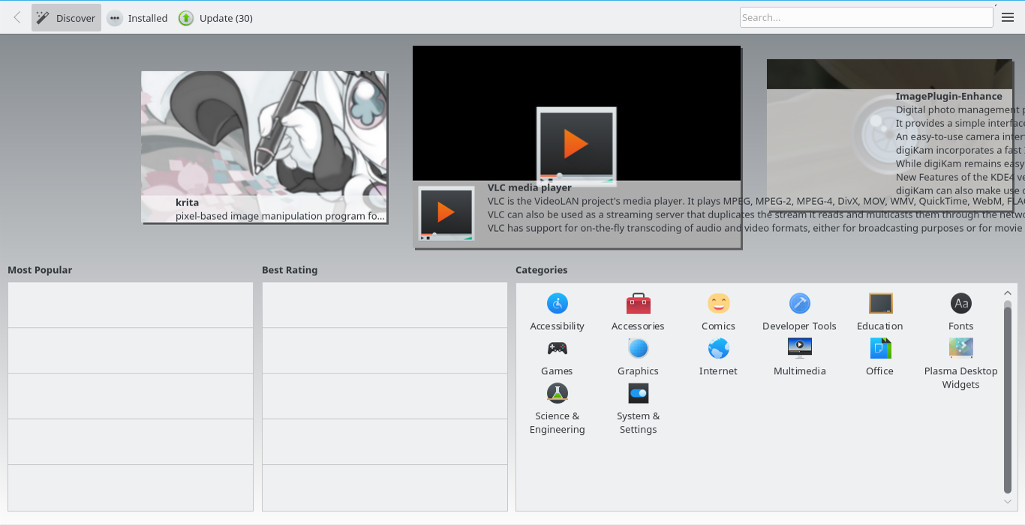
    While the software center is a bit, different!

    Software and updates

    I’m used to having the software settings and sources in a separate application than the software center, in Kubuntu they are merged up together and aren’t exactly easy to find, as if the Kubuntu developers don’t want you to find the source settings and edit them properly.

    Kubuntu software center

    The file manager Dolphin

    Some of the things I really liked is the Dolphin file manager, it’s much better than Nautilus, the interface is clean and clear, and doesn’t have some of the chronic bugs Nautilus plagued with, it’s also featured packed as it has a double pane and gives a better access to the main controls and preferences. 

    Dolphin file manager

    Adding my set of tools

    The final Kubuntu desktop

    Things to note

    I also noticed that Kubuntu doesn’t have a backup utility? That is not good to be honest, it was so easy adding Deja backup from Synaptic but a backup utility is something you need out of the box! 

    Another thing is the terminal emulator Konsol, it doesn’t start with the usual CTRL + ALT + T key combination right away and it takes a bit of tweaking to get it to work.

    Dolphin doesn’t handle the smartphone very well, it can’t write to the phone’s memory and often fails to explore it’s contents in MTP mode.

    My post about Ubuntu Gnome is still relevant to a great degree, I do miss the Gnome pomodoro timer because it’s a Gnome application and you have to install all of Gnome libraries and dependencies, to get it to work, which isn’t exactly productive. And I’m really unsure how to integrate it into the KDE interface, so it has to go! Ktimer on the other hand has great potential of launching scripts and apps on a specific timer.

    Slow boot!

    One of the main issues I noticed is the slow boot, nearly 10 times what Gnome needed to boot, I managed to fix this problem and you can find the solution here

    Warning

    Never install any distro if the Checksum don’t match! I did it and I was in for a world of pain, and had to reinstall all the packages from synaptic.  

    Final verdict

    I think Kubuntu and KDE in general is underrated and doesn’t get as much “mainstream attention” as other flavors and interfaces, it is worth a try!
    It feels really well polished and almost reminds me of Macs OS, I’ve never had or worked one on, but that’s what I think at least.

    What do you think of this post? Do you use Kubuntu? What do you think?
    Please share this on social media, and subscribe to my mailing list to get updates before anyone else! 

    « Older posts Newer posts »