Category: Ubuntu (Page 9 of 24)

Gnome 3.20 is out!

Gnome 3.20 is out today, let’s take a look at what’s new in this release!

Gnome 3.20 was released on March 23th, it took 6 months of development and the work of 837 contributors and includes 28.933 changes!
This version is named Delhi recognizing the efforts of the  team Asian Gnome team.

The date was delayed from March 20th (which would have been perfect!) to March 23th for reasons unknown to me.

Main highlights for this release

  • OS upgrades can now be installed using Software
  • Wayland support has improved significantly, with kinetic scrolling, drag-and-drop, and middle-click paste
  • Keyboard shortcuts and gestures can be easily learned with new shortcut overlay windows
  • Privacy controls have been improved with per-application location access
  • Quick access to media controls directly from the shell
  • Searching in Files has been much improved
  • Builder can now build XDG-Apps, a new cross-distro framework for building and distributing desktop applications. These can also be installed directly from GNOME Software
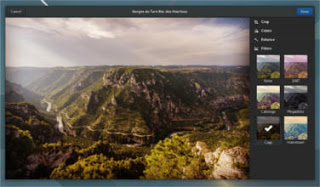
  • Gnome photos receives a huge update.Gnome Photos screenshot
  • The file manager is also updated and refined.
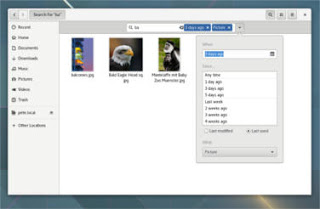
    Gnome files screenshot
  • There is more to find out, like the new map application, the enhanced web browser, or the fonts! Check out the details from here.

How to get this awesome release?  

It’s immediately available on Fedora and Opensuse, but if you want this on Ubuntu you are going to have to wait a little bit, as the highly anticipated Ubuntu 16.04 is going to be released with Gnome 3.18 (there is an unofficial port of course, let’s leave that until Ubuntu Gnome is out!)

I hope you liked this post, I personally can’t wait as I’m writing this on Gnome 3.10 that ships with Ubuntu Gnome 14.04.4 
Share this post with your friends and family, and if you tried it give us your feed back!
uGet downloader

A download manager is a must have tool for any computer user, and there are many options to choose from, my favorite is FDM that only exists on Windows (was recently ported to Mac and soon to Ubuntu). But until FDM is available for Ubuntu, let’s take a look at another popular option, that’s uGet, I chose it over the rest of the bunch for many reasons.


uGet logo

Uget is a light weight fully featured download manager available for many operating systems, Linux (Arch, Debian, elementary OS, Fedora, Gentoo, Linux Mint, Mageia, openSUSE, Semplice, Slackware Sparky, Ubuntu), Windows (XP – 10), BSD, Mac OSX And Android. 


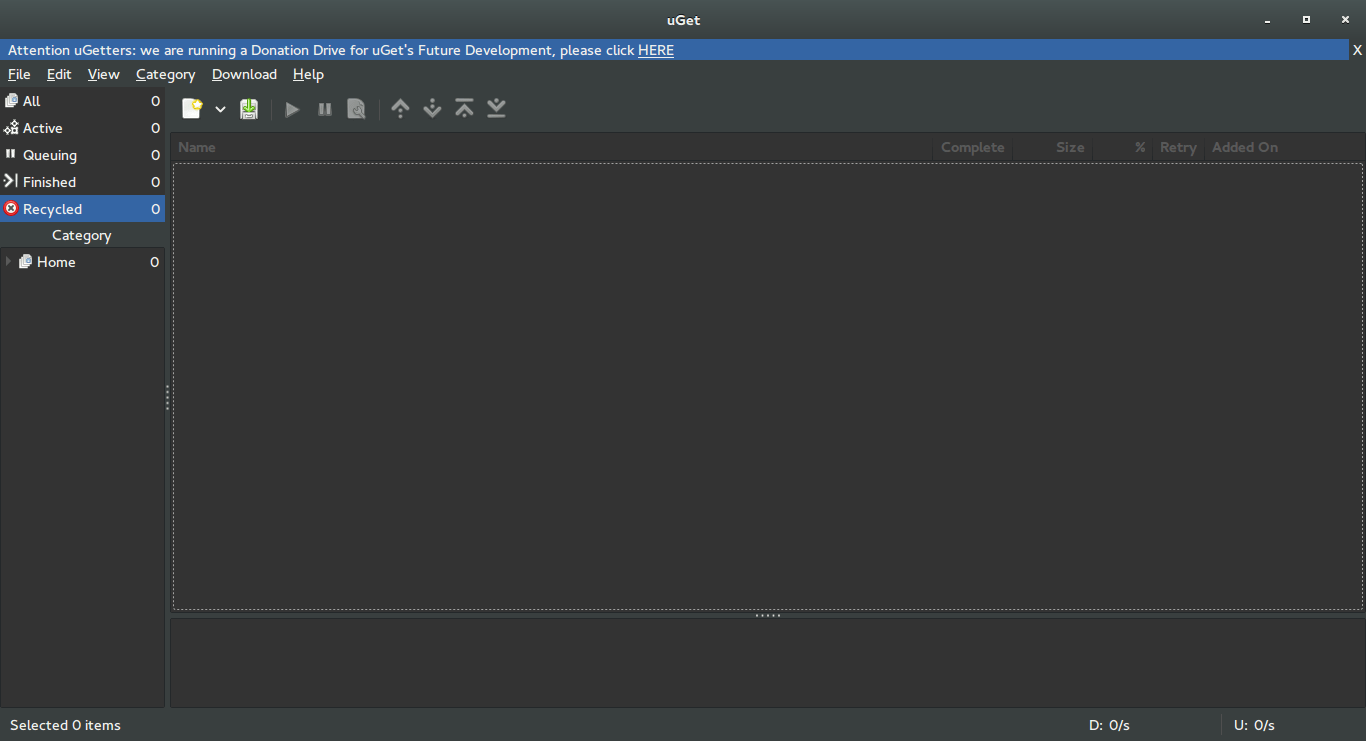
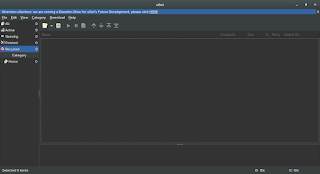
uGet interface


Uget is free and open source and available in 29 languages. It has many features like: Mutil mirrors, Pause/Resume, Speed Limits, Clipboard Monitor, and many other features you can check from here.


Despite being a powerful downloader, Uget is very light weight, here I quote from the feature page as it goes: “Uget is a VERY Powerful download manager application with a large inventory of features but is still very light-weight and low on resources, so don’t let the impressive list of features scare you into thinking that it ”might be too powerful” because remember power is good and lightweight power is Uget!”.

Download

Visit the download page and click on your operating system to get specific instructions on download and install.

I recommend using this download manager with Ubuntu, it’s a good one!

Did you like this post?  Would you consider downloading uGet? Let me know wha you think in the comments section below.

Fix some Ubuntu startup issues with this easy trick!

I fresh installed Ubuntu 14.04.4 lately and things has been smooth, most of the issues I encountered were because of the interface change, looking back maybe the interface was buggy, and I should have read the bug list before installing it!

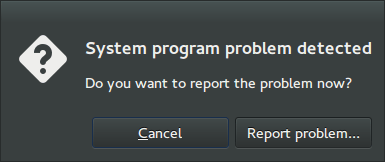
After installing I noticed that every time I reboot the system shows prompt to send error messages, I sent the error to the developers thinking that was it, I send the error report and I’m done, but another one came, and another one.. And it just keeps happening every time I reboot (to install updates for example) so it became a minor nuisance!

I remember facing this issue back in April 2014 when I first installed Ubuntu, and the fix was so easy!

Apparently Ubuntu tends to look for records of errors and send them, even the old ones that have been reported, so the easy way to stop it is to disable Apport.

Disabling Apport

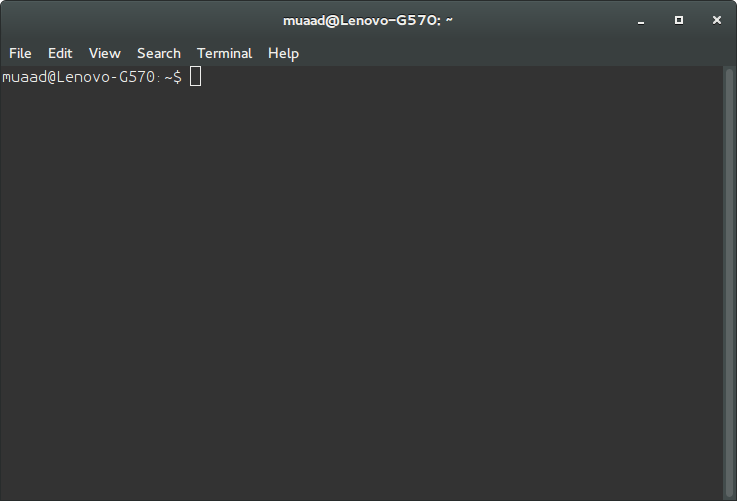
It’s actually very easy to do, just go to the terminal by pressing Ctrl + Alt + T

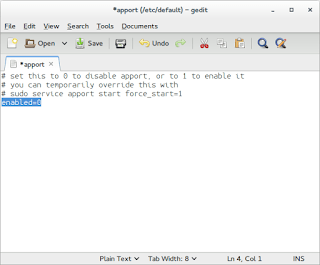
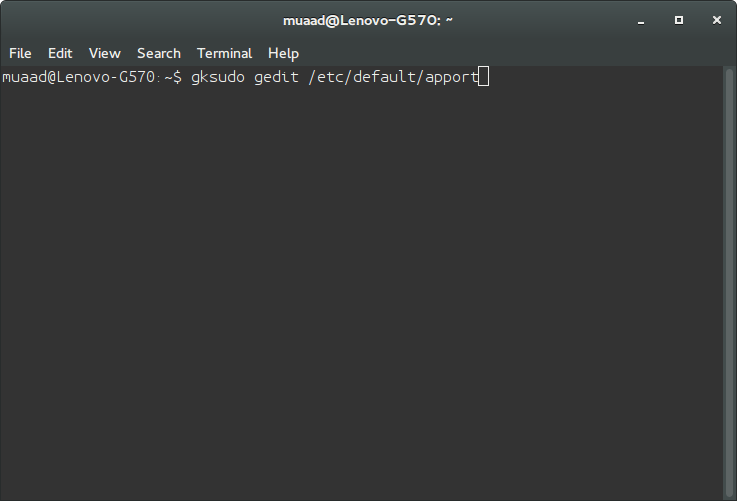
Then type in gksudo gedit /etc/default/apport and press Enter. You will be prompted to enter your password, please do that.

Be careful because this command is running Gedit in root privileges and we will use it to change a vital part of the system, so follow the steps carefully!

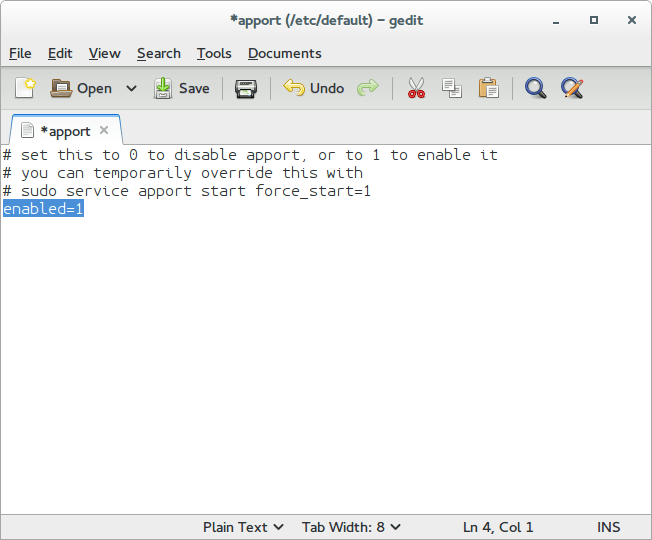
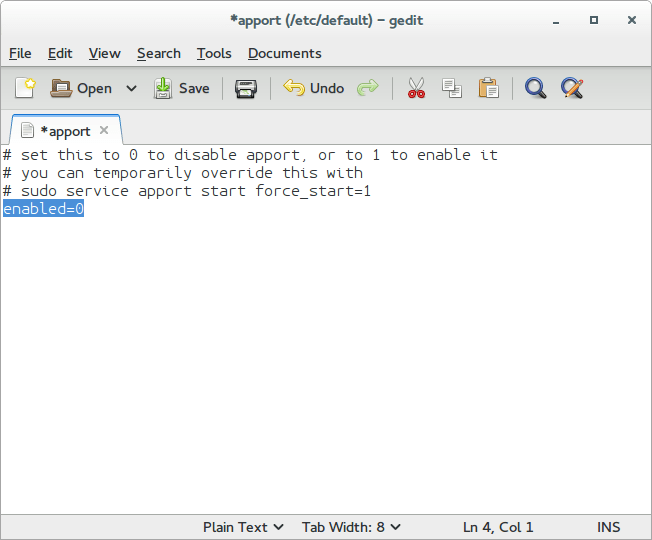
Change Enabled=1 to Enabled=0 and save.

Close Gedit and the terminal.

The next time you reboot, you won’t see such error messages!

It’s as easy as that!

You can research the issue further by visiting this link.

Ubuntu 14.04.4 LTS released

Ubuntu 14.04.4 was recently released and it comes with a bunch of bug fixes and security features since 14.04.3

What are the new features in this release?

  • Support for new hardware and stability.
  • One of the hardware features that really captured my eye is the Hardware stack,.
  • Ubuntu 14.04.04 had the same kernel as Willy werewolf 15.10 of Linux 4.2, which is a huge jump from the 3.19 that Ubuntu 14.04.03 has! 

I confirmed that myself by typing in the commanduname -r into terminal after install. I decided to download Ubuntu Gnome 14.04.04 and give it a test on a virtual machine before installing it, the test was encouraging so I decided to install it.

But, what about 16.04?

I could just wait for Ubuntu 16.04 to roll out in April, but I had too much issues going on anyway. The reason is I had so much troubles with my system, I couldn’t continue with it they way it was. So I decided to remove the system I had and install a fresh one.

The end of Dual booting!!

To make space for the distro I decided to drop Windows and the idea of dual booting all together, did you notice I even changed my domain a while back? It’s just not working for me. I found myself constantly jumping from one OS to the other, as I had two systems, two documents, and two bookmarks, and syncing those wasn’t exactly a walk in the park. I was dysfunctional and unorganized, almost the same of having two laptops running side by side, which was the main reason to start the dualboot saga! I use the same tools on Ubuntu and Windows, so having two instances of LibreOffice and Gimp isn’t really working! 

Virtualization

Since I don’t own licenses to software (except Windows itself) it made the decision much easier to follow. I have a solution, visualization! Instead of having two systems living side by side, I decided to move the Windows license to the virtual machine I made, and then to delete the partition all together, because I barley use Windows anymore, but at the same time I could use it, so that’s why I’m using Virtualbox, for the moments I wish I had Windows. I had a clear plan and I was on to execute.

Getting to work!

I decided to remove Windows, install the new Ubuntu and make sure it had plenty of space to run. Deactivating Windows I started by following the steps in this post, which was easy because I have done it several times before, I removed the activation and then activated Windows on the virtual machine, all in under 10 minutes! Then came the fun part! 

Preparing install media

I downloaded my distribution of choice, Ubuntu 14.04.04 from the server as a torrent download, which was much faster than regular download, I put it on a USB drive using Yumi and I was good to go. Setting up the HDD I used Gparted on Partedmagic to repartition the HDD (it’s crucial to take a copy of the data and keep it in a safe place), I made sure that Ubuntu gets over 50 GB of free space because over time you are going to need the space, I merged the old Windows partition with the Linux partition and rebooted to begin the install. 

Installing Ubuntu

Installing Ubuntu is one of the easiest installations you can ever have, it’s user friendly and super fast, you can finish it all in under 15 minutes and you are good to go! I installed Ubuntu, and proceeded to reinstall my software and tools. I noticed that Libreoffice was 4.2 which is out of date, even for the stable release! I had to remove it and install the latest 5.1 to enjoy the performance and newly designed interface! I also had to add VLC and Gimp manually, as well as Zimwiki
I also installed Pomodro timer, it works very well with Ubuntu Gnome 14.04.
All and all it took less than a day to get my computer back to normal.

mpression after installing Ubuntu 14.04.4

I must say that running a native Ubuntu gnome is much better than adding Gnome interface to any Ubuntu installation. It runs much smoother and many of the bugs I noticed are long gone! 

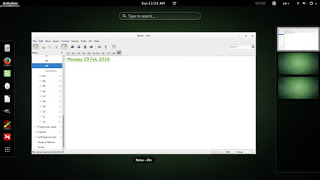
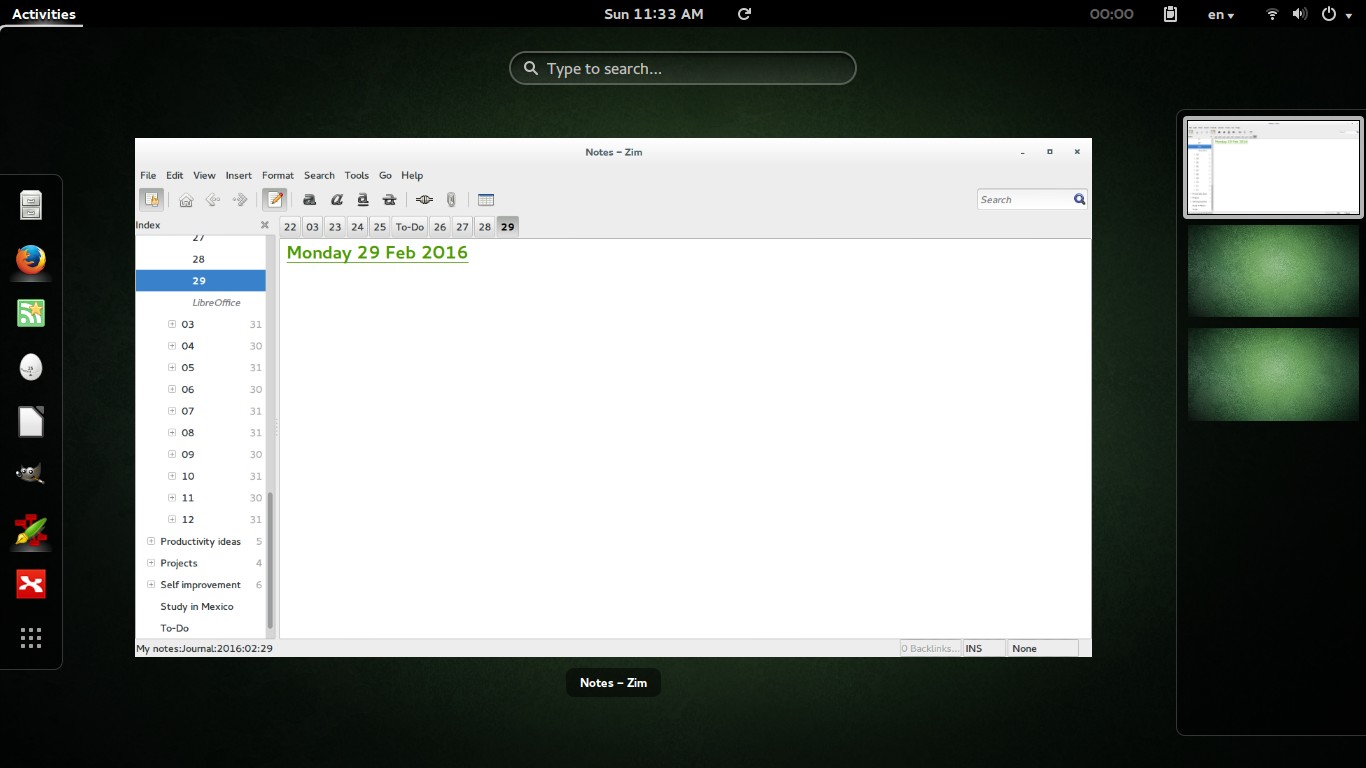
Ubuntu 14.04.4 Screenshot
Screenshot from Ubuntu 14.04.4 after install

Final words

Looking back, my main goal of installing Windows alongside Ubuntu was to enjoy gaming on my computer, looking back I hardly did any gaming and I had Windows installed for almost 2 years! I can still play on Ubuntu and if must use the Virtual machine to play (I tested for that and it wasn’t promising). I’ll be keeping you posted about anything I notice!

P.S: I no longer use this awesome distro, I’m on Ubuntu Gnome 16.04 and it was an excellent distro to use, so good I almost didn’t upgrade!

« Older posts Newer posts »