Category: Ubuntu (Page 10 of 24)

A Pomodoro Timer for GNOME

Using a timer is essential for productivity and fitness using a computer, as it helps you maintain focus and mental agility. Let alone preventing RSI which is a serious issue that affects computer users worldwide.

Timer apps on Linux

There aren’t many good timers for Ubuntu, but this one is clearly different!  
I tried many timers for my productivity use like the timer dockelt on Docky and world timer, I also tried RSI Timer,  but something always felt missing! 

Pomodro timer

Pomodro timer is the best of the bunch. 

Availability

This timer for Linux only as it supports several distros like: ArchLinux, Debian, Fedora, Gentoo, OpenSuse, Ubuntu and more.
It integrates with the interface and works nicely with the notifications. *Gnome only currently.

Work Flow

It’s a must have as it supports a whole work session without the need of manual interfering. It’s better than Gnome clocks which sets one Alarm and the program Alarm that needs a lot of configuration. It’s almost as good as instant boss. Supports productivity and efficiency. While keeping you aware of moving and taking frequent breaks. 
I’ve been able to work it into Ubuntu Gnome 16.04 and it’s been working like a charm, even making use of the notifications, very nice!

Download

It can be downloaded freely from the site for many Linux distributions (Linux only), to download go to the site and scroll down to download. 

It runs perfectly on Ubuntu Gnome 14.04.4 and Ubuntu Gnome 16.04 without a problem.

Did you like this timer? Will you be downloading it? Please let me know what you think in the comments section below.

Ubuntu 16.04 Beta 1 download

Today Ubuntu 16.04 Beta 1 is ready for download on all flavors of Ubuntu, that includes Lubuntu, Ubuntu Gnome, and Xubuntu. 


This is the first major milestone for many flavors as Alpha wasn’t available to many of them, while this version is far from complete, it gives you a clear idea on how will Ubuntu 16.04 will look and behave.

Now every flavor has it’s changes and improvements, but since I’m with Ubuntu Gnome now, here is a list of update and known bugs (Source):

Software Updates

  • GNOME Shell 3.18
  • Most of GNOME 3.18
  • GNOME Software has replaced Ubuntu Software Center
  • GNOME Calendar and GNOME Logs are installed by default
  • GNOME Builder (IDE) is now available in the archives
  • gnome-control-center sharing panel has been fixed
  • Experimental wayland session is now available. Install gnome-session-wayland and then select “GNOME on wayland” from login screen (Only works with OSS GPU drivers).

Known Problems

  • The prompt asking for media removal is not shown at the end of the installation (966480)
  • Shutdown/Restart of live session guest does not work in Virtualbox, and VMWare (1447038)
  • No auto login in Ubuntu GNOME Xenial (1547297)
  • Ubuntu installer says: The creation of swap space in partition failed (990744)
  • Ubuntu GNOME Xenial live image boots to tty1 (1548864)
  • It only shows installed apps, not available ones (1548933)

    The beta version isn’t ready for everyday use, but if you can and have a decent Internet connection, downloaded and give it a try even on a VM.
    I seriously can’t wait for Ubuntu 16.04. It’s going to be awesome!!

    Are you excited as I am? Let me know what you think in the comments section below?

After installing Gnome on Xubuntu 14.04: Reflection!

To end this series on my blog, I choose Gnome as interface, and went through some steps and issues to make it work properly. Now these are some notes and changes I made.


Gnome interface


I tried to use native apps as much as I could, with some exceptions of course!

That meant dropping Docky and Kupfer for the sake of the native launchers in Gnome.
I also merged the use of some apps and discarded some others to save space and for the sake of minimalism:
I added a clipboard extension manager and dropped Diodin.
Added a weather widget because it seemed convenient!
Merged the note keeping with the journal, that means rednotebook took the boot (Which really is really sad to me, but I need to move on!).

Had to replace RSSowl which I used for over 4 years on daily basis for QuiteRss to save space.

Uget replaced XDM downloader, that’s until FDM lands on Ubuntu!
I replaced Ubuntu tweak with Bleachbit.
Gnome Clocks , and pompodro timer does what Instant boss does exactly! Totally proved it’s worth as a timer app with great functionality!
uGet is better than XDM in terms of interface and development, as for video download the feature is missing some features like grabbing the name, so having Clipgrab is a good idea.
Gedit is by far the best editor I’ve seen in a very long time!! Better than atom and sublime (let’s not forget it’s native with Gnome).
I’m using Evolution for e-mail and calendar (task management), in place of the great (and huge) Thunderbird, and Tasque.

There were some native apps that I had to replace
Nothing is better than VLC to display media and stream, period!

Tomboy isn’t the best personal wiki, and it still can’t import and export notes properly, so my verdict with Zim desktop wiki stands! I found some bigtemp files in the /Root/Desktop folder (had to access as root to clean them), which won me back 4GB of free space! Here is a fair warning: If you are using Ubuntu 14.04, then the latest supported version of Gnome is 3.12.2 and don’t ever EVER try to update it, you will windup with a system that won’t boot. Also, don’t try it on Unity, it won’t work no matter what you try.

If you like the Gnome interface and would like to have the latest version, consider downloading distros that use it like Fedora or OpenSuse, if you want Ubuntu, there is a flavor called UbuntuGnome which supports the interface natively.

Installing Gnome 3.12 on Xubuntu 14.04

In my effort to make some change into my daily work flow, I decided to install a new interface, and then found myself hopping between interfaces, now I had Cinammon running alone on my computer but..


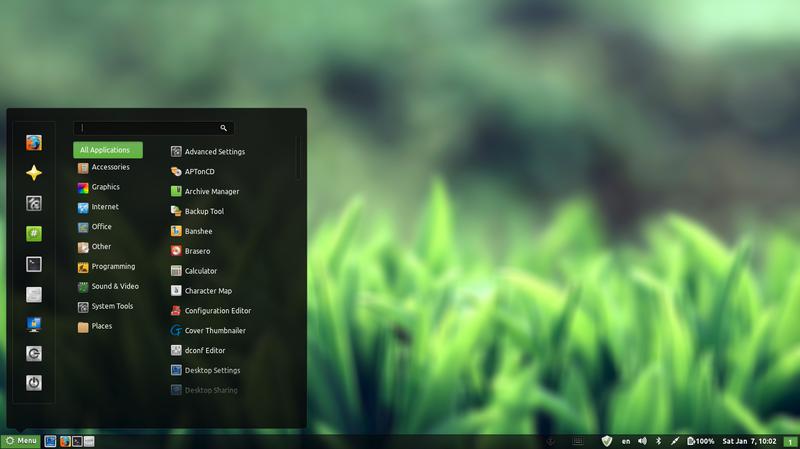
Cinammon interface

Since I had a thing for Gnome, I decided to install it on my system.

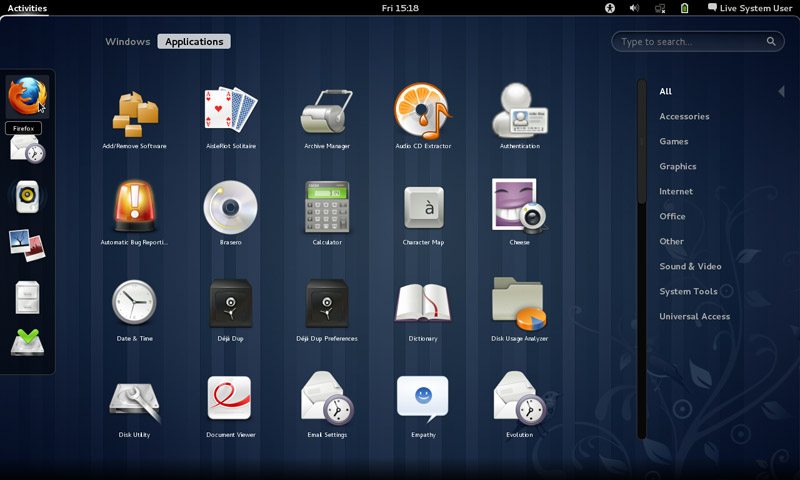
 Gnome was Ubuntu’s default interface until 2011, where it was replaces with Unity, if you go to Ubuntu.com and download it, you will be getting Unity, there is a fork of Ubuntu (alternative version) that runs the Gnome interface called Ubuntu Gnome.

Gnome has a loyal following and many people prefer it over Unity, turns out I do too! (Cinammon is built on Gnome 2).

Installing it was very easy as it was in the software center!
After adding the packages from the software center, I was able to login to Gnome 3.12.2 (last version supported by Ubuntu 14.04).

Visually I wasn’t disappointed at all! It was so good I dropped Docky and Kupfer to enjoy the native features it has!

So good I uninstalled Cinnamon the next day! Now I was running gnome alone on my computer, which isn’t bad at all. I noticed that Gnome classic didn’t load any interface items what so ever, but I’ll update this section as soon as I figure it out. Hopefully.

I have a ton more games now (all were added with Gnome):

  • AisleRiot Solitaire
  • Chess
  • Five or more
  • Four-in-a-Row
  • Lango
  • Klotski
  • Lights off
  • Mahjongg
  • Mines
  • Nibbles
  • Quadrpassel
  • Robots
  • Sudoku
  • Swell Foop
  • Tali
  • Tetravex
  • Xboard

The only thing I didn’t like was the message tray, it looked big and annoying ( it responds to every mouse gesture no matter how small) and even the extension that is supposed to make it less sensitive resets on reboot.

It’s also very big in size, it took 5GB more than XFCE took, even with cleaners like Bleachbit, I was running low on space. (Had a really creative fix for that one 😉

Resetting the interface could fix it. But it will erase any customizations I made.

I decided to remove cinnamon on the biases of being buggy, so I used the command:

 sudo apt-get remove cinnamon

Then ran the command:

sudo apt-get autoremove

To get rid of the unneeded packages and save some disk space.

Alternatively you can use Synaptic and search the word “Cinnamon” and remove any package installed.

I managed to clean the system from cruft using Bleachbit, over 2GB were reclaimed!!

So I had Gnome running on my computer, and you have to wait till the next post to see how I discovered it!

Let me know what you think in the commentst section below.

« Older posts Newer posts »