Category: Zimwiki (Page 2 of 2)

Too minimal? Striking the perfect balance

I posted a while back about trying to be minimal with my tools and work flow, one of the drastic changes I made was removing Zim wiki and trying to use Libreoffice as a personal wiki.
I tried that for 45 days, even with some advanced tricks like master pages and the extension writer tools, it was clear that Libreoffice wasn’t cut for this.

Couldn’t manage without Zim

I re-read the post I made about Zim and I was sold! How could I even think of letting this awesome software go? It is missing a couple of features and hasn’t officially reached 1.0 yet, but it’s pretty mature and still the best piece of software written for this job (in my opinion of course).

I’m back to using Zim and I couldn’t be happier, I feel like my information is under control and that I can keep track easily of data via an all in one easy to use intuitive interface.

A bit of back and forth

This step back wards and then forwards arises a question: When is it too much to be minimal?
Where is the sweet spot between too much and too little? The risk of running a skeleton structure of tools, and having too much tools to choose from?

In this case the mistake was trying to replace a personal wiki with a word processor, as it turns out they can’t substitute each other despite having some similar features. 

All in one?

It is a minimalist dream to have an all in one software, that can write documents, store information, manage e-mails and write code while keeping a nice user interface.
Perhaps it should be my next research to find this all in one tool?

The web browser issue

I’ve been using Opera mini on the phone for years now, it saved me a ton of money on data fees and I’m grateful for that, but I can’t tolerate what Opera has become lately!
Opera has been plagued with ads and pop ups that it became impossible to use effectively, the once 5 star browser dropped to one star, just because there is no lower rating to give.

For now I’m using Firefox mobile, I figured since Firefox became so good, then the mobile version has got to be good too. It’s not perfect or even near that, but it provides a better experience than Chrome and it’s ad free. I also liked the two browsers using the firefox account and I have my bookmarks and history synced across devices, really useful when being away from my laptop or during long electricity outages.

Which brings me to note taking

Using Telegram’s cloud to write some notes on the fly is really nice, but when writing several topics or separate blog posts. And since Zim doesn’t have an Android version (and not coming anytime soon) and I refuse to have my private notes stored on a file sharing service like DropBox or Google drive, I use a service called Simplenote to sync my notes on the go and then put whatever I need saved into my personal wiki (zim).

What’s the use of being too minimal?

I had an empty phone, with no apps and nothing was being done, even when I installed the apps back the phone didn’t get any slower. So being too minimal and running a skeleton frame didn’t help boost the performance or tweak anything.

I’m still fine tuning my life and chances are I’ll make more changes sooner or later, but until then here is a step I felt like sharing with my readers to keep things updated.

Final words

Life is all about balance, I’m still trying to reach the perfect productive balance,  what about you dear reader? Do you think that your life is minimal or you have too much to handle? Let me know what you think in the comments section below.

Kubuntu 16.04.01 Install and review

I have been using Ubuntu Gnome for over a year now, and it has been great, there has been some bugs here and there that I could work my way around, but it got really out of hand lately so it was time for a change!
Disto hopping

I admit, distro hopping is something I am guilty of; you get to try many distros and interfaces very easily, and it is criticized for being counter productive and a total waste of time and resources, but that’s not always the case, it’s sometimes you need to take a step back to keep going forward.

 Reasons why I left Gnome

The corner jester that summons the work spaces in Gnome isn’t really productive, and the Gnome classic mode isn’t very “classic”, I couldn’t achiever the level of productivity I strives to archive.

Other choices to look at

So I started to look for an alternative that isn’t “Gnome based” and that left me with few options! Many popular interfaces are built on Gnome and I believed that the problems will tag along.

Unity isn’t even an option on my list because I don’t like it! I’m glad there is a choice in the open source world, so I decided to try Kubuntu for a change, and to get rid of my issues.


Kubuntu has a support cycle of 5 years, perfect!

Going for Kubuntu

I downloaded Kubuntu as usual by a torrent because it’s better for the network and my pocket, and it took a lot as usual (7 hours).

Installing Kubuntu

Installing Kubuntu was easy, same as the usual installation of Ubuntu, and it was up and running in a few minutes.

Interface and user experience 

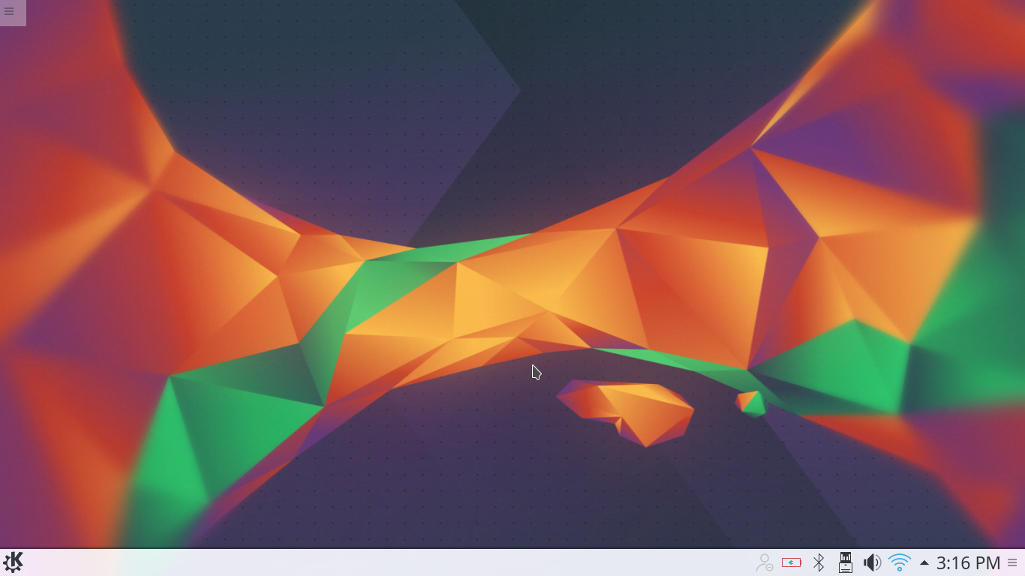
The interface on the other hand is completely different from Gnome, and I instantly remembered Windows because of the menu and the bottom panel, Kubuntu is aimed for an easier user experience, I think they meant it was “a windows like experience”.

Default interface in Kubuntu

It’s even has an Aero peak like feature, when you hover the mouse over a taskbar program and you see a preview of the program running in a box.

Areo peak in Kubuntu


So far the experience is smooth, but it’s different from all the interfaces I used before,  and the default applications are also different from the gnome/unity bunch.

Of course KDE comes packed with tools that start with “K” like Kedit and Knote, I’m not ready to give up Zimwiki for example so some of these K tools had to go! 

I have a tip for you: If you copy and paste terminal commands from web pages, you are going to have to change Gedit to Kate, so you get your commands up and running 🙂

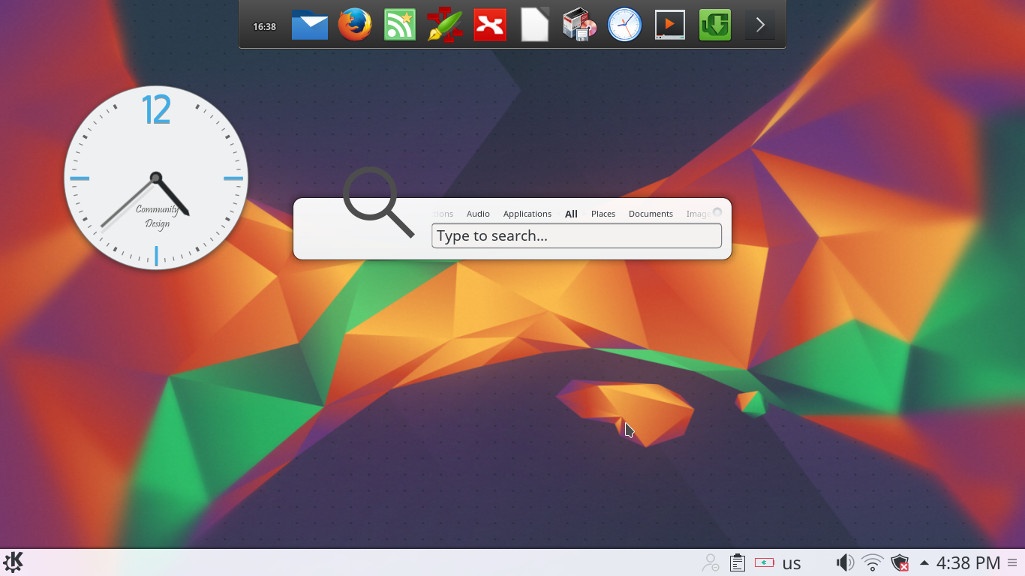
The Widgets are interesting and really give a larger scale for customizing.

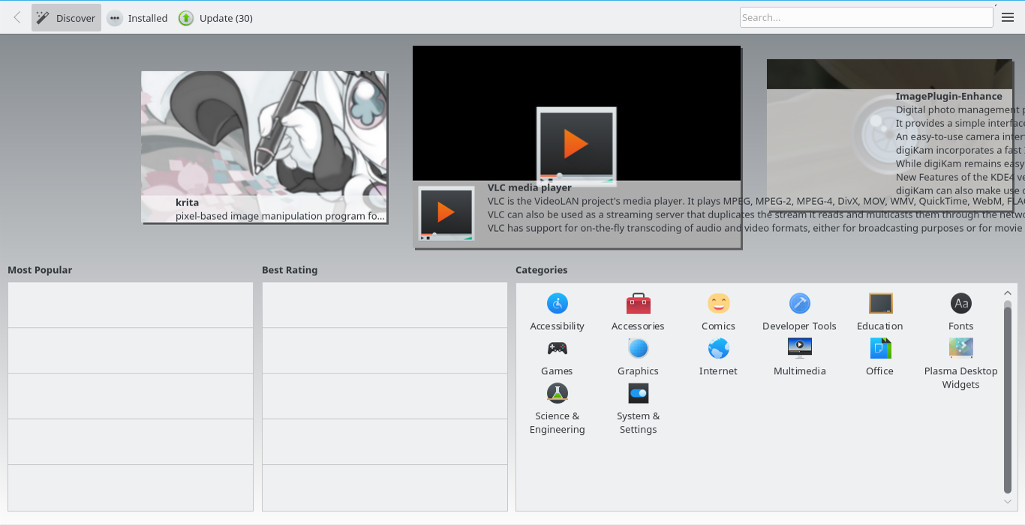
While the software center is a bit, different!

Software and updates

I’m used to having the software settings and sources in a separate application than the software center, in Kubuntu they are merged up together and aren’t exactly easy to find, as if the Kubuntu developers don’t want you to find the source settings and edit them properly.

Kubuntu software center

The file manager Dolphin

Some of the things I really liked is the Dolphin file manager, it’s much better than Nautilus, the interface is clean and clear, and doesn’t have some of the chronic bugs Nautilus plagued with, it’s also featured packed as it has a double pane and gives a better access to the main controls and preferences. 

Dolphin file manager

Adding my set of tools

The final Kubuntu desktop

Things to note

I also noticed that Kubuntu doesn’t have a backup utility? That is not good to be honest, it was so easy adding Deja backup from Synaptic but a backup utility is something you need out of the box! 

Another thing is the terminal emulator Konsol, it doesn’t start with the usual CTRL + ALT + T key combination right away and it takes a bit of tweaking to get it to work.

Dolphin doesn’t handle the smartphone very well, it can’t write to the phone’s memory and often fails to explore it’s contents in MTP mode.

My post about Ubuntu Gnome is still relevant to a great degree, I do miss the Gnome pomodoro timer because it’s a Gnome application and you have to install all of Gnome libraries and dependencies, to get it to work, which isn’t exactly productive. And I’m really unsure how to integrate it into the KDE interface, so it has to go! Ktimer on the other hand has great potential of launching scripts and apps on a specific timer.

Slow boot!

One of the main issues I noticed is the slow boot, nearly 10 times what Gnome needed to boot, I managed to fix this problem and you can find the solution here

Warning

Never install any distro if the Checksum don’t match! I did it and I was in for a world of pain, and had to reinstall all the packages from synaptic.  

Final verdict

I think Kubuntu and KDE in general is underrated and doesn’t get as much “mainstream attention” as other flavors and interfaces, it is worth a try!
It feels really well polished and almost reminds me of Macs OS, I’ve never had or worked one on, but that’s what I think at least.

What do you think of this post? Do you use Kubuntu? What do you think?
Please share this on social media, and subscribe to my mailing list to get updates before anyone else! 

My review of Ubuntu Gnome 16.04

It’s been a couple of weeks since Ubuntu 16.04 was out! I decided to take my time and give the new distribution some time before making a review, I think two weeks are enough time, so let’s take a look at Ubuntu Gnome 16.04!!


Ubuntu Gnome 16.04 new logo

The distribution

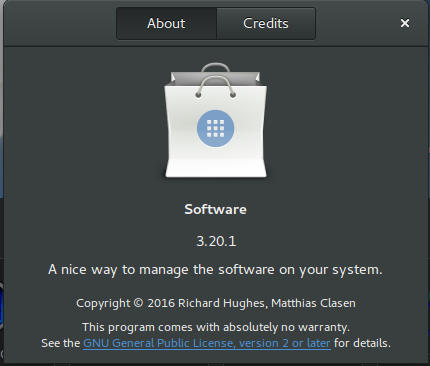
Ubuntu Gnome 16.04 became an official Ubuntu flavor, making use of the Gnome interface, unlike the official Ubuntu that uses Unity as interface, it comes with Gnome software and isn’t a clone of Ubuntu, there are some minor differences in apps, Basero is  the default disk burn utility for example, and gnome software is at 3.20 out of the box.


Ubuntu Gnome 16.04 Screenshot

Please note that some of the tools in the screenshot aren’t installed natively, such as Zim-wiki and Sublime text.

Download and Install

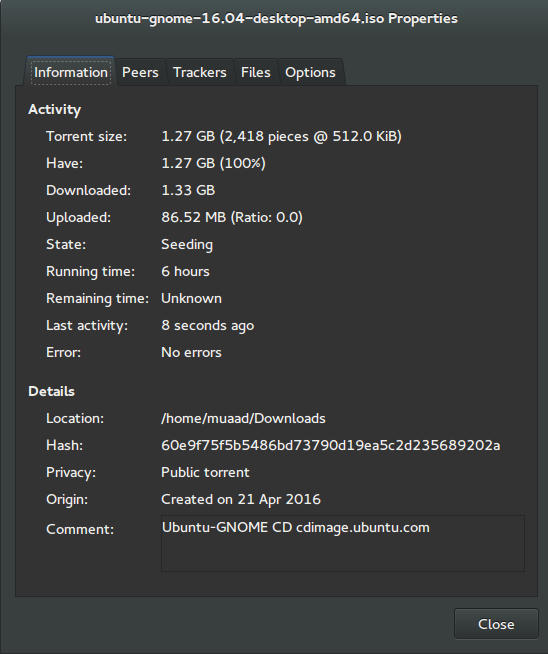
I’ve downloaded Ubuntu Gnome via torrent because I read it’s better for the servers, and come to think of it since the electricity goes out very often here, it’s better to download Ubuntu via torrent to save myself the trouble of downloading it all over again! It was downloaded eventually after 6 hours.
Checkout the download link from here.


It took 6 hours to download!
Torrent download information

I put it on a USB and began installing, pretty much the same since Ubuntu 10.10.
This version has 3 years of LTS support, why not five years? I’m not sure.


Steps to take after installing Ubuntu Gnome 16.04

Most of these steps are on my blog, but it won’t hurt to collect them all together in one neat list, would it?
  • Configuring wireless and Bluetooth, which is really easy to do but very important.
  • Installing the extras, the restricted extras needed to view media files and flash, and some fonts.
  • Installing my softwares, the usual package of stuff: VLC, Inkscape, GimpXmind and Zimwiki
  • Installing extensions: Clipboard indicator and OpenWeather.
  • Editing input sources to make it change between languages by pressing alt + shift, you can find how to do it from this link.
  • Restore the bookmarks and data (notes), Firefox is pretty easy to restore, and so is Zimwiki! All you have to do is to put the note folder in Home.
  • Customize LibreOffice. To make it more compatible with Arabic.
  • Disable apport, more details in the defects section.
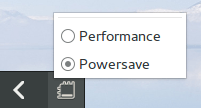
  • Installing powertop for more power save and CPU Frequency to reduce fan noise!
  • Pomodro timer works beautifully with Ubuntu Gnome 16.04 and you have to install it, it’s the best timer app for Ubuntu to date! Read my review about it from here.
  • Disable tracker-store as shown in this askubuntu link. 
  • Disable evolution safely without uninstalling it. Saving nearly 170 MB of RAM.
  • I also decided to skip the Grub menu since I only use Ubuntu 16.04, to do that you need to download and install Grub Customizer with these commands:

    sudo add-apt-repository ppa:danielrichter2007/grub-customizer
    sudo apt-get update && sudo apt-get install grub-customizer

    After that go to Grub customizer and enter your password, go to settings and uncheck: show menu and look for other operating systems. This way you will get rid of Grub and boot to Ubuntu right away, don’t do this if you dual boot!!< red;”


Features and improvements

  • I do appreciate the Gnome 3.18 interface! A huge jump from the 3.10 that Ubuntu 14.04.4 ships with, as it has many improvements and tweaks and fixes for annoying bugs in Gnome 3.10 (LTS to LTS upgraders will relate!).
  • The notifications style has changed completely, it’s now displayed in a drop-down menu under the clock.
  • The annoying bottom bar was removed completely, a feature I will never miss! It’s replaced with a neat arrow that’s docked on the bottom left corner of the screen.
    Notification dock in Ubuntu Gnome 16.04
  • The new boot logo is so much better than the old one! That looks like a foot! This is more sleek and streamlined, reminds me of SEGA’s logo somehow!


Ubuntu Gnome’s new logo


Issues and defects

  • So far the performance is OK and there are few crashes, pretty much the same as Ubuntu 14.04.4 which is pretty stable by the way.
  • I’ve noticed that the network icon sometimes disappears, hopefully an update will fix this, my only fix is to reboot.
  • I would recommend that you disable apport as it will bring up a message every time you reboot.
  • Software isn’t as clear as it should, I can’t tell how big are the softwares and updates, so I use Synaptic on a daily basis to get things done!
  • When disconnecting the wireless network with the hardware key it’s not recognized anymore until several reboots, it’s a known bug but with no fix afaik! The only info I could find was this terminal command: sudo service network-manager restart This command will restart the network manager and allow it to connect without the need to restart several times.
  • The fan noise was too much at times, even when the computer was idle, I thought upgrading from Ubuntu Gnome 14.04.4 to Ubuntu Gnome 16.04 would fix this but it didn’t, until I installed CPU Frequency!
  • Nautilus 3.14 could use an update and we don’t have to wait till 16.10 to get one! I managed to follow a rather risky tutorial to update it to 3.20 and it’s so much better!
  • If you are using an SSD you might want to look at this post to avoid the /dev/sd1 :Recovering Journal issue.
  • Starting up without a user interface at times, and my only cure was to restart the computer, I found a fix that suggests to clear the packages config from Synaptic.
  • Sometimes shutdown can be slow, I found the steps in here worked like a charm!

“Software”

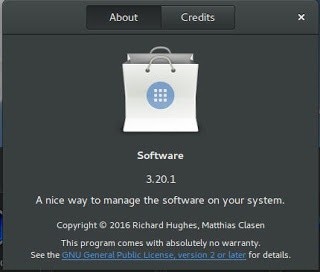
Ubuntu Gnome 16.04 ships with Gnome software 3.20. Which is the software that is supposed to replace Ubuntu Software center, I find them both buggy and unusable, as I use Synaptic to do my package work.


Softwares 3.20 on Ubuntu 16.04

I do believe it needs more work to become a reliable software center, it stays in the background and behaves oddly, it doesn’t show the download progress on software being downloaded too, which seems odd!

I winded up un-installing software and reinstalling the good’ol Ubuntu software center!

Final words

Ubuntu Gnome is a great choice for anyone who wants to enjoy Gnome  without having to leave the Ubuntu universe to Fedora or OpenSuse, it provides the purist Gnome experience possible for Ubuntu, and it preformed better than regular Ubuntu installed on older machines (with proper tweaking mentioned here).

The more I use it the more I could tell that this is the distro for me, great job indeed by the team, and I rate it as a must have!

I hope you enjoyed this post, please let me know what you think in the comments section below, and remember: Sharing is caring!!

Zim-Wiki: Where have you been all my life?

I’ve come across Zim-Wiki while searching for the best note pad application , in this review I shall talk about why it has become my go to application for almost everything!

A true al l in one solution!

Before installing Zim-w iki I used several software to do a part of the functionality it has!
Zim-Wiki logo
Zim-Wiki logo

I used Rednote book as a daily journal and Tasque to make to do lists while using basket notes as a personal knowledge database! Talk about a cluttered data life!

Now after migrating to Zim- wiki I replaced all o f that software for more versatility, more functionality and more focus!  Which in turn made me a lot more productive! Less resources an d more work done!

Zim -wiki is light weight and cross platform (Windows and Linux). It operates like a wiki so it makes it easy to store and retrieve data and link pages together.

It’s simple and easy to use. And the interface is pretty straight forward. And gets the job done.

  • I also look into the import / export feature as I need to backup and restore data quite often, and without it , it would be useless like Tomboy (now Gnotes).
  • It is amazing! Just look at t h e plugins like the  box backup. It seems perfect so far.
  • It has a journal feature, it can log events against days on the calendar, if you like to keep your program count down, it’s a good idea to use the embedded journal and abandon other applications. You can access the journal feature by clicking the calendar icon on the right.
Zim-Wiki interface
Zim-Wiki interface

Plugins

Zim Desktop wiki is expendable with the use of plugins, you can download and install many plugins from this site,  and access them from the menu :
 

Edit Preferences Plugins

It also supports word count and many other editor features to make the experience complete like the distraction free mode, just hit F11 and enjoy! It can be used to write a book as well, you can make your book the main folder and then distribute it on the pages and link it all together easily!

I did mention that LibreOffice is the best book writing software out there, looking closer at Zim-wiki, LibreOffice won by a nose!


Tags

You can use the tag feature by typing @ before any word, that will be a tag, and it will be displayed in the tag pane , it’s used to c ollect and sort da ta and make finding things easier inside notebooks.


Restoring after delete

If you delete a page by mistake you can easily recover it from the recycle bin (or trash, depending on your system).

Check the help embedded for more cool tips on how to use Zim desktop wiki.

Download and install


You can download Zim wiki by visiting the website and downloading a .deb archive to install, or you can add the repository so it grabs updates automatically as a part of the system update.

sudo apt-get add-repository ppa:jaap.karssenberg/

zim
sudo apt-get update 

sudo apt-get install zim

Z i m -wiki as a to do list app

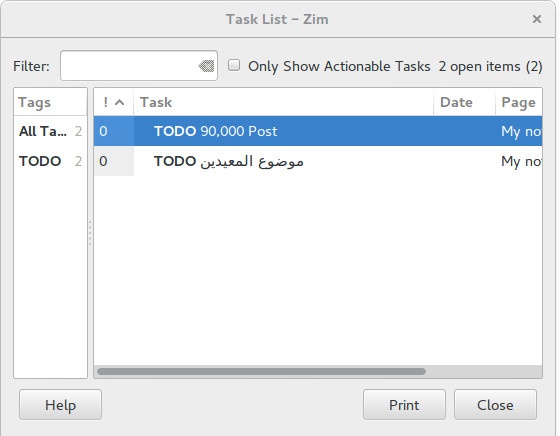
I used to use Tasque to handle my daily tasks but not anymore! Now I enable d the Task list plugin and I was set! It’s that good! Enable the plugin by going to:  


E dit Preferences   Plugings Task list


After that you will see the checkbox icon, add the word todo to any line to make it a task, strike it through to mark it done!

If you want to see a checkbox then go to Insert Checkbox list.


Zim-wiki task list plugin

Zim-wiki as GTD software

Although Zim-Wiki wasn’t developed to be a GTD (Getting Things Done) application, it can be edited easily to support the productivity plan, you can find this tut orial on Zi m -wiki’s site that tells you ho w to make it.


Markdown e d itor

If you like to use Markdown to style your documents and work then you don’t need to look for other tools! Zim-Wiki has you covered with Markdown support!

< ” Rati ng

Zim -wiki is awarded 4.95 on the Ubuntu software center receiving tons of positive feedback, so it has to be good! It’s also well received on Alternativeto.net

Honorable mentions

In this bit I’ll mention some other apps and why I stopped using each of them.
  • I started with Treepadlite and I didn’t like the interface.
  • I also tried CodeLib which was really good except the random crashes and the heavy memory foot print.
  • After that I used Tomboy which I really loved excepts the fact it doesn’t export notes which made me lose lots of notes. Also it’s tricky to figure which GTK library to use with on Window s.
  • I then adopted BasketNotes. Which was really really good. Except for one thing. It is a K D E application and for that I needed lots of libraries that Xubuntu didn’t have, and that made it heavy and prone to crashing.

So I decided to export the notes and find a suitable software for my needs. Here comes Zim-wiki!


What note keeping software so you use? What feature do you prefer the most?
Sharing is caring, share this post with your friends.

Newer posts »