Category: Ubuntu (Page 4 of 24)

How to download Bucklespring as a Deb in Ubuntu and enable it?

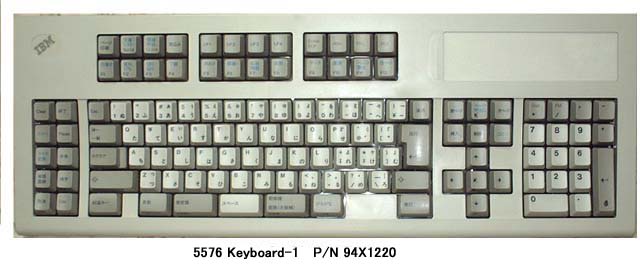
Bucklespring keyboards are iconic keyboards with distinct sound effects, sadly they went out of fashion however you can still relive the wonder of them on any keyboard you have

Downloading as a snap vs .deb

The most popular way to download this trick is via a snap, but I don’t like to use these nor have any of them installed. I still prefer the old fashioned .deb packages. 


A bucklespring keyboard

The packages

The package bucklespring_1.4.0-2_.deb can be downloaded easily from Debian’s packaging website (I shall link it below), please note that you won’t find this deb package in Synaptic.

Download the bucklespring-data_1.4.0-2_all.deb and the bucklespring_1.4.0-2_.deb.Install the data first then the bucklesrping package itself.

How to run Bucklespring?

Bucklespring has no GUI (Graphic user interface), so in order to get it to run you need to open the terminal and simply type in: 

buckle

Download links

Please choose the right architecture for your processor.

Important notes

You have to keep that terminal (x session) open in order to enjoy the bucklespring sounds as you type on the keyboard.

I happened to notice that some keys don’t produce the sound as they are typed on (the number pad on the right side of the keyboard).

Final words

It’s a cool trick to have enabled, totally changes your using experience of the keyboard. I find that it’s best paired with LED enabling (also enabled from the terminal) for a maximum nerdy effect.

Have you enjoyed this tip? Do you like the bucklespring noise? Tell me what you think in the comments section below, and I’ll catch you in another one!

Lutris, a game management software for Ubuntu

I’ve been into gaming for as long as I could remember, and I’ve devoted a lot of posts on this blog to talk about games that I like. My taste varies between retro games and free / open source games. Sadly I can’t get much gaming done and my style is close to short random bursts followed by ever-long hiatuses. Well today I present a software that I think will have a pivotal role in my future gaming habits. Lutris..

But before that, lets take a look at the origin of the issue

I’ve slowly fallen out of favor with games, from being someone who played anywhere from 4 – 6 hours a day to someone who plays once every blue moon. I know that growing up and finding a steady job changes a person, however I don’t want to drop video games out of my life altogether, I hate to think of how my life would’ve been without video games!

Failed attempts

I’ve tried different things to rekindle my passion for gaming, buying a gaming keyboard was the latest attempt but so far to no avail. I still forget to play games even when I spend a long time on the computer. I blame social media and Reddit. They are too attractive!

Trying to allocate a time for gaming and putting that on a To-Do list feels so forced and takes the joy out of something that used to be spontaneous and joyful.

I think my problem is that I don’t know exactly what games I have, more specifically I forget my game progress and anything else done. In my previous attempts I tried making a folder and placing game shortcuts in it, or a dock like plank and putting game shortcuts on it, but that never worked.

Linux not for gamers

I love Linux, however it’s not a system for gamers, the games are little and not so good, beggars can’t be wishers I suppose.

I’ve searched repeatedly for a software that could be a game hub, one place for all my games, and until yesterday I thought something like that cannot exist, until I met Lutris!

Lutris, the game collection software

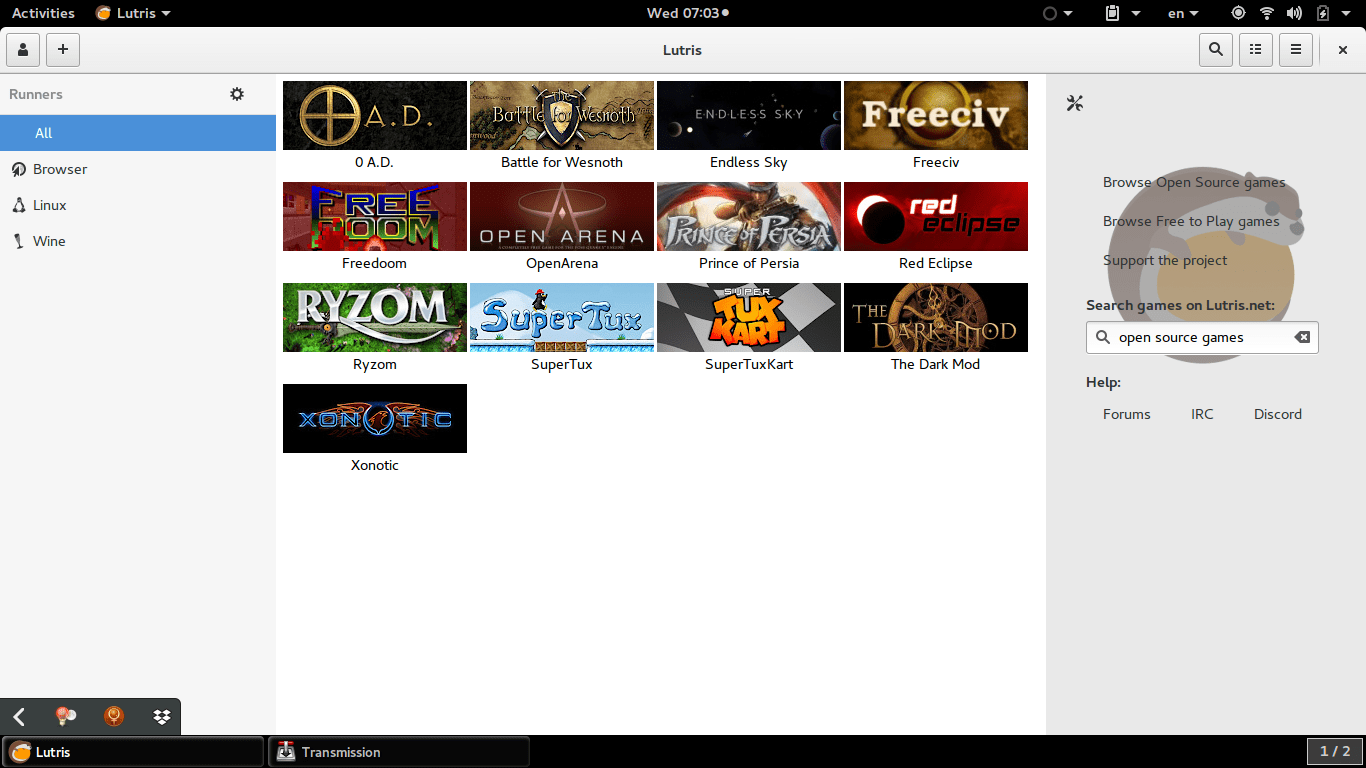
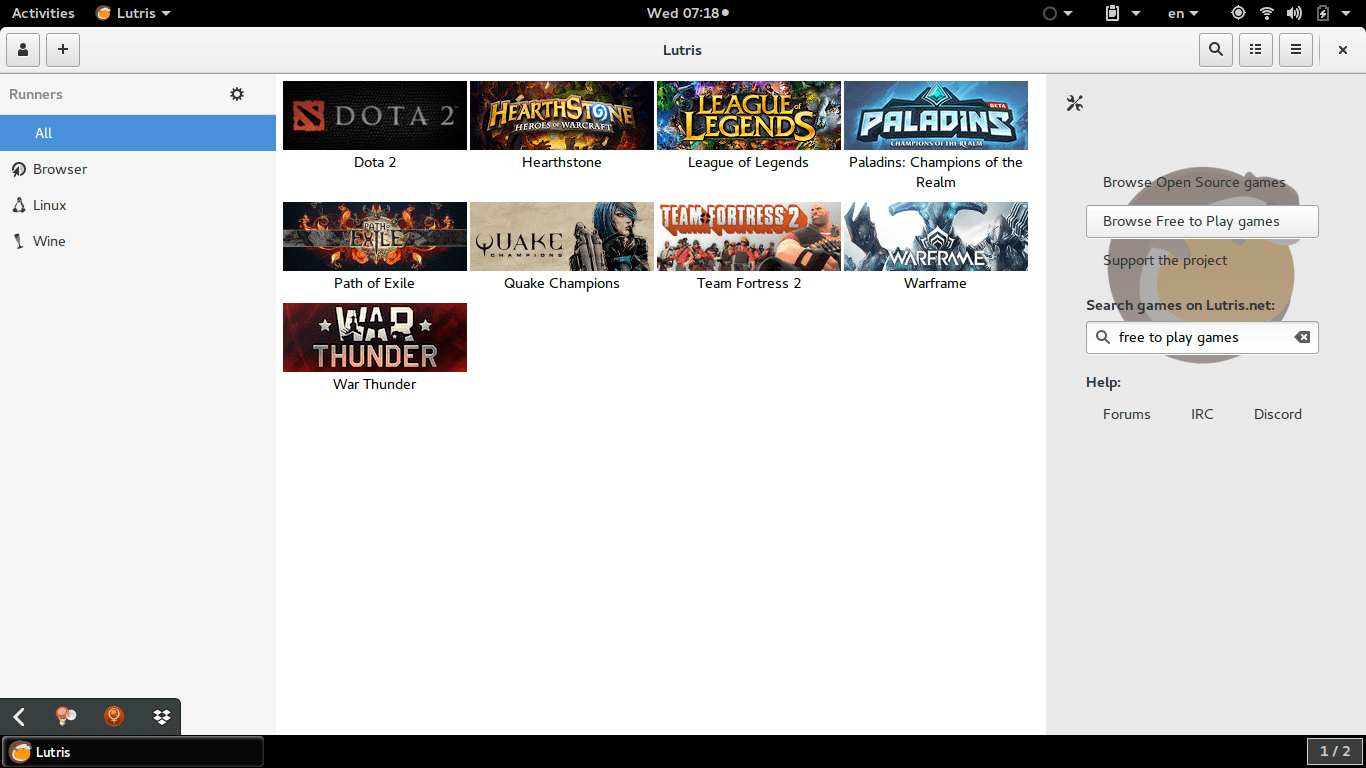
Lutris is a free and open source game library that puts all your games in one place inside one interface, each game would have information and a picture that help you easily choose a game from the list.
Lutris is very easy to use, and is incredibly useful. I managed to collect the games installed on the system, with the archives downloaded in tar.gz (making icons for these is a hassle in Linux), and even games from my old windows collection using wine. To me this is a dream come true.
A sense of order in a rather chaotic collection, and for the first time Linux feels like a system that could do gaming. 


Pros of Lutris

  • I really like the statistics in Lutris, tells you when did you play a game last, and how much time did you spend on that game.


  • I also appreciate the extensive settings it has, such as forcing the keyboard language to be English during playing, and setting the screen resolution back to original after closing a game. (Especially useful with Wine games).


  • Can easily import all of your installed games with one click. Be careful as importing games after that using this method will result in duplicates.


  • The settings are powerful and wonderful, give more control over the gaming experience as whole.


Cons of Lutris

  • Lutris isn’t without faults, it hangs a lot (during game downloads mostly) and still in early releases judging by the performance.


  •  I also don’t like the icon very much, however if you design a tool this awesome, you get to choose whatever you want as a mascot.


  • I also wasn’t able to play any game I downloaded from the online collection, all had mistakes and I had to remove them. I don’t know what’s the problem and it’s not really an issue to me. I just want a place to gather my games.
  • having to add pictures manually to games rather than the default Lutris icon, which is super easy to use by the way, but can be a tedious process if you own a lot of games.


  • Importing the library over and over will result in duplicates, so you have to be careful when importing and deleting games, especially when you check the choice of removing the game from the system all together! (This was later fixed in version 0.5.2).


How to install Lutris on Ubuntu

Enter these commands one by one into a terminal, and after some time it will be installed on your system, download size around 118 MB


sudo add-apt-repository ppa:lutris-team/lutris

sudo apt-get update

sudo apt-get install lutris


D9VK

D9kx frame work aiming to improve the Linux gaming experience using Lutris. Can be downloaded from GitHub and installed via this tutorial on YouTube.

Final words

I think Lutris is the best game library I’ve seen for Linux, it’s sleek and feature packed. I think I’ll do more gaming since installing Lutris, only time could tell.

Enable LED light on JINDIAO K8 Multimedia LED Keyboard in Linux!

LED keyboards are awesome! They make night working and gaming so much easier -especially if you live somewhere where electricity goes off very often– And they look great!
Some affordable models like the Jeway Phantom K7 Keyboard and JINDIAO K8 Multimedia LED Keyboard won’t work with Linux right away, but with some clever hacking you can make your affordable keyboard into a fully functional, Linux friendly hardware. 


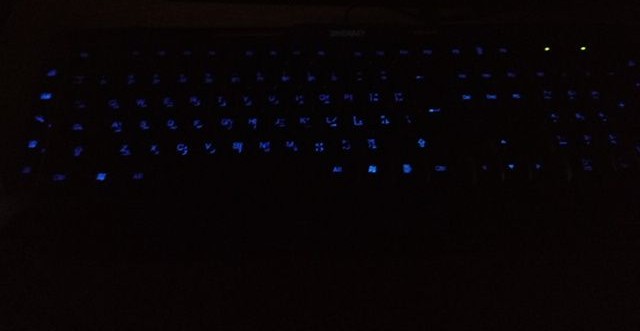
A picture of the keyboard led on


An issue with support

Sadly these products don’t have websites and the companies don’t provide any kind of support, let alone for Linux! But that’s where this post comes in handy.

The case

When you turn on the computer and press the LED switch, it works during boot. But as soon as the Linux kernel loads it turns off and stays off. You might even notice new lines when booting similar to the Comm reset issue, but don’t worry, Xset is our friend!

Testing the button with acpi_listen 

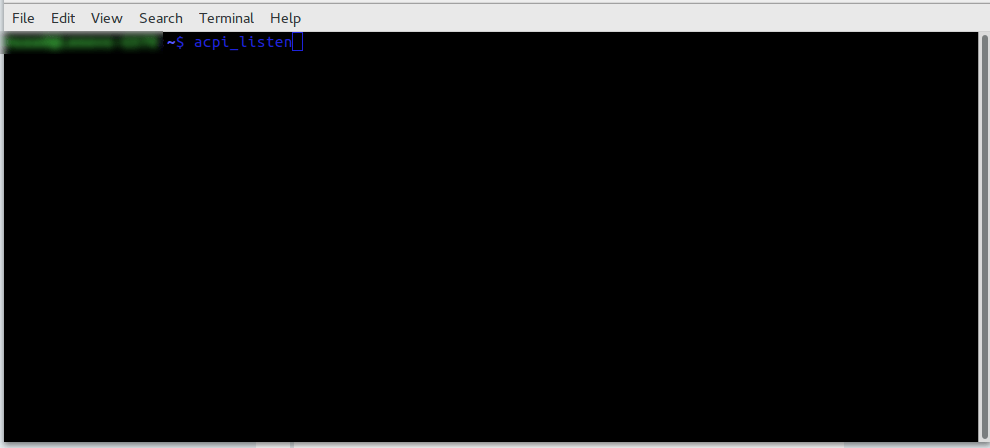
The button that enables the led light isn’t recognized by Linux, you can make sure by typing in the command acpi_listen and testing it for yourself. It won’t be recognized and won’t give out a code, unlike other multimedia keys.  

Enable the keyboard light

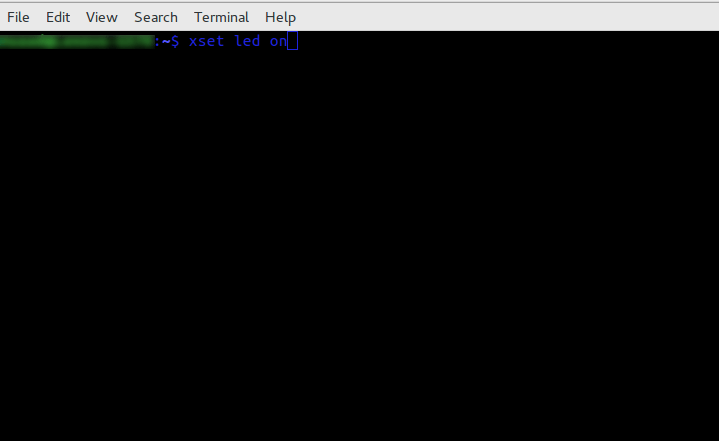
To enable the keyboard light, all you have to do is to open a terminal window and type in the command
for the light on the keyboard to work:

xset led on 


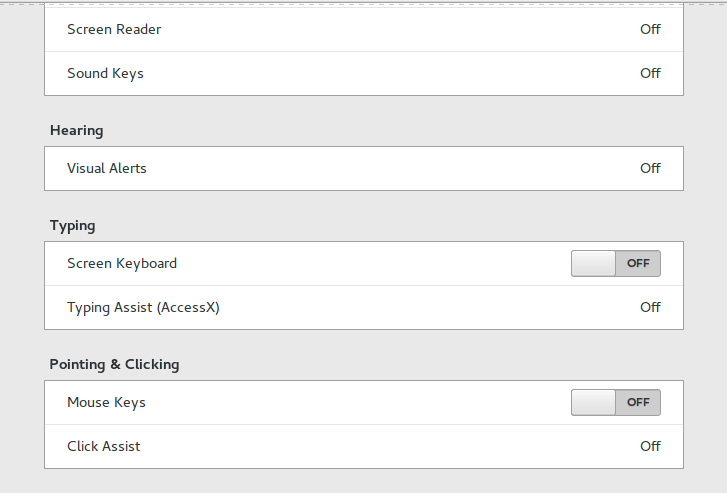
Yes it’s as simple as that, but that command is incomplete! When I tried it on my computer it enabled the mouse keys, an old bug dating back to 10 years ago in Xorg that didn’t get fixed. I made sure the two were related (the LED being on and mouse keys). 


Having to go into accessibility every time and disable the mouse keys by hand every time the computer was out of sleep was frustrating, no where near a fix!

But luckily, the terminal has a fix..

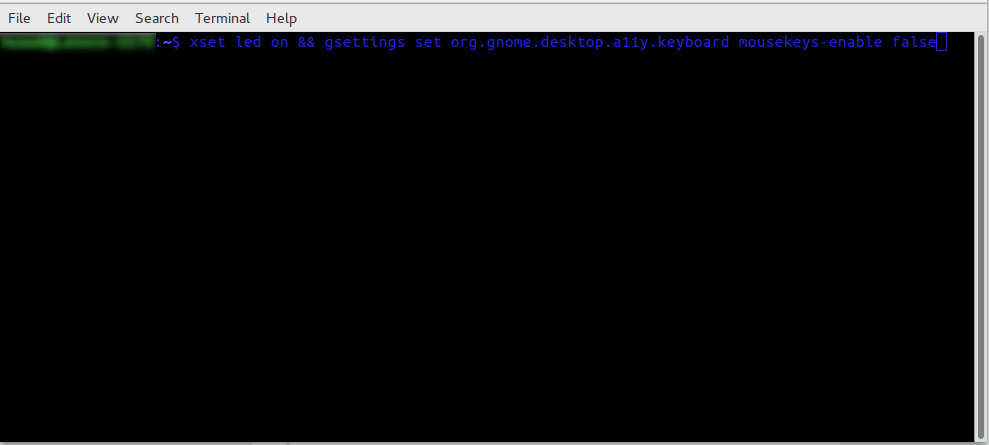
To enable the LEDs and maintain regular Number pad functionality use this command in the terminal

xset led on && gsettings set org.gnome.desktop.a11y.keyboard mousekeys-enable false

This will enable the led light and keep the number pad acting the way it should. 

You will have to enter this command every time you turn off your computer, if I managed to turn it into a bash script and make it start with the system, I will update this post.

Final words

You don’t have to break the bank to get a decent looking keyboard, and using Linux doesn’t mean you need to sacrifice functionality or have to dual boot windows just for a keyboard to function normally!

Let me know how the code worked for you. And have a good one.  

P.S: If you shutdown or unplug the keyboard, you will have to enter into the terminal the script again.

Battle for Wesnoth review and download

I’ve reviewed many games on this blog, all share a similar concept: being freeware or open source.
Honorable mentions include: Streets of Rage 5, Rocks’n’Diamonds, Mario 2012, Tux Cart, Kega Fusion (Sega emulator), Fix it Felix remake, among other games

What is a Turn-based Strategy?

Today I’ll be talking about a new game: Battle for Wesnoth, a free and open source TBS (Turn-based strategy), in games like these a player does all of his moves which can include moving troops, fighting enemies or taking control of villages, before ending his turn and waiting for the other player/s to play.


What makes Wesnoth so special?

The battle for Westnoth stands out in the midst of free and open source strategy games, because let’s face it, a lot of free games are rough around the edges and really hard to get into, some are almost made as quirks that only the developers can enjoy! (Like Flair Alpha that I reviewed a few years back, and lords a war! , they were unplayable to me.), Wesnoth is nothing like that, it’s a game that has all the makings of a classic game, and many in the open source community consider it the best strategy game available!

Also there is a great community backing this game since it’s first release in 2003, providing huge support and even making custom campaigns for users to download and enjoy!

Setting and game play

The games events take place in the fantasy kingdom called Wesnoth, Where armies of humans, orcs, elves and zombies battle for power and dominance, many units and tactics are available for the player to try and explore through many campaigns.
The game itself is what you would expect of a strategy game, crisp graphics and captivating game play that will keep you busy for hours on end! Featuring both single player campaigns and multiplayer modes.


How to play this game?

If you ever played a TBS (Turn-based strategy), you will find yourself familiar with the concepts of this game, but even if you haven’t played a TBS before, the tutorial mode will be more than enough for you to understand how the game plays, and will prepare you for the increasingly difficult campaigns that await for you.

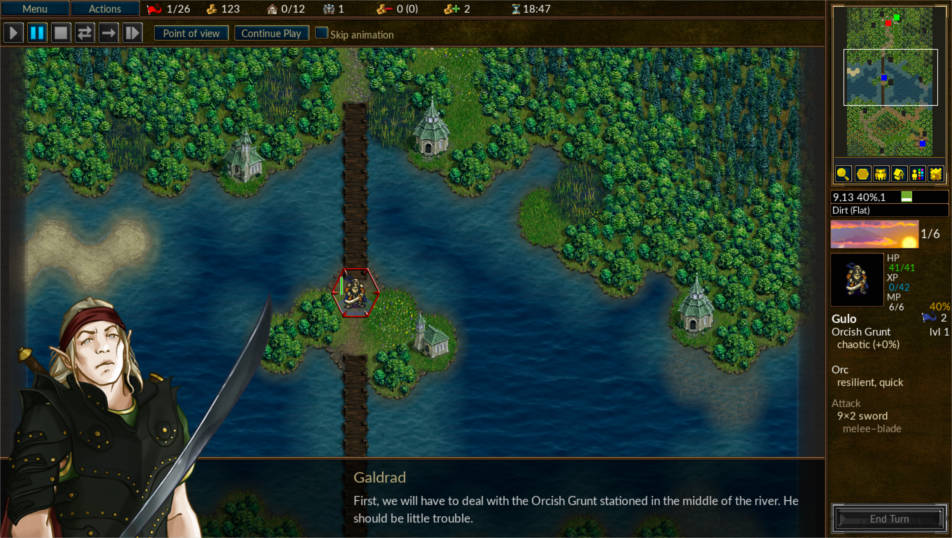
Screenshots


Rating

Battle for Wesnoth is rated 9 / 10 on Steam, 4.5 / 5 on SourceForge, and  4.5 / 5 on Freewarefiles.com

Download

Wesnoth is cross-platform, it can be enjoyed on many operating systems, including Android (Now removed from google stor),  IOS.
For Windows users you have to download the installer from here. Latest version 1.14.5
Mac users can download from this mirror.

Linux download

Wesnoth is in the Ubuntu repositories by default (Version 1.12 for Ubuntu 16.04), but alternative repositories can be added to be able to download the latest version to date 1.14.3 (1.14.5 isn’t compiled for Ubuntu yet), and for other distros packages can be found of this link.


Repository for Ubuntu

sudo add-apt-repository ppa:vincent-c/wesnoth
sudo apt-get update


I highly recommend adding the repository to the software list and downloading the latest version, as it brings many bug fixes, a partial redesign and added campaigns.

You can also use Lutris to download this game.


Important notice:

Ubuntu packages aren’t being updated regularly, even the moderators of the forum recommended that I’d download the game using other methods, here is my post on how to compile Wesnoth from source and integrate it with Lutris, available from this link.

  Android port

Specifications needed to play Wesnoth

Minimum specifications

This game requires at least 2GB of ram, 800MB of disk space, and a dual core processor, and 800 * 600 screen resolution.
(I’ve managed to run it smoothly on an Intel Celeron laptop).

Recommended specifications

4GB of ram, 2GB of disk space, a dual core processor and 1024 * 768 screen resolution.

Final words

It’s been a while since I’ve came across a game that I enjoyed like this! If you are looking for a strategy game to lose yourself in, this is a great candidate. A great way to spend the time and unwind from life’s stress.

Do you enjoy strategy games? What are your favorites, do you want to see more of these on this blog? Let me know in the comments section below!
« Older posts Newer posts »