Category: Ubuntu (Page 6 of 24)

Plank. The BEST dock you will ever use on Ubuntu!

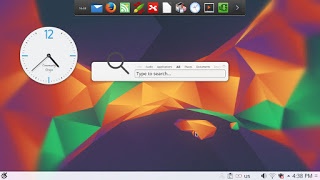
I blogged about Docky a few years ago when I moved to Ubuntu from Windows as I needed something to replace Nexus dock, and later RocketDock, and I added it to a post about the best docks for Linux and Windows.

Introduction

Docky is the dock to go to when using Ubuntu, it’s fast and it’s light, not to mention it’s free, it has two branches for development which I find to be a bit confusing!
One of the branches is stable but lacks features, and the other crashes often but is full with features.

What if there was a dock that had the best of both branches? Stable and fully featured? Meet Plank everyone!

Plank

Plank is a fork of Docky that is shipped by default with the popular operating system Linux Elementary. It is based on Docky 3.0.0 according to the Plank wiki, and it’s aimed to be the simplest dock available, to preform what a dock is supposed to do, and I couldn’t agree more!

How to install Plank?

In a terminal window enter these commands one by one to install Plank, and after it’s done you can find it by searching the name in any interface you use.

  sudo add-apt-repository ppa:ricotz/docky # <- is not a typo
  sudo apt-get update
  sudo apt-get install plank

Configuring Plank

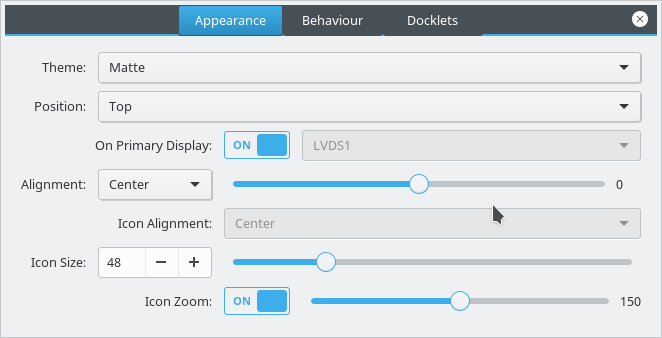
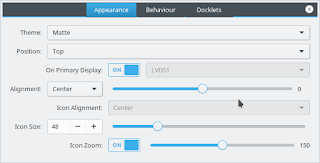
By right clicking an empty place in the dock you can summon the preferences of Plank, but that proves to be a little difficult, so by typing the command: plank –preferences

 
to adjust and fine tune the settings of Plank.

How to add executables as shortcuts to plank?

If you are using plank on Ubuntu you know that you can’t add executable files right to the doc, you need to add the icon to the program directory and then add the icon to the dock, here is a really simple way to do it from here.

My verdict

It’s the best dock I used so far, so light and does exactly what it should, without having to choose between two branches and having to roll back packages.

What do you use on your system? Are you considering Plank? Share your thoughts in the comments section below, and don’t forget to share the post on social media 🙂

Kubuntu 16.04.01 Install and review

I have been using Ubuntu Gnome for over a year now, and it has been great, there has been some bugs here and there that I could work my way around, but it got really out of hand lately so it was time for a change!
Disto hopping

I admit, distro hopping is something I am guilty of; you get to try many distros and interfaces very easily, and it is criticized for being counter productive and a total waste of time and resources, but that’s not always the case, it’s sometimes you need to take a step back to keep going forward.

 Reasons why I left Gnome

The corner jester that summons the work spaces in Gnome isn’t really productive, and the Gnome classic mode isn’t very “classic”, I couldn’t achiever the level of productivity I strives to archive.

Other choices to look at

So I started to look for an alternative that isn’t “Gnome based” and that left me with few options! Many popular interfaces are built on Gnome and I believed that the problems will tag along.

Unity isn’t even an option on my list because I don’t like it! I’m glad there is a choice in the open source world, so I decided to try Kubuntu for a change, and to get rid of my issues.


Kubuntu has a support cycle of 5 years, perfect!

Going for Kubuntu

I downloaded Kubuntu as usual by a torrent because it’s better for the network and my pocket, and it took a lot as usual (7 hours).

Installing Kubuntu

Installing Kubuntu was easy, same as the usual installation of Ubuntu, and it was up and running in a few minutes.

Interface and user experience 

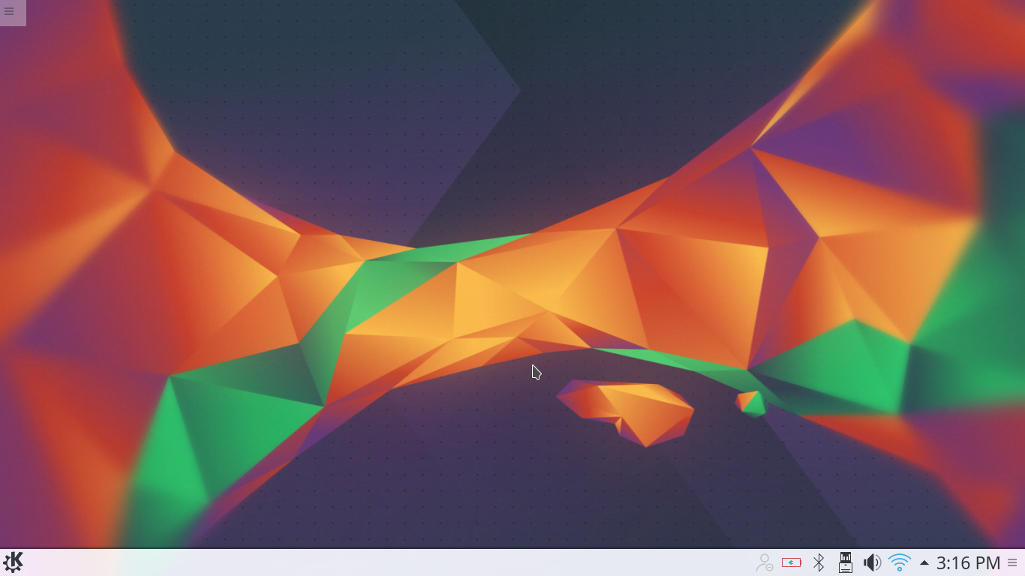
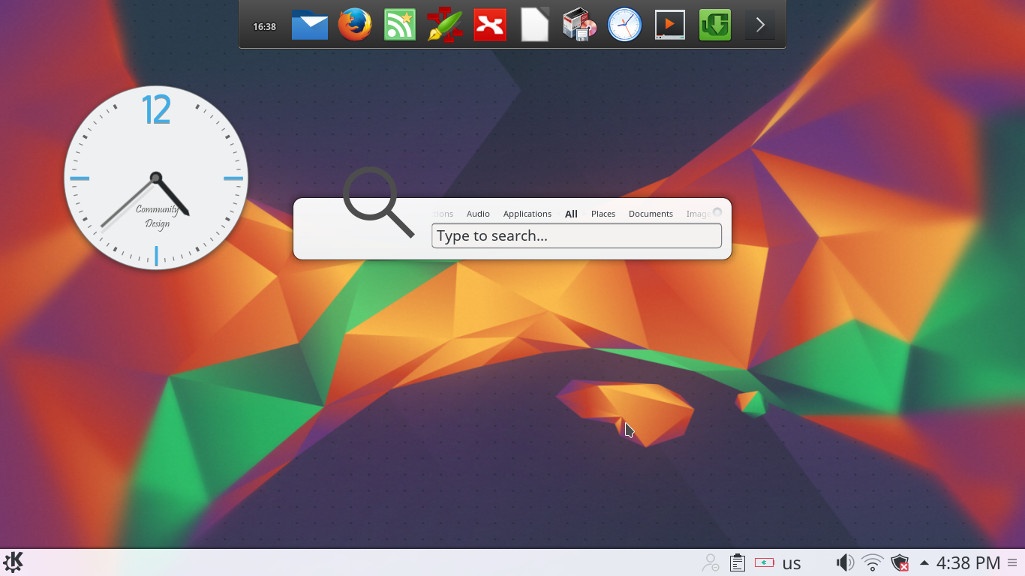
The interface on the other hand is completely different from Gnome, and I instantly remembered Windows because of the menu and the bottom panel, Kubuntu is aimed for an easier user experience, I think they meant it was “a windows like experience”.

Default interface in Kubuntu

It’s even has an Aero peak like feature, when you hover the mouse over a taskbar program and you see a preview of the program running in a box.

Areo peak in Kubuntu


So far the experience is smooth, but it’s different from all the interfaces I used before,  and the default applications are also different from the gnome/unity bunch.

Of course KDE comes packed with tools that start with “K” like Kedit and Knote, I’m not ready to give up Zimwiki for example so some of these K tools had to go! 

I have a tip for you: If you copy and paste terminal commands from web pages, you are going to have to change Gedit to Kate, so you get your commands up and running 🙂

The Widgets are interesting and really give a larger scale for customizing.

While the software center is a bit, different!

Software and updates

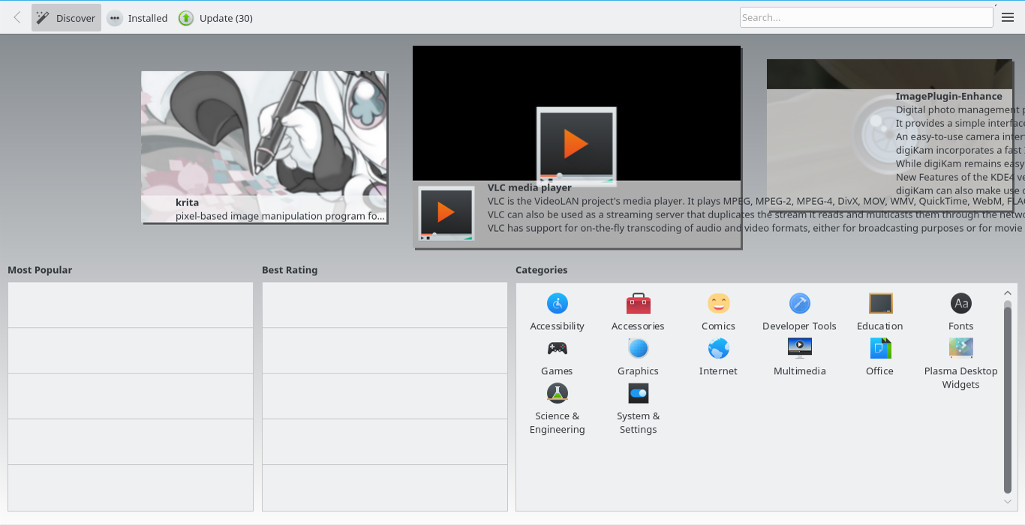
I’m used to having the software settings and sources in a separate application than the software center, in Kubuntu they are merged up together and aren’t exactly easy to find, as if the Kubuntu developers don’t want you to find the source settings and edit them properly.

Kubuntu software center

The file manager Dolphin

Some of the things I really liked is the Dolphin file manager, it’s much better than Nautilus, the interface is clean and clear, and doesn’t have some of the chronic bugs Nautilus plagued with, it’s also featured packed as it has a double pane and gives a better access to the main controls and preferences. 

Dolphin file manager

Adding my set of tools

The final Kubuntu desktop

Things to note

I also noticed that Kubuntu doesn’t have a backup utility? That is not good to be honest, it was so easy adding Deja backup from Synaptic but a backup utility is something you need out of the box! 

Another thing is the terminal emulator Konsol, it doesn’t start with the usual CTRL + ALT + T key combination right away and it takes a bit of tweaking to get it to work.

Dolphin doesn’t handle the smartphone very well, it can’t write to the phone’s memory and often fails to explore it’s contents in MTP mode.

My post about Ubuntu Gnome is still relevant to a great degree, I do miss the Gnome pomodoro timer because it’s a Gnome application and you have to install all of Gnome libraries and dependencies, to get it to work, which isn’t exactly productive. And I’m really unsure how to integrate it into the KDE interface, so it has to go! Ktimer on the other hand has great potential of launching scripts and apps on a specific timer.

Slow boot!

One of the main issues I noticed is the slow boot, nearly 10 times what Gnome needed to boot, I managed to fix this problem and you can find the solution here

Warning

Never install any distro if the Checksum don’t match! I did it and I was in for a world of pain, and had to reinstall all the packages from synaptic.  

Final verdict

I think Kubuntu and KDE in general is underrated and doesn’t get as much “mainstream attention” as other flavors and interfaces, it is worth a try!
It feels really well polished and almost reminds me of Macs OS, I’ve never had or worked one on, but that’s what I think at least.

What do you think of this post? Do you use Kubuntu? What do you think?
Please share this on social media, and subscribe to my mailing list to get updates before anyone else! 
LibreOffice 5.3 is out, Enable the Notebook bar in 3 easy steps!

The much anticipated LibreOffice 5.3 is out, the tech world and open source community welcomes the latest milestone release of LibreOffice, which brings many improvements and bug fixes, this release is on of the most feature rich in the history of LibreOffice.


LibreOffice 5.3 Logo


Whats new in LibreOffice 5.3?

LibreOffice 5.3 is packed with new features that make it easier to use and familiar to new users.

  • Improved text layout engine for a consistent look cross platforms using HarfBuzz.
  • Preserving table looks when applying edits in Writer.


  • Improvements to default cell styles in Calc.


  • A template selector when opening in impress to choose templates from, and a new slides properties deck in the sidebar when in master slide mode.


  • Many “under the hood improvements for easier development.


  • Experimental UI features, a notebook bar can be added that is similar to MS office ribbon, this feature is completely optional while the sidebar can be docked to the side with a single click.


  • LibreOffice online, the collaborative document editing service provides the
    the first source code as a docker image.

For more details please visit this page.


How to enable the notebook bar in LibreOffice 5.3?

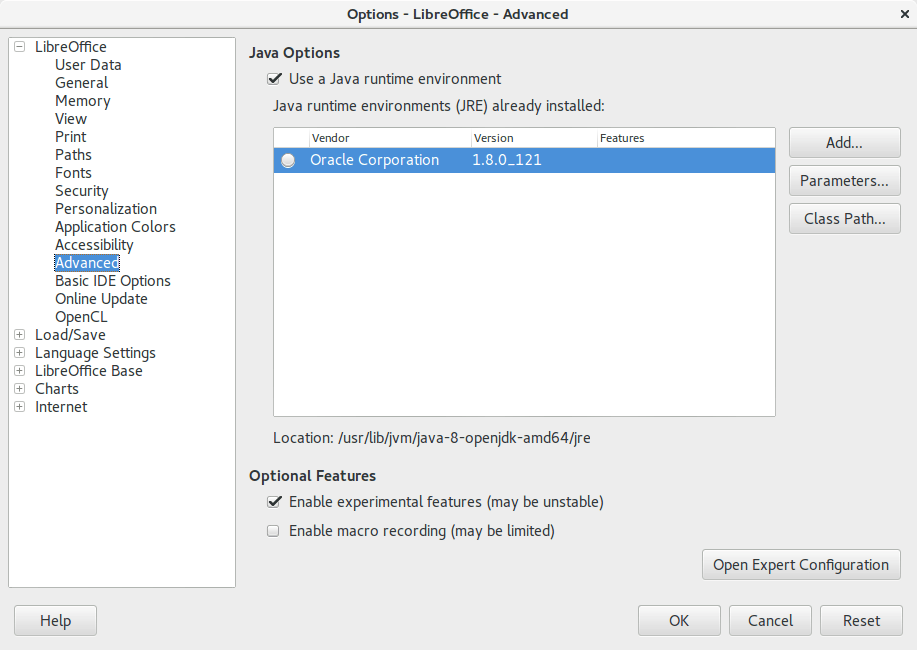
1. It’s actually very easy to enable this “experimental feature” of LibreOffice, you need to go to the options and choose advanced, from there check the experimental features, and restart the program.


Enable experimental features in LibreOffice 5.3
Enabling experimental features in LibreOffice 5.3

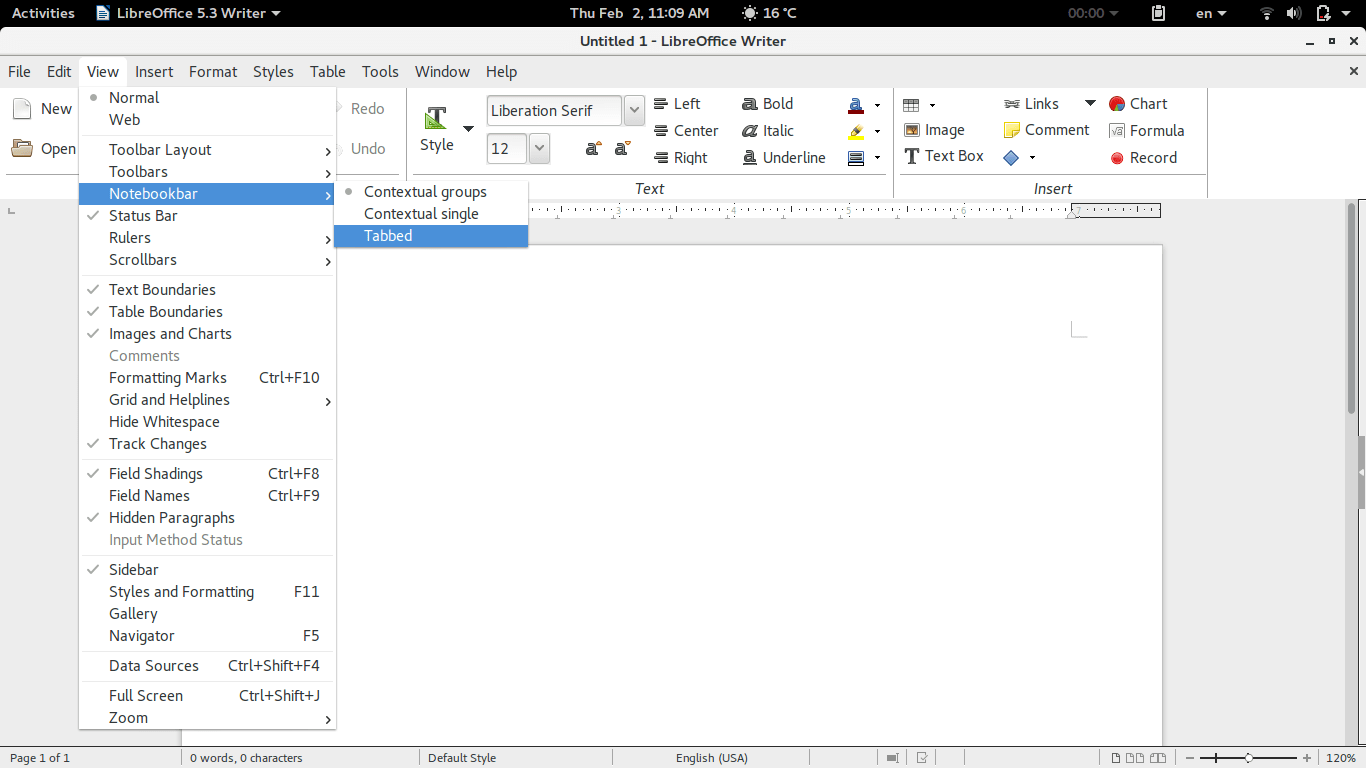
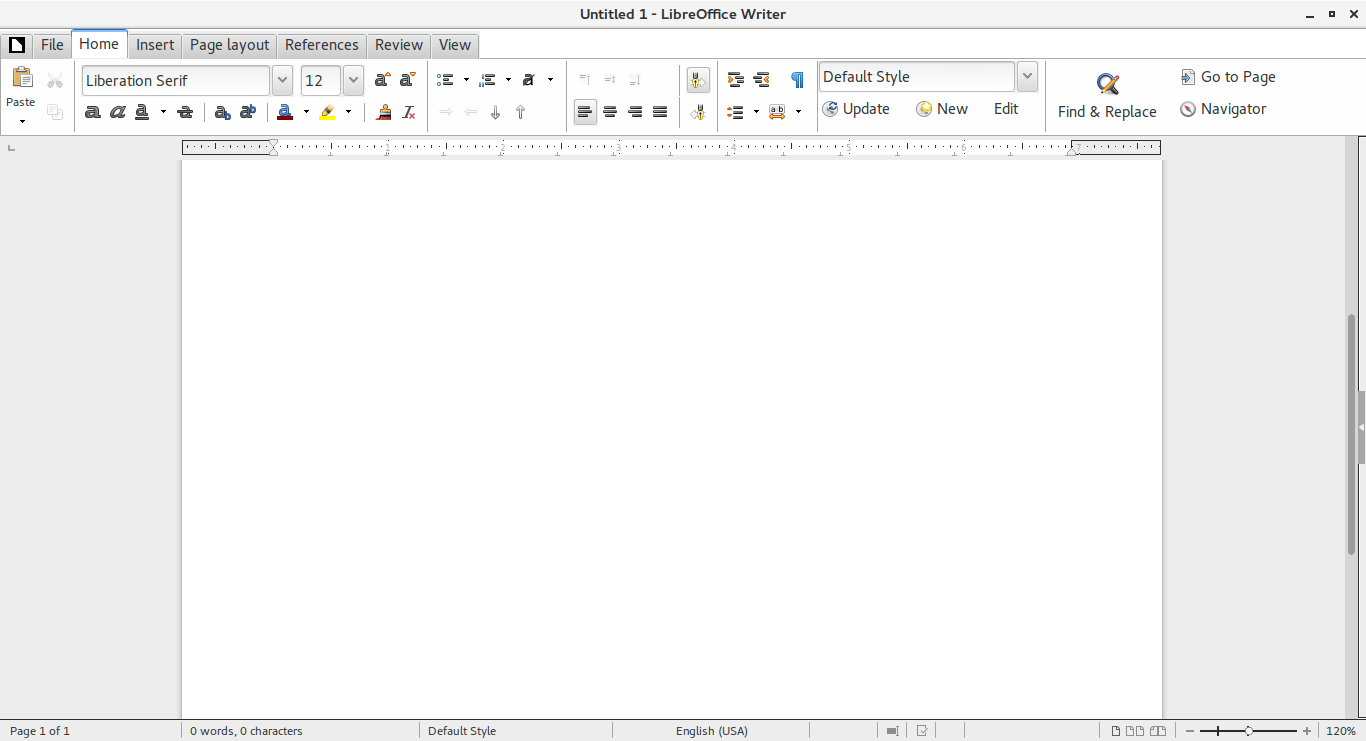
2. Then open Writer, navigate the menu to the Menu View> Notebook bar > Tabbed


Enabling the notebook bar in LibreOffice 5.3

3. And it will change into a tabbed style!


The notebook bar in LibreOffice 5.3
The final look of the Notebook bar in LibreOffice 5.3

Doesn’t it look great? Let’s not forget it’s experimental so it needs a little polishing!

Download LibreOffice 5.3

To download LibreOffice 5.3 go to the download page and choose your operating system and begin downloading, you might even consider using a torrent and seeding as well to help people download faster!

And consider placing a donation as well, it’s what keeps the foundation going!


Last words

Will you download LibreOffice 5.3? Do you like the Notebook bar? Please let me know what you think in the comments section below!

Thank you for reading this post, please share it on your social media and help my blog grow.

In more recent versions, follow this help guide.

Synaptic package manager 0.83 not adding downloaded packages [fixed]

Synaptic LogoSynaptic package manager happens to be my favorite way of installing software, much better than Gnome software and Software center, I even blogged twice about how it can be used to batch install downloaded packages (one was the older one and the other was a rewrite).
but lately it won’t add the downloaded packages and that was frustrating to me!


 Describing the issue

When clicking on add downloaded packages nothing happens, the installation prompt doesn’t appear, to me that is a serious issue because I copy the packages from my laptop to other computers around the house to update and add new software

The first solution that cam to mind was to uninstall Synaptic 0.83 and install an older version, 0.82 and 0.81 needed some dependencies so I dropped the idea!

Uninstalling and reinstalling Synaptic didn’t do anything, not even when using the option “completely remove” option from inside Synaptic (ironic, isn’t it?).

Finally fixing the Synaptic package manager 0.83 not adding downloaded packages issue

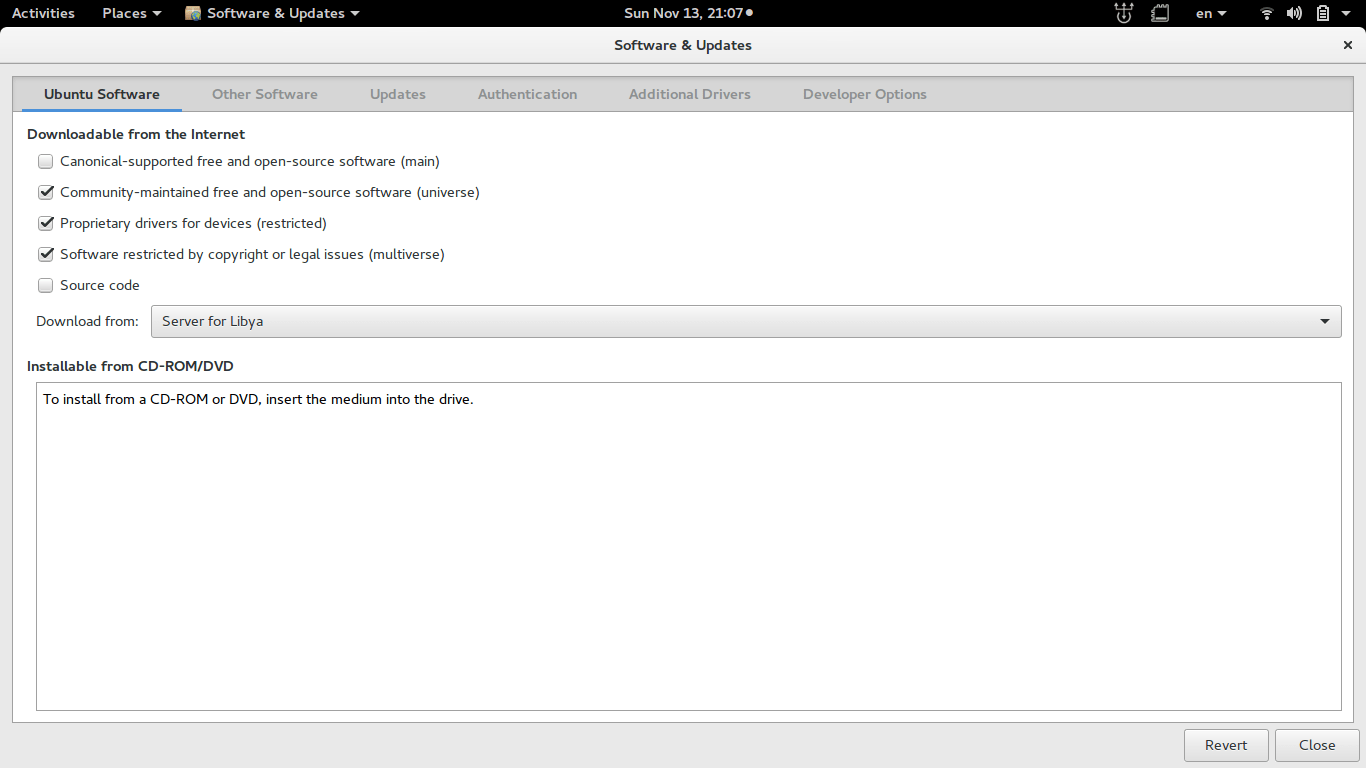
  • To fix the Synaptic package manager 0.83 not adding downloaded packages issue you need to close Synaptic and go to Software and updates.

Software and updates interface

  • From there make sure that the first option is checked, if it’s checked then uncheck it and then check it again, you will be promoted to enter your password, then click close.
     
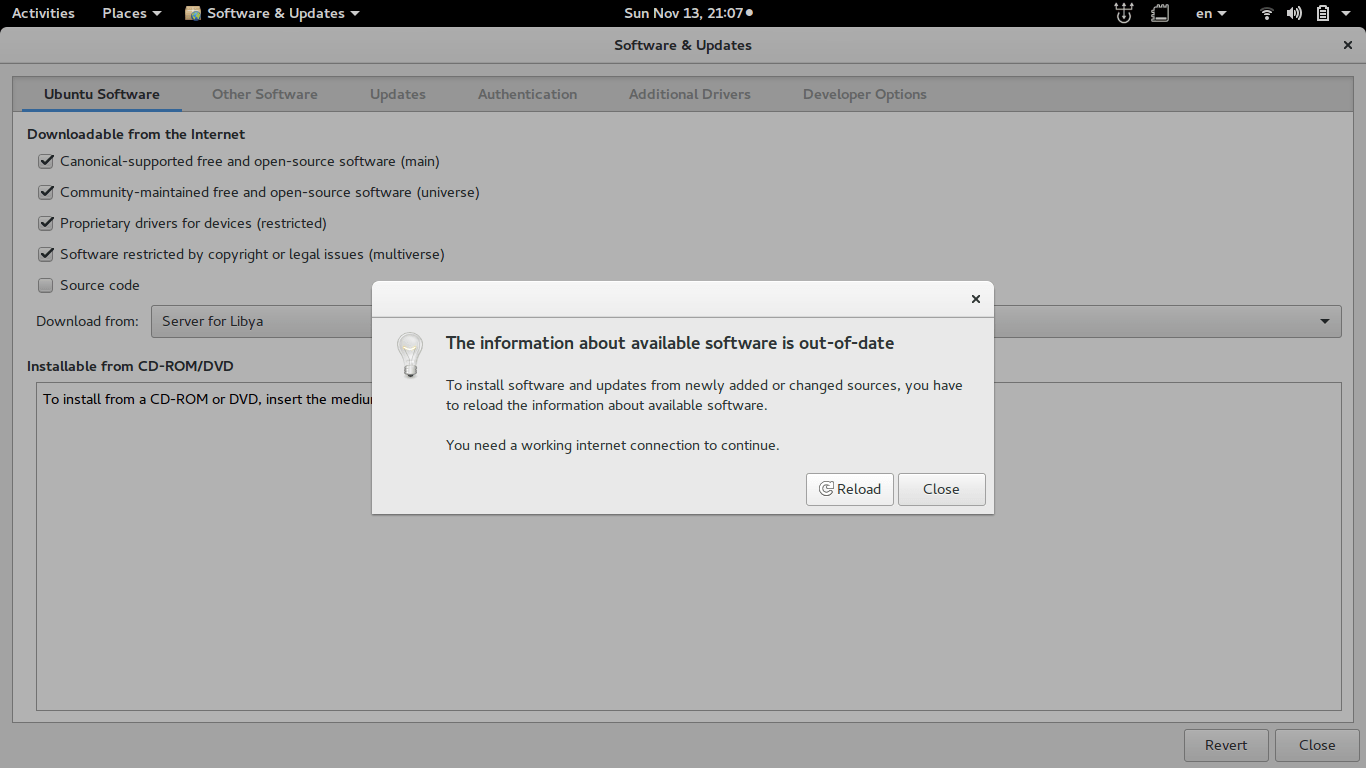
  • A pop up will appear telling you that package information is out of date and needs updating, and that you need a working Internet connection , click on “Reload” to continue.
    Reload package information (out of date)
    Reload package information (out of date)
     
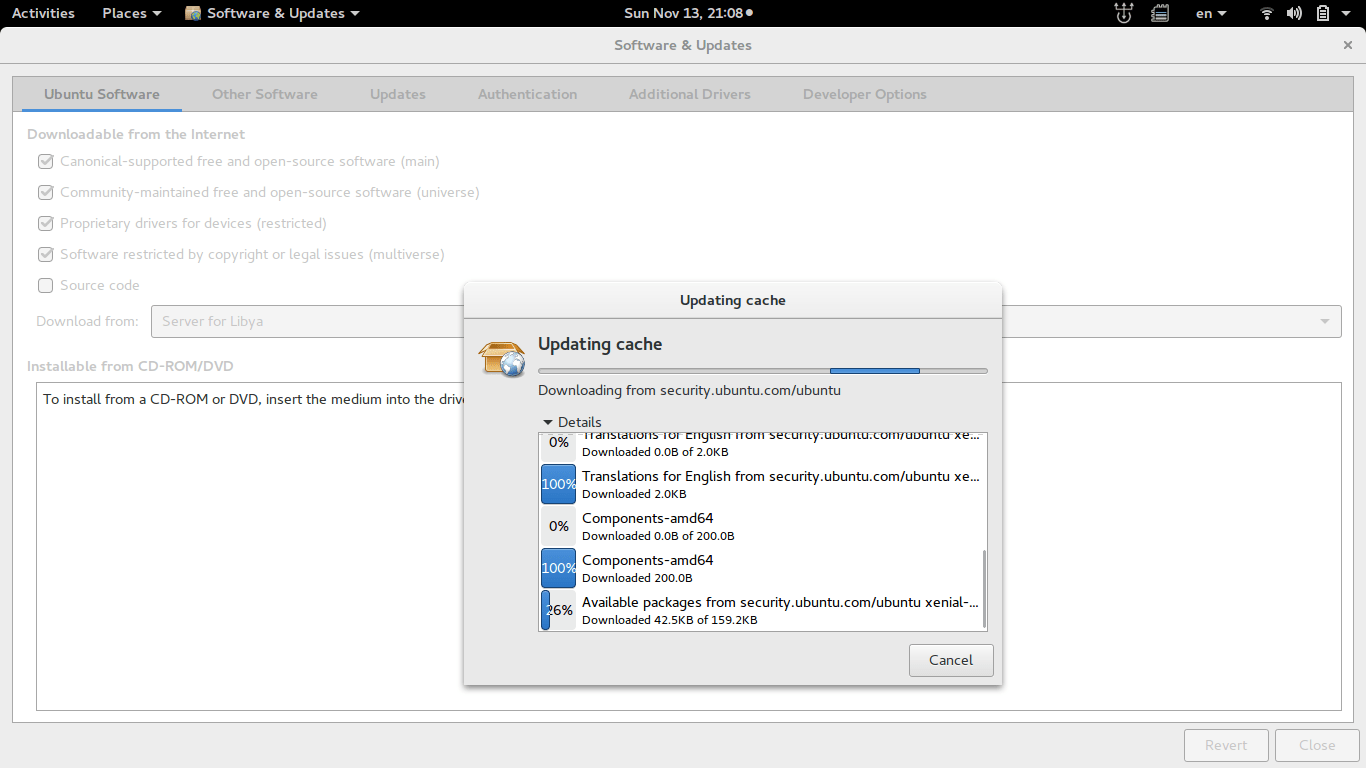
  •  The following windows will appear, the system is updating cached information, After the package reload is complete, it will be closed automatically.
    Updating cache
    Updating cache

  • Now you can go into Synaptic and add downloaded packages without a problem!

Final words

Fixing this annoying bug was so easy after all and it felt so good! I hope this helps you go through a hard day.
Please share this post so you can help someone else in need, and leave a comment if you have any questions!
Have a nice day 🙂

« Older posts Newer posts »