Category: software (Page 1 of 2)

ماذا يوجد بجهازي، نوفمبر 2020

لقد قمت على مر السنوات بتقييم عشرات الحلول البرمجية والنظم المعلوماتية (المجانية منها والمدفوعة). واليوم سأقوم بتقديم 9 حلول برمجية أستخدمها بشكل يومي تحت نظام Windows 10. ليستفيد منها القراء. وأرحب باقتراحاتكم في قسم التعليقات إن كان هناك حلول أفضل من التي اقترحتها في هذه التدوينة.

لماذا Windows 10

مع أنني نصير للبرمجيات الحرة ومدافع عنها. إلا أن Windows 10 ملائم لبيئة الأعمال أكثر (بسب الطبيعة المنغلقة والسياسات الاحتكارية للعتاد ونظم التشغيل ومعايير التقنية). ولأنني ضقت ذرعا بالحلول التلفيقية (الألات الافتراضيةواين). كما أني أعتقد أن برامجًا لنظام Windows ستلاقي رواجًا أكثر كونه النظام الأكثر شيوعًا على الحاسب الشخصي.

معيار الاختيار

  1. كل هذه الحلول مجانية (بعضها مفتوح المصدر).
  2. لا تستهلك الكثير من موارد الجهاز.
  3. يمكن استخدام (معظمها) على نطاق واسع من أنظمة التشغيل (معظم الحلول متعددة المنصات تعتمد على جافا).

سأبدأ بالحلول الانتاجية

 

الحل الأول: المكتب المفتوح LibreOffice (مجاني ومفتوح المصدر – متعدد المنصات)

كتبت عنه تدوينات كثيرة باللغتين العربية والإنجليزية. هو منتج ممتاز ويزيد جودة مع كل إصدار. إصدار شهري بتعديلات بسيطة. وعلامة فارقة كل ست أشهر. أنصح به بشدة.

تحميل ليبر أوفيس

الحل الثاني: (Zim Wiki) مجاني ومفتوح المصدر – متعدد المنصات

يمثل هذا الحل بالنسبة لي قاعدة البيانات الشخصية. المكان الذي أخزن فيه خلاصة الدروس والتقارير (المصروفات الشهرية، صيانة السيارة، الخ). دونت عن خصائصه وتنصيبه باستفاضة لموقع بوابة التقنية.

تحميل Zim – Wiki

الحل الثالث: Xmind (مجاني للاستخدام الشخصي – متعدد المنصات)

هذا البرنامج وظيفته تصميم الخرائط الذهنية ومخططات التدفق. يمتاز بالعديد من القوالب الجاهزة وجمال التصميم. يعتمد على جافا لذلك يجب تحميل آلة جافا الافتراضية لتشغيله.

تحميل Xmind

برامج الواجهة


الحل الرابع: Executor (مجاني، Windows فقط)

هذا البرنامج هو نافذة مخصصة لاستدعاء البرامج والأوامر. يمكن كتابة عدة أوامر معا وتنفيذها في سلسلة. ما يسهل أداء المهمات التكرارية.
يميزه أنه صغير الحجم للغاية (1 ميقابايت للتحميل) ولا يأخذ حيزًا يذكر من ذاكرة الجهاز. يمكن تخصيصه بأشكال متعددة حسب المزاج والذوق.

تحميل Executor

الحل الخامس: Rocket Dock (مجاني للاستخدام الشخصي، لWindows فقط)

هذا البرنامج يعطيك شريطًا للاختصارات قابلا للسحب والإخفاء. يمكنك وضع أكثر التطبيقات شيوعًا عليه والوصول إليها بكل سهولة.

ملاحظة: رغم أن دعم البرنامج منته منذ فترة طويلة، وأعلان مطوره توقف تطويره رسميا في تدوينة ترجع إلى يوليو من العام 2018. إلا أنه لا يزال يعمل بكفاءة ودون مشاكل تذكر على ويندوز 10. ولم أجد بديلا مجانيًا له يعمل بنفس الخفة والخصائص ..

تحميل Rocket Dock

برامج الإنترنت


الحل السادس: RSSOwl (مجاني ومفتوح المصدر، متعدد المنصات)

هذا البرنامج وظيفته جلب روابط الخلاصات من مختلف المواقع الالكترونية. يوفر عليّ الوقت في جلب الأخبار وقراءتها. أيضّا يؤرشف الأخبار ويسهل البحث عنها لاحقا. يعتمد على جافا لذلك يجب تحميل آلة جافا الافتراضية لتشغيله.
ملاحظة: يعتبر هذا البرنامج منتهي الدعم منذ ديسمبر 2013. لكنه لا يزال يعمل بكفاءة. وهناك مشروع حر مشتق منه. كتبت عنه في هذه التدوينة.

تحميل RSSOwl

الحل السابع: Firefox (مجاني ومفتوح المصدر، متعدد المنصات)

متصفح الويب الغني عن التعريف. أستخدمه منذ عام 2008 دون انقطاع. برنامج مستقر ودائم التحديثات.

تحميل Firefox

الحل الثامن: Free Download Manager (مجاني ، متعدد المنصات)

هذا البرنامج يسهل علي تحميل الملفات من الإنترنت ويوفر خيارات قوية مثل جدولة التحميلات وقفل الجهاز عند الانتهاء من تحميل ملف. كما أن تقسيم الملفات يستفيد من السرعة الكاملة حتى مع وجود اتصال بطيء بالإنترنت. لم يكن دعم لينكس من قبل المطورين خيارًا لكن ومن خلال دعم المجتمع أصبح تطوير نسخة لينكس أولوية. كتبت عن هذا الموضوع مقالة لموقع ITSFOSS الرائد في مجال أخبار المصادر الحرة والتوزيعات. يمكن مطالعة هذه التدوينة كاملة من الرابط.
ملاحظة: أنا أستخدم النسخة القديمة 3.9.8 وهي مجانية ومفتوحة المصدر. لم ترق لي الواجهة الجديدة لذا فضلت البقاء مع النسخة الأصغر حجمًا ذات الواجهة المعروفة والشبيهة بواجهة IDM

تحميل FDM

استعراض الصور


الحل التاسع Fast Stone Image Viewer (مجاني، Windows فقط)

هذا البرنامج لا يمتاز فقط بخصائص عرض الصور وإعداد عروض الشرائح. بل إنه يحتوي على مجموعة أدوات لتحرير الصور والتعديل عليها. ما يجعله مثاليًا لإدارة المجموعات الكبيرة من الصور والتعديل عليها دفعة واحدة. وأنا استخدمته بنجاح في إعداد نسخة كتاب اعترافات إنسان. وساعدني كثيرا في إضافة العلامة المائية، تصغير الصور إلى حجم ملائم للويب، قص الزوائد من الماسحة الضوئية. الأمر الذي كان ليستغرق أياما طويلة من العمل لو قمت به لكل صورة على حدة باستخدام جمب مثلا.

تحميل Fast Stone

ختامًا

هنا قدمت باختصار 9 برامج أستخدمها بشكل يومي. أتمنى أن تكون هذه القائمة راقت لكم وفتحت لكم أبواب برامج جديدة.
ما هي البرامج التي تستخدمها بشكل دائم؟ هل هناك برنامج تريد اقتراحه علي؟ الرجاء ترك تعليقك بالأسفل، والسلام عليكم.
My review of Ubuntu Gnome 16.04

It’s been a couple of weeks since Ubuntu 16.04 was out! I decided to take my time and give the new distribution some time before making a review, I think two weeks are enough time, so let’s take a look at Ubuntu Gnome 16.04!!


Ubuntu Gnome 16.04 new logo

The distribution

Ubuntu Gnome 16.04 became an official Ubuntu flavor, making use of the Gnome interface, unlike the official Ubuntu that uses Unity as interface, it comes with Gnome software and isn’t a clone of Ubuntu, there are some minor differences in apps, Basero is  the default disk burn utility for example, and gnome software is at 3.20 out of the box.


Ubuntu Gnome 16.04 Screenshot

Please note that some of the tools in the screenshot aren’t installed natively, such as Zim-wiki and Sublime text.

Download and Install

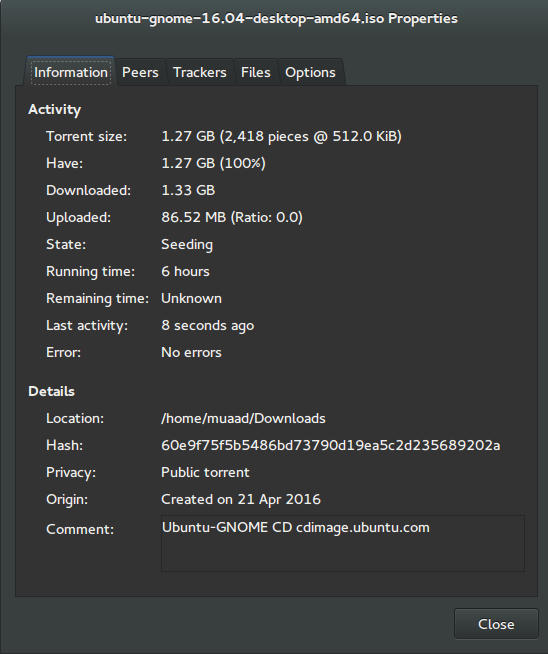
I’ve downloaded Ubuntu Gnome via torrent because I read it’s better for the servers, and come to think of it since the electricity goes out very often here, it’s better to download Ubuntu via torrent to save myself the trouble of downloading it all over again! It was downloaded eventually after 6 hours.
Checkout the download link from here.


It took 6 hours to download!
Torrent download information

I put it on a USB and began installing, pretty much the same since Ubuntu 10.10.
This version has 3 years of LTS support, why not five years? I’m not sure.


Steps to take after installing Ubuntu Gnome 16.04

Most of these steps are on my blog, but it won’t hurt to collect them all together in one neat list, would it?
  • Configuring wireless and Bluetooth, which is really easy to do but very important.
  • Installing the extras, the restricted extras needed to view media files and flash, and some fonts.
  • Installing my softwares, the usual package of stuff: VLC, Inkscape, GimpXmind and Zimwiki
  • Installing extensions: Clipboard indicator and OpenWeather.
  • Editing input sources to make it change between languages by pressing alt + shift, you can find how to do it from this link.
  • Restore the bookmarks and data (notes), Firefox is pretty easy to restore, and so is Zimwiki! All you have to do is to put the note folder in Home.
  • Customize LibreOffice. To make it more compatible with Arabic.
  • Disable apport, more details in the defects section.
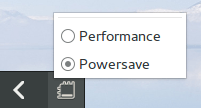
  • Installing powertop for more power save and CPU Frequency to reduce fan noise!
  • Pomodro timer works beautifully with Ubuntu Gnome 16.04 and you have to install it, it’s the best timer app for Ubuntu to date! Read my review about it from here.
  • Disable tracker-store as shown in this askubuntu link. 
  • Disable evolution safely without uninstalling it. Saving nearly 170 MB of RAM.
  • I also decided to skip the Grub menu since I only use Ubuntu 16.04, to do that you need to download and install Grub Customizer with these commands:

    sudo add-apt-repository ppa:danielrichter2007/grub-customizer
    sudo apt-get update && sudo apt-get install grub-customizer

    After that go to Grub customizer and enter your password, go to settings and uncheck: show menu and look for other operating systems. This way you will get rid of Grub and boot to Ubuntu right away, don’t do this if you dual boot!!< red;”


Features and improvements

  • I do appreciate the Gnome 3.18 interface! A huge jump from the 3.10 that Ubuntu 14.04.4 ships with, as it has many improvements and tweaks and fixes for annoying bugs in Gnome 3.10 (LTS to LTS upgraders will relate!).
  • The notifications style has changed completely, it’s now displayed in a drop-down menu under the clock.
  • The annoying bottom bar was removed completely, a feature I will never miss! It’s replaced with a neat arrow that’s docked on the bottom left corner of the screen.
    Notification dock in Ubuntu Gnome 16.04
  • The new boot logo is so much better than the old one! That looks like a foot! This is more sleek and streamlined, reminds me of SEGA’s logo somehow!


Ubuntu Gnome’s new logo


Issues and defects

  • So far the performance is OK and there are few crashes, pretty much the same as Ubuntu 14.04.4 which is pretty stable by the way.
  • I’ve noticed that the network icon sometimes disappears, hopefully an update will fix this, my only fix is to reboot.
  • I would recommend that you disable apport as it will bring up a message every time you reboot.
  • Software isn’t as clear as it should, I can’t tell how big are the softwares and updates, so I use Synaptic on a daily basis to get things done!
  • When disconnecting the wireless network with the hardware key it’s not recognized anymore until several reboots, it’s a known bug but with no fix afaik! The only info I could find was this terminal command: sudo service network-manager restart This command will restart the network manager and allow it to connect without the need to restart several times.
  • The fan noise was too much at times, even when the computer was idle, I thought upgrading from Ubuntu Gnome 14.04.4 to Ubuntu Gnome 16.04 would fix this but it didn’t, until I installed CPU Frequency!
  • Nautilus 3.14 could use an update and we don’t have to wait till 16.10 to get one! I managed to follow a rather risky tutorial to update it to 3.20 and it’s so much better!
  • If you are using an SSD you might want to look at this post to avoid the /dev/sd1 :Recovering Journal issue.
  • Starting up without a user interface at times, and my only cure was to restart the computer, I found a fix that suggests to clear the packages config from Synaptic.
  • Sometimes shutdown can be slow, I found the steps in here worked like a charm!

“Software”

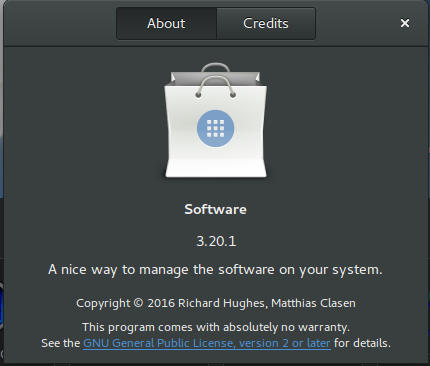
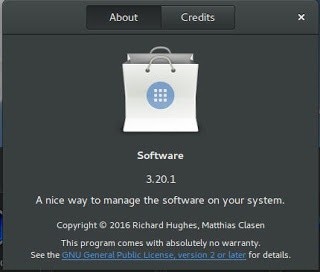
Ubuntu Gnome 16.04 ships with Gnome software 3.20. Which is the software that is supposed to replace Ubuntu Software center, I find them both buggy and unusable, as I use Synaptic to do my package work.


Softwares 3.20 on Ubuntu 16.04

I do believe it needs more work to become a reliable software center, it stays in the background and behaves oddly, it doesn’t show the download progress on software being downloaded too, which seems odd!

I winded up un-installing software and reinstalling the good’ol Ubuntu software center!

Final words

Ubuntu Gnome is a great choice for anyone who wants to enjoy Gnome  without having to leave the Ubuntu universe to Fedora or OpenSuse, it provides the purist Gnome experience possible for Ubuntu, and it preformed better than regular Ubuntu installed on older machines (with proper tweaking mentioned here).

The more I use it the more I could tell that this is the distro for me, great job indeed by the team, and I rate it as a must have!

I hope you enjoyed this post, please let me know what you think in the comments section below, and remember: Sharing is caring!!

How to Prevent RSI on Linux and Windows

Hi guys 😀
This post is really important for office workers. Programmers. Bloggers. Not gamers! Gamers would hate me forever for suggesting something like that!!

Sitting at the computer for prolonged hours is not good for you. It’s related to many back and neck pains, wrists too! And don’t forget the eyes now!
There are ways to prevent these pains. You need to get up every ten minutes or so. And move a little bit. But who will remind you of that? And who has the time for that really?

There are tools that remind you to get up and move! And that’s where my tip comes to play!

But the Internet is so tempting! I’m really focused here! I keep forgetting to get up

There are softwares for that you know!

These softwares will remind you to wake up, stretch and flex! So you comeback to your computer refreshed!

You must visit a doctor if symptoms arise. These are prevention measures only and CANNOT subtitle a doctor’s visit!!

Now that we understood the whole deal. Let’s look at the software. One for Linux and one for Windows.

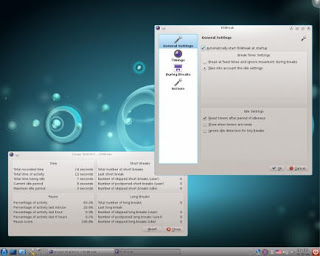
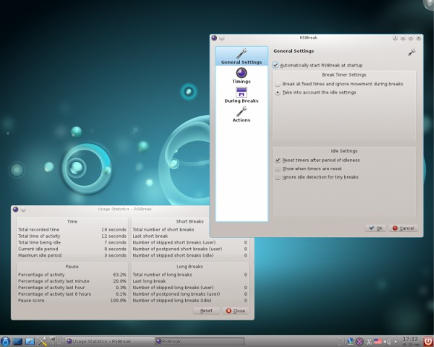
On Linux there were two choices available in Ubuntu Software Center, I went with RSIBreak. It worked better with Xfe. And the settings were much clear to me. It provides two intervals by default. The small on is 10 minutes of work with 20 seconds of brake. And the big one with 60 minutes of work and one minute of break counting idle times!

It’s really neat. And you must have it! It’s originally a Kde app but it will work fine on Ubuntu.

It’s the best I found so far. If I found anything easier I’ll update this post!

Download from the Ubuntu Software Center, RSIBreak.

RSIBreak working on KDE

As for Windows, my favorite has been always Rest brake. It’s a light software that does what it says. Just set the timer and wait for the alarm, you can customize the message of course!

RestBreak Screenshot on Windows

RestBreak download link  Size: 1.2 MB

I don’t have a mac. And I only post about the stuff I test. If you have a good software send it and I’ll post it with credits.

I hope you find these useful. And please share them with your friends and family.

How long do you stay on the computer? Do you have any specific pains? Please comment below and let me hear what you have to say!

P.S: I couldn’t find anything for Android. Sorry 🙁

And didn’t even look for Symbain!!

Useful resources:

Wikipeda, as always!

Restbreak’s site. Very informative!

Rsi.Uni Got me through college!!

« Older posts