Category: Fix (Page 8 of 11)

Top 3 common issues faced when dualbooting

Dual booting can bring many perks if done properly. It’s like having two computers working together. And a really good idea in case one of the systems fails, you will have a configured running system and your work flow won’t be affected by the fail. As I had to fresh install Windows 10 from scratch (because the rollback failed).

There are some minor disturbances to take care of first. And those are mostly caused by Windows.

1. Ruins the dual boot.

I have a complete post about this topic! No matter what you do. Installing Windows will erase any grub boot data and you won’t be able to access your other system (in my case it was Xubuntu) I made a whole post dedicated to this as a part of the dual boot saga. So please checkout the post for the fix.

2. Time is always wrong

As you use Windows you will notice your time settings are forgotten every time you shutdown.

  • This is quite easy to fix as you just need to edit a registry key to set the time once and for all. From run open regedit.exe and navigate to :
    HKEY_LOCAL_MACHINE>SYSTEM>CurrentControlSet>Control>TimeZoneInformation
  • Create a dword32 key and name it “RealTimeIsUniversal” And set the value to 1 by double clicking on it.
  • Lastly reboot to Ubuntu and then to Windows and your issue will be fixed.

3. Error mounting drives

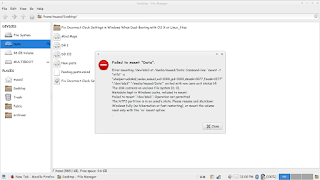
3. I couldn’t mount the data drive because Windows is still not totally shutdown, the drives are being used to “fast boot” in order to be able to use the drive without error, we need to disable fast boot. The screenshot shows an error caused by fast boot on Windows.
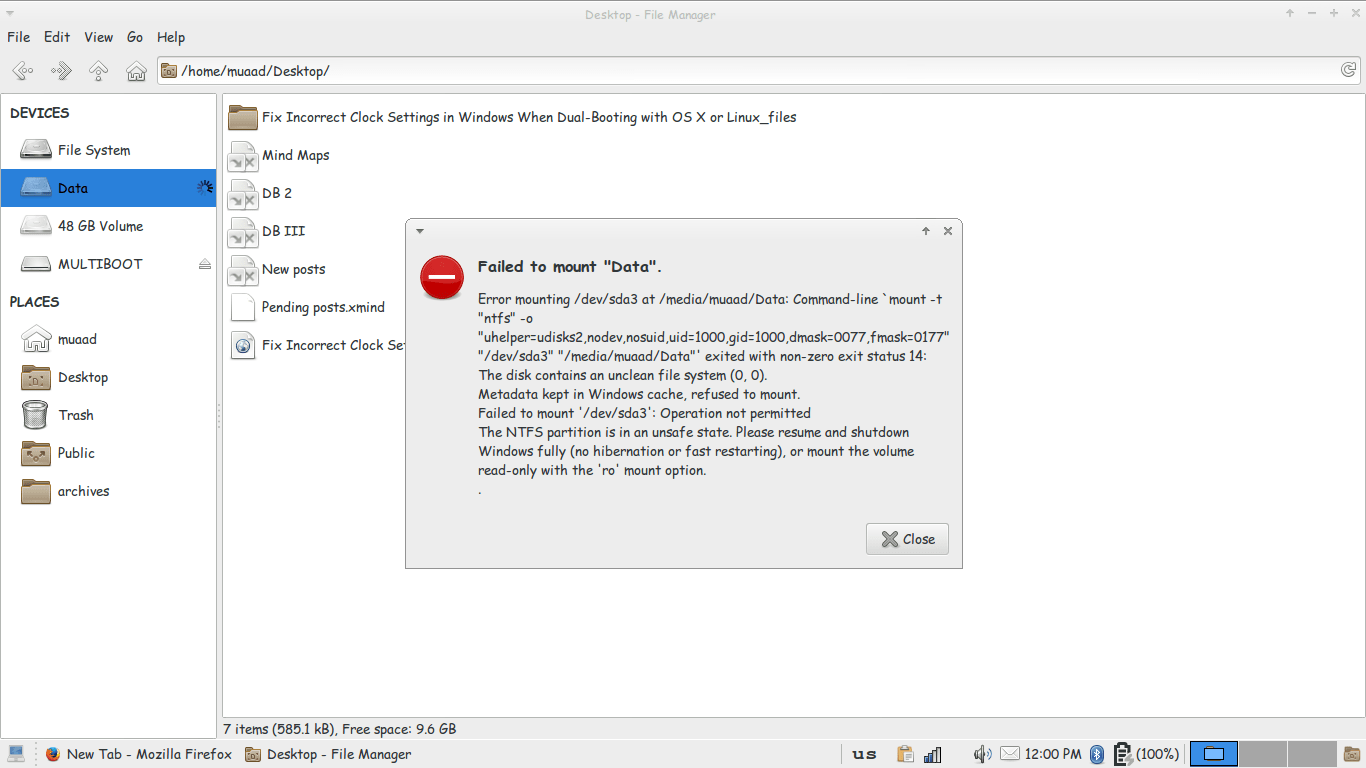
Error mounting drive in Ubuntu
Since it’s caused by Windows, we go and disable it from Windows.
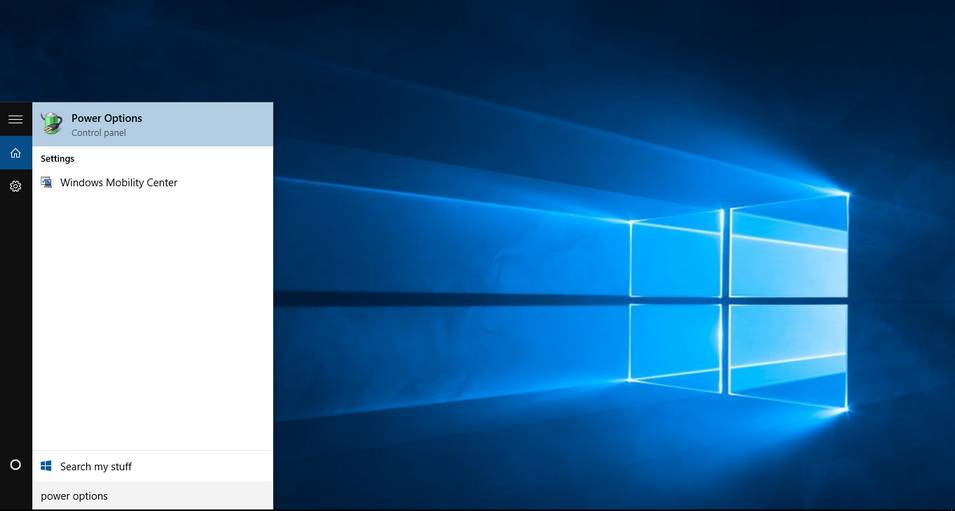
Go to Start menu and type: Power Options and click on the choice.
Type in power options in the search bar
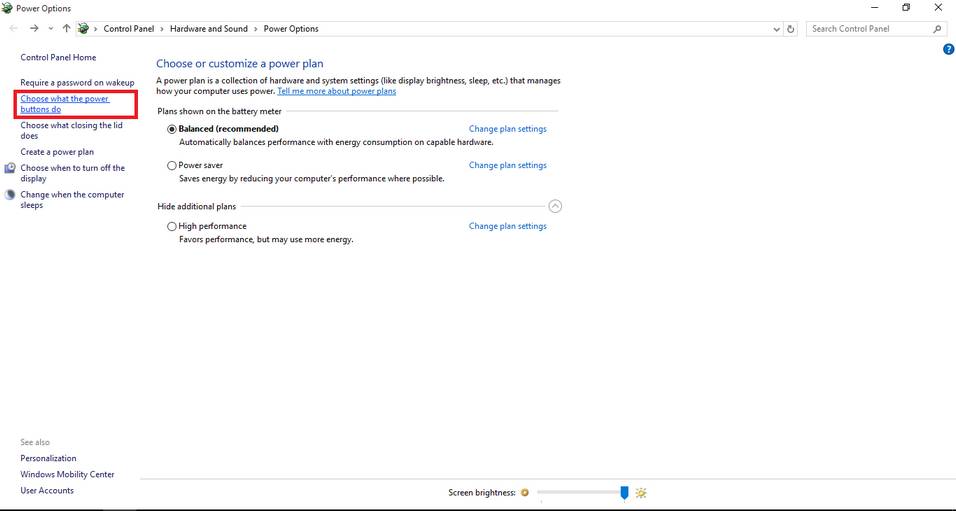
From there click on choose what the power buttons do.
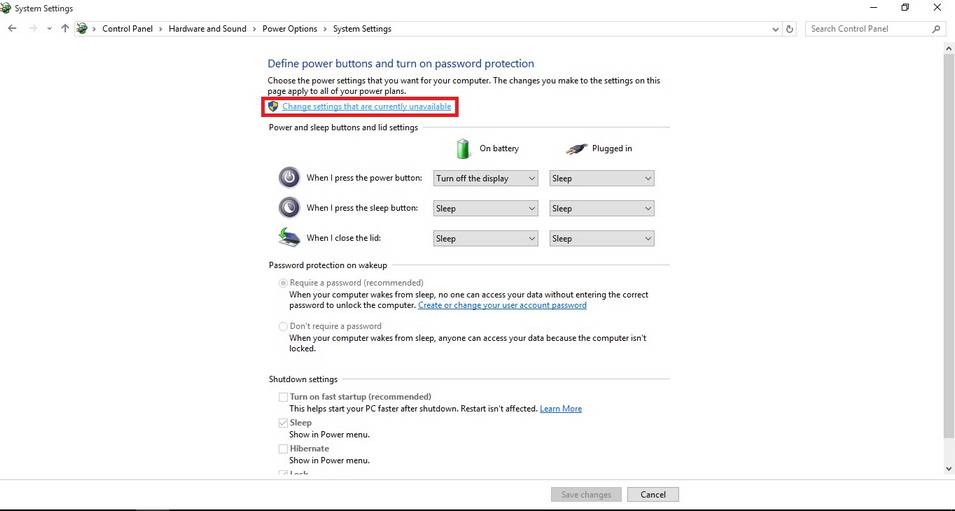
Click change settings that are currently unavailable to unlock the greyed options.
change settings that are currently unavailable
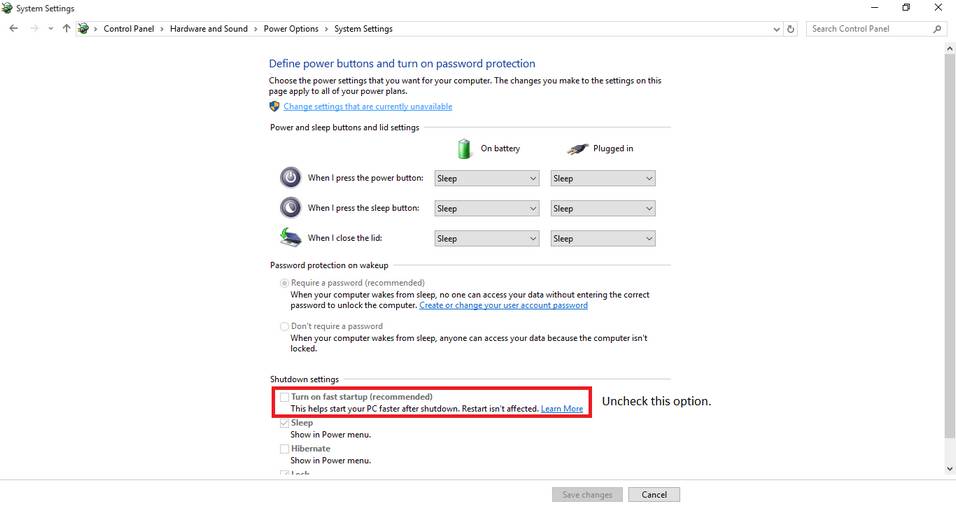
Then uncheck turn on fast startup. And close the window.
Uncheck turn on fast startup
Once the fast boot is disabled you will be able to access all the drives from Ubuntu without a problem.
Here I tried to list my experience on dual booting to help with these three bugs I faced twice. I hope you find it useful 🙂

ClipGrab. Your all media download solution for Ubuntu

Hey there you guys. How are youdoing? I hope you are doing good!
If you are in town looking for the easiest way to download videos from the Internet. Then this post is for you! Read on!


I must warn you to the check copyrights of videos before proceeding to download.

ClipGrab is very useful when downloading videos from sites such as YouTube and Facebook (some of my best friends are still addicted to it!) very easily. Much like YTD which I reviewed here. It supports some sites officially but can download from thousands of sites (According to the site!).

All you have to do is to visit the site and download the proper version for your OS. I’m using Ubuntu for this tutorial.

Next extract it to a directory of your choosing. And double click for it to run.

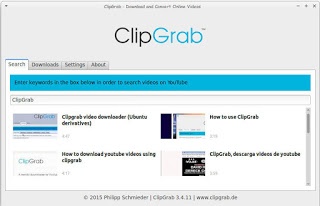
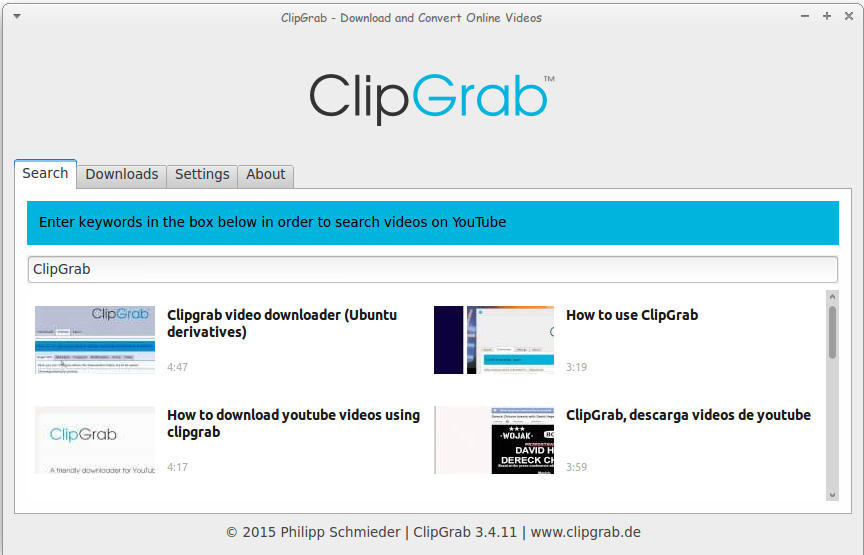
Main interface of ClickGrab
It’s divided into tabs, the first is Search. Which I used to find videos about ClipGrab!

How to download

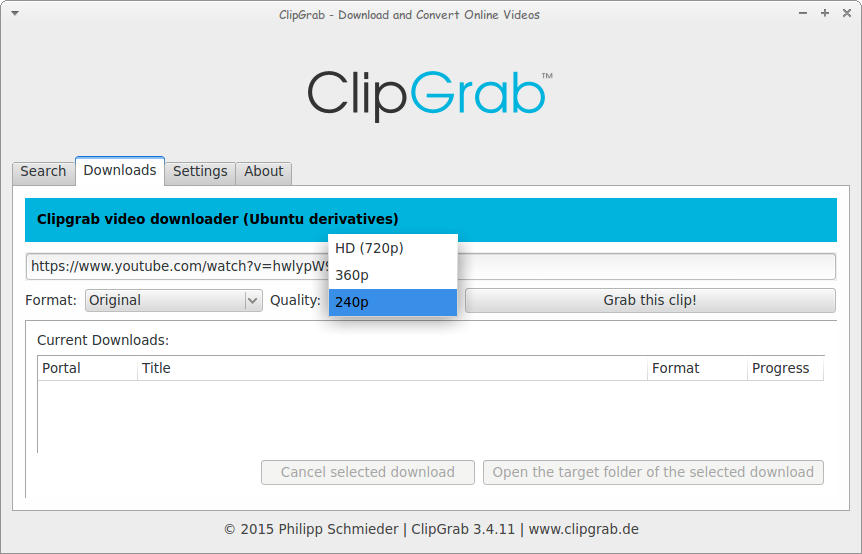
The second is Downloads. Paste the video link and choose the quality. I’m using a video from the search results, and wait for it to end!
Downloading a file using ClickGrab

As simple as that!

The only drawback it can’t download some Facebook videos. But the rest is as smooth as milk!

Convert 

You can also use it to convert videos as long as you download ffmpg package, which also enables you to download videos with 1080 quality.

After download you can choose the format. And ClipGrab will download it in that format! I’ve saw this in YTD Pro! 

Feel free to donate to support the program! And click here to download for Linux.

Ubuntu 16.04 Gnome won’t launch + Fix

When upgrading to Ubuntu Gnome 16.04I was surprised that ClipGrab stopped working, it won’t even launch! Luckily the good people at ClipGrab gave me the easy fix. And that was to download and install the dependencies libqtgui4 and libqtwebkit4.
After downloading

libqtwebkit4 ClipGrab worked without a problem!

I hope you liked this post. Let me know what you think in the comments section to below.

Error moving “file” on Uubuntu 14.04 fixed!!

Hey there fans! How are you keeping?
This bug has been one of my Pet Peevs on Ubuntu. Luckily I was able to fix it easily!! 

I noticed this bug when I switched from the default Thunar to Natilus on Xubuntu (While the title says Ubuntu, they are both the same, technically)

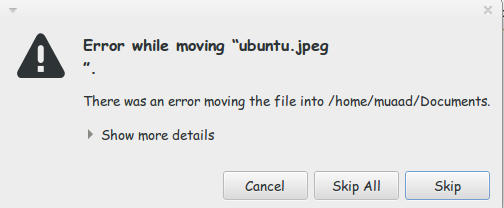
I used the desktop often while copying and handling files. What was strange that every time I tried to cut/copy from the desktop to another directory I get this error message

Error while moving "file"

“error while moving “ubuntu.jpg”.
There was an error moving the file into /home/user/documents/
show more details
error moving file: No such file or directory

That was weird! The file does exist! It’s right there!
I kept working around it by opening desktop in the file manager and moving the files. But that wasn’t handy!

Here is what I did to fix it:

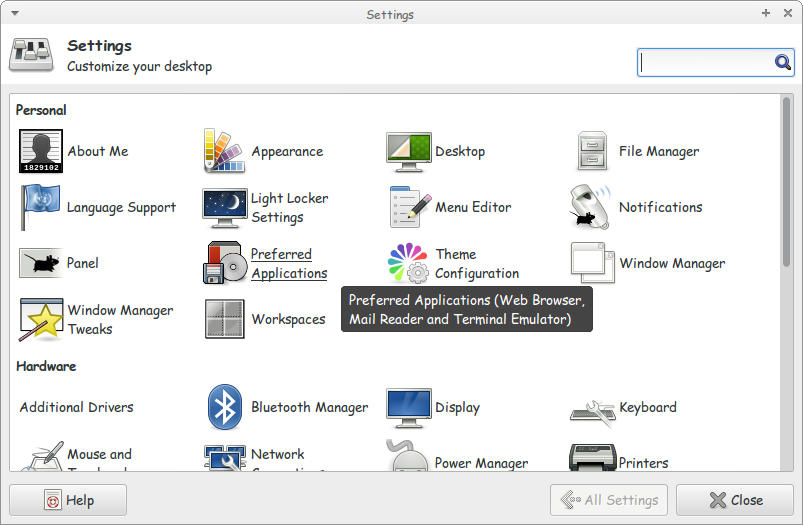
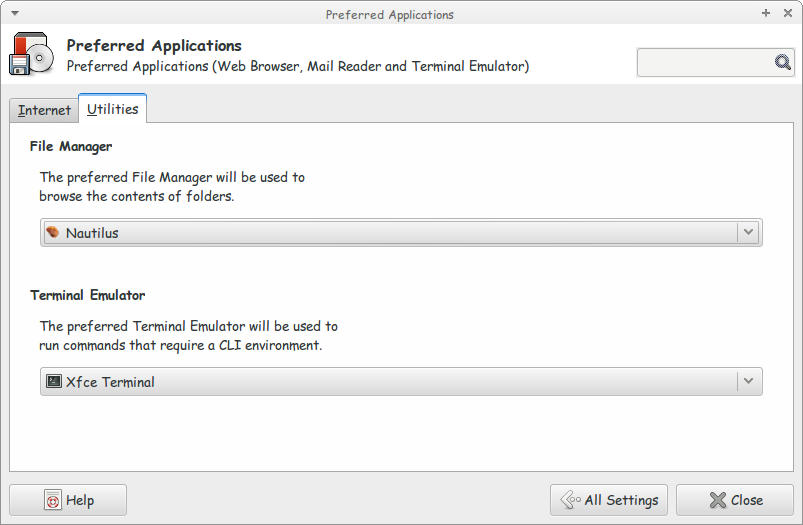
1. I went to settings and clicked Preferred applications.

Settings menu

2. On the Preferred applications choose Default File Manager.

Default File Manager

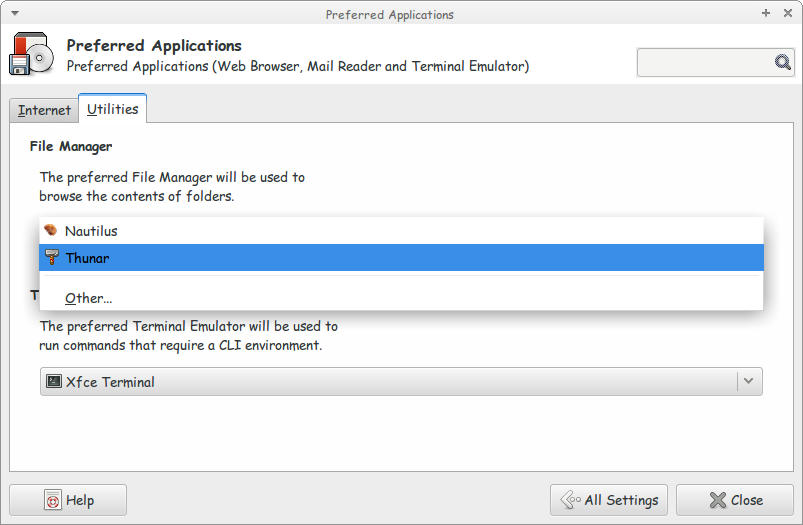
3. Choose Thunar as the Default File Manager.

Choose Thunar as the Default File Manager

Close the settings to save the changes. And you are good to go!
I don’t know why is Natilus is having this bug! So the fix is just replacing it with Thunar!!
I hope you found this useful. Please comment below!

A fix to many of ubuntu’s boot problems!

Ubuntu's Logo

Hey there you guys, How are you keeping?

I hope you are doing good!
I’ve been quite busy these days! Many things happening and I am struggling to keep up. One of these things is my brother’s laptop!
My brother is a new Ubuntu user. He spent all his life using Windows then he decided to take the jump. I advised him to take his time and study it thoroughly. Because using a new operating system takes time to get used to. He did what I told him and he was more than happy to have Ubuntu, but that’s when problems started to happen!!

At first. It was the “Press S to escape problem”. The option I didn’t do anything and the usually bullet fast Ubuntu boot took 10 minutes! And none of the fixes I came across on Askubuntu fixed it. There I had to do the unforgivable!

I formatted the drive and reinstalled Ubuntu! I thought that would fix the problem. Sadly I was mistaken!
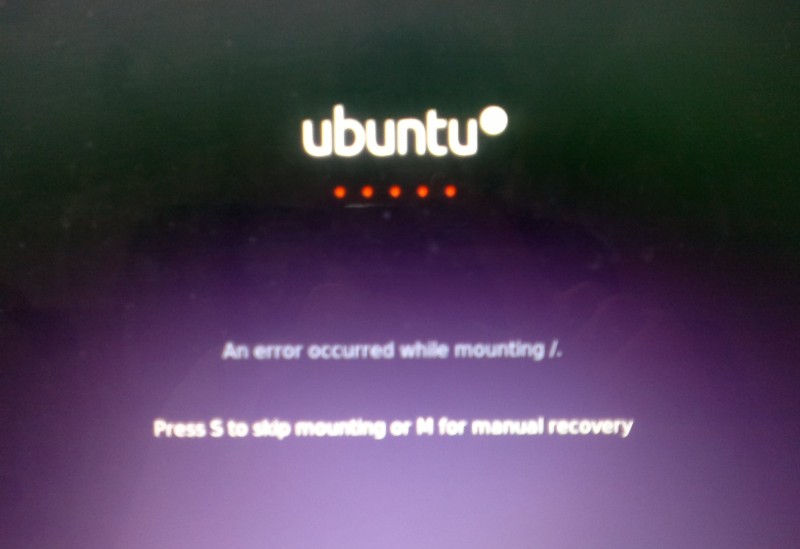
Press S to skip mounting or M for manual recovery!

A new problem emerged! This time it was the dreadful ”error reading sector 0xx Problem in HD 0” . I ignored it and tried a workaround! (That’s after checking the drive using Gparted) I was faced back with the “Press S to escape problem” again!!
At this point, I was losing it totally!!
I tried some fixes and the problem went away! Soon after he came to me and said he couldn’t install anything!
For the third time in two weeks I took the computer to repair it. And after a day and a night I was hopeless!
The system isn’t responding to any repair attempt. And it’s driving me insane.
After some lucky Googling it turns out that the problem was in the HDD itself! A quick test using Partedmagic boot disk confirmed my doubts! We had to throw out the old HDD and get a new one.
Now I’m hoping that this would finally solve his problem! So I can find some time to do other things, say post to this blog maybe 😉
Anyway while I worked on it I learned many things and tricks that will help me with Ubuntu even more. And it made me consider re-writing a post I made some time back. Can you guess what it was?
Ubuntu is a great system, and all these problems didn’t make me lose faith in it. I felt like sharing what was I up to so you guys know!

And if you get any of the error code mentioned above. Take a look at the HDD. It could save you tons of time!!


What did you think of this post?  Did you ever have these problems?
Let me know what you have in mind in the comments section below!
« Older posts Newer posts »