Category: Ubuntu Gnome 16.04 (Page 2 of 4)

Too minimal? Striking the perfect balance

I posted a while back about trying to be minimal with my tools and work flow, one of the drastic changes I made was removing Zim wiki and trying to use Libreoffice as a personal wiki.
I tried that for 45 days, even with some advanced tricks like master pages and the extension writer tools, it was clear that Libreoffice wasn’t cut for this.

Couldn’t manage without Zim

I re-read the post I made about Zim and I was sold! How could I even think of letting this awesome software go? It is missing a couple of features and hasn’t officially reached 1.0 yet, but it’s pretty mature and still the best piece of software written for this job (in my opinion of course).

I’m back to using Zim and I couldn’t be happier, I feel like my information is under control and that I can keep track easily of data via an all in one easy to use intuitive interface.

A bit of back and forth

This step back wards and then forwards arises a question: When is it too much to be minimal?
Where is the sweet spot between too much and too little? The risk of running a skeleton structure of tools, and having too much tools to choose from?

In this case the mistake was trying to replace a personal wiki with a word processor, as it turns out they can’t substitute each other despite having some similar features. 

All in one?

It is a minimalist dream to have an all in one software, that can write documents, store information, manage e-mails and write code while keeping a nice user interface.
Perhaps it should be my next research to find this all in one tool?

The web browser issue

I’ve been using Opera mini on the phone for years now, it saved me a ton of money on data fees and I’m grateful for that, but I can’t tolerate what Opera has become lately!
Opera has been plagued with ads and pop ups that it became impossible to use effectively, the once 5 star browser dropped to one star, just because there is no lower rating to give.

For now I’m using Firefox mobile, I figured since Firefox became so good, then the mobile version has got to be good too. It’s not perfect or even near that, but it provides a better experience than Chrome and it’s ad free. I also liked the two browsers using the firefox account and I have my bookmarks and history synced across devices, really useful when being away from my laptop or during long electricity outages.

Which brings me to note taking

Using Telegram’s cloud to write some notes on the fly is really nice, but when writing several topics or separate blog posts. And since Zim doesn’t have an Android version (and not coming anytime soon) and I refuse to have my private notes stored on a file sharing service like DropBox or Google drive, I use a service called Simplenote to sync my notes on the go and then put whatever I need saved into my personal wiki (zim).

What’s the use of being too minimal?

I had an empty phone, with no apps and nothing was being done, even when I installed the apps back the phone didn’t get any slower. So being too minimal and running a skeleton frame didn’t help boost the performance or tweak anything.

I’m still fine tuning my life and chances are I’ll make more changes sooner or later, but until then here is a step I felt like sharing with my readers to keep things updated.

Final words

Life is all about balance, I’m still trying to reach the perfect productive balance,  what about you dear reader? Do you think that your life is minimal or you have too much to handle? Let me know what you think in the comments section below.

4 years with Ubuntu!

Anyone who follows my blog knows that I’ve been using Ubuntu as a main operating system for quite some time now, 4 years to be specific. To celebrate this anniversary I decided to look back on my journey with Ubuntu so far and share some updates with my readers.

Looking back 

Tux, Linux's logo
Tux, Linux’s logo

When I took the decision to install Ubuntu on my laptop, my aim was to convert to a free and clean system where I can do what I do best without restrictions (such as proprietary licenses and common malware), while staying productive and without drastic changes in my lifestyle.
The transition was smooth because I did my home work before and most of the tools I use daily are cross platform, so I felt right at home with Ubuntu.


This year’s change

I migrated from Gnome to KDE due to long lasting bug with Lenovo laptops (very specific bug sadly) that prevented me from being productive and threatened to harm my hardware in the long term, Kubuntu has been great so far (despite some issues in the beginning) and I couldn’t be happier.

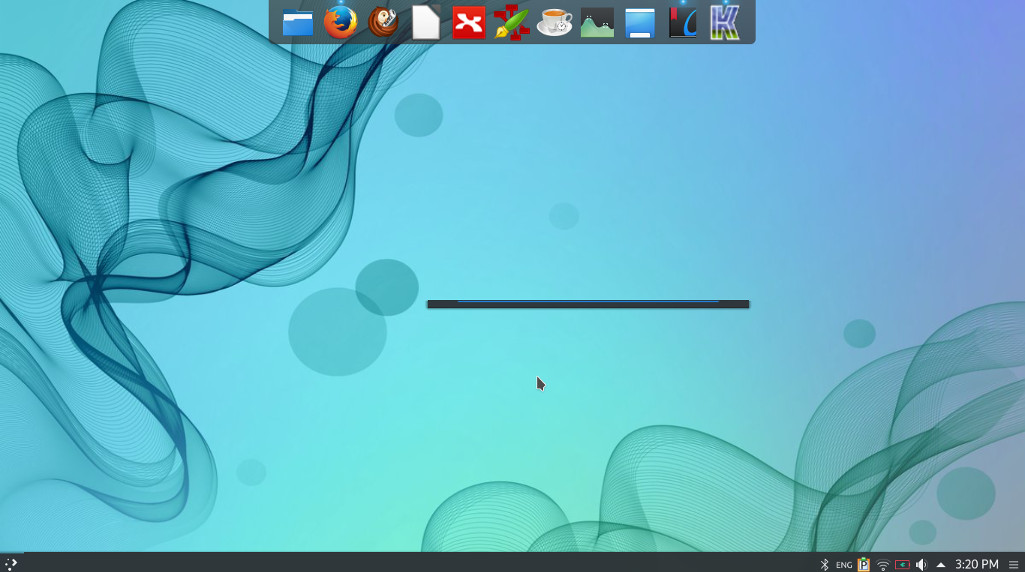
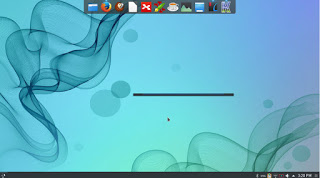
Kubuntu 16.04 with plank, the lancher is Krunner (KDE tool).


Going forward

After settling down with an interface and getting the system to look like exactly like I want it, it’s time to get deeper into the Linux ecosystem, I decided to read more about the origins of the system and learn about the terminal.

An inspirational read

Reading The cathedral and the bazaar by Eric S. Raymond was an enlightening read, I now understand the greatness of this operating system better and appreciate it much more, understanding that it’s the collective work of thousands of volunteer programmers from around the world who are making a high quality system, something that seems to be impossible, but it’s happening!

Learning about the shell

My decision to learn about the terminal comes from my feeling that using the GUI (graphic user interface) alone isn’t good enough, I was asked in an interview once if I understood the command line system, and I felt so under qualified! Luckily I got the job and it has nothing to do with Linux anyway!

 It’s satisfying to know how to use the command line to achieve some tasks, like driving a car with manual transition or drinking black coffee! And down this line of thought you can say that sticking to the GUI alone is a bit “vanilla”.

Maturity comes with age!

There is no fun in just installing / uninstalling different distos and going through the transitions over and over, (known as distro hopping in the Linux world)I want to grow and learn about the system in general and can’t stand staying in one place for a long time.

Final words

I feel very blessed being able work on Linux and get to learn about it, and sharing this knowledge with my readers makes me happier!

Have you considered trying Linux? What are you waiting for? It’s been around for a long time now!


Synaptic package manager 0.83 not adding downloaded packages [fixed]

Synaptic LogoSynaptic package manager happens to be my favorite way of installing software, much better than Gnome software and Software center, I even blogged twice about how it can be used to batch install downloaded packages (one was the older one and the other was a rewrite).
but lately it won’t add the downloaded packages and that was frustrating to me!


 Describing the issue

When clicking on add downloaded packages nothing happens, the installation prompt doesn’t appear, to me that is a serious issue because I copy the packages from my laptop to other computers around the house to update and add new software

The first solution that cam to mind was to uninstall Synaptic 0.83 and install an older version, 0.82 and 0.81 needed some dependencies so I dropped the idea!

Uninstalling and reinstalling Synaptic didn’t do anything, not even when using the option “completely remove” option from inside Synaptic (ironic, isn’t it?).

Finally fixing the Synaptic package manager 0.83 not adding downloaded packages issue

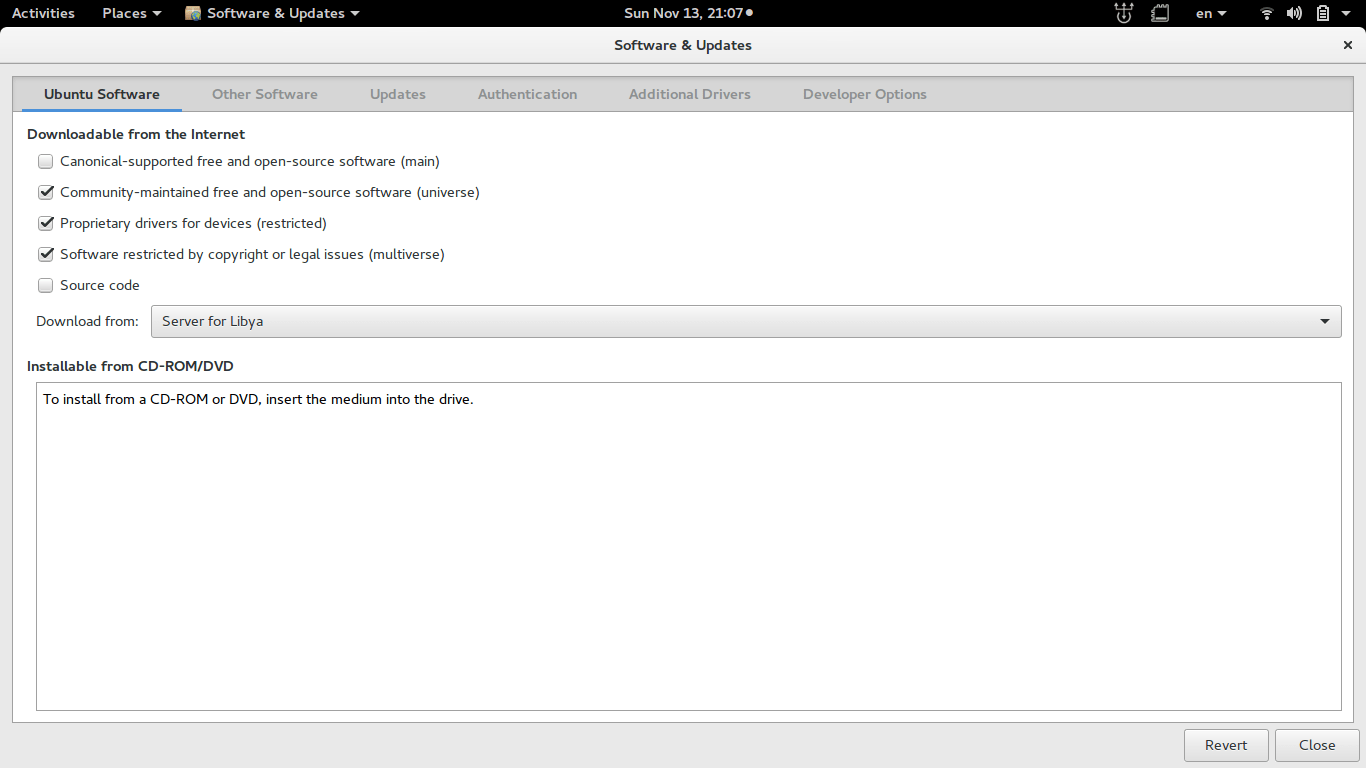
  • To fix the Synaptic package manager 0.83 not adding downloaded packages issue you need to close Synaptic and go to Software and updates.

Software and updates interface

  • From there make sure that the first option is checked, if it’s checked then uncheck it and then check it again, you will be promoted to enter your password, then click close.
     
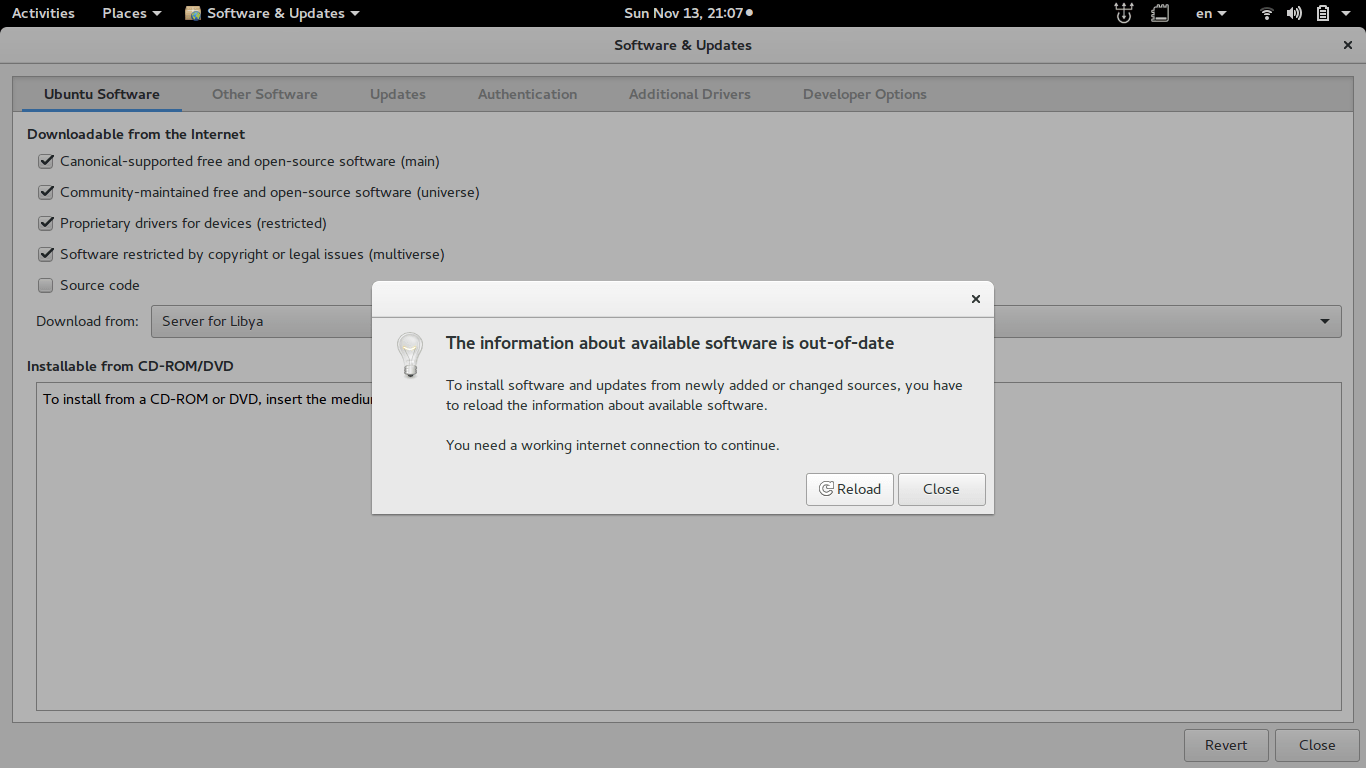
  • A pop up will appear telling you that package information is out of date and needs updating, and that you need a working Internet connection , click on “Reload” to continue.
    Reload package information (out of date)
    Reload package information (out of date)
     
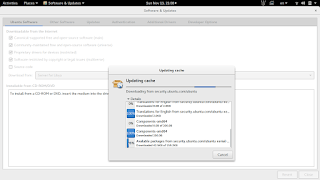
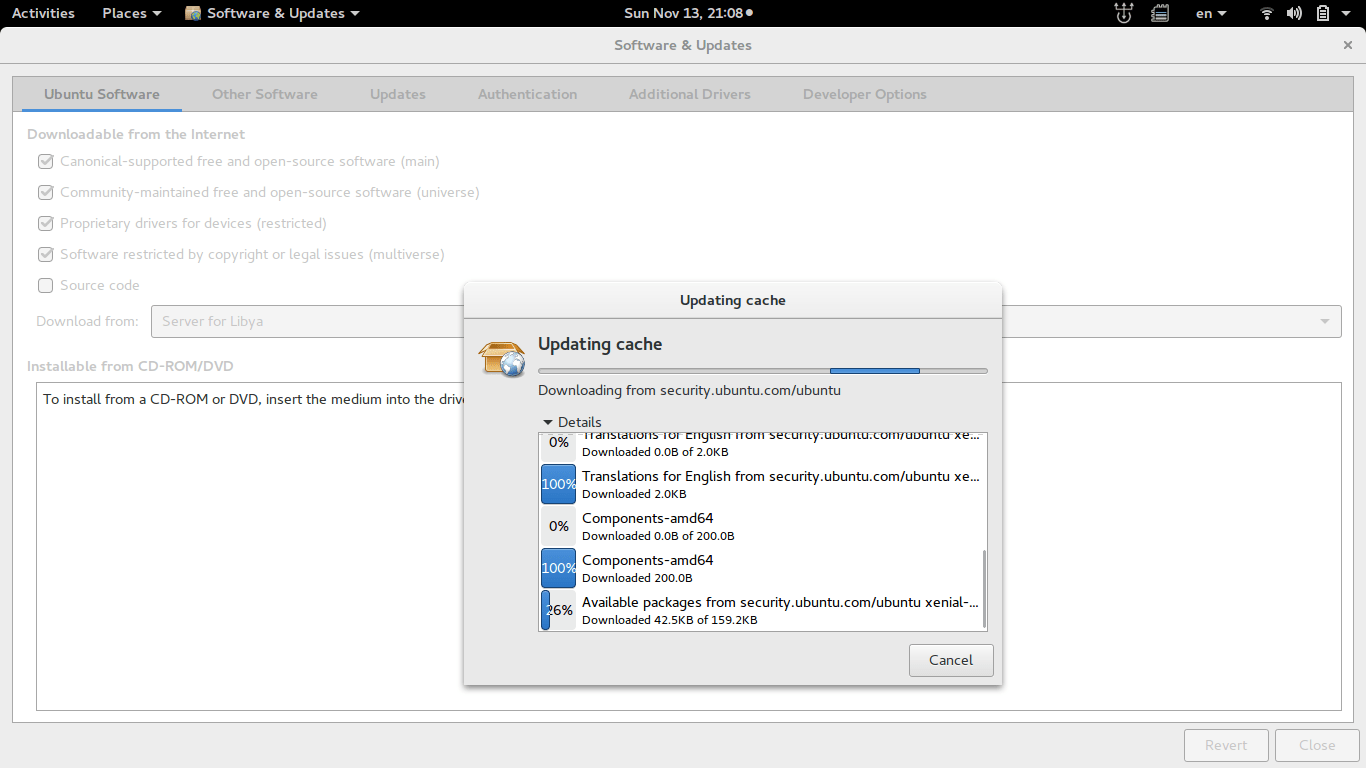
  •  The following windows will appear, the system is updating cached information, After the package reload is complete, it will be closed automatically.
    Updating cache
    Updating cache

  • Now you can go into Synaptic and add downloaded packages without a problem!

Final words

Fixing this annoying bug was so easy after all and it felt so good! I hope this helps you go through a hard day.
Please share this post so you can help someone else in need, and leave a comment if you have any questions!
Have a nice day 🙂

« Older posts Newer posts »