Category: Windows (Page 4 of 22)

Introduction to wine on Ubuntu Linux

Wine stands for (Wine Is Not Emulator), and it’s a bunch of Mono libraries used to run windows programs on Linux.
As a Linux user you will cross paths with wine and in this post I’ll be talking about whether is it a good or a bad addition to your system.

Why wine?

If you play games then you will come across wine sooner or later, as we all know that Linux is not a gaming system by default. The last few years saw a rapid growth in Linux games thanks to Steam, and software that eases game installation like Lutris. However it’s far from Linux being a default system for developers and gamers alike. And that where wine comes to play.
You need all the help you can get playing on Linux, if you can have your collection of games running with Wine, that’s a win (no pun intended).

A starting point

Any beginner taking the first steps in the world of Linux will have to use Wine to ease the transition from MS to Linux. (No! I don’t mean drink the pain away!!) In fact some distributions aimed at beginner users have it installed by default like Zorin.

Wine because wine exists

Many game developers won’t port games to Linux and instead direct users to “Wine” for games to run on Linux. As for older games that are already out there, good luck with those!  The only way to be able to enjoy them on your system is to have Wine installed.

Wine is better than other solutions

Using wine is much safer than having a dual boot setup, if you mess up the installation procedure then it’s good bye files! (Always have a backup and even make an image of your hard drive).

What programs and games Wine runs?

There are thousands of games and programs that run on Linux using Wine, and with every update that list grows more in size. The best way to know is to try of course and see how things work out.

How does it work?

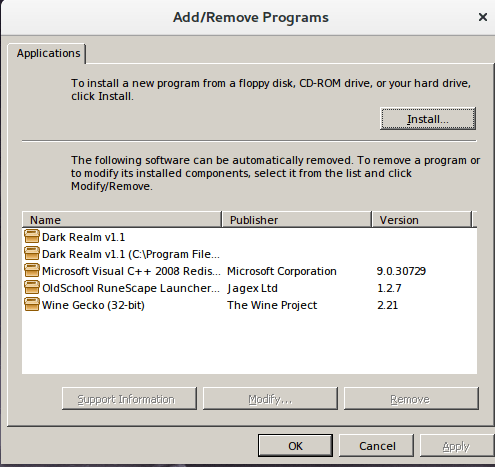
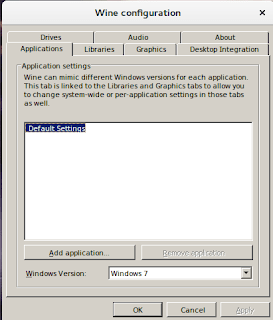
If you have portable programs, just double click them to work. If they require an installation then follow the steps as you would on a MS system. You can remove them later from “Uninstall Wine programs”.

Uninstall wine programs from here

 And you can edit several settings from the applet configure wine, including what version of windows does it work like for compatibility.

If you already have it, Wine it!

Many free and open source games (I’ve reviewed several on this blog) run on Linux and Windows. So if you have the game for Windows and you have Wine installed, there is no need to download the game again, here wine helps you save some data!

Installation 

Please refer to the manual on the official website, there are steps that needs to be done in order to get the 32 bit and 64 bit programs to run without an issue on Ubuntu. I recommend using the development branch to get the latest version possible.

Final words

Wine is not a perfect solution, it has its flaws like any software, but it came a long way in running your games and software on Linux. Having it run with Lutris really enhances your gaming experience and widens your game options by a whole lot!

Just remember to use with moderation, native is always better.

Do you use Wine on your Linux machine? How is your experience?  Leave a comment below and let me know what do you think?

I wrote an Arabic post a few years ago that roughly mentions wine, take a look at it from here.

Battle for Wesnoth review and download

I’ve reviewed many games on this blog, all share a similar concept: being freeware or open source.
Honorable mentions include: Streets of Rage 5, Rocks’n’Diamonds, Mario 2012, Tux Cart, Kega Fusion (Sega emulator), Fix it Felix remake, among other games

What is a Turn-based Strategy?

Today I’ll be talking about a new game: Battle for Wesnoth, a free and open source TBS (Turn-based strategy), in games like these a player does all of his moves which can include moving troops, fighting enemies or taking control of villages, before ending his turn and waiting for the other player/s to play.


What makes Wesnoth so special?

The battle for Westnoth stands out in the midst of free and open source strategy games, because let’s face it, a lot of free games are rough around the edges and really hard to get into, some are almost made as quirks that only the developers can enjoy! (Like Flair Alpha that I reviewed a few years back, and lords a war! , they were unplayable to me.), Wesnoth is nothing like that, it’s a game that has all the makings of a classic game, and many in the open source community consider it the best strategy game available!

Also there is a great community backing this game since it’s first release in 2003, providing huge support and even making custom campaigns for users to download and enjoy!

Setting and game play

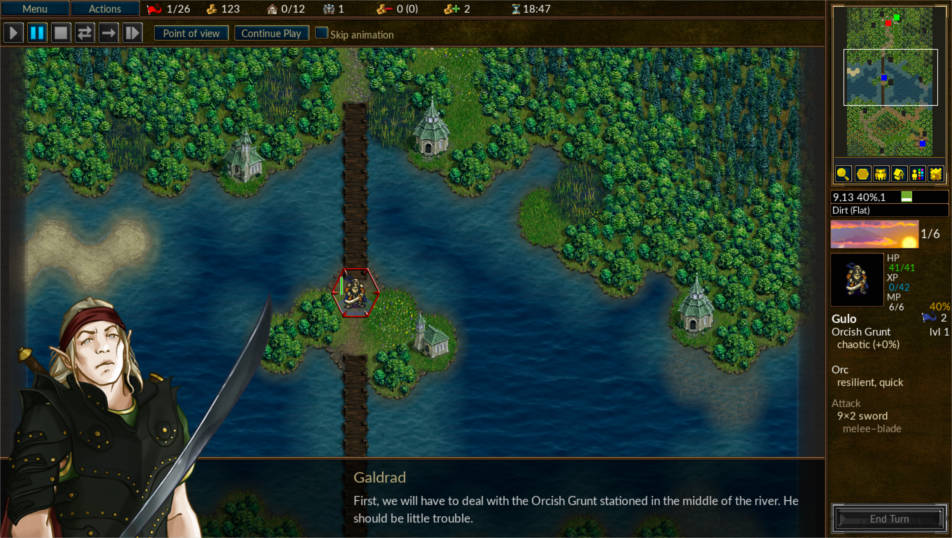
The games events take place in the fantasy kingdom called Wesnoth, Where armies of humans, orcs, elves and zombies battle for power and dominance, many units and tactics are available for the player to try and explore through many campaigns.
The game itself is what you would expect of a strategy game, crisp graphics and captivating game play that will keep you busy for hours on end! Featuring both single player campaigns and multiplayer modes.


How to play this game?

If you ever played a TBS (Turn-based strategy), you will find yourself familiar with the concepts of this game, but even if you haven’t played a TBS before, the tutorial mode will be more than enough for you to understand how the game plays, and will prepare you for the increasingly difficult campaigns that await for you.

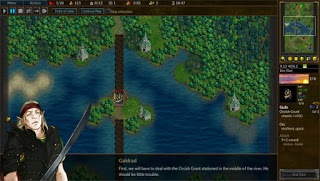
Screenshots


Rating

Battle for Wesnoth is rated 9 / 10 on Steam, 4.5 / 5 on SourceForge, and  4.5 / 5 on Freewarefiles.com

Download

Wesnoth is cross-platform, it can be enjoyed on many operating systems, including Android (Now removed from google stor),  IOS.
For Windows users you have to download the installer from here. Latest version 1.14.5
Mac users can download from this mirror.

Linux download

Wesnoth is in the Ubuntu repositories by default (Version 1.12 for Ubuntu 16.04), but alternative repositories can be added to be able to download the latest version to date 1.14.3 (1.14.5 isn’t compiled for Ubuntu yet), and for other distros packages can be found of this link.


Repository for Ubuntu

sudo add-apt-repository ppa:vincent-c/wesnoth
sudo apt-get update


I highly recommend adding the repository to the software list and downloading the latest version, as it brings many bug fixes, a partial redesign and added campaigns.

You can also use Lutris to download this game.


Important notice:

Ubuntu packages aren’t being updated regularly, even the moderators of the forum recommended that I’d download the game using other methods, here is my post on how to compile Wesnoth from source and integrate it with Lutris, available from this link.

  Android port

Specifications needed to play Wesnoth

Minimum specifications

This game requires at least 2GB of ram, 800MB of disk space, and a dual core processor, and 800 * 600 screen resolution.
(I’ve managed to run it smoothly on an Intel Celeron laptop).

Recommended specifications

4GB of ram, 2GB of disk space, a dual core processor and 1024 * 768 screen resolution.

Final words

It’s been a while since I’ve came across a game that I enjoyed like this! If you are looking for a strategy game to lose yourself in, this is a great candidate. A great way to spend the time and unwind from life’s stress.

Do you enjoy strategy games? What are your favorites, do you want to see more of these on this blog? Let me know in the comments section below!

I’m back to using Atom Editor

Not a fan of the green icon.

Life is all about discovery, learning and not being afraid of making mistakes, with that being said, I say that I’m back to using Atom after a rocky relationship, of love and hate!

Why I am bothering to give Atom a second chance, the reasons are detailed below.


1. The only “free” editor of the bunch.

I’ve identified Sublime text as the best text editor for development purpose, let’s not forget that Sublime is not free, I know that they allowed using it for those who are under-privileged, but it’s still a Freemium that costs 70$ (free if you can handle the annoying pop up telling you to register every now and then), after changing the licensing plans in early 2018, I don’t know the current status of Sublime text and don’t care very much to be honest!
Atom editor is free and open source under the MIT license, and despite of Microsoft making a money grab for GitHub, Atom will remain free and open source for everyone to enjoy.

2. It’s down right beautiful!

Of all the text editors available on Linux (I use Linux on my everyday laptop), Atom the best looking of the bunch! Not just the color schemes and themes, everything in Atom is designed to look awesome, from user interface to the website, even the shirts and mugs look great (never got any but my birthday is coming up ;), and the user experience is great, even compared to Microsoft VS code (who is based on coffee script and javascript as well), despite my love for efficiency, I value a beautiful GUI. 

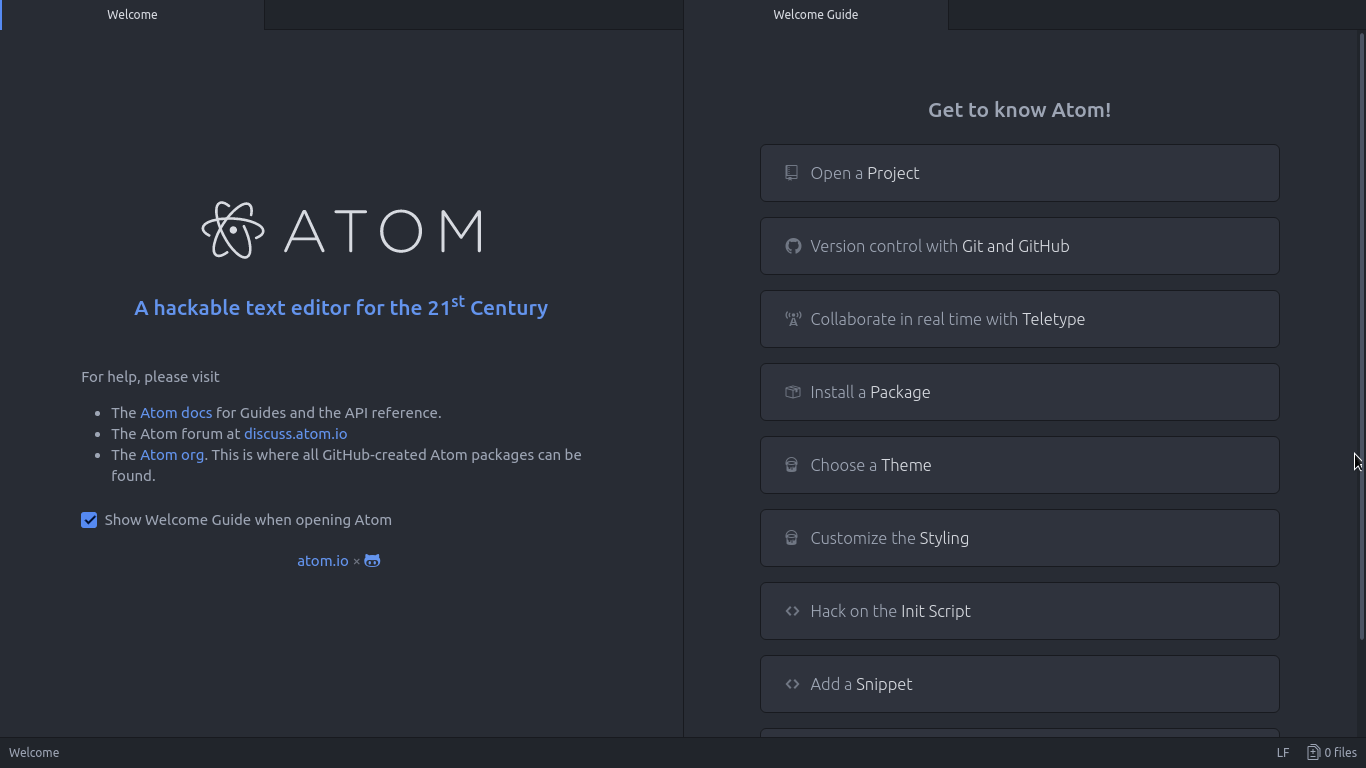
Atom Editor interface
Ain’t that a beauty?

3. Very customizable

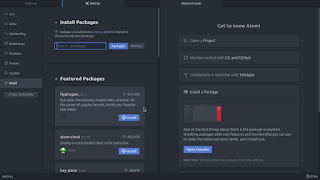
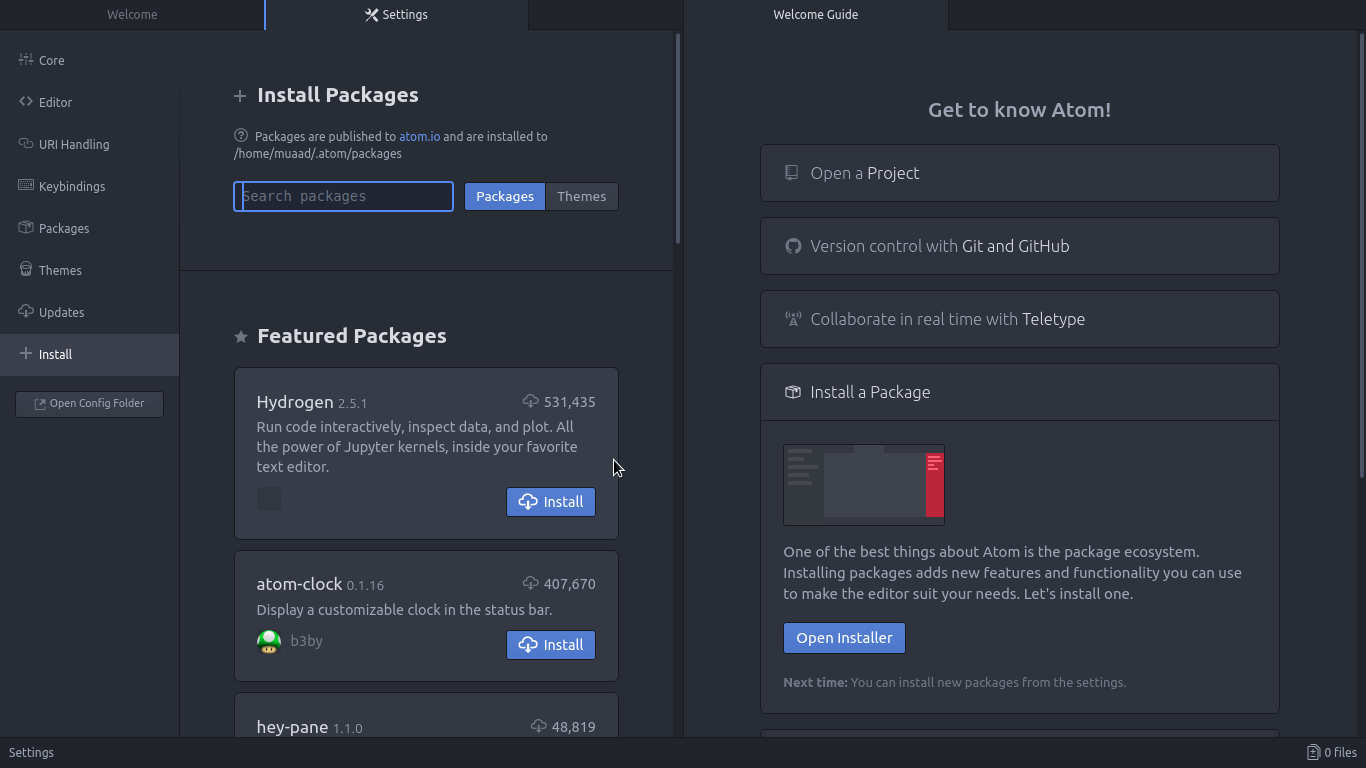
Atom has a ton of themes and packages available for download, which makes it more expandable and versatile, and with some knowledge you can develop your own themes and packages, all what you need to know is in the Atom flight manual (released in 2015 but still very informative). You can even change the key-map of Atom to whatever editor you migrated from and customize it as you like to decrease the learning curve.

Package installer interface

4. Ease of use

User experience should be always considered when evaluating software, and VIM for example despite being the most efficient and the most praised text editor in all of the Linux ecosystem, however it’s not easy to use at all, the learning curve is steep, I read the book titled “A byte of VIM“, but I still don’t see why or how can it be better than Atom or anything, as I don’t do anything “professional” with VIM. As a matter of fact, I’m not too keen on the whole terminal as a one tool for all.

5. Consumes more resource, so what?

Yes, Atom is heavier than Sublime or VIM, but does it really matter at this point? In the year 2018 laptops are getting faster and RAM is getting bigger, a few hundred megabytes almost seem like nothing when considering all the reasons mentioned above, it might not be the most resource efficient, but it’s the most usable editor of the bunch.
A well tweaked laptop (both hardware and software) can handle Atom like a breeze, and it’s getting better as time goes by. Speed won’t be an issue if you use an SSD (although using an SSD in itself can be an issue at times!), you could say it’s the price of enjoying a beautiful interface and ease of use.
Besides, converting to a less consuming Linux distro has spared some memory to spend (I’ll blog about it later and link back).

6. The devil you know!

I’ve been using Atom (On and Off) for the past three years, I’ve read the Atom flight manual and even reviewed it on my blog in a few posts (this is the fifth), so for the most part I’ll stick to Atom being the familiar editor that I’ve known and loved (sort of) for the past three years. I’m not alone, as it’s one of the most popular text editors on Alternativeto.

Have you ever used Atom before? What are your impressions about it? What do you use to edit prose and code, and if you use VIM, please take your rants to /r/VIM, because they would be appreciated better by fellow VIM zealots than me.

And yes, this post was written in Atom 1.28, so that you know!

LibreOffice 5.3 is out, Enable the Notebook bar in 3 easy steps!

The much anticipated LibreOffice 5.3 is out, the tech world and open source community welcomes the latest milestone release of LibreOffice, which brings many improvements and bug fixes, this release is on of the most feature rich in the history of LibreOffice.


LibreOffice 5.3 Logo


Whats new in LibreOffice 5.3?

LibreOffice 5.3 is packed with new features that make it easier to use and familiar to new users.

  • Improved text layout engine for a consistent look cross platforms using HarfBuzz.
  • Preserving table looks when applying edits in Writer.


  • Improvements to default cell styles in Calc.


  • A template selector when opening in impress to choose templates from, and a new slides properties deck in the sidebar when in master slide mode.


  • Many “under the hood improvements for easier development.


  • Experimental UI features, a notebook bar can be added that is similar to MS office ribbon, this feature is completely optional while the sidebar can be docked to the side with a single click.


  • LibreOffice online, the collaborative document editing service provides the
    the first source code as a docker image.

For more details please visit this page.


How to enable the notebook bar in LibreOffice 5.3?

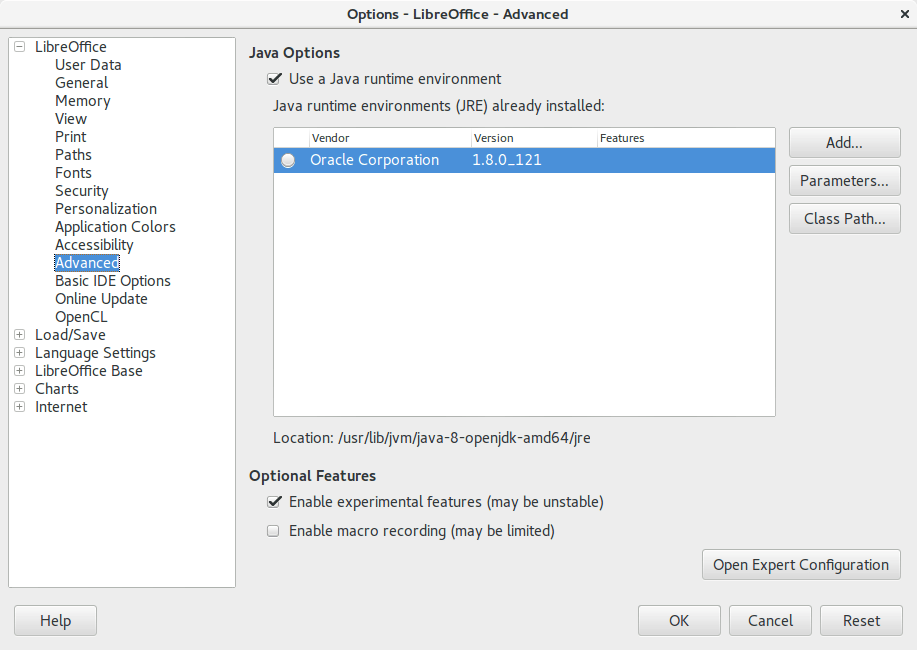
1. It’s actually very easy to enable this “experimental feature” of LibreOffice, you need to go to the options and choose advanced, from there check the experimental features, and restart the program.


Enable experimental features in LibreOffice 5.3
Enabling experimental features in LibreOffice 5.3

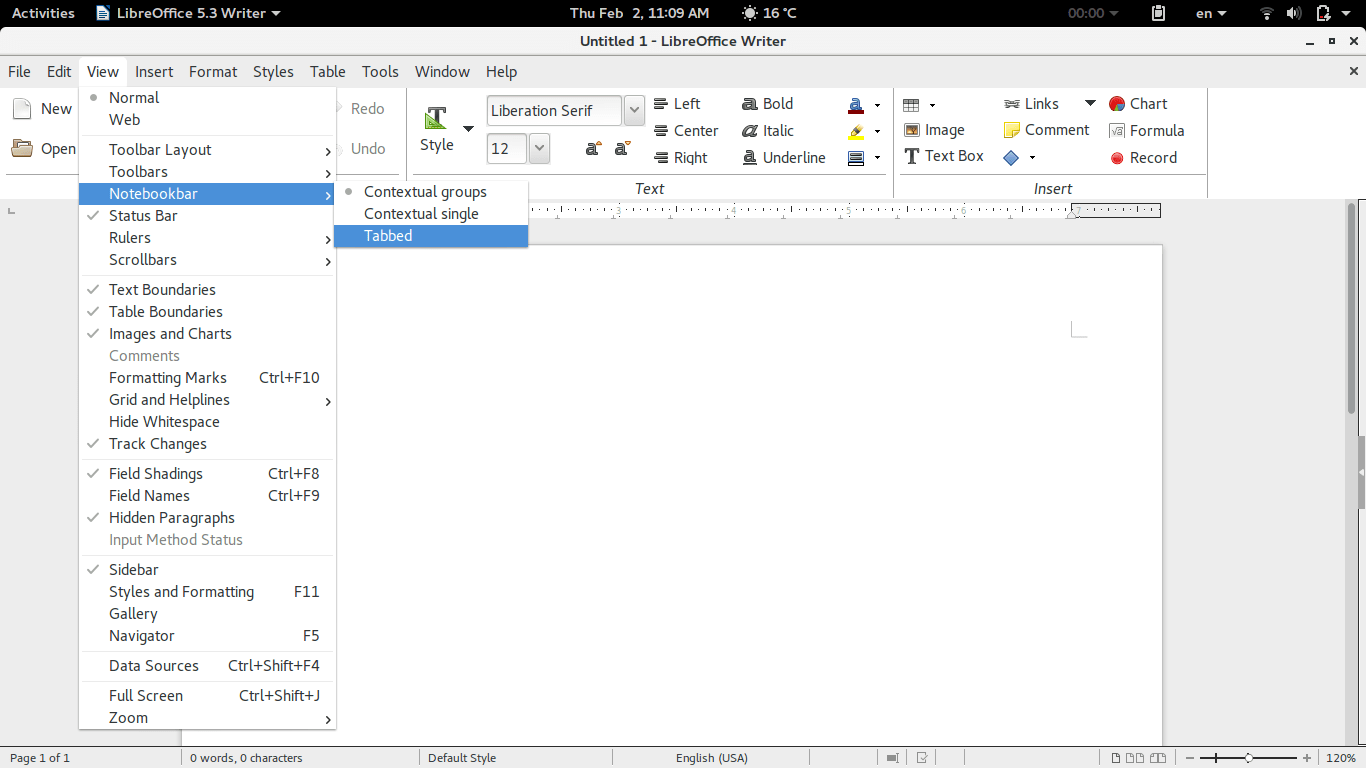
2. Then open Writer, navigate the menu to the Menu View> Notebook bar > Tabbed


Enabling the notebook bar in LibreOffice 5.3

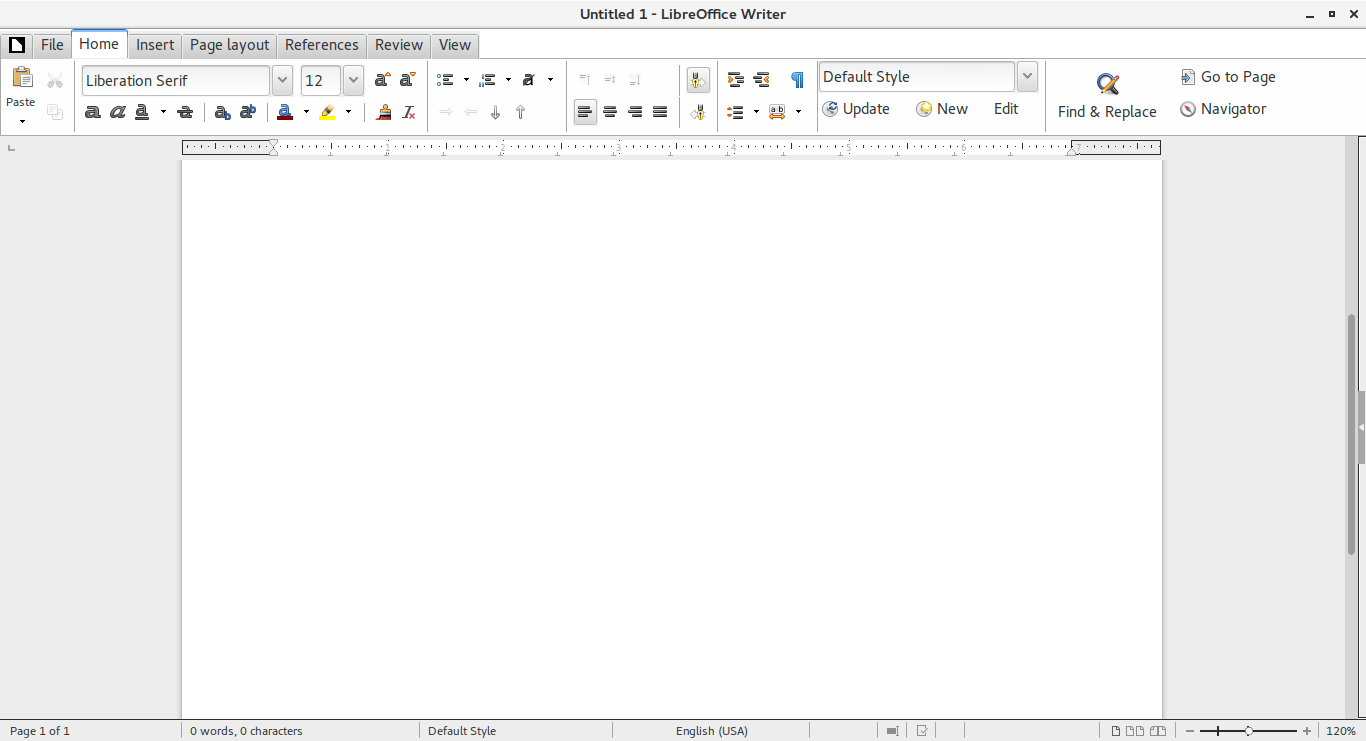
3. And it will change into a tabbed style!


The notebook bar in LibreOffice 5.3
The final look of the Notebook bar in LibreOffice 5.3

Doesn’t it look great? Let’s not forget it’s experimental so it needs a little polishing!

Download LibreOffice 5.3

To download LibreOffice 5.3 go to the download page and choose your operating system and begin downloading, you might even consider using a torrent and seeding as well to help people download faster!

And consider placing a donation as well, it’s what keeps the foundation going!


Last words

Will you download LibreOffice 5.3? Do you like the Notebook bar? Please let me know what you think in the comments section below!
Thank you for reading this post, please share it on your social media and help my blog grow.

In more recent versions, follow this help guide.

« Older posts Newer posts »